

Excel can be very helpful in determining remainders. One might need these remainders in Integer or in decimal format. In this article, we will show you how to get the remainder in decimal in Excel in 3 suitable ways.
Get Remainder in Excel: 3 Suitable Methods
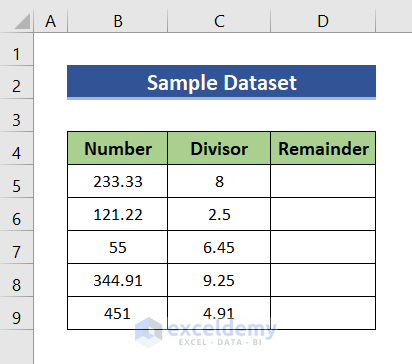
In this article, we will demonstrate 3 suitable ways to get the remainder in decimal in Excel. We will use the following dataset for this purpose. The dataset contains a column of numbers and another column of divisors.
1. Apply MOD Function
The MOD function is the most common function to determine remainders. We will use this function to get remainders in decimal. The procedure is discussed below.
Steps:
- First of all, select cell D5 and then type the following formula.
=MOD(B5,C5)- Here, B5 refers to the number in cell B5 and C5 refers to the divisor in cell C5.
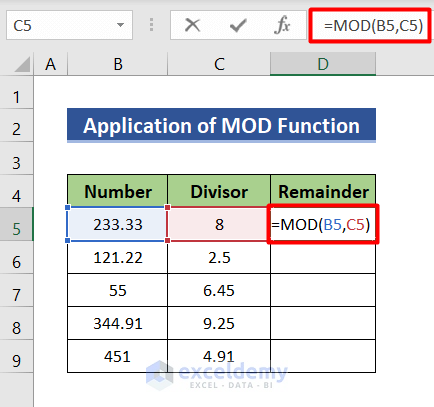
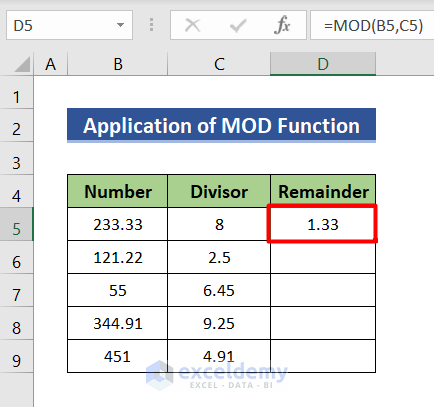
- Then, press the Enter button to get the remainder. By default, the remainder will be in decimal format.
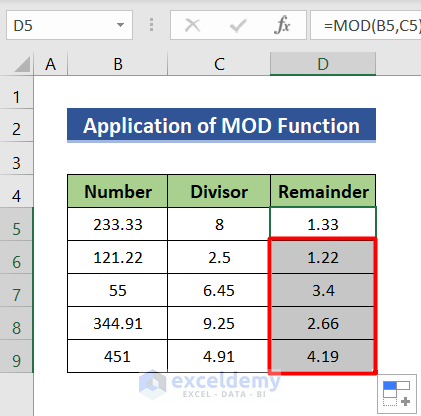
- Now, to copy the formula to all the cells, use your cursor to drag the bottom right corner of cell D5.

- You will now find all remainders in decimal format.
Read More: [Fixed!] Excel MOD Function Not Working
2. Use INT Function
In this method, you will see the use of the INT functionto get remainders in decimal in Excel. Follow these steps to learn how to do it.
Steps:
- First, select cell D5 and write down the following formula.
=B5-(C5*INT(B5/C5))- In this formula, B5 and C5 refer to the values of Cells B5 and C5.
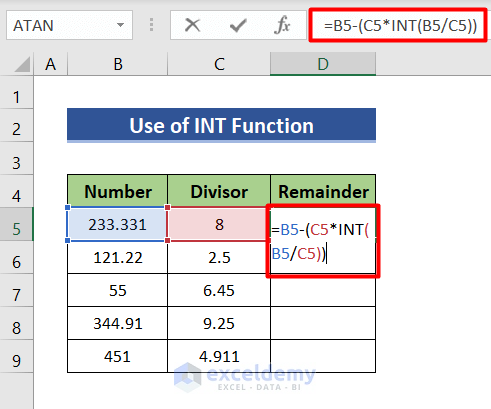
- Then, hit Enter to see the result in cell D5.

- Finally, double-click on the bottom right corner of cell D5 to get the results in all cells.

3. Combine TRUNC and INT Functions
Now we will combine the TRUNC function and the INT function to get remainders in decimal in Excel. The steps to get remainders in decimal format are given below.
Steps:
- First, type the following formula in cell D5.
=(B5-(C5*INT(B5/C5))-TRUNC(B5-(C5*INT(B5/C5))))+INT(B5-(C5*INT(B5/C5)))- Here, B5 refers to the number in cell B5 and C5 refers to the divisor in cell C5.
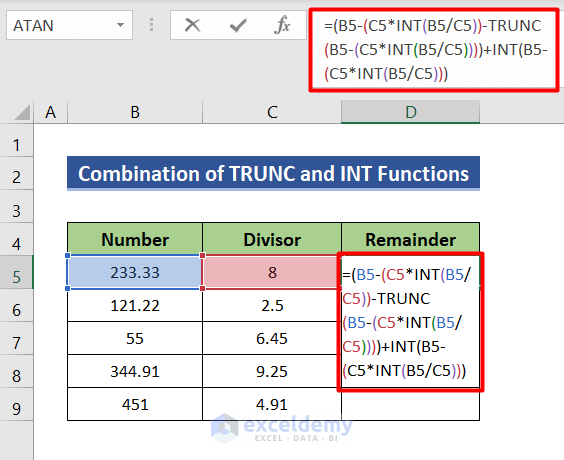
- INT(B5-(C5*INT(B5/C5)) function divides cell B5 by C5 and returns the remainder in integer format.
- B5-(C5*INT(B5/C5))-TRUNC(B5-(C5*INT(B5/C5)))) returns the decimal part of the remainder.
- (B5-(C5*INT(B5/C5))-TRUNC(B5-(C5*INT(B5/C5))))+INT(B5-(C5*INT(B5/C5))) adds up the integer part and decimal part of the remainder and returns it in decimal format.
- Next, press Enter to get the remainder in cell D5.

- Now, to get the remainder in decimal format in all cells, click twice on the bottom right corner of cell D5.
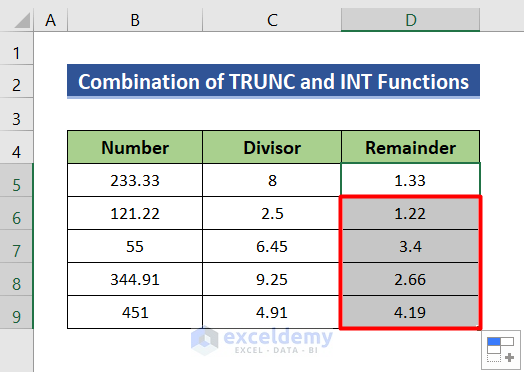
Read More: How to Divide Without Remainder in Excel
Things to Remember
- Remainders are by default is in decimal format. If it is not showing the decimal values, you can limit the cell values to decimals.
- Additionally, make sure that the cells are wide enough to show the decimal digits.
Download Practice Workbook
Download this practice workbook for practice while you are reading this article.
Concluding Remarks
Thanks for making it this far. I hope you find this article useful. Now you know 3 suitable ways to get the remainder in decimal in Excel. Please let us know if you have any further queries and feel free to give us any recommendations in the comment section below.
Related Articles
<< Go Back to Excel MOD Function | Excel Functions | Learn Excel
Get FREE Advanced Excel Exercises with Solutions!

