

Human beings like to decorate their things. They even like to reorganize their number format. Sometimes, they convert decimal numbers to fraction in Excel. In this article, I am going to explain 4 smooth approaches to do so.
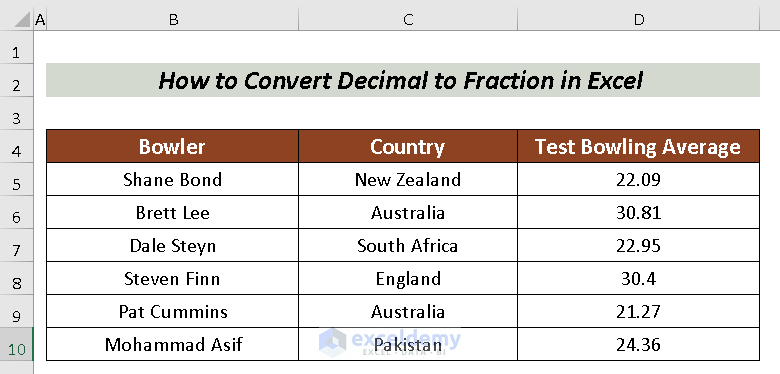
For more clarification, I am going to use a Dataset containing Bowler, Country and Test Bowling Average columns.
1. Changing Number Format to Convert Decimal to Fraction in Excel
The simplest way to convert decimal to fraction is to change the number format from the Home tab.
Steps:
- Select all the cells containing numbers. Here, I selected cells D5:D10.
- Then, go to the Home tab.
- Click on the Number Format box in the ribbon.

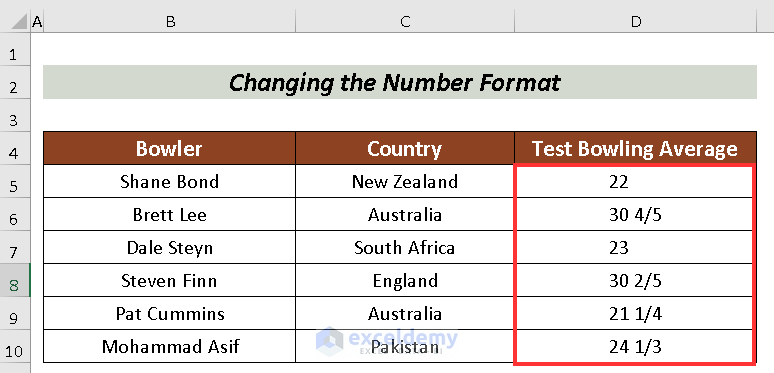
- Now, choose Fraction.

Thus, we will have the conversion from decimal to fraction.
2. Converting Decimal to Fraction in Excel Using Built-in Fraction Type
We can also use built-in fraction types to convert decimals to fractions in Excel.
Steps:
- Firstly, select the cells that contain numbers. Here, I selected cells D5:D10.
- Press on the Home tab.
- Then, click on the Number Format box in the ribbon.
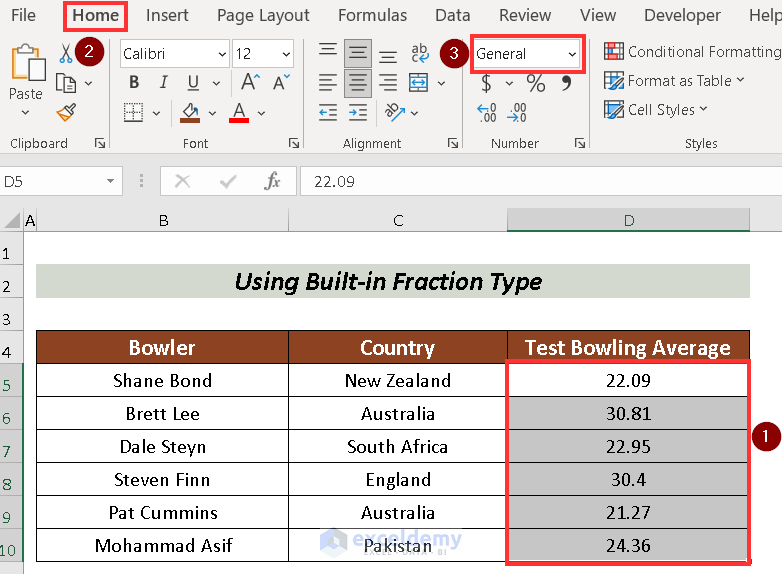
- Pick More Number Formats from the available options.

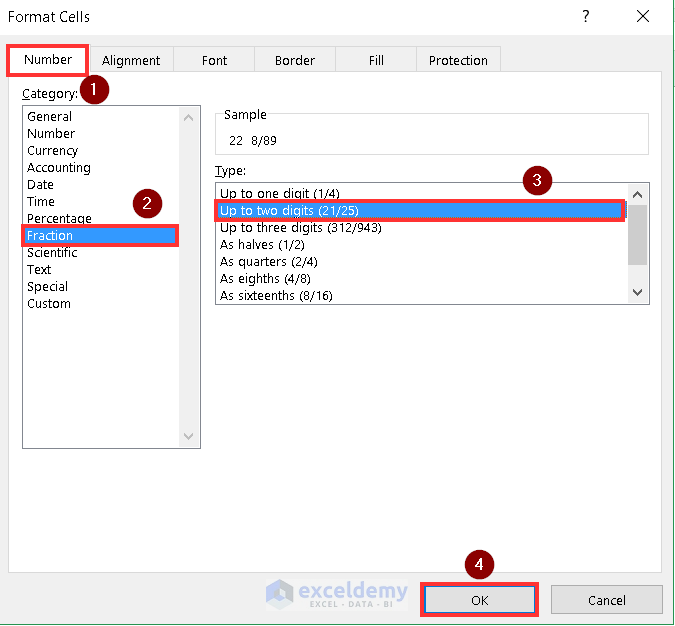
A Format Cells box will appear.
- Select Fraction from the Category.
- Next, choose your fraction type from the Type. I chose the Up to two digits (21/25).
- Finally, press OK.
We will have our desired output on the screen.
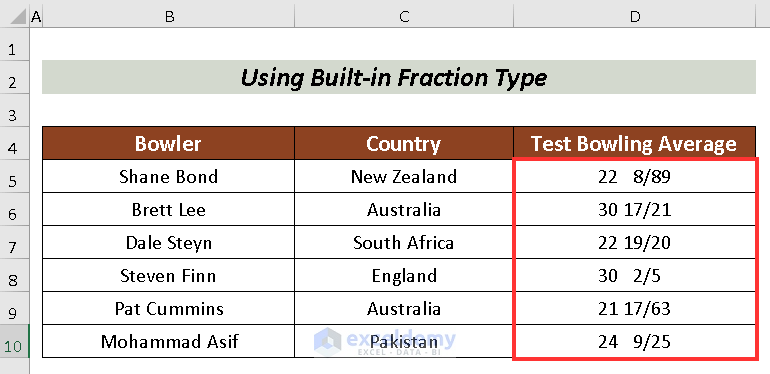
Here, I’ve selected Up to two digits (21/25) that’s why my fraction format is like at most two-digit values (17/21, 19/20, and so on)
3. Applying Custom Command for Converting Decimal to Fraction in Excel
Applying Custom Command is another simple way to convert decimal to fraction. In this process, we can choose any options based on our choices.
Steps:
- Select the cells that are to be converted. I selected cells D5:D10.
- Then, click on the Home tab.
- Next, go to the Number Format box in the ribbon.
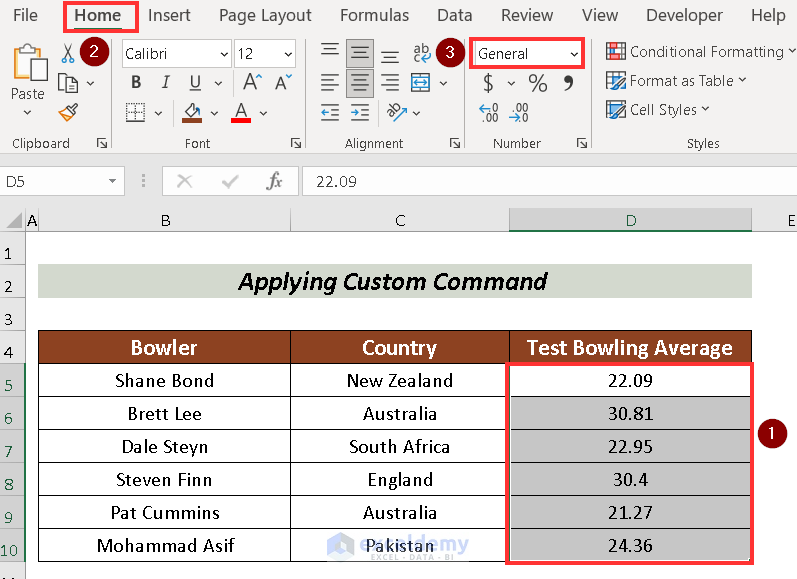
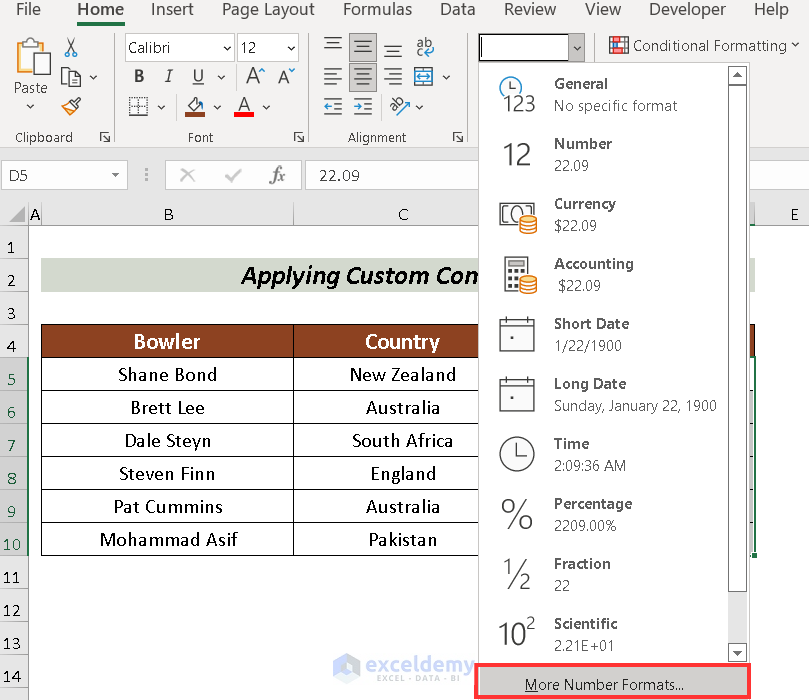
- Select More Number Formats from the available options.
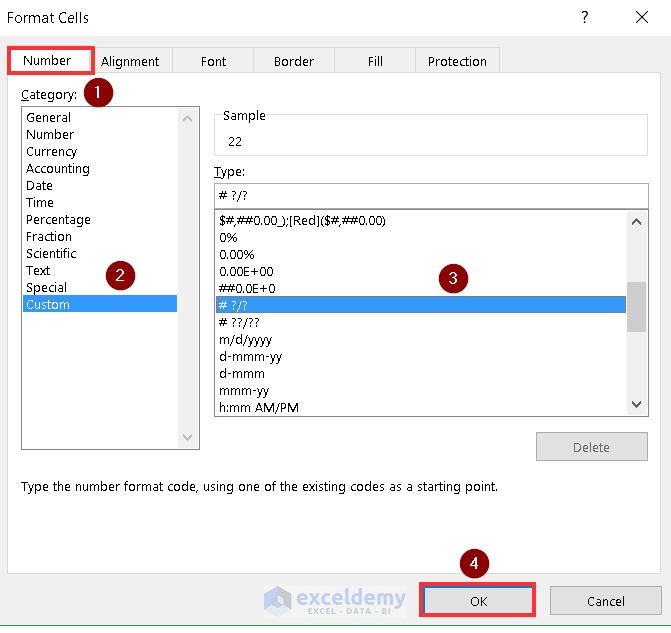
We will have a Format Cells box.
- Choose Custom from the Category.
- Now, pick your fraction type from the Type. I selected the type # ?/?. That means there will be only a single digit in both numerator and denominator.
- Finally, press OK and finish the process.
We will have the results according to our commands.
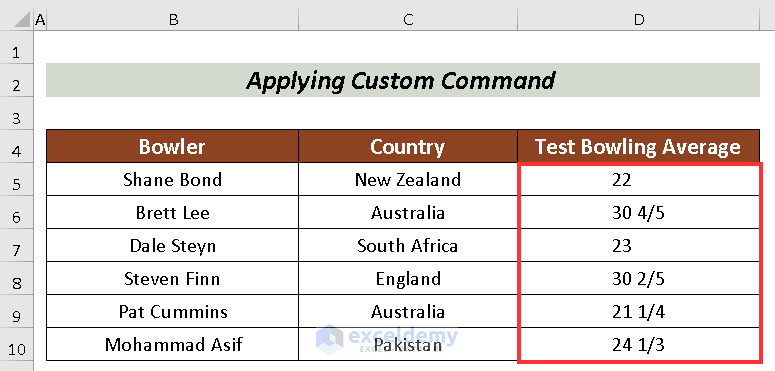
4. Using Format Cells Command from Context Menu to Convert Decimal to Fraction
We can also go to Format Cells options from the Context Menu by pressing on the Right-click in order to convert decimal to fraction.
Steps:
- Select the cells that contain numbers (e. D5:D10).
- Press the Right-click on the mouse.
- Then, go to the Format cells option.
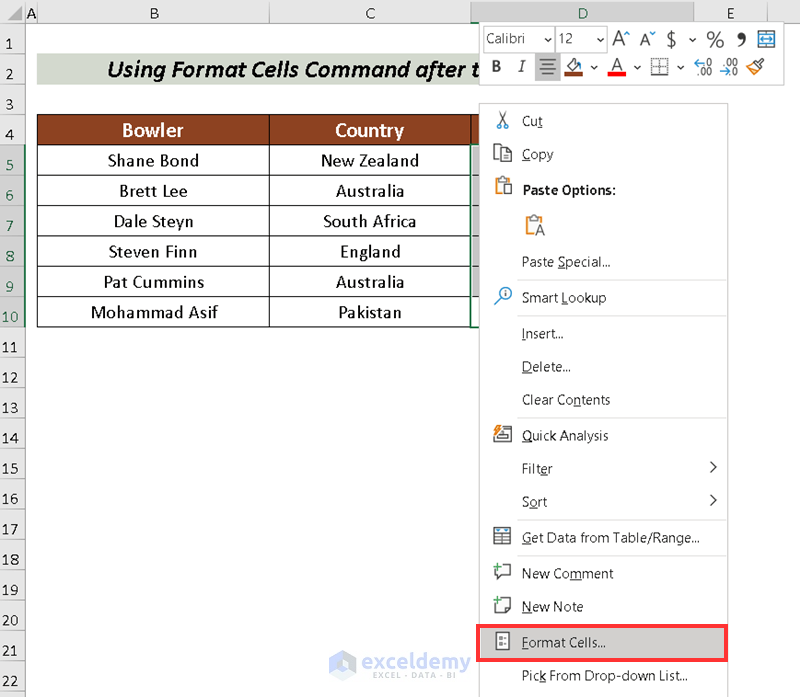
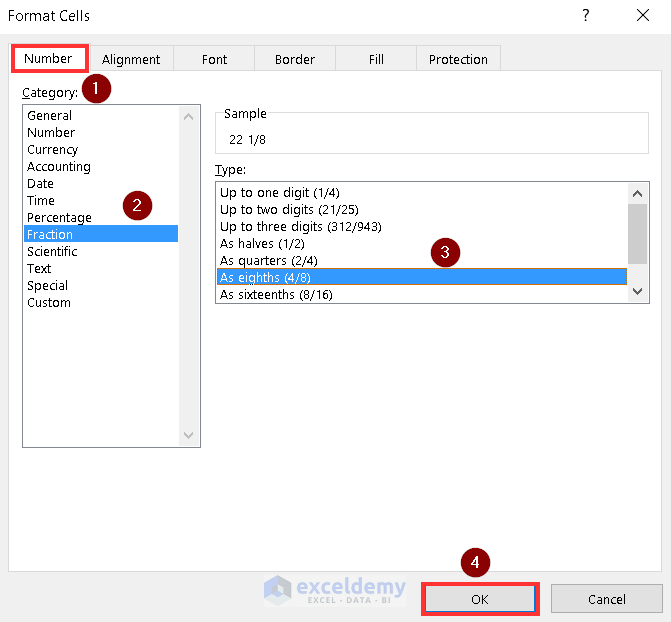
Now, a Format Cells box will appear.
- Select Fraction from the Category.
- Next, choose your fraction type from the Type. Here, I chose the As eights (4/8) option.
- Finally, click on OK.
The selected cells will convert from decimal to fraction.
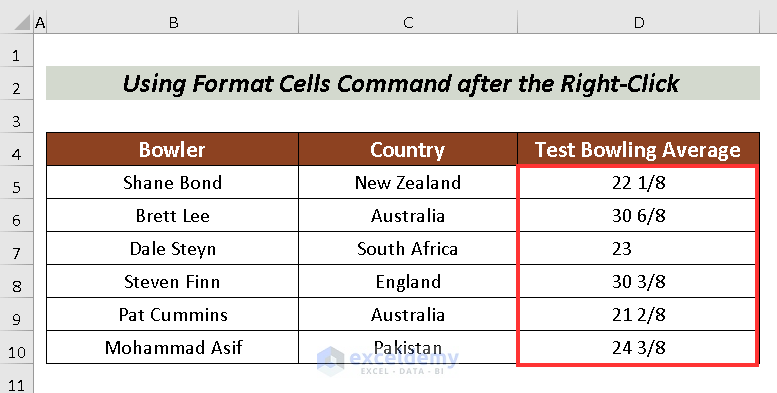
As I have selected As eighths (4/8) type, my values are calculated keeping the denominator 8.
Practice Section
You can practice here for more expertise.
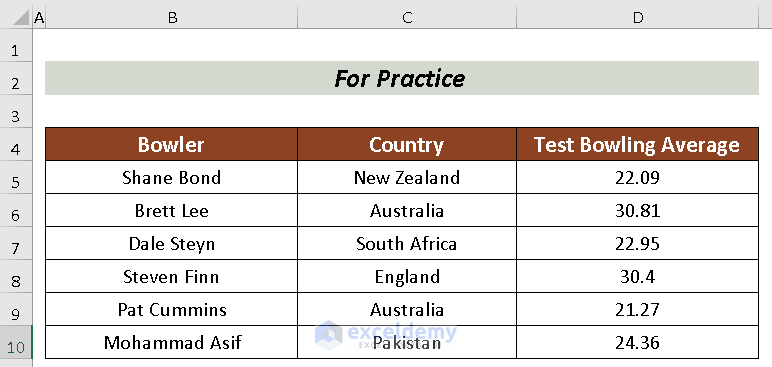
Download Practice Workbook
Conclusion
In this article, I have tried to explain 4 smooth approaches of how to convert decimal to fraction in Excel. I hope it will be helpful for all. For any further questions, comment below.
Related Articles
- How to Add Decimals in Excel
- How to Change Decimal Places in Excel
- How to Remove Decimals in Excel Formula Bar
- How to Change Decimal Separator in Excel
- How to Change 1000 Separator to 100 Separator in Excel
- How to Reduce Decimals in Excel
- How to Reduce Decimal Places Permanently in Excel
- How to Remove Decimals in Excel
- How to Convert Decimal to Whole Numbers in Excel
- Excel Decimal Places Problem
- How to Limit Decimal Places in Excel
<< Go Back to Decimals in Excel | Number Format | Learn Excel
Get FREE Advanced Excel Exercises with Solutions!

