

The Decimal Separator
The decimal separator (also known as the radix character) is used to separate the integer and fractional parts of a number. It is usually expressed with the dot (.) symbol. Some countries use a comma (,).
The sample dataset showcases Fruits, Countries and Sales.

Method 1 – Changing the Decimal Separator Using the Excel Options Dialog Box
To use commas (,) instead of dots (.):
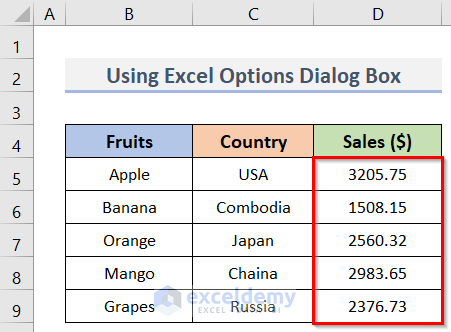
Steps:
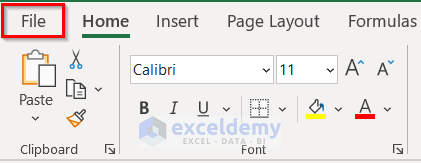
- Go to the File tab.
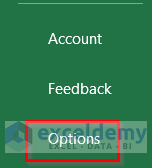
- Click Options.
- In the Excel Options dialog box, click Advanced.
- Click OK.
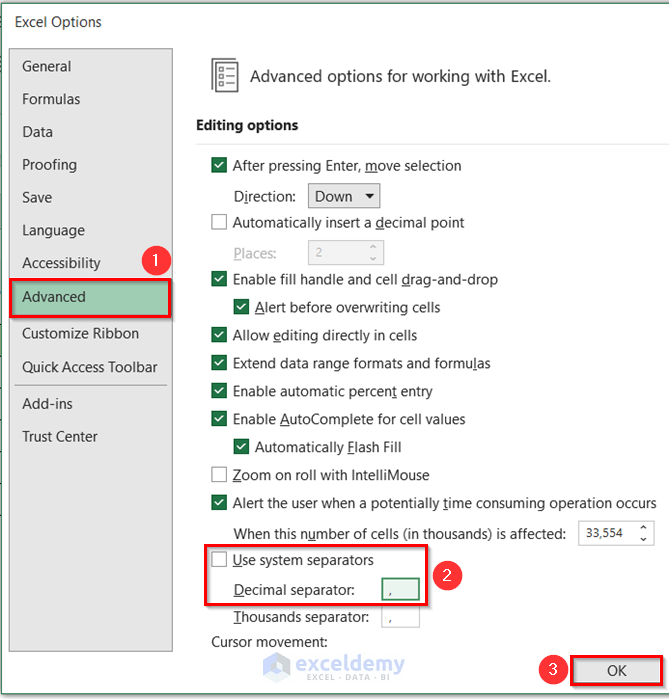
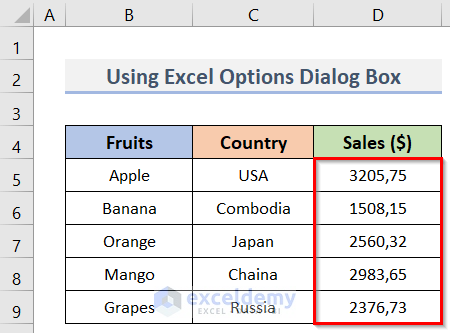
- Decimal points (.) are converted into commas (,).
This is the output.
Read More: How to Change Decimal Places in Excel
Method 2 – Using the Text Editor to Change the Decimal Separator in Excel
Steps:
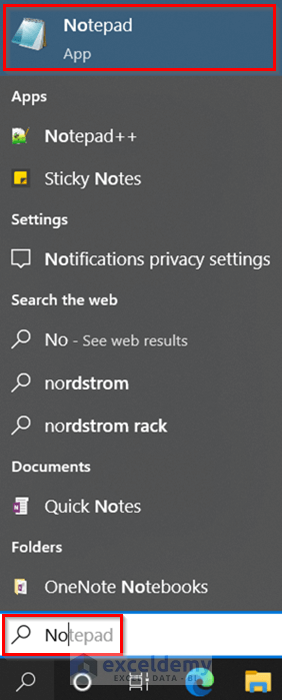
- Click Search to find the Windows Notepad.

- Enter Notepad.
- Click Notepad.
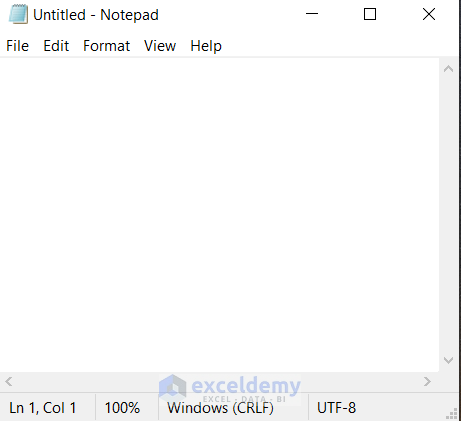
The Notepad window will be displayed.
- Go to the worksheet and select D5:D9.
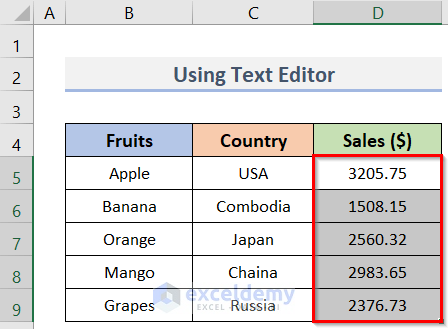
- Right-click the selection.
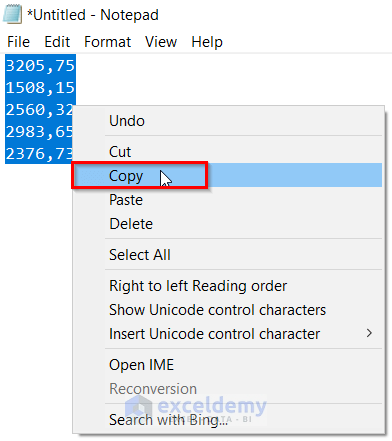
- Click Copy.
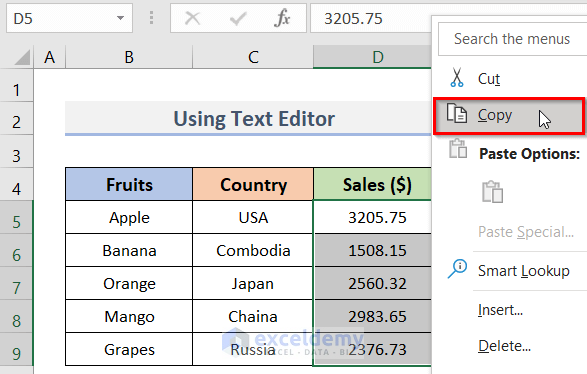
- Go back to the Notepad and Paste.
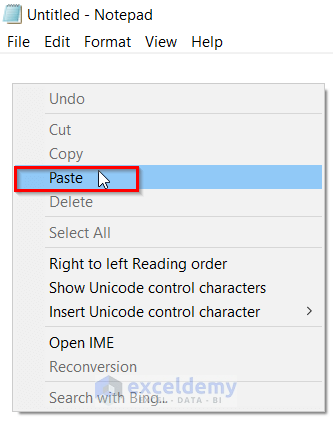
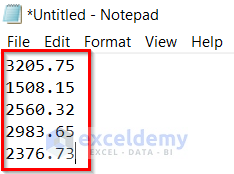
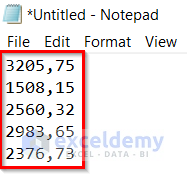
- The copied range is in the Notepad.
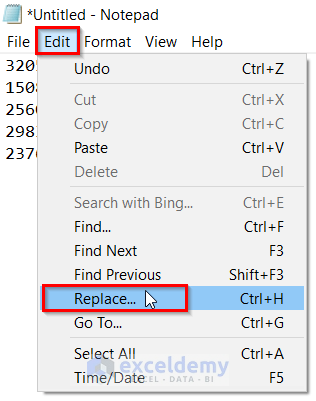
- Go to Edit.
- Click Replace.
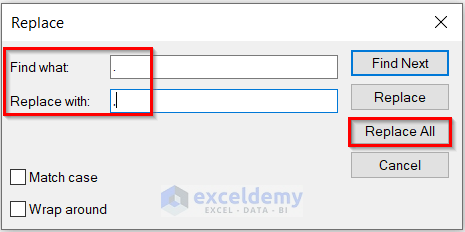
- In the Replace window, go to Find what and enter ‘.’.
- Enter ‘,’ in Replace with.
- Click Replace All.
- Close the window.
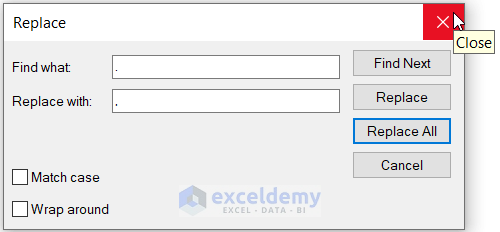
Dots (.) are replaced with commas (,).
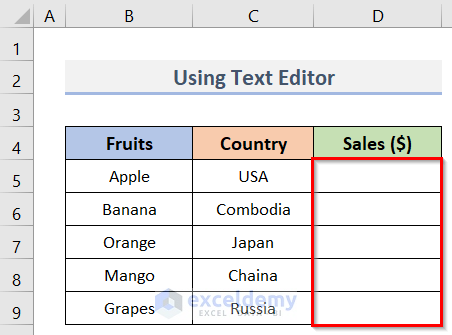
- Go to the Excel worksheet and delete the values in D5:D9.
- Go to the Notepad window and Copy the values.
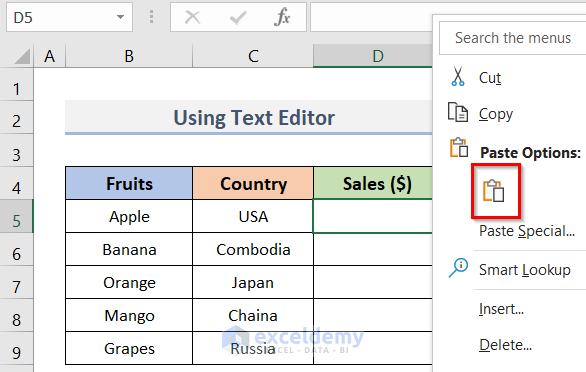
- Select D5 and Paste the values.
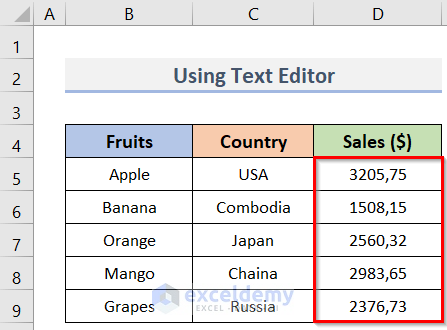
The values with commas as decimal separators are displayed in D5:D9.
Method 3 – Utilizing the Global System Settings to Change the Decimal Separator
Steps:
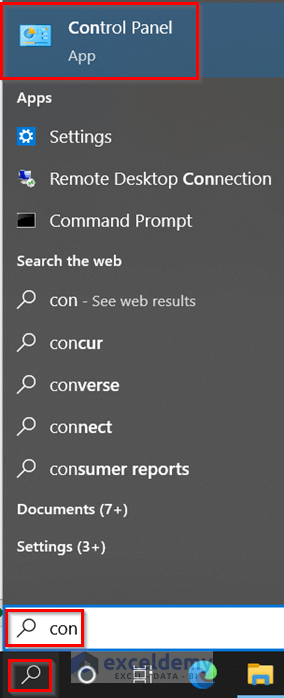
- Click the Search bar.
- Enter ‘control’.
- Click the Control Panel.
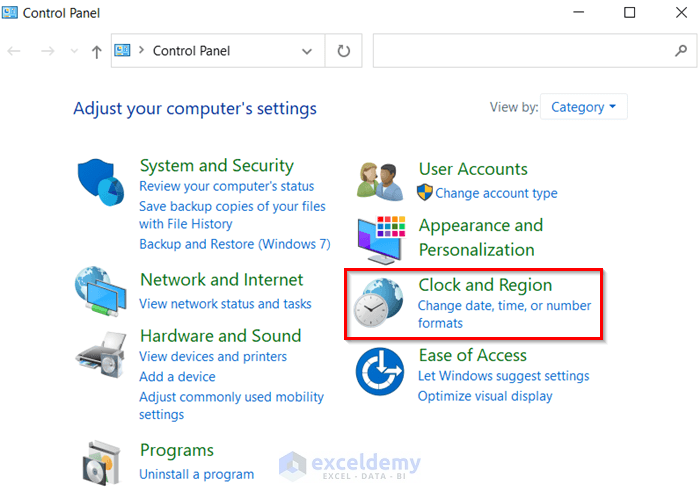
- In the Control Panel window, select Clock and Region.
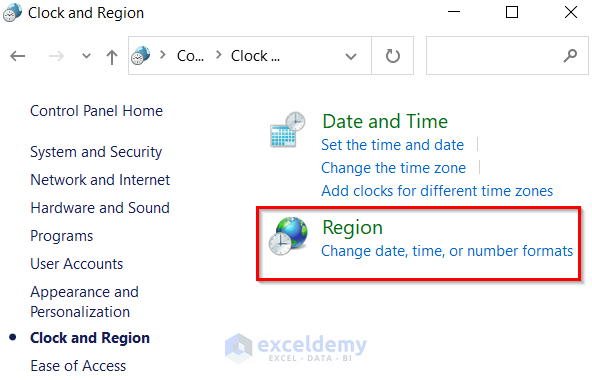
- In Clock and Region, select Region.
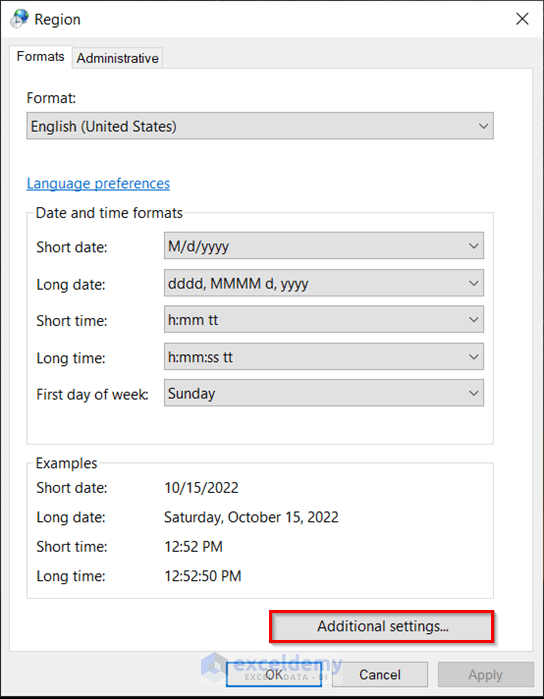
- In Region, go to Additional Settings.
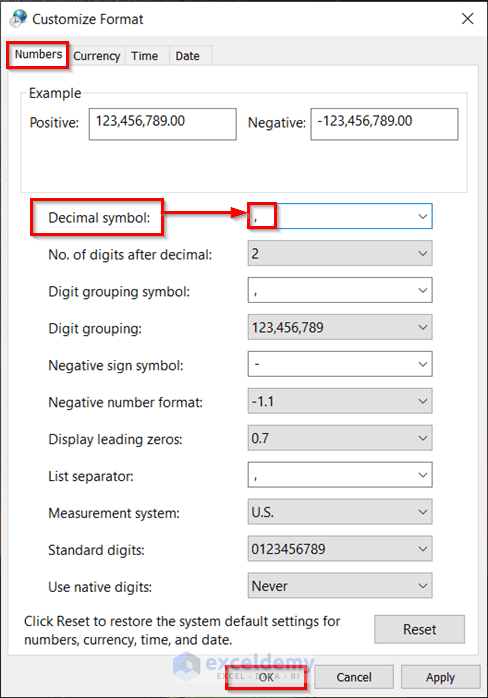
- In Customize Format, select Numbers.
- Enter ‘,’ in Decimal symbol.
- Click OK.
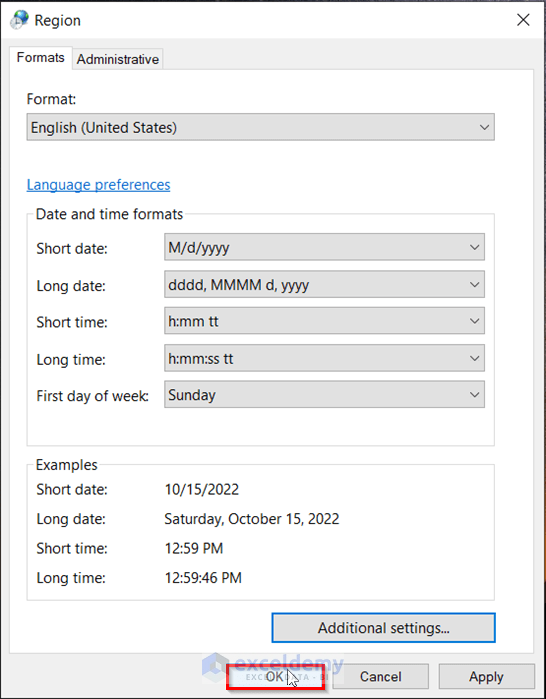
- Click OK in the Region window.
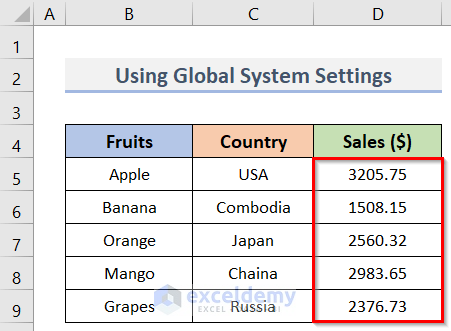
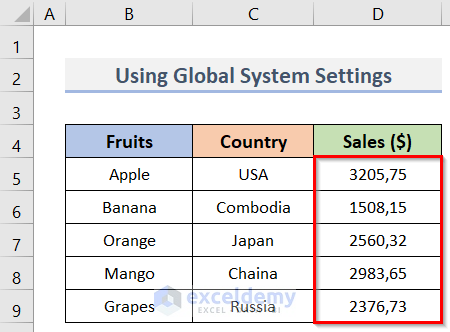
- Dots will be converted to commas in D5:D9.
This is the output.
Note:
This method will update the default settings. It will change the decimal separator in all Excel workbooks and other programs.
Method 4 – Changing the Decimal Separator with the Help of the Flash Fill Tool in Excel
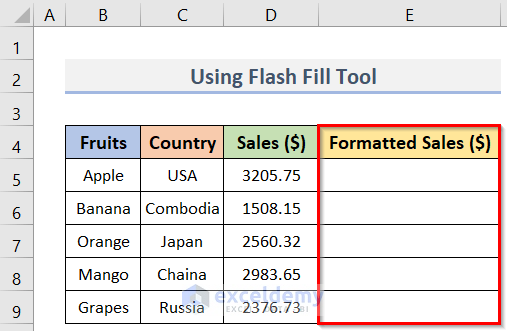
Steps:
- Go to E5.
- Enter the value (3205.75) in D5 with a comma (,) as the decimal separator (3205,75).
- Press Enter.
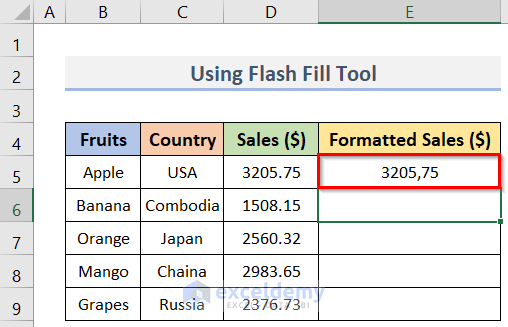
- Enter the first number (1) of the next value (1508.15) in E6.
- Suggestions for E6:E9 will be displayed with commas as decimal separators.
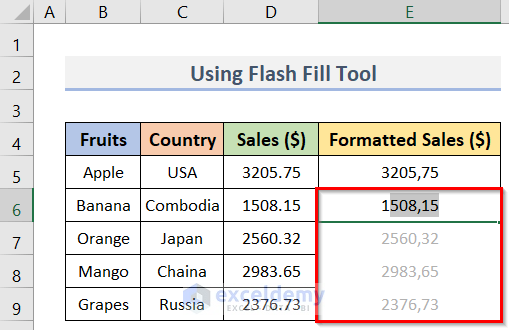
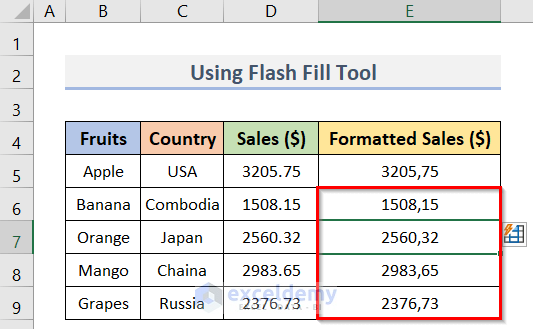
- Press Enter to accept the suggestions.
This is the output.
Method 5 – Changing the Decimal Separator by using the Find and Replace Features
Steps:
- Select D5:D9.
- Go to the Home tab.
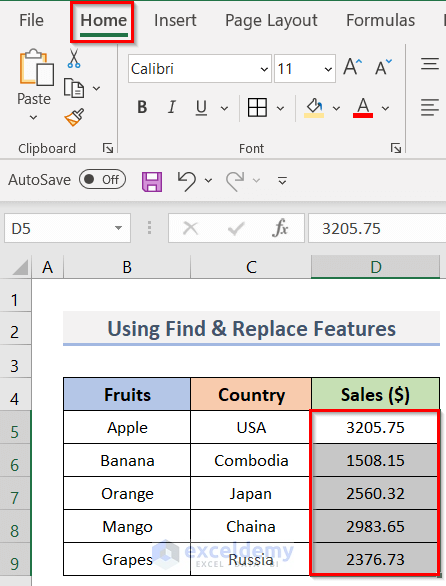
- Click Find & Select in Editing.
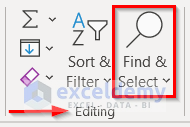
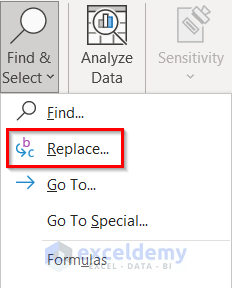
- Select Replace.
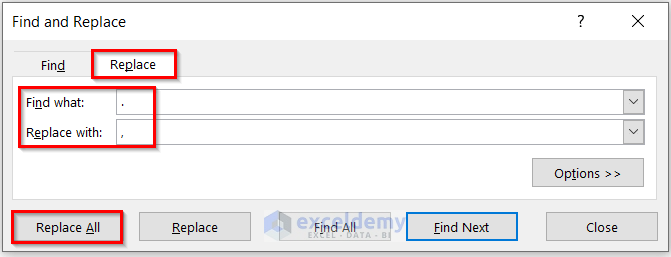
- In Find and Replace, choose Replace.
- Enter ‘.’ in Find what.
- In Replace with, enter ‘,’.
- Click Replace All to replace all dots with commas.
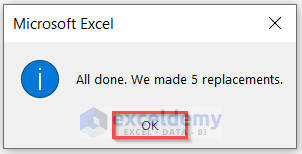
- A message box (Microsoft Excel) will display the number of replacements (5).
- Click OK.
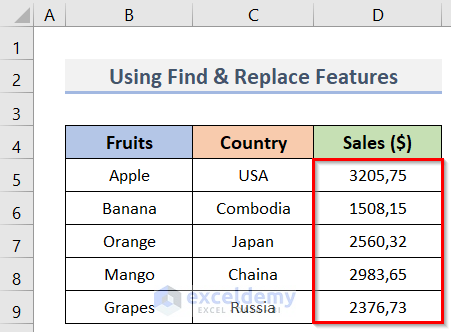
This is the output.
Read More: How to Add Decimals in Excel
Method 6 – Applying the Excel NUMBERVALUE Function to Convert the Decimal Separator
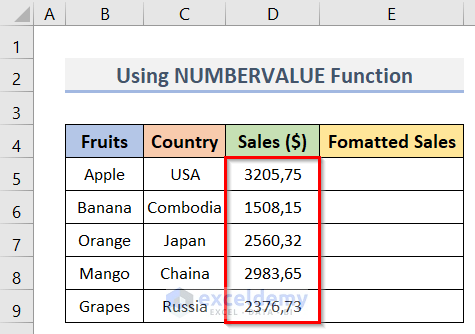
Steps:
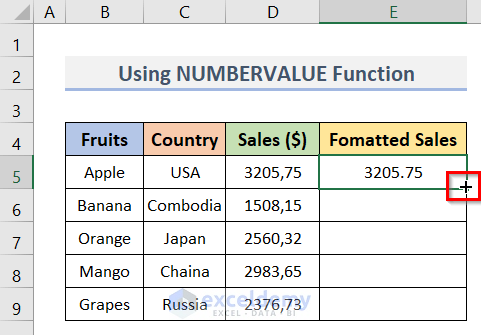
- Go to E5.
- Replace the comma (,) in D5 with a dot (.), Enter the following formula in E5:
=NUMBERVALUE(D5,",",".")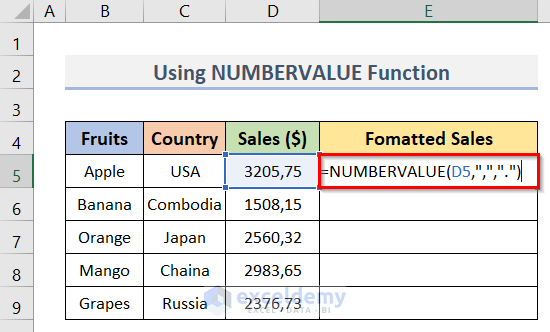
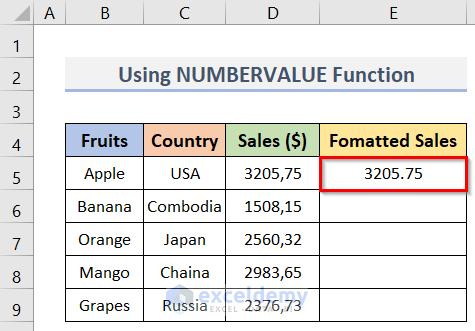
- Press Enter.
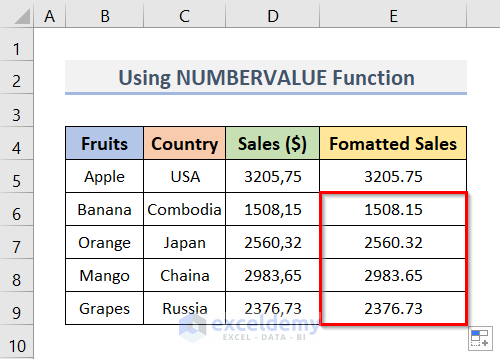
- The value in D5 is displayed with a dot (.) as the decimal separator in E5.
- Drag down the Fill Handle to see the result in the rest of the cells.
This is the output.
Method 7 – Changing the Decimal Separator using the Text to Columns Feature
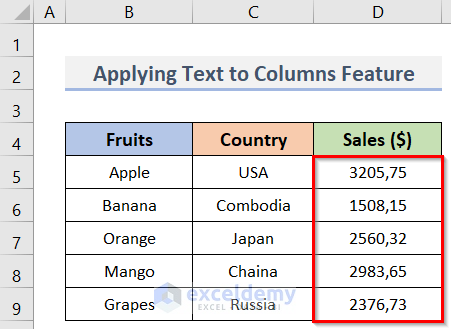
Steps:
- Select D5:D9.
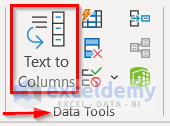
- Go to the Data tab.
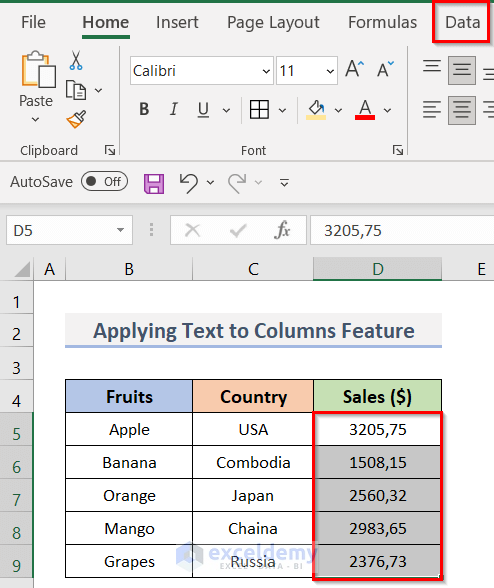
- Click Text to Columns in Data Tools.
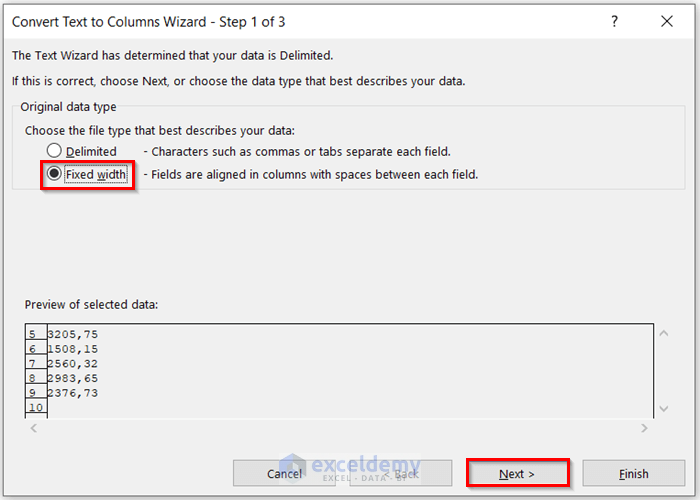
- In the window Step 1 of 3, select Choose the file type that best describes your data.
- Choose Fixed width.
- Click Next.
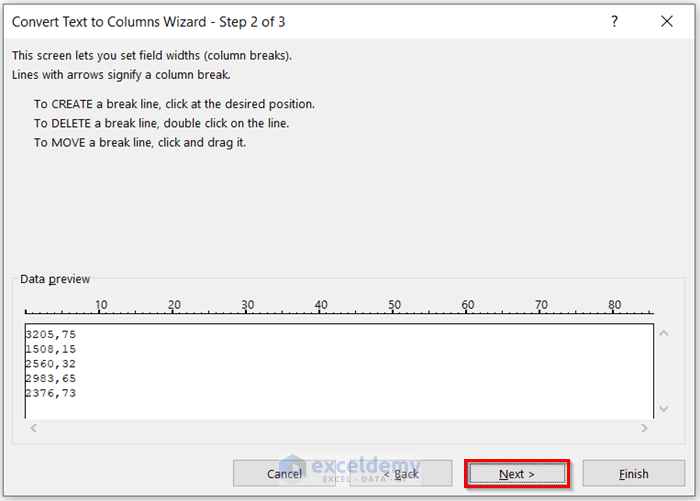
- Click Next in Step 2 of 3.
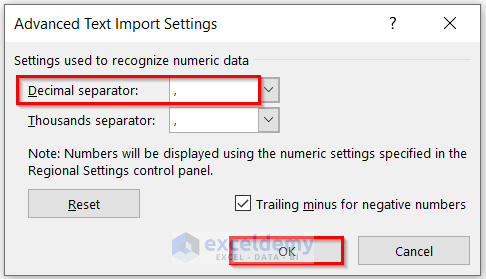
- In Step 3 of 3, click Advanced.
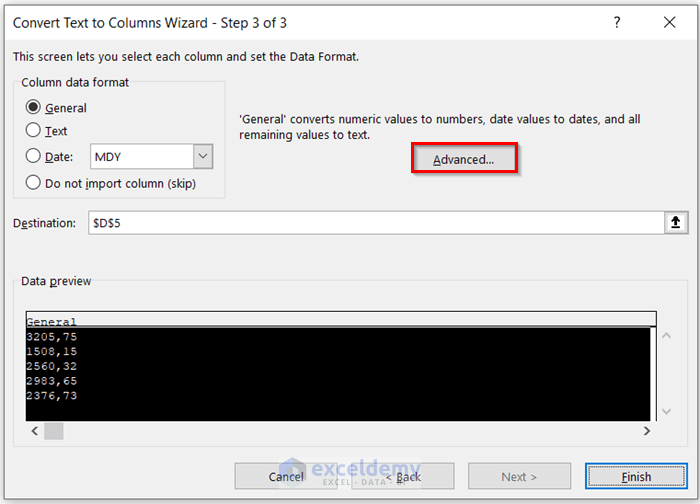
- In the Advanced Text Import Settings window, enter comma (,) in Decimal separator.
- Click OK.
- Click Finish.

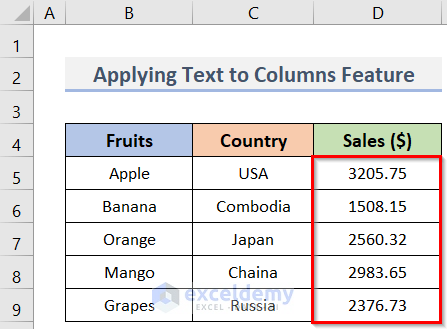
This is the output.
Download Practice Workbook
Download the practice workbook.
Related Articles
- How to Change 1000 Separator to 100 Separator in Excel
- How to Reduce Decimal Places Permanently in Excel
- How to Remove Decimals in Excel
- How to Reduce Decimals in Excel
- How to Convert Decimal to Whole Numbers in Excel
- How to Convert Decimal to Fraction in Excel
- How to Remove Decimals in Excel Formula Bar
- How to Limit Decimal Places in Excel
<< Go Back to Number Format | Learn Excel
Get FREE Advanced Excel Exercises with Solutions!

