

While working in Excel, it is important to know how to Trace Dependents in a set of data. Knowing to Trace Dependency of data helps an Excel user to know how data in a cell is dependent on other cells. Tracing Dependents in Excel makes a workbook handier in necessary times. In this article, we are going to learn how to Trace Dependents in Excel in 2 easy and useful ways.
2 Easy Methods to Trace Dependents in Excel
Let’s take a dataset of Half Yearly Sales of ABC Traders. The dataset consists of 3 columns. Columns B, C & D are indicating Month, Sales, and Average of 3 months sales respectively. We have 7 rows of data also. To Trace Dependents in Excel, we are going to use Formula Auditing and a VBA code. Hope these procedures will help you to use Excel efficiently.

1. Use Formula Auditing to Trace Dependents in Excel
In this section, I am going to describe a method to Trace Dependents in Excel. It is a very easy method. We are going to use formula auditing to trace dependents in Excel. Just have a look at the dataset that I have shown earlier. Then follow the instructions. I am going to describe the whole method with the necessary illustrations.
Steps:
- First, Select a cell of which you want to trace dependency. Here I have selected C5.
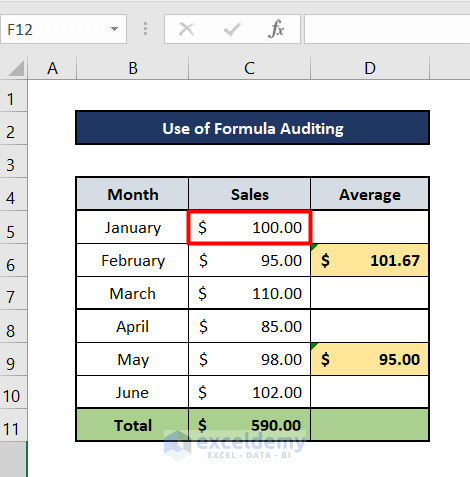
- Then, Select Formulas from the Toolbar. You will find Formula Auditing on the Ribbon.

- Click on the Formula Editing. You will find the Trace Dependents option. Click on it.

- Then you will find that your dataset is showing dependency of cell C5 just like the picture given below. From this figure, we can say that D5 & C11 have a dependency on C5.

- Moreover, follow the same procedures for C6, C7, C8, C9 & C10. you will find the result in the figure shown below.

- Hence, to Remove Arrows, Go to the Formulas on Toolbar, Click on the Formula Auditing and Select the Remove Arrows option.

- Now, I have created another sheet called Formula Auditing (Revenue) and made an interlink with the previous sheet called Formula Auditing (Sales). I have created an interlink between C5 of Formula Auditing (Sales) with B5 of Formula Auditing (Revenue) sheet.

- Again, for C5 cell, follow the same procedure to Trace Dependency. You will see a new black inclined arrow. This indicates that another cell from another sheet has dependency on this cell. For our example, this other cell is B5.

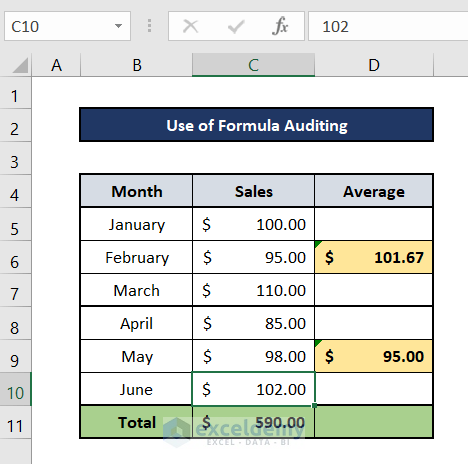
- Hence, follow the same procedures for C6, C7, C8, C9 & C10. Then, you will find the result as like the figure shown below.

- Lastly follow the same instructions provided earlier to Remove Arrows.
Read More: How to Trace Errors in Excel
2. Run a VBA Code to Trace Dependents in Excel
In this portion of this article, I am going to show you another easy way to Trace Dependents in Excel. Here, I will run a VBA code to Trace Dependency in Excel. It is a short and handy process to Trace Dependency. I am sure that it will help you to use Excel more efficiently.
Steps:
- For this method, we are considering the same dataset used in the previous method.

- Press ALT+f11 to open Microsoft Visual Basics for Applications window.

- Then, Go to the Insert option. You will find the Module option there. Click on it.

- You will find the window shown below.

- After that, Copy and Paste the code given below.
Sub TraceDependents()
Dim xM As Range
Dim xN As Range
Dim xT As String
On Error Resume Next
xT = ActiveWindow.RangeSelection.Address
Set xM = Application.InputBox("Please select the data range:", "Find Trace Dependents", xT, , , , , 8)
Set xM = Application.Union(xM, ActiveSheet.UsedRange)
If xM Is Nothing Then Exit Sub
For Each xN In xRg
xN.ShowDependents
Next
End Sub
- Press the f5 key to run the code.
- You will find a window just like the one given below.
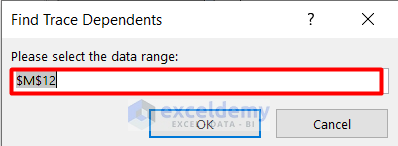
- Select data ranging from C5 to D11.

- After that, you will find the window just like the one given below. Press OK on that window.

- After that, you will get the result just like the picture given below. To remove the arrows, just follow the above instructions.
Things to Remember
There are a bunch of shortcut keys to Trace dependents. Some of them are given below:
- Ctrl + [ – indicates the direct dependents of the active cell.
- Ctrl + Shift + [ – indicates the direct and indirect dependents of the active cell.
Download Practice Workbook
Please download the practice workbook to practice yourself.
Conclusion
I hope these two methods will help you to handle the Excel problems by Tracing Dependents in Excel. I think you will find interest in these methods. If you have any kind of queries, feel free to ask me in the comment section.
Related Articles
<< Go Back to Trace Formula | Auditing Formulas | Excel Formulas | Learn Excel
Get FREE Advanced Excel Exercises with Solutions!

