

While working in Microsoft Excel sometimes we need to align numbers to make final reports more lucrative. However, it might become difficult when working with a large dataset. Today in this article, I am sharing with you how to align numbers in Excel. Stay tuned!
How to Align Numbers in Excel: 6 Simple Methods
In the following, I have shared 7 simple and easy methods to align numbers in Excel.
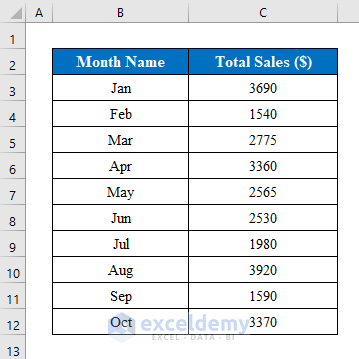
Suppose we have a dataset of some Month Names and Total Sales of a company. Now we will align the numbers from the table.
1. Using Home Ribbon to Align Numbers
The simplest way to align numbers is by using the alignment features from the Home ribbon. Follow the steps below-
Steps:
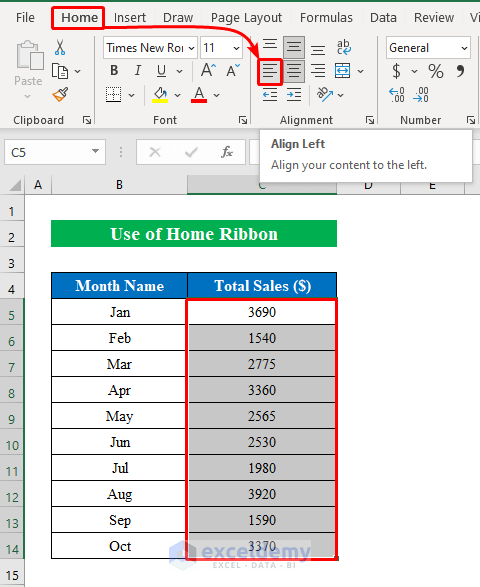
- First, select cells (C5:C14) and press the “Align Left” option from the “Home” ribbon.
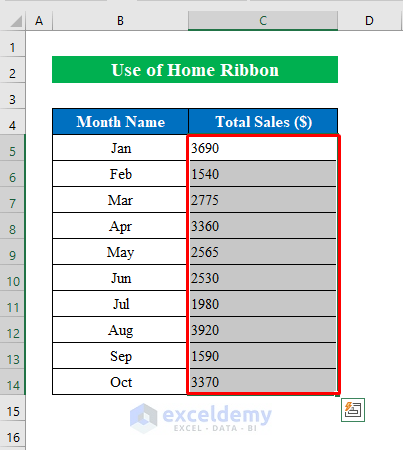
- Simply, your numbers from the list will be aligned to the left within a blink of an eye.
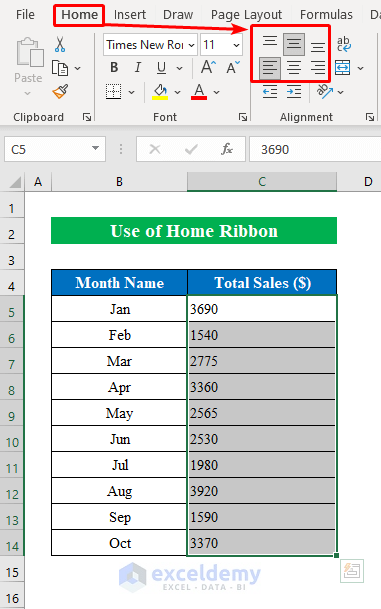
Further, you can use the other alignment option from the Home ribbon to align your numbers the way you want.
Read More: Default Alignment of Numbers in Excel
2. Utilize Format Cells Feature to Align Numbers
In some cases, you might need to align numbers to various positions. For that,
Steps:
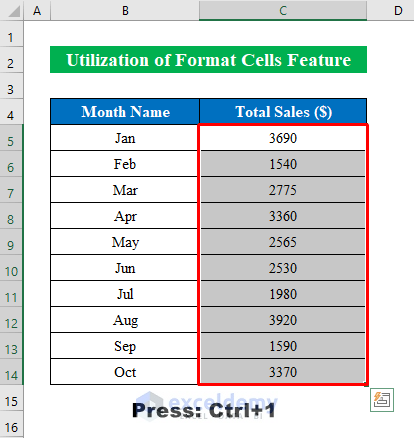
- To start with, select cells (C5:C14) and press CTRL+1 to open the “Format Cells” feature window.
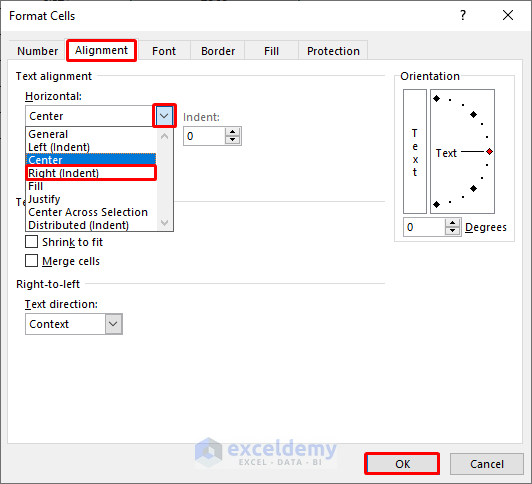
- Next, select the “Alignment” option and choose your desired alignment from the drop-down list below.
- Here, I have chosen “Right (Indent)” as I want to align numbers to the right side of the column.
- Gently, press OK.
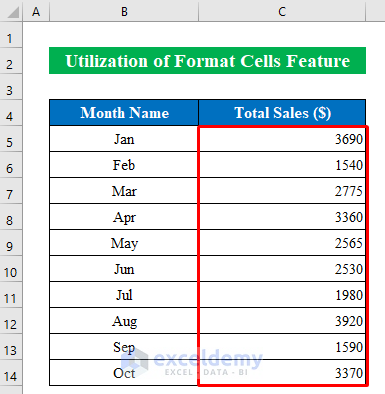
- As you can see all the numbers are aligned to the right side of the table. Simple isn’t it?
Read More: How to Align Text in Excel
3. Use Custom Number Format to Align Numbers
Often we might want to rearrange or align numbers in our own custom way. Just use the custom number format feature to align numbers according to your choice.
Steps:
- In the same fashion, choose cells (C5:C14) from the table and click CTRL+1.
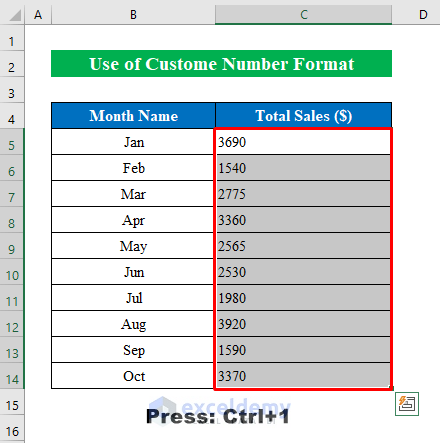
- Then, a new dialog box will appear named “Format Cells”.
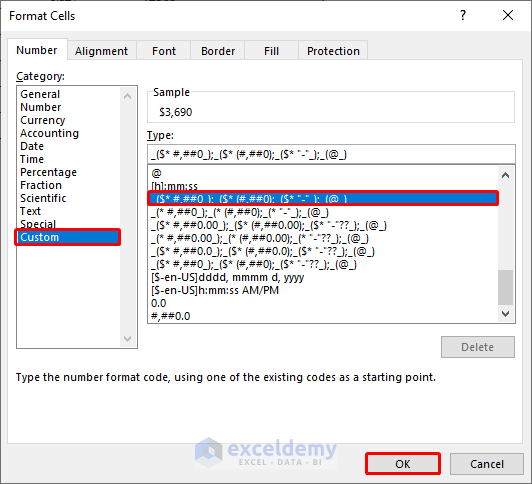
- From the dialog box click “Custom” and select a desired type from the list.
- To finish press OK.
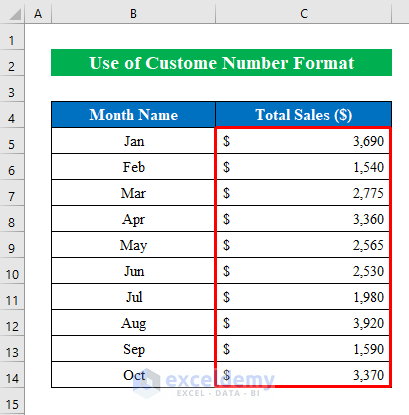
- Finally, the numbers in our table are aligned within seconds.
Read More: How to Align Columns in Excel
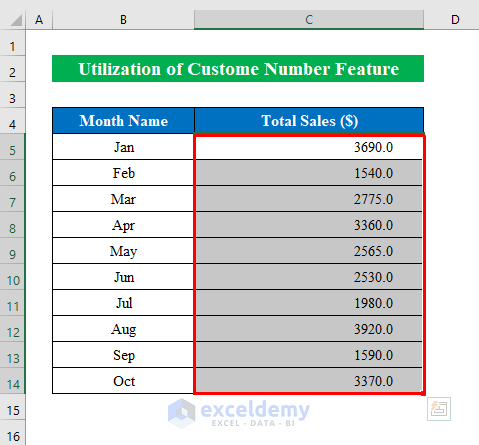
4. Utilizing Custom Number Feature by Decimal Point
While working you will find decimal numbers in multiple sheets. This might seem difficult. But not anymore. Follow the steps properly-
Steps:
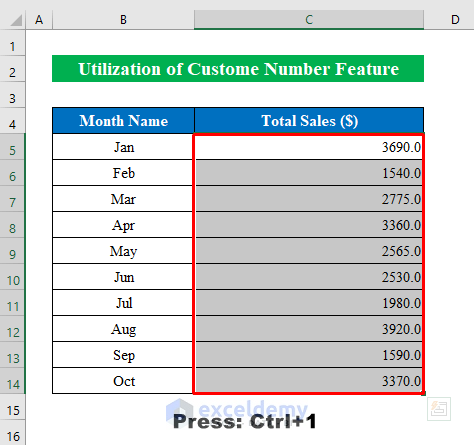
- Similarly, select cells (C5:C14) and hit CTRL+1 from the keyboard.
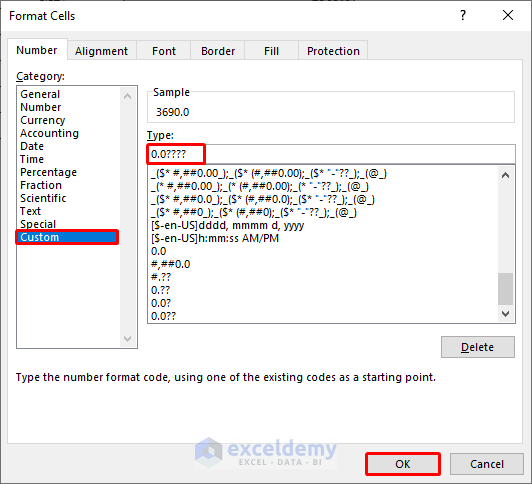
- From the appeared window choose “Custom” and then type “0????” in the “Type” section.
- Hence, press OK.
- In summary, you will see we have successfully aligned numbers in our dataset.
5. Using Keyboard Shortcut to Align Numbers
If you are looking for a shortcut to align numbers quickly then you are at the right place. Just choose the cells with numbers and press the desired keys and that’s it. Let’s get started.
Steps:
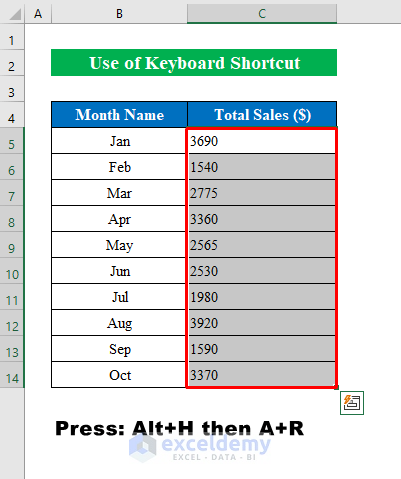
- Just choose cells with numbers that you want to align from the dataset. Here I have selected cells (C5:C14).
- Hence, press ALT+Hand then A+R to align right.
- Finally, you will get the numbers aligned to a new location.
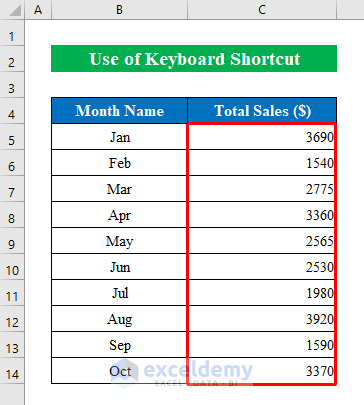
Well, here I have shared some more keys to align numbers to multiple horizontal and vertical positions. You can try them if you want-
- Top alignment- ALT+H then A+T
- Bottom alignment- ALT+H then A+B
- Middle alignment- ALT+H then A+M
- Left alignment- ALT+H then A+L
- Center alignment- ALT+H then A+C
- Right alignment- ALT+H then A+R
Read More: How to Change Alignment in Excel
6. Changing Orientation to Align Numbers in Excel
In order to design your numbers in a different and more lucrative way, you can change the orientation to align numbers. Follow the steps properly.
Steps:
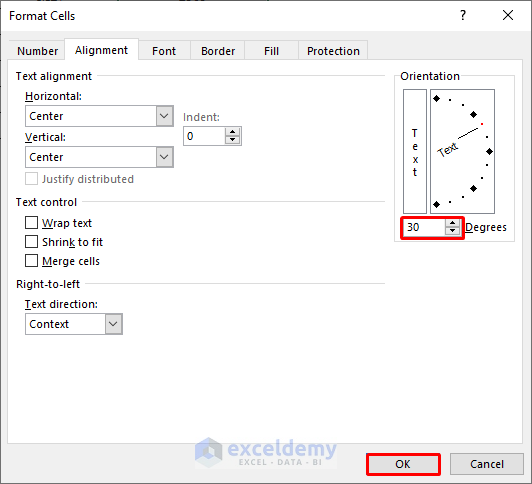
- To start with, select cells (C5:C14) and click “Alignment Settings” from the “Home” ribbon.
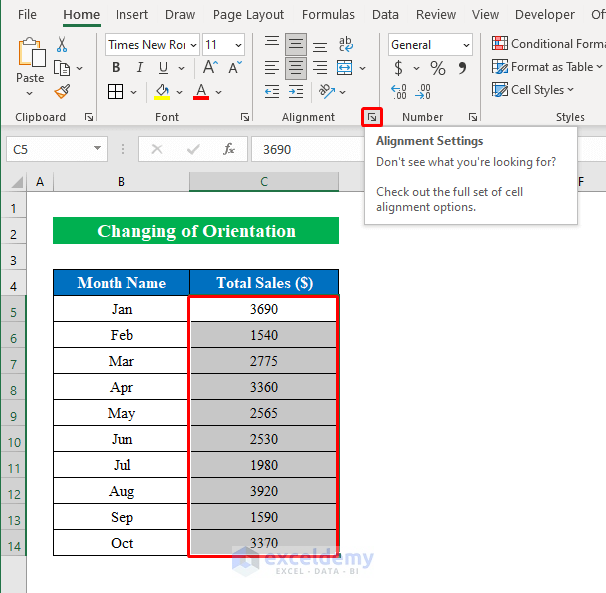
- A new dialog box named “Format Cells” will pop up.
- From there type your desired angle and hit OK.
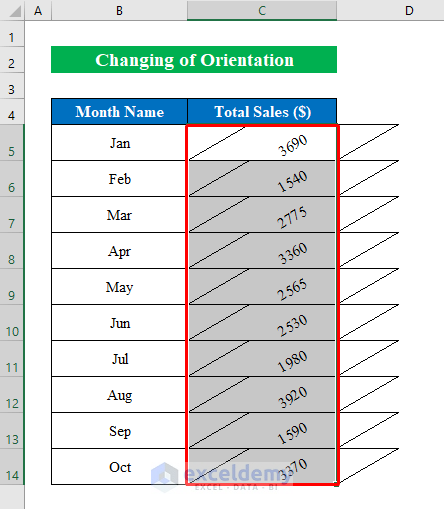
- In summary, we have aligned numbers with our desired angle within a moment.
Download Practice Workbook
Download this practice workbook to exercise while you are reading this article.
Conclusion
In this article, I have tried to cover all the methods to align numbers in Excel. Take a tour of the practice workbook and download the file to practice by yourself. I hope you find it helpful. Please inform us in the comment section about your experience. Stay tuned and keep learning.
Related Articles
- How to Center Text in a Cell in Excel
- How to Align Colon in Excel
- How to Align Currency Symbol in Excel
- How to Align Decimal Points in Excel
- How to Justify Text in Excel
<< Go Back to Alignment in Excel | Excel Cell Format | Learn Excel
Get FREE Advanced Excel Exercises with Solutions!

