

In this article, we will discuss Excel VBA variable types. Variables are a fundamental concept of any programming language. Different types of data are stored in a memory location of the system and variables represent the names of that location. These variables allow coders temporarily hold data to use and manipulate it. Also, these make the code more readable. Variables enable you to work with different data types, such as numbers, text, dates, or objects. They allow you to dynamically change and update values based on user input or other conditions, making your code more flexible and adaptable. So, “Excel VBA variable types” is an excellent topic to contemplate on.
What Are VBA Variables and DataTypes?
In VBA (Visual Basic for Applications), variables are named storage locations used to hold data during the execution of a program. They have a specific data type that determines the kind of data they can store. VBA supports various data types to accommodate different types of information. Here are some common VBA data types:
- Integer: Represents whole numbers within the range -32,768 to 32,767.
- Long: Represents larger whole numbers within the range -2,147,483,648 to 2,147,483,647.
- Single: Represents single-precision floating-point numbers, which can store fractional values with a smaller range and precision compared to Double
- Double: Represents double-precision floating-point numbers, which can store larger and more precise decimal values.
- String: Represents a sequence of characters, such as text. Strings are enclosed in double quotes (” “).
- Boolean: Represents a logical value that can be either True or False.
- Date: Represents a date value. Dates in VBA are stored as a number, where the integer part represents the date and the decimal part represents the time.
- Object: Represents an object reference. Objects are instances of classes that encapsulate data and provide methods to manipulate that data.
- Variant: Represents a variable that can hold any data type. Variant variables can be dynamically assigned different data types, but this flexibility comes at the cost of increased memory usage and potential type conversion issues.
These are just a few examples of VBA data types. VBA also supports additional data types, such as Currency, Decimal, Byte, and more. It’s important to choose the appropriate data type based on the nature of the data you need to store, as it affects memory usage and the operations you can perform on the variable. When declaring a variable in VBA, you specify its name and data type using the “Dim” statement. For example
Dim age As Integer
Dim name As String
Dim balance As Double
In the above code snippet, three variables are declared: “age” of type Integer, “name” of type String, and “balance” of type Double.
Excel VBA Variable Types
Today, we will talk about Excel VBA variable types. In broad classification, there are two types of variables: Non-numeric and Numeric. The non-numeric data types contain all the values that are not numbers and numeric datatypes contain numbers. These two types of variables take up different sizes of memory locations. Depending on the requirement of the problem, users call either numeric or non-numeric data types.
1. Non-numeric Variable Types
The non-numeric variable types contain anything other than numbers in Excel VBA. Some of the non-numeric datatypes are String, Boolean, and Variant. These variables contain mainly texts and logical statements. Users can store and manipulate texts by using these variables.
1.1. String Variable
In VBA, a String variable is used to store and manipulate textual data, such as words, sentences, or any sequence of characters. It is one of the fundamental data types in VBA and is declared using the “Dim” statement. In the following image, we have a dataset that contains the first and last names of some people. We will concatenate these two names while using a String variable in the VBA.

We will use the following code to do the task.
Sub String_Variable()
Dim FullName As String
Set Rng = Range("B5:D12")
For i = 1 To Rng.Rows.Count
    FullName = ""
    FullName = Rng.Cells(i, 1) + " " + Rng.Cells(i, 2)
    Rng.Cells(i, 3) = FullName
Next i
End Sub
VBA Breakdown:
Dim FullName As String- In this line, we declare a variable called “FullName” and set it as a String type data.
Set Rng = Range("B5:D12")
For i = 1 To Rng.Rows.Count
    FullName = ""
    FullName = Rng.Cells(i, 1) + " " + Rng.Cells(i, 2)
    Rng.Cells(i, 3) = FullName
Next i- Here, we set the B5:D12 range as the value of the “Rng” variable.
- The For Loop runs through each row of the “Rng” range and adds the values from the first two columns with space and sets it as the value for the “FullName” variable.
- Then, the code writes the full name in the 3rd column( Column D) of the range.
As we run the code by launching VBA Macro editor, the code adds the first and last name from each column to get the full name.

1.2. Boolean Variable
The Boolean data type is used to represent logical values. It can have one of two possible values: True or False. We commonly use Booleans in programming to control program flow, make decisions based on conditions, and perform logical operations. Here, we will use a Boolean variable to find prime numbers within a range. We will use the code below to do so.
Sub Boolean_String()
Dim i, j, n As Integer
Dim isPrime As Boolean
LowBound = Int(InputBox("Please Input the Lower Bound"))
If LowBound = 1 Then
GoTo Message
End If
UpperBound = Int(InputBox("Please Input the Upper Bound"))
n = 0
For i = LowBound To UpperBound
        isPrime = True

        For j = 2 To (i - 1) / 2
            If i Mod j = 0 Then
                isPrime = False
            End If
        Next j
    If isPrime = True Then
        n = n + 1
    End If
Next i
MsgBox "There are " & n & " primes between " _
& LowBound & " and " & UpperBound
Exit Sub
Message:
MsgBox "Please give any LowerBound other than 1"
End Sub
VBA Breakdown:
Sub Boolean_String()
Dim i, j, n As Integer
Dim isPrime As Boolean- Here, we declare i, j, n as Integer datatype and isPrime as a Boolean datatype.
LowBound = Int(InputBox("Please Input the Lower Bound"))
If LowBound = 1 Then
GoTo Message
End If
UpperBound = Int(InputBox("Please Input the Upper Bound"))
n = 0- In this section, the code asks users to insert the lower and upper bound of the range within which it will find prime numbers.
- The If condition will be applicable if the user sets the lower bound 1 because the search for prime starts from 2. If the user sets the lower bound to 1 then the code will go to the “Message” section and print out the message “Please give any LowerBound other than 1.”
For i = LowBound To UpperBound
        isPrime = True
        For j = 2 To (i - 1) / 2
            If i Mod j = 0 Then
                isPrime = False
            End If
        Next j
    If isPrime = True Then
        n = n + 1
    End If
Next i
Outer Loop:
- For i = LowBound To UpperBound: This loop iterates from LowBound to UpperBound, inclusive. It sets i to each value in this range, one at a time.
Inner Loop:
- For j = 2 To (i – 1) / 2: This loop iterates from 2 to half of i (rounded down) to check for factors of i.
- i Mod j = 0: The expression i Mod j calculates the remainder when i is divided by j. If the remainder is zero, it means that j is a factor of i.
Prime Check:
- If i Mod j = 0 Then: If a factor j is found for the current number i, it means i is divisible by j and not a prime number.
- isPrime = False: Set isPrime to False to indicate that i is not prime.
Prime Count:
- If isPrime = True Then: After the inner loop completes for the current i, this condition checks whether isPrime is still True, indicating that i has no factors other than 1 and itself.
- n = n + 1: Increment the prime count n by 1.
As soon as we run the code, the code will show the number of primes within the user-defined range.
1.3.Variant Variable
In VBA, the Variant data type is a versatile data type that can store values of different types. It is often referred to as the “catch-all” data type because it can hold any data type, including numbers, strings, dates, objects, and more. The Variant data type is the default data type if you don’t explicitly specify a data type when declaring a variable. We will concatenate the First Name and Last Name to form the Full Name in the “Full Name” column as the image below suggests.

We will apply the code below to concatenate the strings.
Sub Variant_Variable()
Dim FullName As Variant
Set Rng = Range("B5:D12")
For i = 1 To Rng.Rows.Count
    FullName = ""
    FullName = Rng.Cells(i, 1) + " " + Rng.Cells(i, 2)
    Rng.Cells(i, 3) = FullName
Next i
End Sub
In this code, the code from the String variable concatenated the same dataset. The only difference is that here we declared the “FullName” variable as a Variant data type.
As we run the code, the code concatenates the two texts from each row to form full names.

2. Numeric Variable Types
2.1. Integer Variable
An integer variable is used to store whole numbers without decimal places. It can hold values ranging from -32,768 to 32,767. Integer variables are declared using the “Dim” keyword followed by the variable name and the data type. In this case, we will find the highest fruit sale of the 3 months using a VBA code that contains an Integer variable.
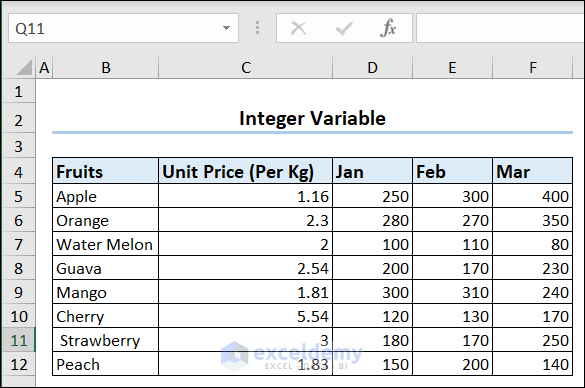
We will use the ensuing code to do the job.
Sub Integer_Variable()
Dim Highest_Sales As Integer
Set Rng = Range("D5:F12")
Highest_Sales = Rng.Cells(1).Value
'running for loop to get the highest sales value
For i = 1 To Rng.Cells.Count
    If Rng.Cells(i + 1) > Highest_Sales Then
        Highest_Sales = Rng.Cells(i + 1).Value
    Else
        Highest_Sales = Highest_Sales
    End If
Next i
MsgBox "The amount of highest sale is " & Highest_Sales
End Sub
VBA Breakdown:
Dim Highest_Sales As Integer
Set Rng = Range("D5:F12")
Highest_Sales = Rng.Cells(1).Value- In this section, we declared “Highest_Sales” as an Integer variable.
- Then, we set the D5:F12 range as the value for the “Rng” variable.
- The value of the first cell of the “Rng” variable is set as the initial value for the “Highest_Sales” variable.
For i = 1 To Rng.Cells.Count
    If Rng.Cells(i + 1) > Highest_Sales Then
        Highest_Sales = Rng.Cells(i + 1).Value
    Else
        Highest_Sales = Highest_Sales
    End If
Next i- The code starts with a For loop that iterates from 1 to the total number of cells in the Rng range, which is determined by the Count property of the Cells object within the range. The loop variable i is used to access each cell in the range sequentially.
- Inside the loop, the code checks if the value of the cell that is one position to the right of the current cell (i.e., Rng.Cells(i + 1)) is greater than the current value of Highest_Sales. If it is, the code updates the value of Highest_Sales to the value of that cell using the Value property of the cell.
- If the value of the cell that is one position to the right of the current cell is not greater than Highest_Sales, the code does not update the value of Highest_Sales. Instead, it assigns Highest_Sales to itself, which has no effect on its value. The loop then continues to the next cell in the Rng range and repeats the process until it has iterated through all the cells in the range.
After execution of the code, we will find a MsgBox displaying the highest sale value.

2.2. Long Variable
In Visual Basic for Applications (VBA), the Long variable is a data type used to store whole numbers within a specified range. It can hold integer values ranging from -2,147,483,648 to 2,147,483,647. Here, we will calculate the time required for sunlight to travel to Earth from the Sun. We will declare the speed of light which is 3e10 meters per second as a Long type variable. We will use the following VBA code to calculate that. As we will run the code the Immediate Window of the VBA Editor will show the result.
Sub Long_Variable()
Dim lightspeed As Long
Dim Distance_from_Sun As Double
Dim time_to_reach_sunlight_inEarth As Integer
lightspeed = 300000000
Distance_from_Sun = 150000000000#
time_to_reach_sunlight_inEarth = Distance_from_Sun / lightspeed
Debug.Print time_to_reach_sunlight_inEarth
End Sub
VBA Breakdown:
Dim lightspeed As Long
Dim Distance_from_Sun As Double
Dim time_to_reach_sunlight_inEarth As Integer- We set the “lightspeed” variable as Long
- Then, we set “Distance_from_Sun” variable as Double.
- We declare the “time_to_reach_sunlight_inEarth” as an Integer type variable.
lightspeed = 300000000
Distance_from_Sun = 150000000000#
time_to_reach_sunlight_inEarth = Distance_from_Sun / lightspeed
Debug.Print time_to_reach_sunlight_inEarth- In the first 2 lines, we assigned values to the variables.
- Then, we calculated time by dividing distance by speed.
- Finally, the Debug.Print time_to_reach_sunlight_inEarth line prints the time for sunlight to reach Earth in the Immediate Window.
2.3. Double Variable
In Visual Basic for Applications (VBA), the Double variable is a data type you can use to store floating-point numbers with double precision. It can hold decimal values with a larger range and higher precision compared to the Single data type. In this case, we will calculate the average marks of some students while declaring the “AvgMarks” variable as a Double variable.

We will use the following code to do so.
Sub Double_Variable()
Dim AvgMarks As Double
Dim Rng As Range
Set Rng = Range("C5:F12")
For i = 1 To Rng.Rows.Count
    Sum = 0
    For j = 1 To Rng.Columns.Count - 1
        Sum = Sum + Rng.Cells(i, j)
    Next j
AvgMarks = Sum / Rng.Columns.Count
Rng.Cells(i, Rng.Columns.Count) = AvgMarks
Next i
End Sub
VBA Breakdown:
Dim AvgMarks As Double
Dim Rng As Range
Set Rng = Range("C5:F12")- Here, we declared the “AvgMarks” variable as a Double type variable.
- Then, declared “Rng” as a Range variable.
- Finally, we set the C5:F12 range as the value for the “Rng” variable.
For i = 1 To Rng.Rows.Count
    Sum = 0
    For j = 1 To Rng.Columns.Count - 1
        Sum = Sum + Rng.Cells(i, j)
    Next j
AvgMarks = Sum / Rng.Columns.Count
Rng.Cells(i, Rng.Columns.Count) = AvgMarks
Next i- The For Loop runs through each row of the “Rng” range and takes the average of the 3 subjects and stores it in the “AvgMarks” variable.
- Finally, the Rng.Cells(i, Rng.Columns.Count) = AvgMarks line adds the average marks for each row (each student) in the last column ( column F) of each row.
As soon as we execute the code, the code will add all the average marks in the F column.

2.4. Date Variable
The Date variable is a data type you can use to store dates. It represents a specific day, month, and year value. Here, we will find out the age of a person on Today’s date using the Date variable.
We will use the following code to do so.
Sub Date_Variable()
Dim bDate As Date
Dim ThisDate As Date
bDate = DateSerial(2000, 2, 28)
ThisDate = Date
CurrentAge = DateDiff("yyyy", bDate, ThisDate)
Debug.Print CurrentAge
End Sub
VBA Breakdown:
Dim bDate As Date
Dim ThisDate As Date- In these lines, we declared two variables namely: “bDate” and “ThisDate” as Date type variables.
bDate = DateSerial(2000, 2, 28)
ThisDate = Date- The first line sets 28th February, 2000 as the value for the “bDate” variable.
- The second line adds today’s date as the value for the “ThisDate” variable.
- CurrentAge = DateDiff(“yyyy”, bDate, ThisDate): This line of code uses the DateDiff function to calculate the difference in years between “bDate” and “ThisDate”. The first argument, “yyyy”, specifies that we want to calculate the difference in years. The second argument, “bDate”, represents the starting date, and the third argument, “ThisDate”, represents the ending date. Then, the code assigns the result of the DateDiff function to the variable “CurrentAge”.
- Debug.Print CurrentAge: This line prints the value of “CurrentAge” to the Immediate Window in the VBA Editor. This allows you to view the calculated age while debugging or testing the code.
2.5. Currency Variable
You can use the Currency variable data type to store monetary values with fixed decimal precision. It is specifically designed for handling currency or financial calculations that require an accurate representation of decimal numbers. In this example, we will convert a specific currency to Dollars using the Currency data type. We will use the following code to do the task.
Sub Currency_Variable()
Dim myCurrency As Currency
Dim DollarConversion As Currency
myCurrency = 1000
DollarConversion = myCurrency / 101
Debug.Print DollarConversion
End Sub
VBA Breakdown:
Sub Currency_Variable()
Dim myCurrency As Currency
Dim DollarConversion As Currency
myCurrency = 1000
DollarConversion = myCurrency / 101
Debug.Print DollarConversion
End Sub- In this case, we declared “myCurrency” and “DollarConversion” two variables as Currency type variables. Then, we converted “myCurrency” to dollars using this DollarConversion = myCurrency / 101 line. Finally, we printed the “DollarConversion” in the Immediate Window.
3. Excel VBA Object Variables
In Visual Basic for Applications (VBA), you can use object variable types to refer to an object in memory in Excel. Objects in VBA can represent various entities, such as worksheets, ranges, charts, files, or even custom-defined objects. In this instance, we will use the Worksheets and Range objects to select a particular range in a particular worksheet.

We will apply the code below to complete the task.
Sub Object_Variables()
Dim ws As Worksheet
Dim Rng As Range
Set ws = ThisWorkbook.Worksheets("Object")
Set Rng = ws.Range("B4:F12")
Rng.Select
End Sub
VBA Breakdown:
Dim ws As Worksheet
Dim Rng As Range
Set ws = ThisWorkbook.Worksheets("Object")
Set Rng = ws.Range("B4:F12")
Rng.Select- Here, we declared two variables “ws” and “Rng” variables as the Worksheet and Range object type variables.
- Then, we set the “Object” worksheet as the value for the “ws” variable.
- Declared the B4:F12 range of the same sheet as the value of the “Rng” variable.
- Finally, we selected the B4:F12 range with the Range.Select method.
The code will select the B4:F12 range as soon as we run the code from the Macros tab.

Frequently Asked Questions
1. What are the variable levels in VBA?
In VBA, there are different levels of variable scope, which determine where you can access variables and how long they persist during program execution. The variable levels in VBA are as follows:
- Procedure-level scope: Variables declared within a procedure (such as a subroutine or function) have procedure-level scope. They are only accessible within the procedure where you have declared them. Once the procedure finishes executing, it will release the variables automatically from memory.
- Module-level scope: Variables declared at the module level have module-level scope. They are accessible to all procedures within the module where you have declared them. Module-level variables retain their values throughout the lifetime of the module. You can access and modify them by any procedure within the module.
- Global scope: Variables declared outside of any procedure, at the top of a module, have global scope. They are accessible to all modules within the project. Global variables retain their values as long as the project is loaded in memory. You can access and modify them from any part of the project.
2. What is a byte variable in VBA?
In Visual Basic for Applications (VBA), a Byte variable is a data type you can use to store integer values ranging from 0 to 255. It is the smallest integer data type available in VBA, occupying 1 byte of memory. This is the smallest datatype in VBA.
3. What is object variable vs class variable?
- Object variable: You can use an Object variable to reference an instance of an object. It is a variable that holds a reference to an actual object in memory. The object can be an instance of a built-in class (such as Worksheet, Range, or Workbook) or a custom-defined class. You have to declare object variables using a specific object type and assign an object reference using the Set keyword.
- Class variable: A Class variable, also known as a Static variable, is a variable associated with a class rather than with a specific instance of the class. It is a variable that is shared among all instances of a class. You can declare Class variables within the class module using the Static keyword.
Download Practice Workbook
You can download the practice book here.
Conclusion
In this article, we have discussed different Excel VBA variable types. This article will give an exhaustive idea of the different data types that VBA offers. It will also help them to implement the variables in different situations and according to their needs.
Related Articles
- Excel VBA: Set Variable to a Cell Value
- [Fixed!] Excel VBA: Global Variable Loses Value
- Excel VBA Declare Global Variable
- Excel VBA: Declare Global Variable and Assign Value


