

In this article, we are going to show you why the VBA global variable loses value in Excel. Normally, the global variables lose their value after closing the workbook. It causes users to run the operation again from the beginning, which is time-consuming.
Here, we have discussed two possible solutions to fix the issue. As a bonus, we have covered two methods of how to declare global variables in Excel VBA. Please stay tuned and go through the following sections of this article.
What Is a Global Variable in Excel?
A global variable is declared and assigned in Excel at the module level in VBA (Visual Basic for Applications). These variables are accessible, and their values are retained throughout the Excel VBA project. Global variables can be accessed and edited from any module, process, or function in the project, as opposed to local variables, which are declared within a specific method or function and have a limited scope (available only within that procedure or function).
Understanding VBA Global Variable Loses Value in Excel
Here, we will show how global variables lose their values. For that purpose, we made an example. Please follow the description below.
- First, select Developer >> Visual Basic to open the VBA. You can also open it by pressing Alt + F11.

- Next, select Insert >> Module to open a VBA Module.

- After that, copy the code below in the Module.
- Thereafter, place the cursor anywhere in the Subroutine SetValueOfVariable and click on the Run button shown in the picture below.
Public mn_globalVar As Integer
Sub SetValueOfVariable()
    mn_globalVar = 10
End Sub
Sub GlobalVariableValue()
MsgBox "The value of the variable is: " & mn_globalVar
End Sub
The command will run the Macro named SetValueOfVariable. The code declares a global variable mn_globalVar. The value of this variable is set to 10 by the Macro.
- Now, place the cursor similarly in the next Subroutine and select the Run button.

- It will show the value of the global variable which is 10, as expected.

But if you close the Excel workbook, open it again and Run the Macro GlobalVariableValue, you will see the global variable mn_globalVar loses its value and resets to 0.
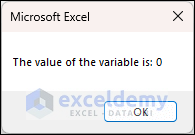
This is how a global variable loses its value in Excel VBA. We are going to show two possible solutions regarding this issue.
Excel VBA Global Variable Loses Value: 2 Possible Solutions
1. Storing the Value of Global Variable in a Sheet
One solution can be- storing the value of the global variable in a sheet and retrieving it from the sheet when necessary. For this purpose, just use the code below.
Public mn_globalVar As Integer
Sub StoringValueToSheet()
    mn_globalVar = 10
    ThisWorkbook.Worksheets("Sheet2").Range("A1").Value = mn_globalVar
End Sub
Sub ExtractingValue()
    mn_globalVar = ThisWorkbook.Worksheets("Sheet2").Range("A1").Value
    MsgBox "The value of the Variable is: " & mn_globalVar
End Sub
- First, Run the Macro StoringValueToSheet first by placing the cursor anywhere in this Subroutine. This will store the value of mn_globalVar in “Sheet2”.

- Next, run the following Macro named ExtractingValue. This will show the value in a MsgBox.

Even if you close the workbook now and run this ExtractingValue Macro, it will still carry the value 10 for the global variable mn_globalVar. Thus you can fix the global variable from losing its value.

Read More: Excel VBA Declare Global Variable
2. Saving the Global Variable Value in a Text Document
If you don’t want to use a sheet to store the value of the global variable in the Excel workbook, you can save it in a Text Document and use the Text Document file to retrieve the value of the global variable. For this purpose, use the code below.
Public mn_globalVar As Integer
Sub ModifyGlobalVariable()
  mn_globalVar = 10
    Dim mn_fso As Object
    Set mn_fso = CreateObject("Scripting.FileSystemObject")
    Dim filePath As String
    filePath = ThisWorkbook.Path & "\globalVarValue.txt"
    Dim file As Object
    Set file = mn_fso.CreateTextFile(filePath)
    file.Write mn_globalVar
    file.Close
End Sub
Sub RetrieveGlobalVariable()
    Dim mn_fso As Object
    Set mn_fso = CreateObject("Scripting.FileSystemObject")
    Dim filePath As String
    filePath = ThisWorkbook.Path & "\globalVarValue.txt"
    If mn_fso.FileExists(filePath) Then
        Dim file As Object
        Set file = mn_fso.OpenTextFile(filePath)
        Dim valueFromFile As Integer
        valueFromFile = file.ReadLine
        file.Close
        mn_globalVar = valueFromFile
    Else
        MsgBox "Value file not found."
    End If
    MsgBox "The value of the variable is: " & mn_globalVar
End Sub
Run the Macro ModifyGlobalVariable first. Follow the technique shown in previous sections to run it. This will create a Text Document that contains the value 10 in the workbook’s file path.

Running the second Macro RetrieveGlobalVariable will use this value from the Text Document and show it in the MsgBox like before.
This is another way of fixing the issue of global variables losing their values in Excel.
How to Declare Global Variables in Excel
As you have seen, global variables are declared outside the Subroutine. We have discussed two methods for this purpose in this section.
1. Declaring Global Variable in Same Module
You will select the global variable declaration processes based on your requirements and how you like to access your variable. The following steps demonstrate the use of Dim to declare a global variable.
Using the Dim keyword, declare the global variable within the module. At the module level, place the variable declaration outside of any specific subroutine or function.
Option Explicit
Dim x As Integer
The global variable can be assigned a value at any time in your code inside the same module. Consider this:
Option Explicit
Dim x As Integer
Sub GlobalVariable()
x = 10
Call GlobalVariable2
End Sub
Sub GlobalVariable2()
MsgBox x
End Sub
In this example, the global variable x is assigned the value 10 within the GlobalVariable sub procedure.
You can run the code by calling the GlobalVariable subroutine. The global variable x is set to 10, and the GlobalVariable2 subroutine displays a message box with that value.
Option Explicit
Dim x As Integer
Sub GlobalVariable()
x = 10
Call GlobalVariable2
End Sub
Sub GlobalVariable2()
MsgBox x
End Sub
Thus, you can declare a global variable in the same module.
2. Declaring Global Variable in Different Modules by Global Or Public Keyword
If you want to use your variables throughout the modules, you must declare them outside of the subroutine and begin the declaration with Public or Global.
Here I declared two global variables in two different Modules and used their values in another Module to show a string in a MsgBox. In the first Module, we declared the following variable.
Global y As StringAnd in another Module, I have declared the variable z.
Global z As IntegerIn the final Module, we inserted the following code.
Option Explicit
Sub AccessGlobalVar()
    y = "Name of Company: "
    z = "Softeko"
    MsgBox y & " " & z
End Sub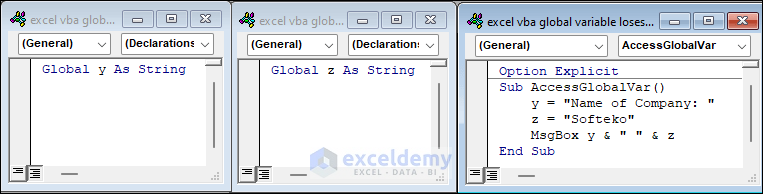
Here, in the Subroutine AccessGlobalVar, the values of the global variables y and z are set. So when we run this macro, it will display the values of these variables in a MsgBox.

Thus, you can declare global variables in different Modules and use them in other Modules.
Frequently Asked Questions
1. Is it possible to use the Windows Registry to store the value of a global variable in Excel VBA?
Answer: Yes, you can store the value of a global variable in the Windows Registry. You may save data across Excel sessions using the Windows Registry. However, using the Registry requires caution and should not interfere with the settings of other apps.
2. Are there any alternatives to using global variables to retain data in Excel VBA?
Answer: Yes, there are other options besides using global variables. To save data between sessions, you can use spreadsheet cells, named ranges, custom document properties, or an external database or file.
Download Practice Workbook
Conclusion
In the end, we can consider that you will learn a basic idea to resolve the issue that the VBA global variable loses value in Excel after reading this article. If you have any feedback or questions regarding this topic, please share them in the comment section. This will help me enrich my upcoming articles.


