

If you want to run a VBA code in Excel, then you first have to declare an array. However, if you want to declare array in VBA, then you have landed in the right place. The Basic difference between a variable and an array is that a variable can store a single value while an array can store a list of data in its memory. In this article, I will show you how to declare an array in VBA.
Basics of VBA Array Variable
A variable is a like container that stores a value. Sometimes, you may have to put more than one value in a single variable. When a single variable contains a series of values then it is called an Array Variable.
Characteristics of VBA Array
- Data of the same categories are grouped together in an Array. It is almost like creating a distinct memory unit.
- The Array which will be used must be related to the data. For example, One-Dimensional Array is used for a dataset of a single row or a single column and a Multi-Dimensional Array is used for multiple rows and columns.
Types of Array in Excel VBA
The most common types of array are:
- Static Array
- Dynamic Array
- One-Dimensional Array
- Multi-Dimensional Array
How to Declare Array in Excel VBA: 3 Effective Ways
In this section, you will find 3 effective and suitable ways to declare Array in Excel VBA. I will demonstrate them one by one here. Let’s check them now!
1. Mentioning Size of Array
In order to declare an Array in Excel VBA, you have to follow some simple steps. Let’s proceed with the following steps.
💡 Steps:
- First of all, assign the subject name.
Code:
Sub WithSize()

End Sub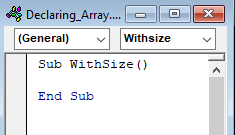
- Now to declare an array with the size you need to place an integer value within parentheses after a valid variable name.
Code:
Sub WithSize()

Dim arr(5) As Variant

End Sub
Here I’ve declared an array “arr” with a size of 5. And it’ll take various types of values as I’ve mentioned the type Variant. You can skip the type mentioning portion, only variable declaring would be enough
Code:
Sub WithSize()

Dim arr(5)

End Sub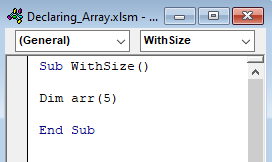
Read More: How to Create an Array in Excel VBA
2. Declaring Array Without Confirmed Size
You can also declare an array without confirming the size. Follow the steps for this.
💡 Steps:
- First of all, assign the subject name.
Code:
Sub ArraywithoutSize()

End Sub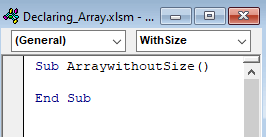
- Now to declare an array without size, you need to place a valid variable name with parentheses.
Code:
Sub ArraywithoutSize()

Dim Customer() As String

End Sub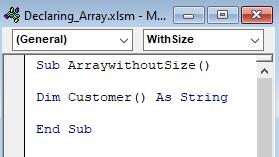
These have made your declaration, but in a practical scenario, you need an array with a defined size, to mention the size you can utilize the ReDim keyword and mention the size.
Code:
Sub ArraywithoutSize()

Dim Customer() As String
ReDim Customer(5)

End Sub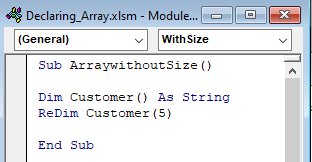
Read More: Excel VBA Array of Arrays
3. Declare with VBA ARRAY Function
Moreover, you can declare an array with a VBA ARRAY function.
All you need to do is to declare a variable (using Dim) then while assigning the value use the ARRAY function.
Code:
Sub ARRAYParameter()

Dim Customer
Customer = Array("any name", "any name", "any name", "any name", "any name")

End Sub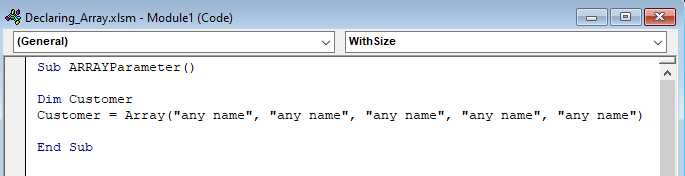
You can see that I’ve declared a variable Customer and then assigned a value using the ARRAY function.
Read More: How to Use Arrays Instead of Ranges in Excel VBA
How to Insert Values into an Array
You can insert values into an Array using 2 ways:
- Manually
- Creating Loop
Let’s check them.
1. Manually Insert Value for Each Index
For manually inserting the value into an array, assign a value to each index.
Code:
Sub ArrayExample()
Dim Customer(1 To 5) As String
Customer(1)= “Mike”
Customer(2)= “Adam”
Customer(3)= “Bob”
Customer(4)= “John”
Customer(5)= “David”

End Sub
2. Create Loop
Let’s say, we have a dataset in our Excel file for creating loop in order to insert variable.
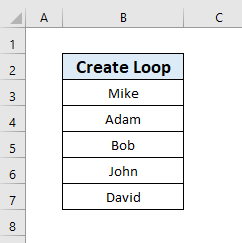
You can shorten your code a bit more by applying one more variable to enclose the loop.
Code:
Sub ArrayExample()

Dim Customer(1 To 5) As String
Dim K As Integer

End Sub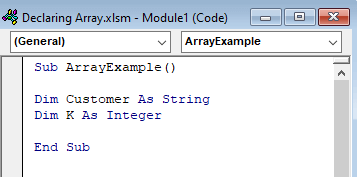
- As I have these 5 customers’ names, so enter the limit from 1 to 5.
Code:
Sub ArrayExample()

Dim Customer(1 To 5) As String
Dim K As Integer

For Each j In Range("B3:B7")

Next j

End Sub
- Here, you will insert value to each index of the array just by applying the loop variable (i.e. K)
Code:
Sub ArrayExample()

Dim Customer(1 To 5) As String
Dim K As Integer

K = 1

For Each j In Range("B3:B7")
    Customer(K) = j
    K = K + 1
Next j

End Sub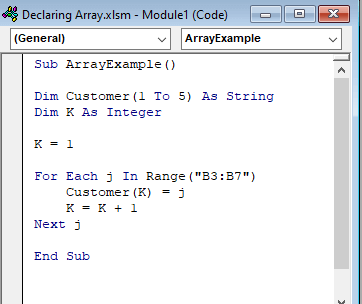
Here, the loop traverses through the range B3:B7 and assigns values to the Customer array using K as its index number after that increase the value of K and then repeats the process.
Read More: Excel VBA Array of Strings
Download Practice Workbook
You can download the practice book from the link below.
Conclusion
In this article, I have tried to show you some methods of how to declare an array in Excel VBA. I hope this article has shed some light on your way to declaring an array in Excel VBA. The more you practice, the more you will get familiar with it. If you have better methods, questions, or feedback regarding this article, please don’t forget to share them in the comment box.


