

An object that is a collection of random elements is called an array. When an item knows how to move from one end to the other without having to list every element in between, that object is said to have a range. A loop across an array moves much more swiftly than a range search, which makes it 96.39% faster to loop through an array than through a loop. The discrepancy will be greater the more values you have. In this article, we will show you how to use arrays instead of ranges in Excel VBA.
How to Use Arrays Instead of Ranges in Excel VBA: Step-by-Step Procedures
Multiple records of identical names and similar types are stored in arrays. It enables access to elements at random. There is neither a memory deficit nor an overflow because the array is fixed in size and stored in adjacent memory locations. Any type of data with a fixed size should be stored. Here, we will generate a VBA code using an array instead of ranges in Excel VBA. Let’s suppose we have a sample data set.
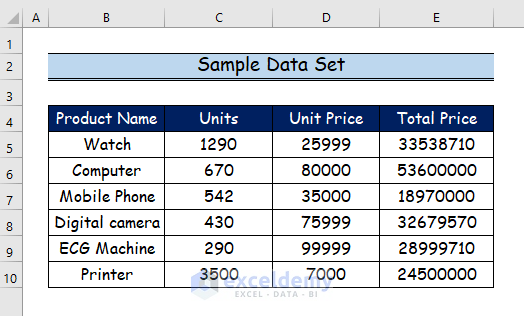
Step 1: Utilizing Developer Tab to Start a VBA Macro
The Excel built-in Developer tab offers the tools required to use Visual Basic for Applications (VBA) to execute a macro operation. By default, the tab is disabled. To make it visible on the toolbar at the top of the Excel window, it must first be activated in the Options section of the File menu.
- Firstly, select the Developer tab.
- Secondly, click on the Visual Basic command.
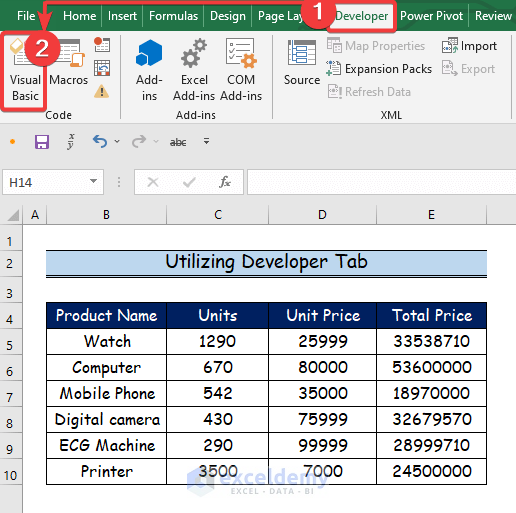
Step 2: Creating New Module to Generate VBA Code
VBA is a programming language that may be used for a variety of tasks, and different types of users can use it for those tasks. You can launch the VBA editor using the Alt + F11 keyboard shortcut.
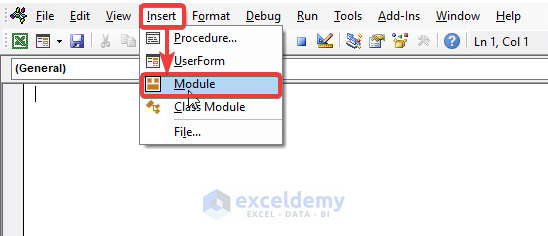
- Now, the Visual Basic Application window will open.
- Next, select the Insert tab.
- Then, click on the Module option to create a new Module to write a VBA code.
Read More: How to Create an Array in Excel VBA
Step 3: Applying VBA Code
Applying VBA code is a very convenient method to do any Excel calculations. In this section, we will generate a VBA code using an array instead of ranges.
- Now, paste the following VBA code into the Module.
- Finally, to run the program, click the “Run” button or press F5.
Sub Using_Arrays()
'Declaring variable
Dim arr As Variant
Dim i As Long
'Calling our activesheet
arr = ActiveSheet.Range("B4").CurrentRegion
'Returns the following values for an array
For i = LBound(arr, 1) To UBound(arr, 1)
Next i
'Showing the values in the activesheet
ActiveSheet.Range("H4:K10").Value = arr
End Sub
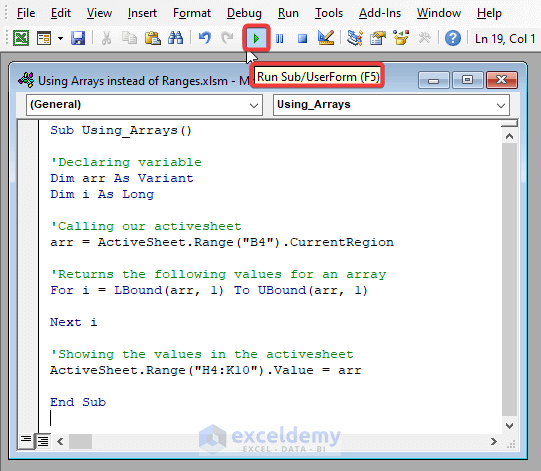
VBA Code Breakdown
- Firstly, we specify a name for the subject as Sub Using_Arrays().
- Secondly, we declare a variable as Dim arr As Variant and Dim i As Long.
- Thirdly, we call our worksheet as arr = ActiveSheet.Range(“B4”).CurrentRegion.
- Then, we return the values from the worksheet for an array as For i = LBound(arr, 1) To UBound(arr, 1).
- Finally, we apply a statement to show the values in the active sheet as Range(“H4:K10”).Value = arr.
Read More: How to Convert Range to Array in Excel VBA
Step 4: Demonstrating Final Results
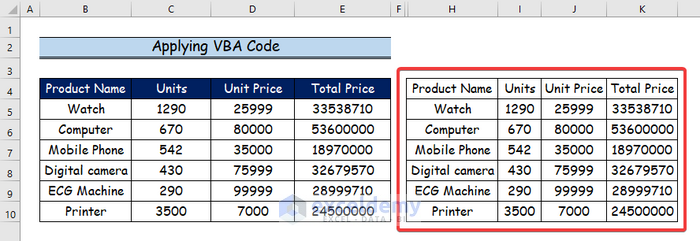
- In the last section here, we will show the results where you will see the actual data set on the left side named “applying VBA Code” as well as the output data set on the right side.
Download Practice Workbook
You may download the following Excel workbook for better understanding and practice yourself.
Conclusion
In this article, I’ve covered the step-by-step process of how to use arrays instead of ranges in Excel VBA. I sincerely hope you enjoyed and learned a lot from this article. If you have any questions, comments, or recommendations, kindly leave them in the comment section below.
Related Articles
- How to Declare Array in Excel VBA
- How to Define VBA Global Array in Excel
- Excel VBA Array of Arrays
- Excel VBA Array of Strings



Please explain the need of:
For i = LBound(arr, 1) To UBound(arr, 1)
Next i
Thank you, Wlad, for your wonderful question.
Here is the explanation for your question.
Array Looping: The “For” loop iterates through the values in the “arr” array. The “LBound(arr, 1)” method returns the lower bound of the array’s first dimension, while the “UBound(arr, 1)” function delivers the upper bound of the array’s first dimension. The loop counter “i” takes values from the lower bound to the higher bound of the “arr” array’s first dimension.
Empty Loop: Because there are no statements or actions between the “For” and “Next” keywords, the loop looks to be an empty loop that does nothing significant.
I hope this may solve your issue.
Bishawajit, on behalf of ExcelDemy