

Looking for ways to know how to determine the number of elements in array using VBA in Excel? Sometimes, we want to determine the number of elements present in Excel. We can do it by using VBA. Here, you will find 4 ways to determine the number of elements using VBA in Excel.
How to Determine Number of Elements in Array with Excel VBA: 4 Ways
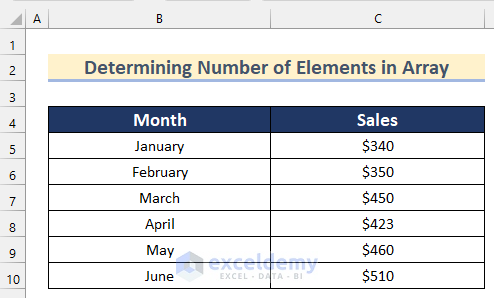
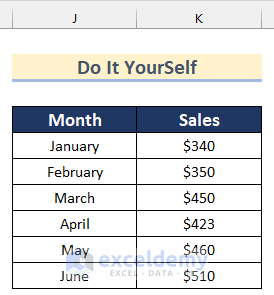
Here, we have a dataset containing the Month and Sales values of a shop. Now, we will show you how to determine the number of elements using VBA in Excel using this dataset.
1. Determining Number of Elements in 1D-Array from Worksheet
In the first method, we will show you how to determine the number of elements in a 1D-array from a worksheet. Here, we will use the UBound and LBound functions to get the value of the number of elements.
Follow the steps given below to do it on your own.
Steps:
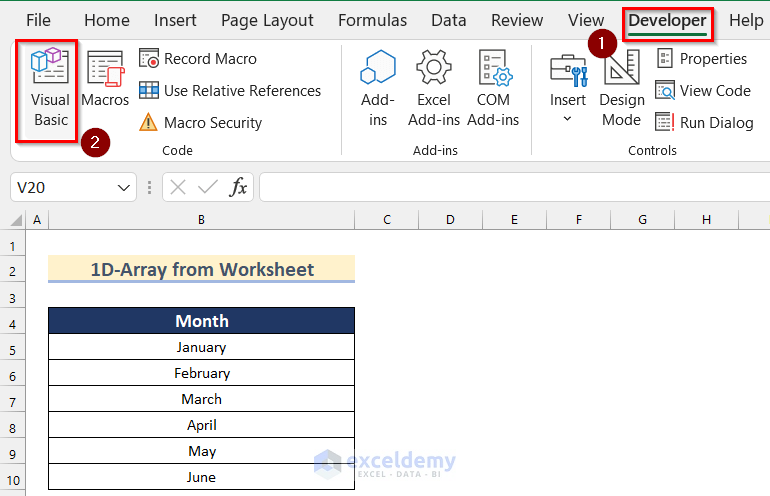
- Firstly, go to the Developer tab >> select Visual Basic.
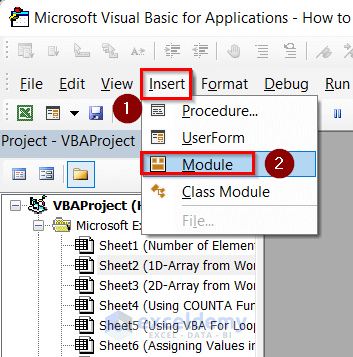
- Now, the Microsoft Visual Basic for Application box will open.
- After that, click on Insert >> select Module.
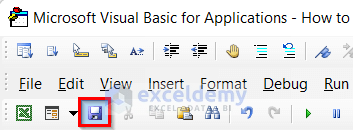
- Then, write the following code in your Module.
Sub Array_from_Worksheet1D()
Dim monthly_sales(1 To 6) As Integer
Dim Column1 As Integer
Column1 = UBound(monthly_sales, 1) - LBound(monthly_sales, 1) + 1
MsgBox "This array has " & Column1 & " element."
End Sub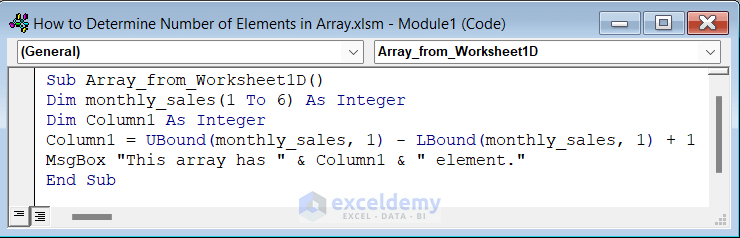
Code Breakdown
- Firstly, we created a Sub Procedure as Array_from_Worksheet1D().
- Then, we declared monthly_sales 1D-array from 1 to 6 and Column1 as Integer.
- After that, we used the UBound and LBound functions to calculate the number of elements and then kept it in the Column1 variable.
- Next, we inserted a MsgBox to display the number of elements in the array.
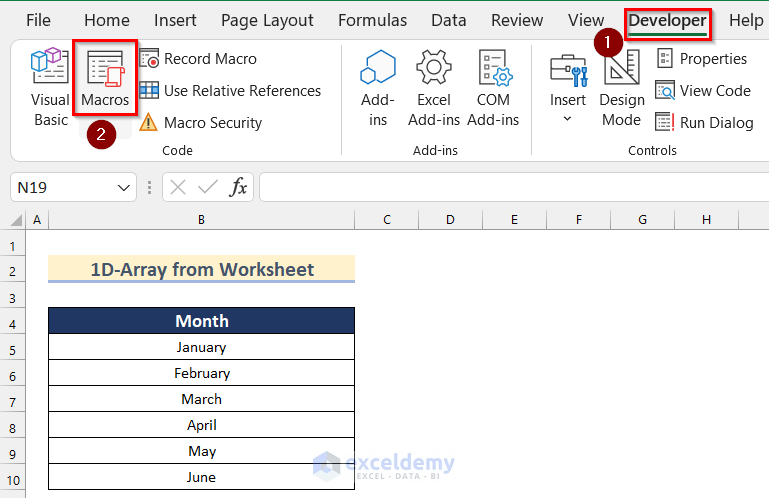
- After that, go to the Developer tab >> click on Macros.
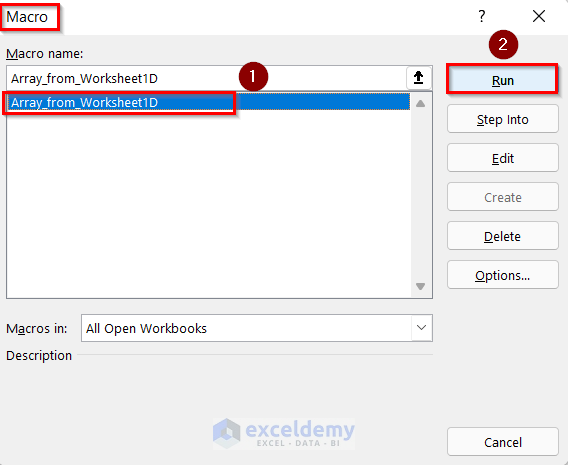
- Now, the Macros box will appear.
- Then, select Array_from_Worksheet1D.
- After that, click on Run.
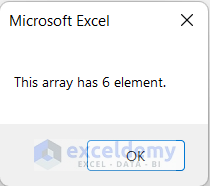
- Finally, you will see a Msgbox with a text as “This array has 6 element.”
Read More: How to Check If Array Is Empty with VBA in Excel
2. Calculating Number of Elements in 2D-Array from Worksheet
We can also calculate the number of elements in 2D-array from a worksheet using Excel VBA. Go through the steps given below to do it on your own.
Steps:
- In the beginning, go to the Developer tab >> select Visual Basic.
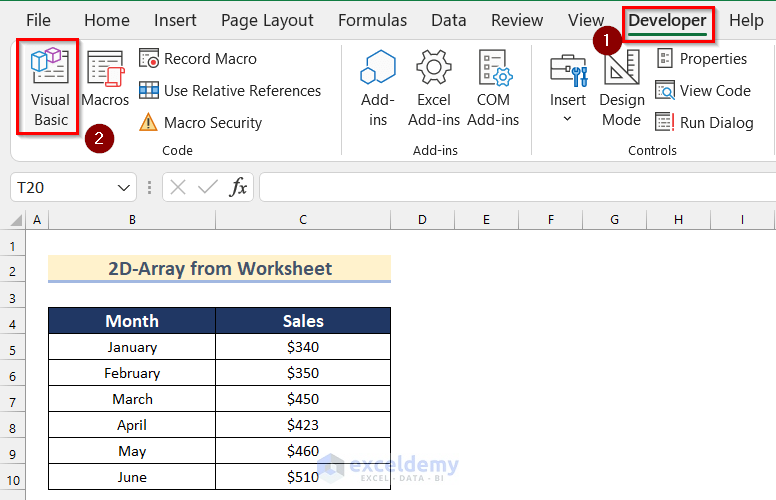
- Then, insert a module going through the step shown in Method 1.
- After that, write the following code in your Module.
Sub Array_from_Worksheet2D()
Dim monthly_sales(1 To 6, 1 To 2) As Integer
Dim row_number As Integer, colm_number As Integer
row_number = UBound(monthly_sales, 1) - LBound(monthly_sales, 1) + 1
colm_number = UBound(monthly_sales, 2) - LBound(monthly_sales, 2) + 1
MsgBox "This array has " & row_number * colm_number & " element."
End Sub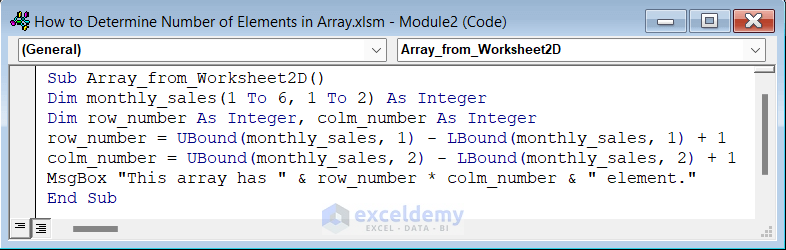
Code Breakdown
- Firstly, we created a Sub Procedure as Array_from_Worksheet2D().
- Then, we declared 2d array named monthly_sales from 1 to 6 rows and from 1 to 2 columns as Integer.
- Next, we declared row_number and colm_number as Integer.
- After that, we used the UBound and LBound functions in 2 different equations to calculate the value of row_number and colm_number.
- Finally, we inserted a MsgBox which will return a text containing the value of the multiplication of row_number and colm_number which is the number of elements in the 2-D array.
- Next, save the module following the step shown in Method 1 and go back to your worksheet.
- Now, go to the Developer tab >> click on Macros.
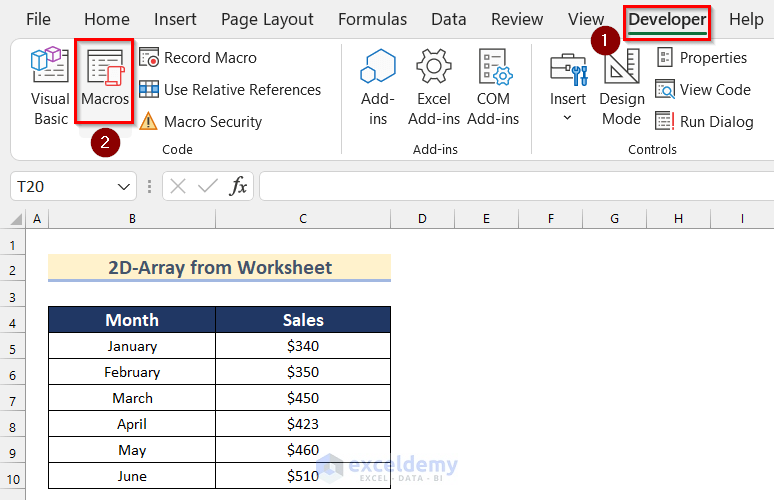
- Then, the Macros box will appear.
- After that, select Array_from_Worksheet2D.
- Next, click on Run.
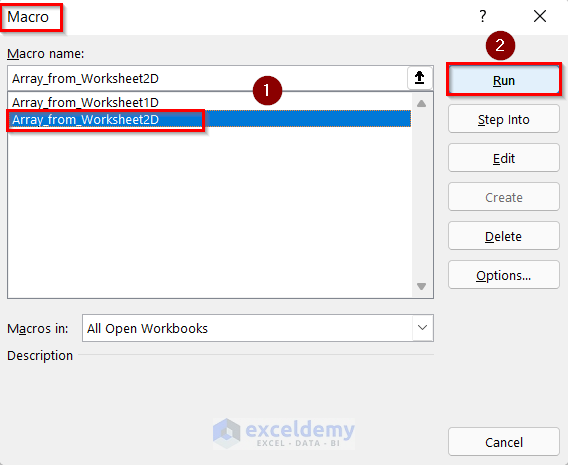
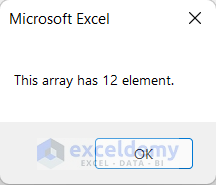
- Finally, you will see a Msgbox with a text as “This array has 12 element.”
3. Using COUNTA Function to Get Number of Elements
Now, we will show you how to get the number of elements in Excel using the COUNTA function. Follow the steps given below to do it on your own dataset.
Steps:
- Firstly, go to the Developer tab >> select Visual Basic.
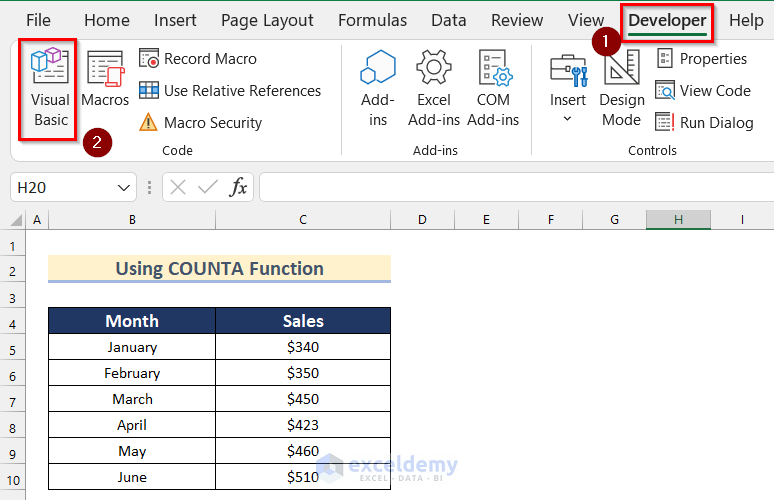
- Then, insert a module going through the step shown in Method 1.
- After that, write the following code in your Module.
Sub Counta_function()
Dim no_of_elements As Integer
Dim sales(1 To 6, 1 To 2) As Integer
If IsEmpty(sales) Then
    MsgBox "This array has zero elements."
Else
    no_of_elements = WorksheetFunction.CountA(sales)
    MsgBox "This array has " & no_of_elements & " element(s)."
End If
End Sub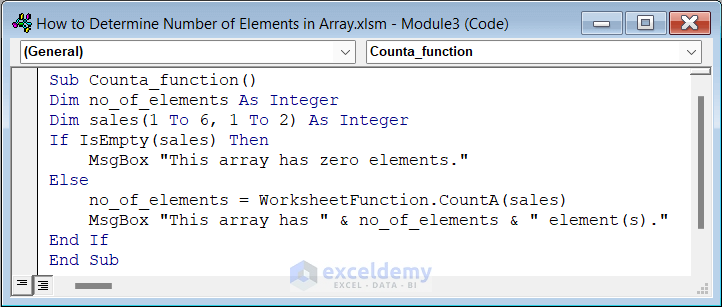
Code Breakdown
- Firstly, we created a Sub Procedure as Counta_function().
- Next, we declared no_of_elements as Integer.
- Then, we declared a 2D array named sales from 1 to 6 rows and 1 to 2 columns as Integer.
- Now, we used the IF function to check if sales is Empty then it will return a MsgBox as “This array has zero elements.”
- Otherwise, the CountA function will count the values in the sales array and save it as no_of_elements.
- Finally, we inserted a MsgBox which will return a text containing the value of no_of_elements.
- Next, save the module following the step shown in Method 1 and go back to your worksheet.
- Then, go to the Developer tab >> click on Macros.
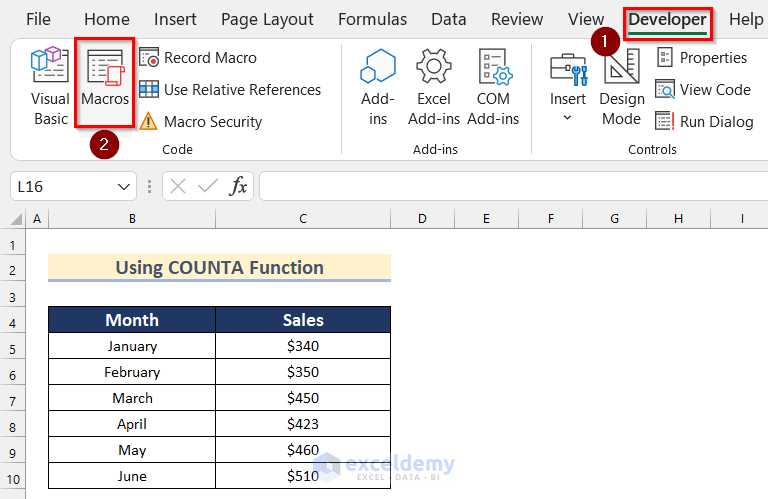
- Now, the Macros box will appear.
- Next, select Counta_function.
- After that, click on Run.

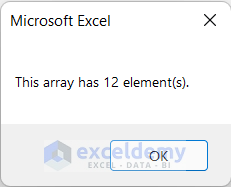
- Finally, you will see a Msgbox with a text as “This array has 12 element(s).”
Read More: VBA to Get Array Dimensions in Excel
4. Using VBA For Loop Statement to Determine Number of Elements in Array in Excel
In the final method, we will show you how to determine the number of elements in an array in Excel using the VBA For loop. Go through the steps given below to do it on your own.
Steps:
- In the beginning, go to the Developer tab >> select Visual Basic.
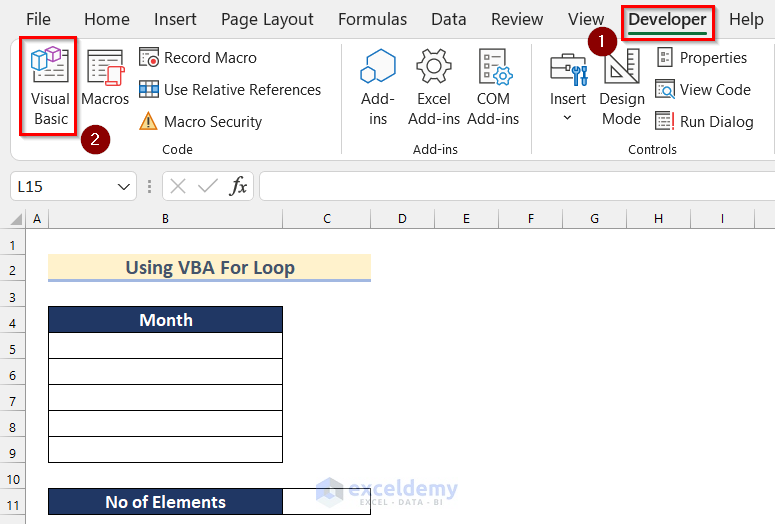
- After that, insert a module going through the step shown in Method 1.
- Now, write the following code in your Module.
Sub For_Loop()
Dim Months As Variant
 Months = Array("Jan", "Feb", "Mar", "Apr", "May")
Dim Month_Name As Integer
For Month_Name = LBound(Months) To UBound(Months)
      Cells(Month_Name + 5, 2).Value = Months(Month_Name)
Next Month_Name
 Cells(11, 3).Value = UBound(Months) - LBound(Months) + 1
End Sub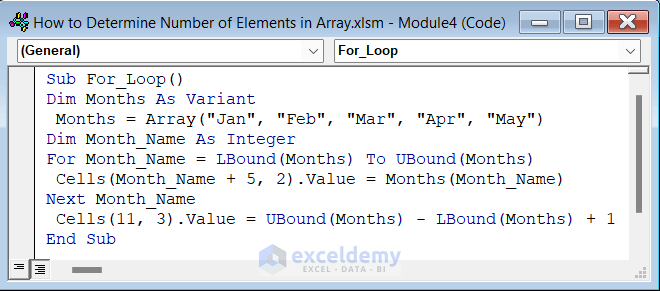
Code Breakdown
- Firstly, we created a Sub Procedure as For_Loop().
- Next, we declared Months as Variant.
- Now, we inserted Jan, Feb, Mar, Apr, and May as an Array and then kept it in Months variable.
- Then, we declared Month_Name as Integer.
- After that, we used a For loop in Month_Name from the lower boundary of Months to upper boundary of Months using the LBound and UBound functions.
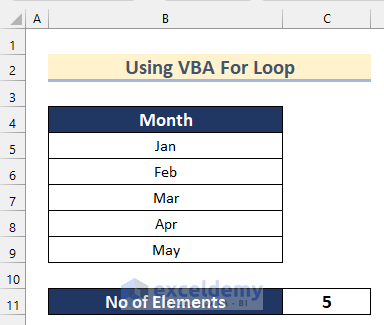
- Next, we used a formula to insert each value of the Months in a different cell according to our preference.
- Finally, we calculated the number of elements using the LBound and UBound functions and assigned the value in Cell (11,3).
- Now, save the module following the step shown in Method 1 and go back to your worksheet.
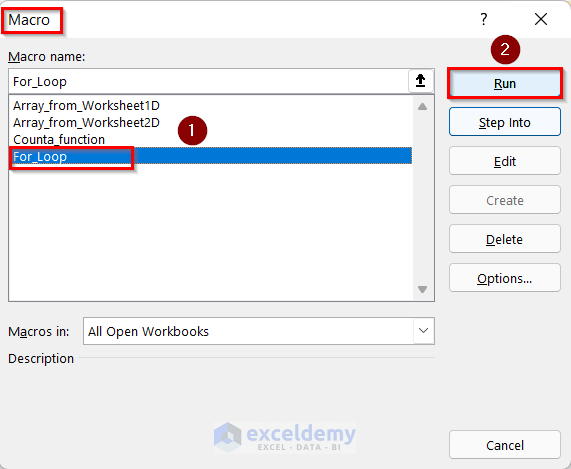
- Then, go to the Developer tab >> click on Macros.
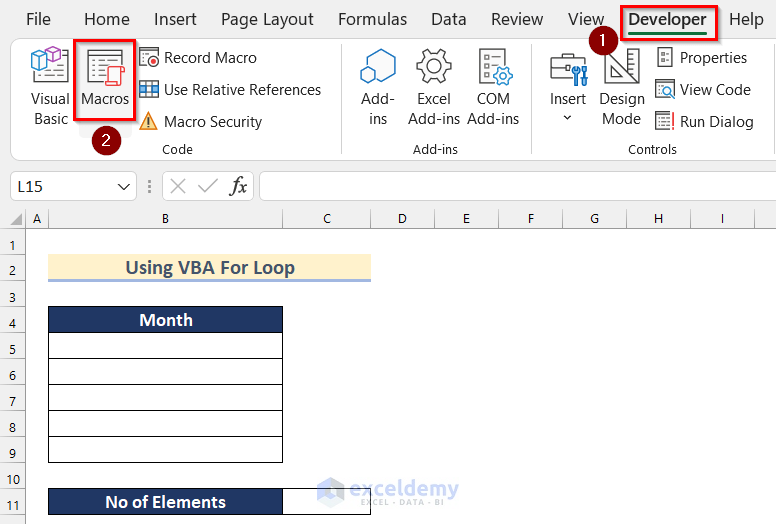
- Next, the Macros box will appear.
- After that, select For_Loop.
- Then, click on Run.
- Finally, the values of the Month will be inserted, and you will also get the number of elements in the Excel worksheet.
Practice Section
In this section, we are giving you the dataset to practice on your own and learn to use these methods.
Download Practice Workbook
Conclusion
So, in this article, you will find 4 ways to determine the number of elements using VBA in Excel. Use any of these ways to accomplish the result in this regard. Hope you find this article helpful and informative. Feel free to comment if something seems difficult to understand. Let us know any other approaches which we might have missed here.
Related Articles
- How to Find Lookup Value in Array in Excel VBA
- Excel VBA to Populate Array with Cell Values
- VBA Array Size Limit in Excel


