In order to decorate our data while working with Microsoft Excel, we often use tables. Normally, the data are organized in different rows and columns ...
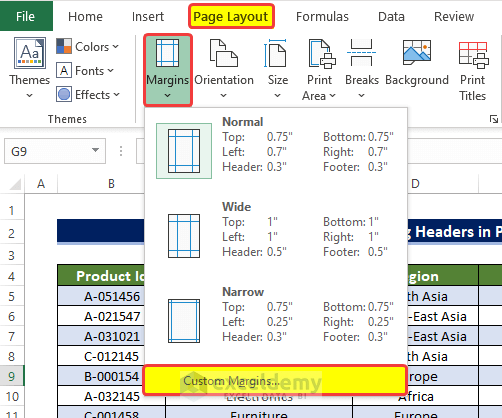
Solution 1 - Editing Page Layout Tab Options Steps: Go to the Page Layout tab from the Ribbon. Select Margins from the Page Setup group. ...
Solution 1 - Unable the Scale Content for A4 Paper Size Click File. Choose Options. In Excel Options, click Advanced. In ...
Method 1 - Set the Print Area in the Page Layout Tab Steps: Select the area to print. Click the Page Layout tab. Select Set Print Area. ...
In Microsoft Excel, sometimes print preview does not show all pages. It may occur due to the size of the print area. Today, we will show a ...
Advanced Excel Exercises with Solutions PDF
![[Fixed!] Table Border Not Showing in Print Preview (2 Solutions)](https://www.exceldemy.com/wp-content/uploads/2022/08/8.-Table-Border-not-Showing-in-Print-Preview.png?v=1697354773)
![[Fixed!] Print Preview Not Available in Excel](https://www.exceldemy.com/wp-content/themes/rehub-theme/images/default/noimage_336_220.png)

![[Fixed!] Print Preview in Excel Does Not Show All Pages](https://www.exceldemy.com/wp-content/uploads/2022/07/print-preview-in-excel-does-not-show-all-pages-4.png?v=1697111149)


