

Solution 1 – Unable the Scale Content for A4 Paper Size
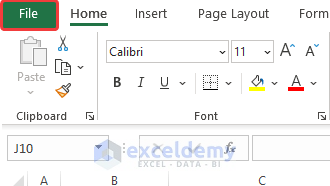
- Click File.
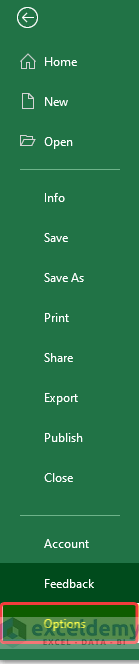
- Choose Options.
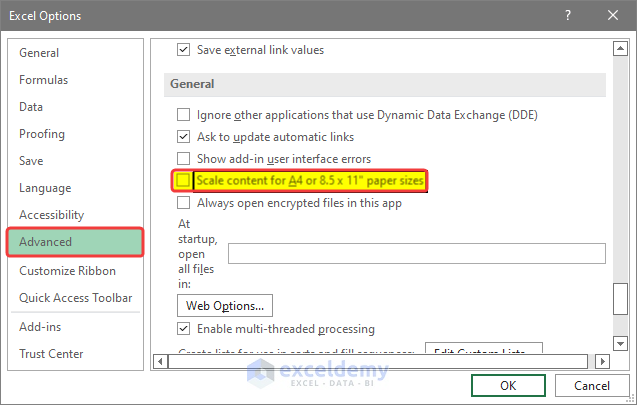
- In Excel Options, click Advanced.
- In General, check Scale content for A4 or 8.5’✖ 11’ paper sizes.
- Click OK .
Solution 2 – Check Your Printer
Use the same Printer for Preview and Print.
Solution 3 – Check Printer Driver
Make sure you have the latest Windows Printer drivers installed.
Solution 4 – Avoid Wrapping Texts
Wrap text can cause instability while Printing out documents in Excel. In Excel always use Alt+Enter to separate or break lines inside the cell. Especially in the title of sheets.
Solution 5 – Try to Clear Print Area
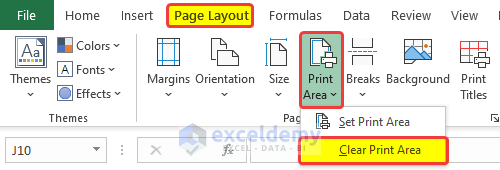
- Go to the Page Layout tab. Click Print Area and choose Clear Print Area.
Solution 6 – Fix the Column Width
Resize Column Width Manually
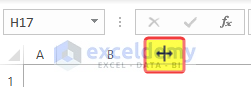
- To resize the column width, drag the column heading boundary.
- Or select a column and in Format Cells, click Column Width.
- Choose the size and click OK.

Switch Cell Styles to Normal
- Press Ctrl+A.
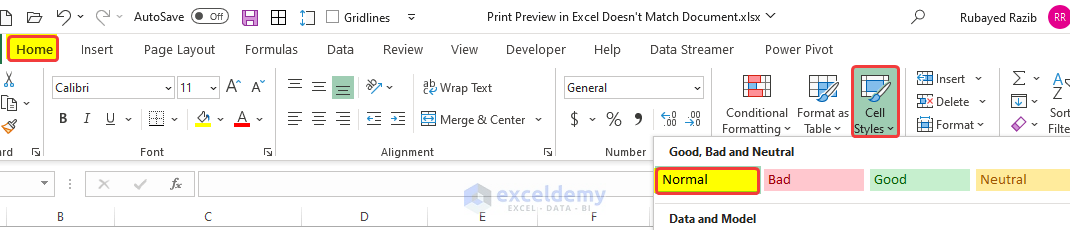
- In the Home tab, click Cell Styles and select Normal.
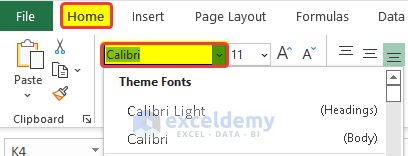
Use Monospace Fonts
Solution 7 – Modify the Page Layout Setting
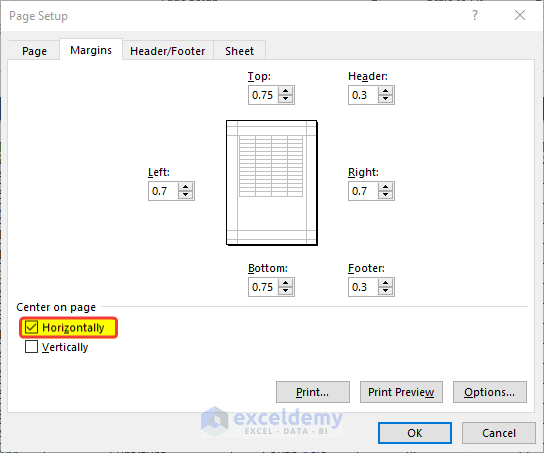
Choose Custom Margins:
- Go to Page Layout and click Custom Margins.
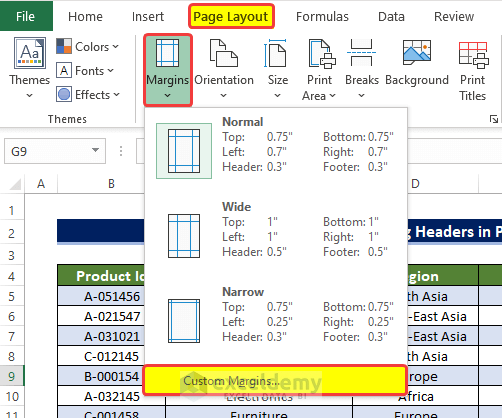
- In the Page Setup dialog box, change the margins.
- Click OK.
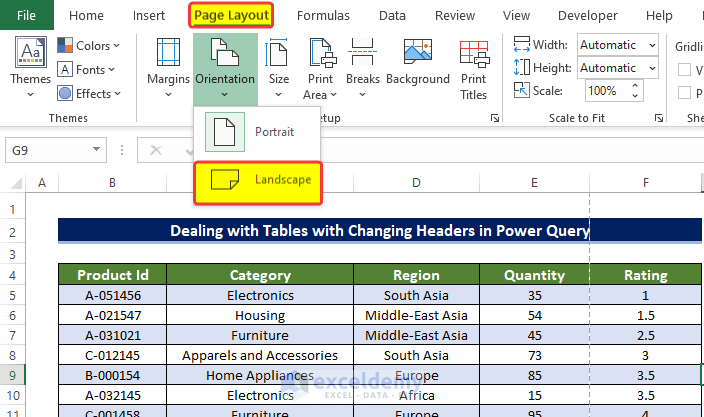
Try Different Orientation
- Go to Page Layout and click Orientation.
- Select Landscape.
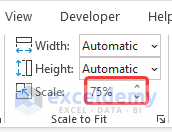
Alter the Scale Percentage in the Scale to Fit Group
You can scale Height and Width automatically in the Scale window. Keep the Scaling between 70-80 percent.
Related Articles
- [Fixed!] Print Preview Not Available in Excel
- How to Delete Blank Pages in Print Preview in Excel
- [Fixed!] Table Border Not Showing in Print Preview
<< Go Back to Print Preview in Excel | Print in Excel | Learn Excel
Get FREE Advanced Excel Exercises with Solutions!

