

Method 1 – Using File Tab to Print Selected Area in Excel on One Page
Steps:
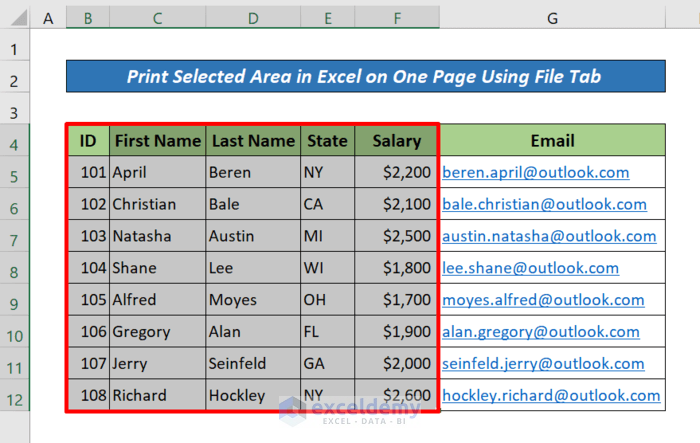
- Select the area that you need to print. We have selected B4:F12.
- Press CTRL+P.
Or, click the File tab.
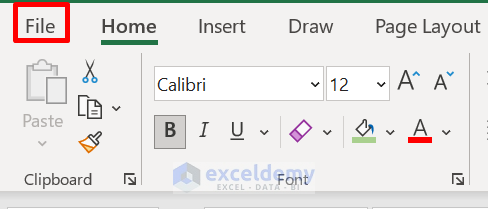
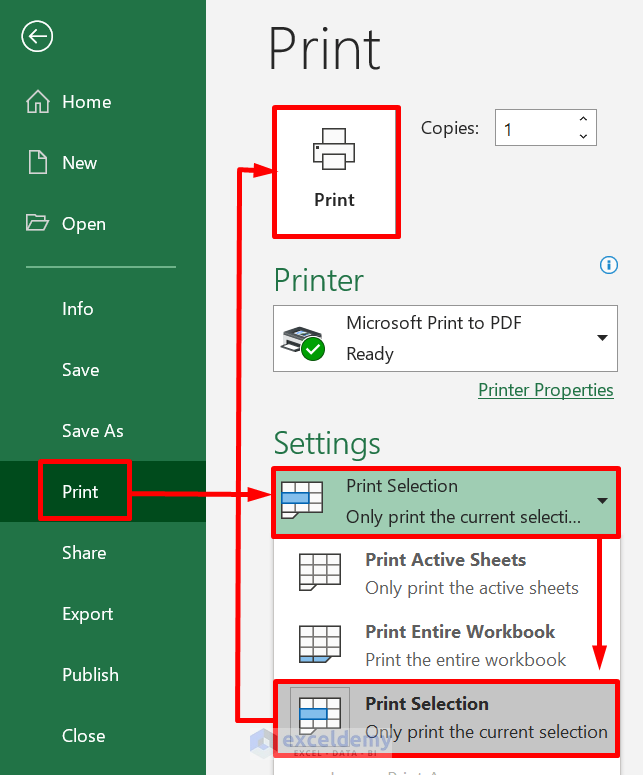
- Click Print.
- Click on the first option in Settings.
- Select Print Selection.
- Click on the Print button. It will print only the current selection of the page.
Read More: How to Print Selected Area in Excel
Method 2 – Printing Selected Area in Excel on One Page with Page Layout tab
Steps:
- Select the area you want to print out. We selected the range of cells D5:F12.
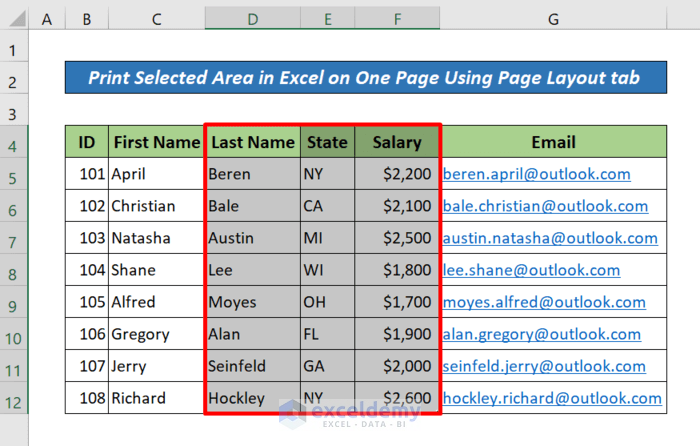
- Go to the Page Layout tab > the Print Area drop-down > the Set Print Area option.
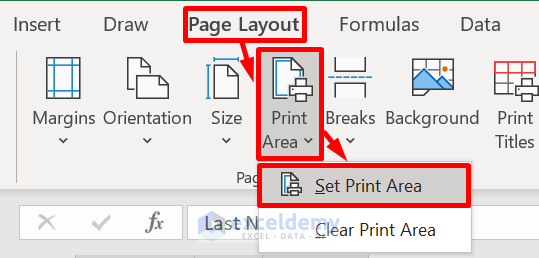
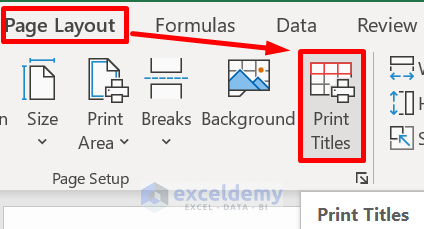
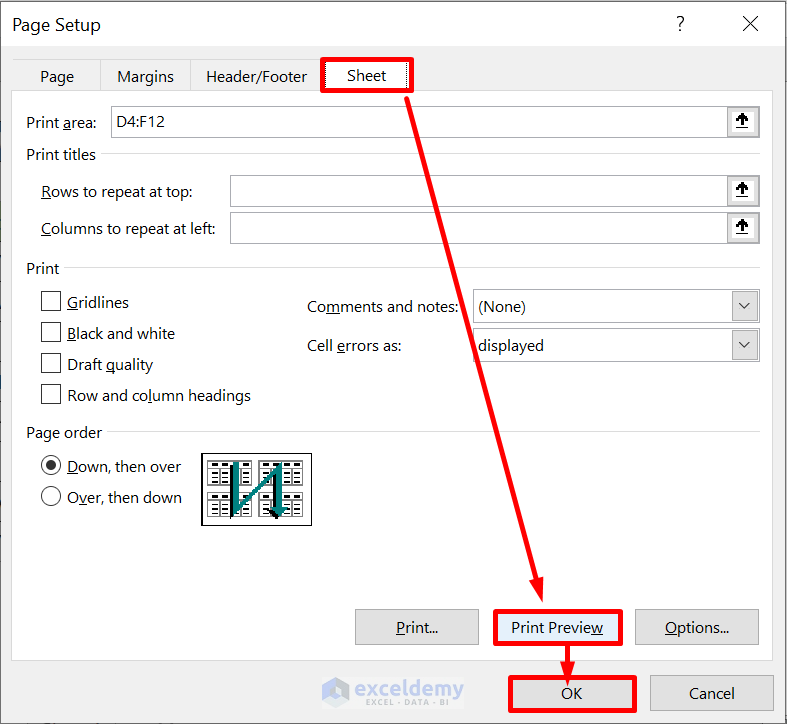
- Click Print Titles under the Page Layout. A Page Setup window will pop up.
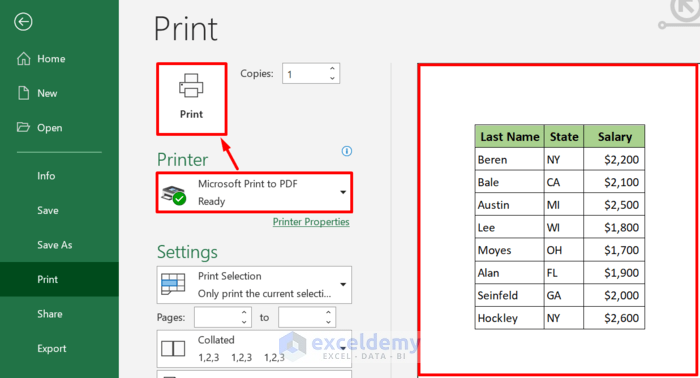
- Go to Sheet and click on Print Preview. You will see a preview of the specific area that you want to print.
- Select the printer you want to use from the Print option of the File.
- Click on the Print button.
Note:
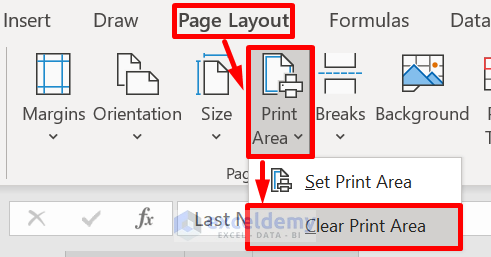
The print area that you set will be saved when you save the Excel workbook. If you want to clear the selected area, click Print Area under Page Layout, and select Clear Print Area.
Read More: How to Set Print Area in Excel
Method 3 – Adding Cells to Already Selected Print Area in Excel
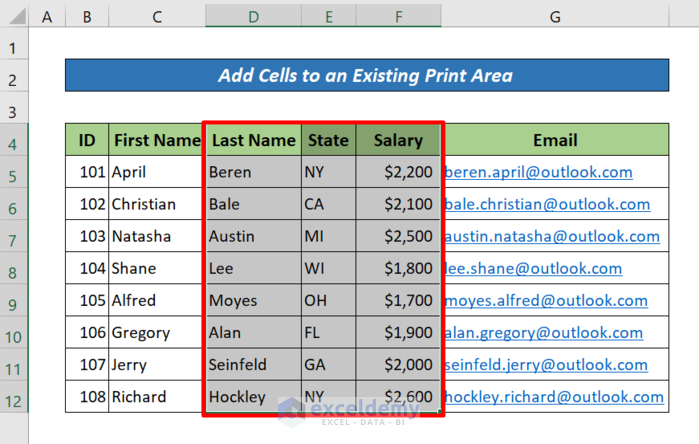
You can add new cells to previously selected print area. In this case, we will add all the cells of the column titled “First Name” to Method 2’s print area.
Steps:
- Select the cells that you need to add to the current print area.
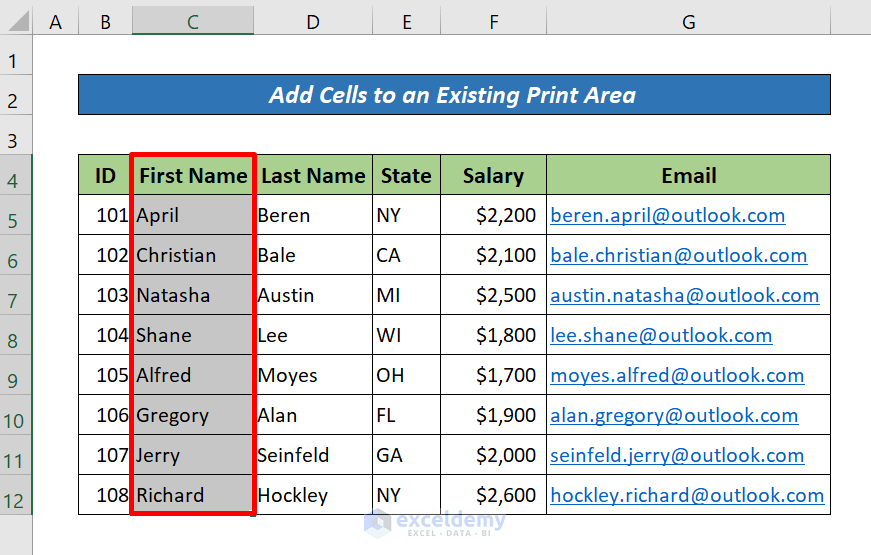
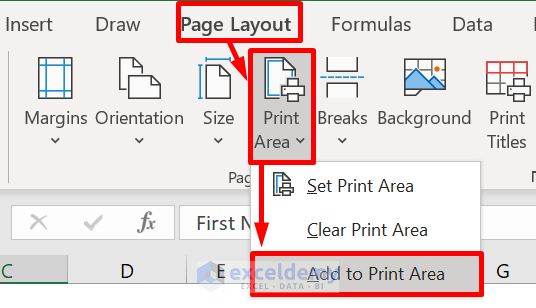
- Go to the Page Layout tab > the Page Setup group > the Print Area drop-down > the Add to Print Area option. After saving the workbook, the print area will be saved.
To view all the print areas, click View> Page Break Preview from the Workbook Views group.
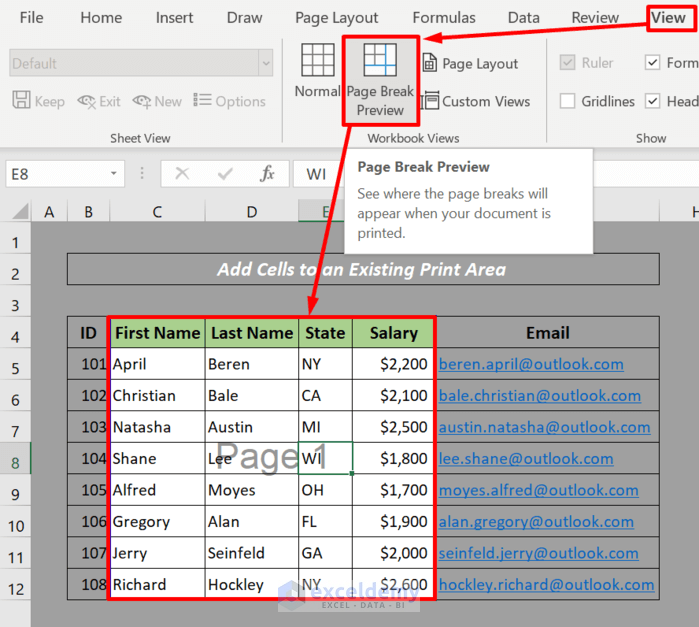
Note:
If the cells that you need to add are not adjacent to the current print area, another print area will be created. Each print area in a worksheet will be printed separately. Only adjacent cells can be added to a current print area to be printed on one page.
Download Practice Book
Related Articles
- How to Set Print Area with Blue Line in Excel
- How to Set Print Area for Multiple Pages in Excel
- How to Center the Print Area in Excel
<< Go Back to Page Setup | Print in Excel | Learn Excel
Get FREE Advanced Excel Exercises with Solutions!


in Excel How to print TWO print areas from a sheet on one page.
Hello Cassim,
Excel only allows one print area per sheet at a time, so if you set two separate ranges as print areas, Excel will print them on different pages. To get both ranges on the same page, you can try one of these workarounds:
Move the ranges together: Copy or rearrange the two ranges so they sit next to each other on the same sheet, then set that combined range as the print area.
Use “Ignore Print Area”: Go to File > Print, then select Print Selection (instead of Print Area). Highlight both ranges while holding Ctrl, and Excel will print them together on one page (if they fit).
Copy to a helper sheet: Paste the two ranges into a new sheet in the layout you want, then print that single area.
Use Page Layout scaling: In Page Layout > Scale to Fit, reduce the scaling so that both ranges can be adjusted to fit on one page.
Unfortunately, Excel does not natively support multiple disjoint print areas on one page, so one of these workarounds is needed.
Regards
ExcelDemy