

Excel VBA Run Time Error 1004 is a very common error in Microsoft Excel while working with Visual Basic for Applications (VBA) macros. Although it’s a common error, you might not have been familiar with the reasons and solutions to this problem. Well, This article is designed in a proper way to give you a complete overview of the run time error. Let’s dive into the details.

The above overview image shows the error which occurred when trying to name a sheet by a name that has already been used for another sheet. This is one of the reasons. Follow along to know about other reasons and solutions.
Excel VBA Run Time Error 1004: 7 Possible Reasons with Solutions
Excel VBA Run Time Error 1004 happens due to some simple mistakes. These errors are easily solvable. In the following sections, I have discussed both the reasons and solutions.
1. Use Same Name in Naming Sheet
One of the most frequent reasons for having the Run Time Error is to try to name the same name in another sheet. If you try to run the VBA after naming the same name of a sheet whose name already exists, a MsgBox will appear with the message That Name is already taken. Try a different One.

For more simplification, I have created a file with two sheets. I have named the first sheet Exchange Rate.
Sub SameSheetName()
Worksheets("Sheet2").Name = "Exchange Rate"
End Sub
Here, I have tried to put the same name for the second sheet with VBA. As a result, Excel VBA Run Time Error 1004 will occur and show the That Name is already taken. Try a different One. message in a MsgBox.
Solution
As this is happening due to the reason of trying to set the same name in another sheet, try to set a different name. If you put a different sheet name that does not exist in that workbook, the error will not happen.
2. Call by Wrong Name to Pre-defined Name Range
Another very common phenomenon for the occurrence of Excel VBA Run Time Error 1004 is calling by the wrong name to a predefined name range. If you set a name for a range of cells and mention another name in VBA, it will show Method “Range” of object’ _ Global’ failed in the MsgBox.
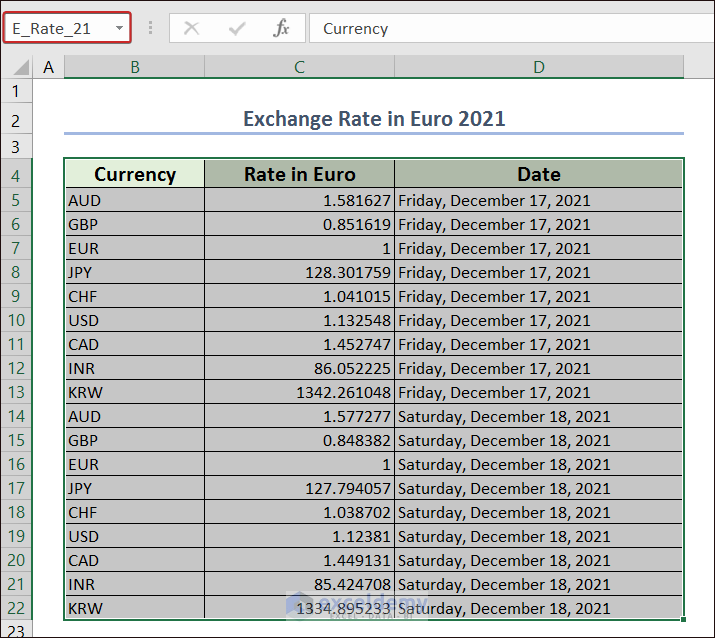
I have defined range B4:D22 as E_Rate_21. I am going to use this name range in the VBA.

Sub Call_by_WrongName()
Range("Exchange_Rate_21").Select
End Sub
Here, I have input the command to select the Exchange_Rate_21 name range. But there is no such thing as Exchange_Rate_21 in the Visual Basic Editor. I have input the name range as Exchange_Rate_21 instead of E_Rate_21. So, A MsgBox will appear with the Method “Range” of object’ _ Global’ failed message in it.
Solution
To solve this problem, try the same name of the pre-defined name range in the Visual Basic Editor.
Read More: How to Fix Excel Runtime Error 13 Type Mismatch in VBA
3. VBA Run Time Error 1004 While Trying to Select Cell Without Activating Sheet
If you want to select a range of cells in a certain worksheet, you need to activate that sheet first by putting the cursor in it or via VBA. Otherwise, it will show Select Method of Range class failed as Excel VBA Run Time Error 1004 in the MsgBox.
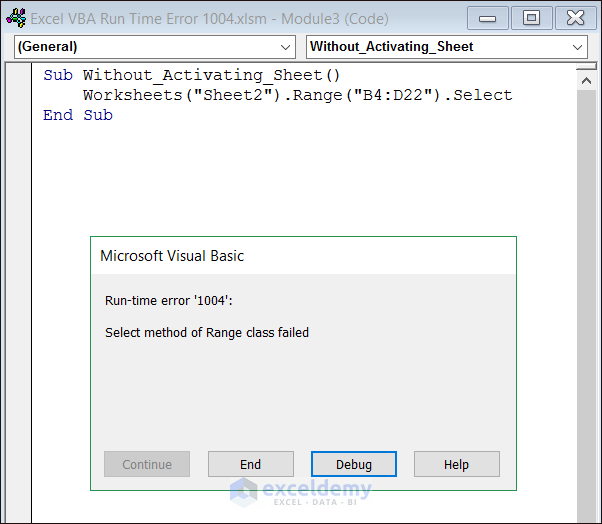
Sub Without_Activating_Sheet()
Worksheets("Sheet2").Range("B4:D22").Select
End Sub
I have given instructions to select B4:D22 in Sheet2 but I have not activated Sheet2. As a result, the Run Time Error will occur and show Select Method of Range class failed in the MsgBox.
Solution
Before selecting a certain range in a certain worksheet, make sure that sheet is activated. Activate that sheet just by putting the cursor in it or via VBA.
4. Try to Open Same Name Already Opened Workbook
We can open an Excel Workbook with VBA. We can keep multiple workbooks open at the same time. But if we try to open a workbook with VBA keeping a workbook open with the same name, we will have the Run Time Error. As a part of this error system, we will have the Method ‘Open’ of object ‘Workbooks’ failed in a MsgBox.

Solution
To avoid this issue, make sure when opening a new workbook that it does not contain the same name as the opened workbook. You can change the name of either one of the workbooks or close the already opened workbook before opening the new one.
5. Define Wrong Path to Open File
Another vital reason to have Excel VBA Run Time Error 1004 is to define the wrong path of a file to open via VBA. In that case, we will have a MsgBox with a possible reason as a message.

Solution
To solve this problem, input the right path when necessary. Check and double-check if necessary.
6. Activate Cell Range Without Activating Worksheet
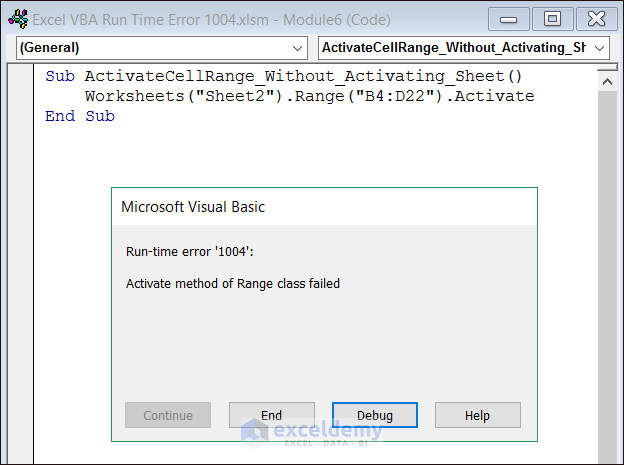
If you want to activate a range of cells in a certain worksheet, you need to activate that sheet first by putting the cursor in it or via VBA. Otherwise, it will show Activate method Range class failed as Excel VBA Run Time Error 1004 in a MsgBox.
Solution
Make sure to activate a sheet before activating a certain range in a certain worksheet. Activate that sheet just by putting the cursor in it or via VBA.
7. Calling an Object of No Existence
You can’t call an object of a sheet in another sheet. Then it will be called Excel VBA Run Time Error 1004 and Application-Defined or Object-Defined Error will appear as a message in a MsgBox.
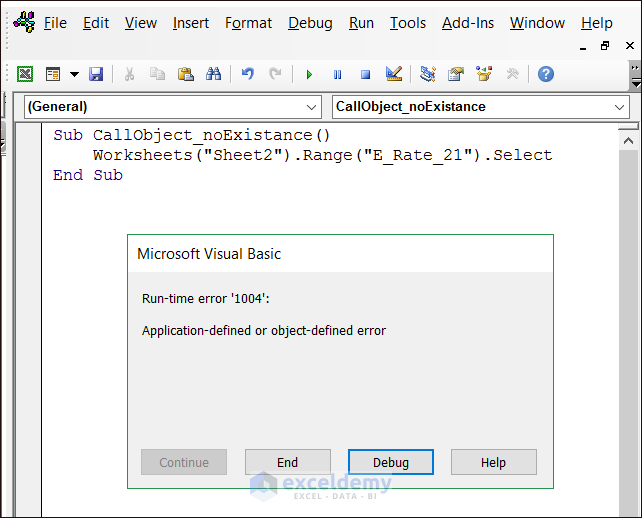
Here, I have a named range E_Rate_21 and it is assigned for Sheet1. But I have called it in Sheet2. As a result, it has returned Application-Defined or Object-Defined Error as Excel VBA Run Time Error 1004.
Solution
To ignore the error in this case, call the assigned name range for that specific sheet. You can’t call a specific sheet’s name range in another sheet.
Read More: [Fixed!] Runtime Error 438 in Excel VBA
Some Extended Methods to Fix Excel VBA Run Time Error 1004
Apart from the above-mentioned solutions, there is another way to fix Run Time Error as an extended method. That is described in the following section.
Modify Macro Settings from Trust Center to Fix Excel VBA Run Time Error 1004
You can make necessary adjustments from the Macro Settings to avoid Run Time Error.
For this, go to the File tab first.
From the available options, select Options.

A wizard named Excel Options will appear. Pick the Trust Center Settings option from the Trust Center tab.

A Trust Center wizard will appear.
Now, go to the Macro settings. Check the box titled Trust access to the VBA project object model. After checking the box, the error should be solved.
If the problem is still not solved, then try checking the box titled Enable VBA macros (not recommended; potentially dangerous code can run). You can see the warning message in the first bracket. It is told to avoid. But if no other solutions mentioned above work, try using this method. Otherwise, try to avoid it.

Download Practice Workbook
You can download the practice workbook from here.
Conclusion
In this article, I have explained 7 possible reasons along with the solutions for Excel VBA Run Time Error 1004. Adopt necessary methods based on your problem. I hope this article will be very helpful for you. For more queries, you can visit our site exceldemy.com.
Related Articles:
- [Fixed!] Run Time Error 32809 in Excel VBA
- [Fixed!] Run Time Error 1004: Select Method of Range Class Failed


