

Excel is the most widely used tool for dealing with massive datasets. We can perform myriads of tasks of multiple dimensions in Excel. Sometimes we get some password-protected encrypted files in Excel that we need to work with. In this article, I will explain 2 solutions that you can use if you cannot open encrypted Excel file.
Cannot Open Encrypted Excel File: 2 Effective Solutions
Without further ado, let’s directly go to the methods.
1. Open Encrypted Excel File with Password
The first step is to open the Excel file using the password.
Steps:
- First of all, go to the Review tab.
- Then, select Unprotect Sheet.
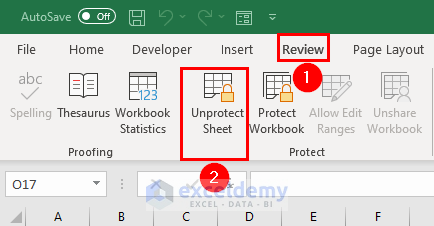
- After that, use the password to unprotect the file.

- Then, you can do anything you want in the file.

Read More: How to Decrypt Excel File Without Password
2. Open Encrypted Excel File Without Password
Suppose you do not know the password. In this case, you can follow this method to open an encrypted file. I have the sheet that I will unprotect.

Steps:
- First of all, move the file to a new folder.
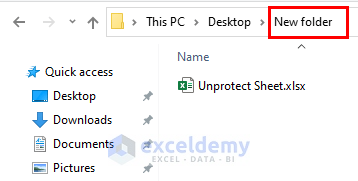
- Then, go to the File.

- Then, select the Change folder and search options.
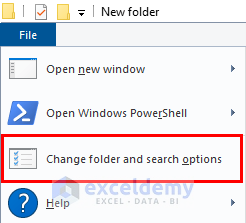
- Folder Options box will appear.
- Then, go to the View tab.
- Then, uncheck the option for hiding extensions.
- Then, click Apply.

- After that, rename the file and change the extension from xlsx to zip.

- A box will appear. Click Yes.

- Then, open the zipped file.
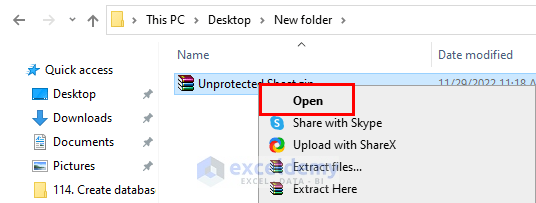
- After that, select xl.

- After that, select worksheets.
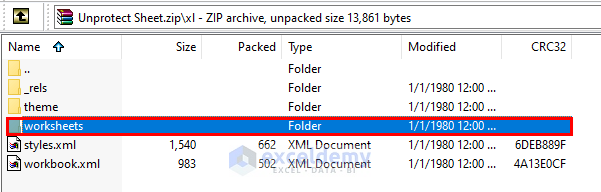
- Next, select xml.

- Then, open the file in Notepad.
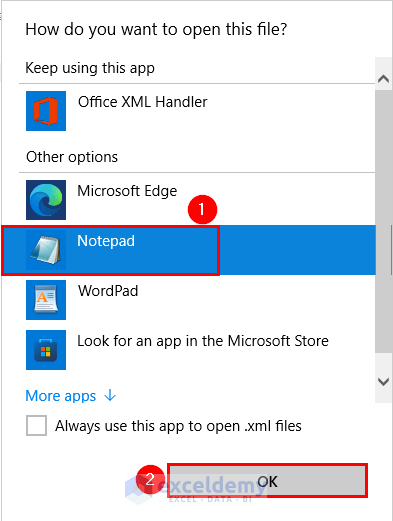
- A notepad will open. Select Word Wrap from the Format.

- Then, delete the sheetProtection algorithm.

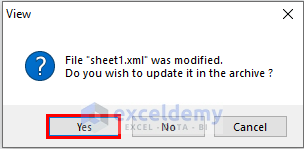
- Next, save the file.

- A box will appear. Click Yes.
- Then, change the extension again to xlsx.

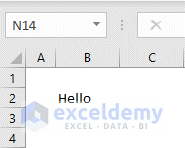
- After that, upon opening the Excel file, you will modify it.
Read More: How to Remove Encryption from Excel
Conclusion
In this article, I have demonstrated 2 methods to open an encrypted file. I hope it helps everyone. If you have any suggestions, ideas, or feedback, please feel free to comment below.
Related Articles
<< Go Back to Encryption in Excel | Excel Protect | Learn Excel
Get FREE Advanced Excel Exercises with Solutions!

