
Latest Posts From Nazmul Hossain Shovon

In this tutorial, I will show you 4 simple methods to insert a comma between words in Excel. When you have small datasets, inserting commas inside them ...
 Nazmul Hossain Shovon

Method 1 - Using Ampersand(&) Operator to Add Text to the Beginning of a Cell in Excel Steps: Double-click on cell C5 and enter the following ...

Download Practice Workbook Show Only Working Area.xlsx Method 1 - Use Excel Page Break Preview to Show Only Working Area In the sample dataset, ...
Method 1 - Change Workbook Views to Remove the Page 1 Watermark in Excel In many situations, a page 1 watermark appears in an Excel workbook because of a ...

In this tutorial, I am going to show you 3 effective ways to create an Excel table with row and column headers. Headers help to make tables more readable. They ...

In this tutorial, we will demonstrate a quick but useful method to convert numbers to text format in Excel using the apostrophe. Furthermore, this method will ...

Method 1 - Align Shapes in Same Plane in Excel We have four shapes that are on the same plane but are not arranged in a particular way. Steps: ...
Method 1 - Single Trendline Steps Choose your dataset using the mouse. Go to the Insert tab and select Scatter from the Insert Scatter (X, Y) ...

Method 1 - Color Bubble Chart Using Single Series Data Values This method of creating a bubble chart is quite simple. You can set the color of the bubbles ...

In this tutorial, you will learn how to make a Pie Chart in Excel without numbers. This type of situation is very common where you need people’s opinions on ...

Watch Video – Create Graphs in Excel with Multiple Columns Method 1 - Create 2-D Graph with Multiple Columns in Excel Ther is a ...

In this tutorial, I am going to show you how to add a second vertical axis in an Excel scatter plot. This is needed when plotting two variables on the same ...
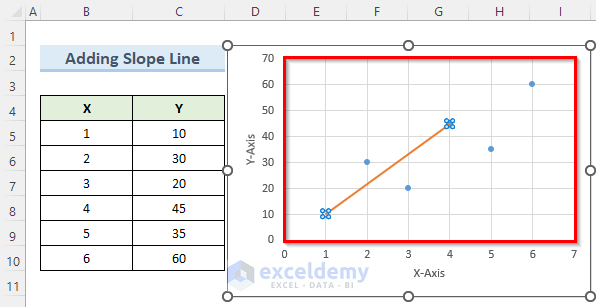
In this tutorial, I am going to share with you 3 practical examples of how to add lines to an Excel scatter plot. Lines may be needed to show a threshold or ...

Watch Video – Create Barcode in Excel Method 1 - Apply IDAHC39M Font to Create Barcode in Excel Steps: Download the IDAHC39M font and ...

Method 1 - Using an Excel Formula to Automatically Calculate the Percentage 1.1 Using the Conventional Percentage Formula The dataset showcases the total ...
- « Previous Page
- 1
- …
- 4
- 5
- 6
See Our Reviews at


Hi Shruti,
I have attached an Excel file that you can use to find specific absent dates. Hope it helps!
Download link
Hi Maikel,
Can you share your Excel file with us, kindly? So that we may have a look at it and give you some suggestions.
Hi Cory,
You can follow the steps below for this:
1. Fill up the information in the pdf file. Then go to File >> Save as Text. This will create a file in .txt format.
2. Now open an Excel sheet. Go to the Data tab. Here in the top left corner, click on From Text/CSV and select the text file you just saved.
3. Finally in the next window, click on Load and this should bring the filled-in information as well.
Hope this helps!
Hi Mike,
You can try the following steps to change the date format in excel comments:
1) Type intl.cpl in the Windows Search Box.
2) Now, under Date and time formats, click on the Short date drop-down and choose the date format that you want to use in the comments in excel.
Hi James,
Thanks for your correction. To add, you can also calculate the GST amount using this formula:
GST Amount =
(C4*C5)/(1+C5)Then we can deduct this value of cell C6 from C4 to get the original price in cell C7.
Hi Brijesh,
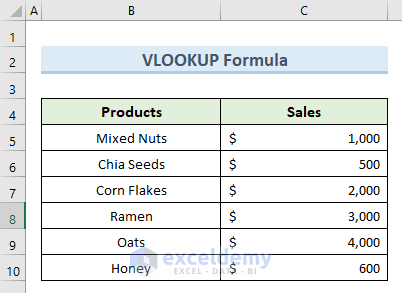
I have created a simplified solution below. Please follow them:
1. I am assuming that you have a Sheet1 like below:
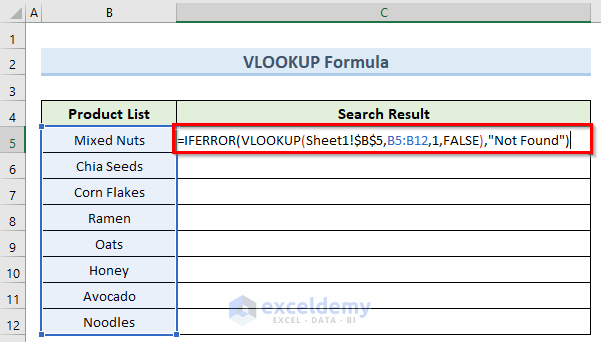
2. Now, go to the Sheet2 and insert the following formula in cell C5:
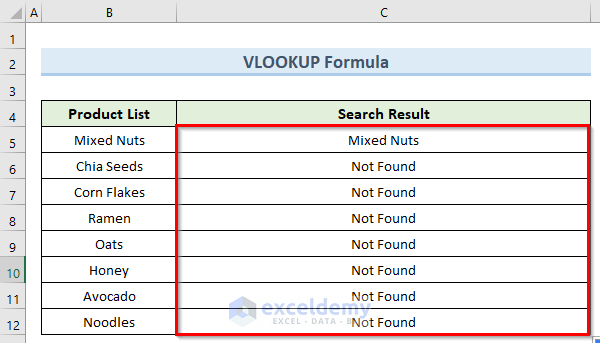
=IFERROR(VLOOKUP(Sheet1!$B$5,B5:B12,1,FALSE),"Not Found")3. Now, simply copy this formula down using Fill Handle and this should tell you whether the product in cell B5 inside Sheet1 exists in the Product List column or not.
Hi KARLHEINZ,
Looks like you have missed the <> symbol in the SMALL(IF((LEN($H$6:$H$13)0) portion of the formula. The correct formula should be this:
SMALL(IF((LEN($H$6:$H$13)<>0)
I hope this solves your problem. Please let us know if you face any other issues.