
Latest Posts From Mukesh Dipto

In this article, we will learn about how to print labels in Excel. Labeling is essential in terms of marketing a product, the address of a person to deliver a ...
 Mukesh Dipto

In this article, we will show you different methods to unmerge cells in Excel. To make our work easy we often merge two or more cells. Merging does nothing but ...

Method 1 - Activate Automatic Hyperlinks Option to Convert Text to Hyperlink in Excel In the following dataset, we can see the URLs of 5 companies. ...

Method 1 - Use the Mouse Click to Copy a Hyperlink in Excel In the following dataset, we will copy the hyperlink of the company “Exceldemy”. We will ...

Method 1 - Remove a Single Cell’s Hyperlink from Excel We will remove the hyperlink only for “Exceldemy”. STEPS: Select cell C5. ...
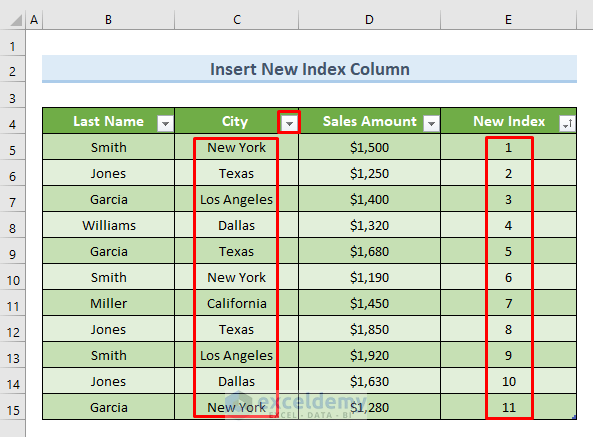
Method 1 - Use the Conventional Undo Command to Remove Sort in Excel To demonstrate this method, we will use the following dataset. We have filter ...
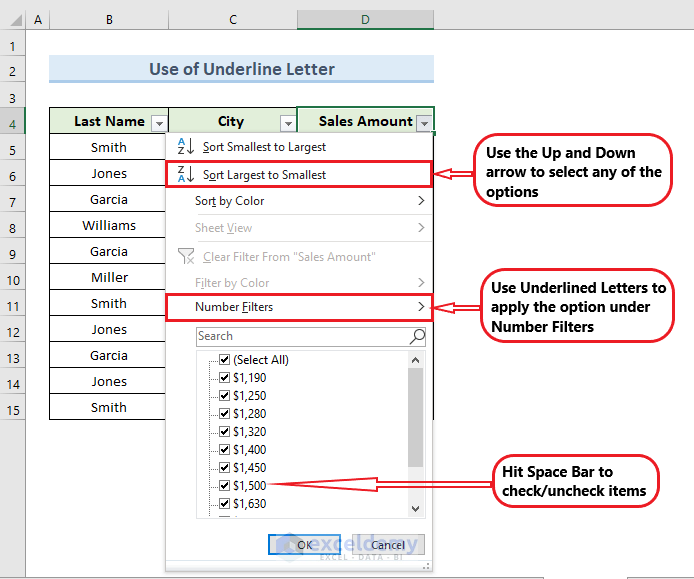
Method 1 - Use the Filter Shortcut Option Under the Data Tab to Filter Data Suppose you have the following dataset. Steps: Select any cell from ...

In Microsoft Excel, we use the VBA FileDateTime function to find out the last modification date of any drive, file, or directory. In this article, we will go ...

In this article, we will illustrate the use of the VBA Round function. Rounding is basically a mathematical term. It makes a decimal value shorter and simpler ...

Method 1 - Use VBA Replace to Find a Word and Replace We have the following dataset of six students and their status of present or absent in the class. We'll ...

The following dataset showcases sales amounts in January. Method 1 - Setting 7 Days As a Week to Group a Pivot Table by Week This is the pivot ...

In this article, we will learn how to use and get sheet name code in Excel. In Microsoft Excel, we can use the sheet name directly in a formula as a reference. ...

What Is an Excel Transport Bill Format? A transport bill is a type of receipt provided by a transport service. The overview of a bill template is in the image ...
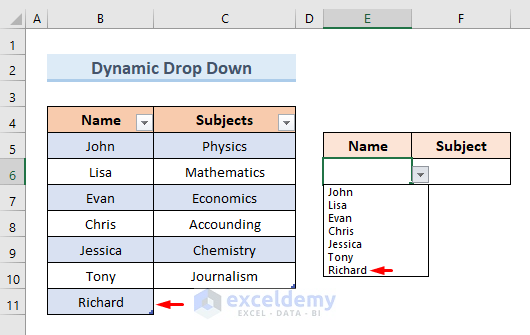
Method 1 - Creating a Drop-Down List from a Table with Validation To create a drop-down list from a table, we can use the validation option. This is one of ...
Method 1 - Use the F4 Key in Excel Formula to Keep a Cell Fixed We have a dataset of fruits with their weight, unit price, and total price. Sellers will pay a ...
See Our Reviews at


Hello Ruby,
Thanks for your query. If you do not want to see the formula for a blink then you have to do it by protecting the worksheet. You can try the following code:
Sub HideFormulasDisplayValues()
With ActiveSheet
.Unprotect
.Cells.Locked = False
.Cells.SpecialCells(xlCellTypeFormulas).Locked = True
.Cells.SpecialCells(xlCellTypeFormulas).FormulaHidden = True
.Protect AllowDeletingRows:=True
End With
End Sub
Thanks for your feedback sir.
The range is (>=50 and <=80). In Excel COUNTIF function by default omit the upper end value.
So, the formula is basically showing the result for the values less than 80.