
Latest Posts From Mukesh Dipto

Method 1 - Fill a Linear Series in Excel in a Column Select cell D5. Drag the Fill Handle tool to cell D10. From the dropdown of the right ...
 Mukesh Dipto
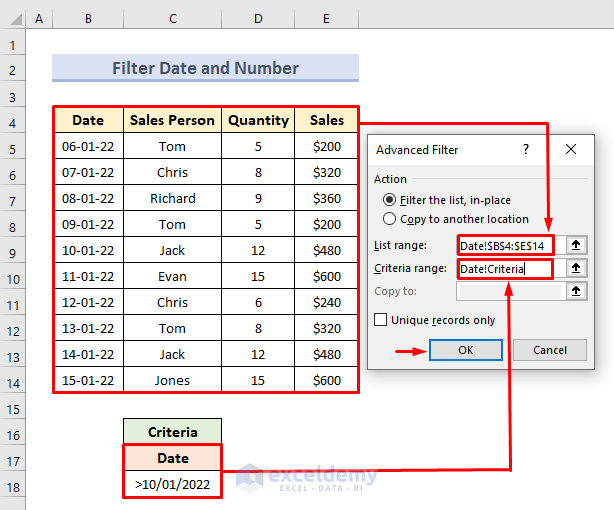
Method 1 - Using the Advanced Filter Criteria Range for Number and Dates Column B to Column E in the sample dataset represents sales data. We will use the ...

Method 1 - Utilizing the ‘Inspect Document’ Option to Delete Hidden Rows in Excel Hide the highlighted rows, select the rows. Right-click on the cell ...
Excel IF Function Overview Description The IF function tests a condition, then returns one of the two values depending on whether the test is TRUE or ...
The COUNTIF Function in Excel: Syntax ➤ Description Count cells within specific criteria. ➤ Generic Syntax COUNTIF(range,criteria) ➤ Argument ...

Method 1 - Using Excel Formula to Sum Time in Excel We will use the following dataset which contains the working hours of staff for Thursday and ...

In this article, we will get familiar with the Excel NORMDIST function. We can use this function in statistics as well as hypothesis testing. We will go over ...

The Excel SLOPE Function Description The SLOPE function returns the slope of the linear regression line with known y and x data points. The rate of ...

Microsoft Excel has a variety of functions and tools. The Excel SHEET function accepts only one argument, value, which can be a reference, a specified range, ...

While working with a big dataset sometimes we need to know how to Freeze Columns in Excel as well as Rows, or both of a worksheet. It’s necessary to make a ...
- « Previous Page
- 1
- …
- 5
- 6
- 7
See Our Reviews at


Hello Ruby,
Thanks for your query. If you do not want to see the formula for a blink then you have to do it by protecting the worksheet. You can try the following code:
Sub HideFormulasDisplayValues()
With ActiveSheet
.Unprotect
.Cells.Locked = False
.Cells.SpecialCells(xlCellTypeFormulas).Locked = True
.Cells.SpecialCells(xlCellTypeFormulas).FormulaHidden = True
.Protect AllowDeletingRows:=True
End With
End Sub
Thanks for your feedback sir.
The range is (>=50 and <=80). In Excel COUNTIF function by default omit the upper end value.
So, the formula is basically showing the result for the values less than 80.