

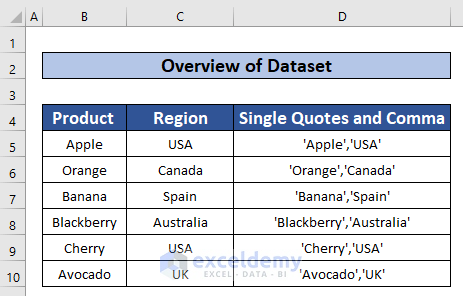
Here’s an overview of the dataset, where we’ll concatenate the values from the first two columns and add quotes and a comma.
Method 1 – Use the CHAR Function to Add Single Quotes and Comma
Steps
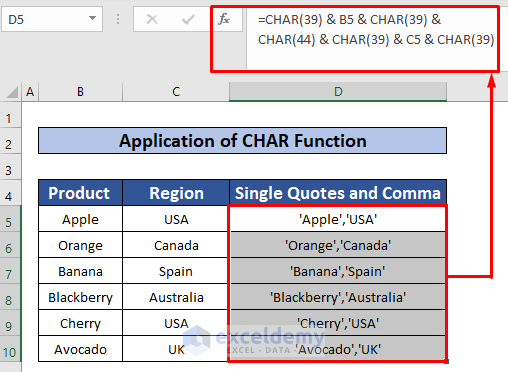
- Select cell D5.
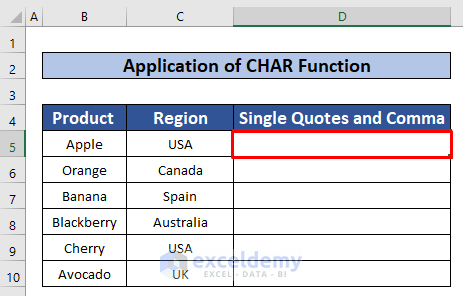
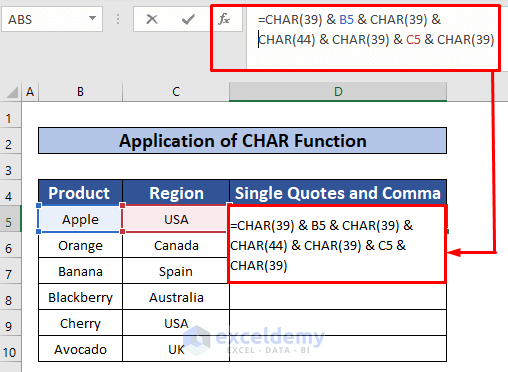
- Use the following CHAR function in the selected cell:
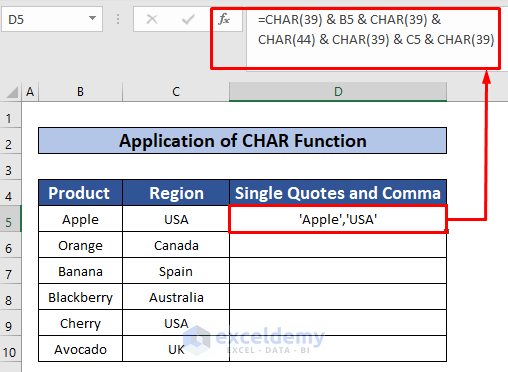
=CHAR(39) & B5 & CHAR(39) & CHAR(44) & CHAR(39) & C5 & CHAR(39)CHAR(39) return a single quote and CHAR(44) returns a comma.
- Press Enter on your keyboard.
- AutoFill the CHAR function to the rest of the cells in column D.
Read More: How to Concatenate Single Quotes in Excel
Method 2 – Merge CONCATENATE and CHAR Functions to Add Single Quotes and Comma
Steps:
- Select cell D5.
- Insert the following function:
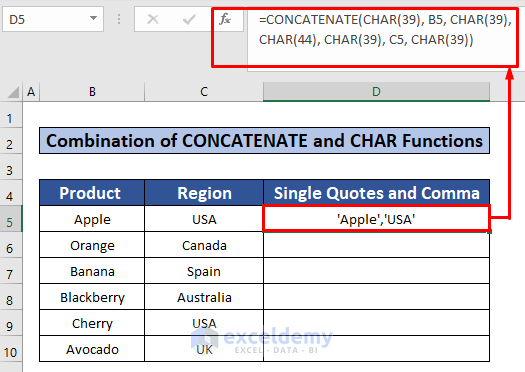
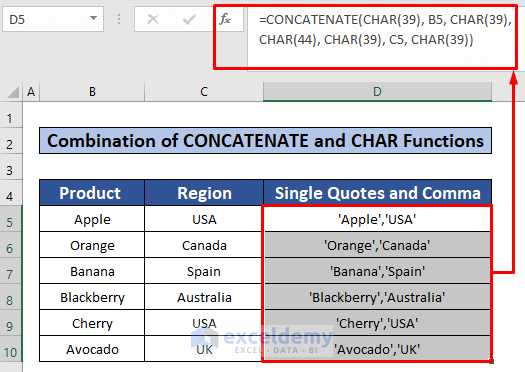
=CONCATENATE(CHAR(39), B5, CHAR(39), CHAR(44), CHAR(39), C5, CHAR(39))Formula Breakdown:
- Inside the CONCATENATE function, CHAR(39) returns a single quote and CHAR(44) returns a comma.
- The CONCATENATE function concatenates all the strings inside of it.
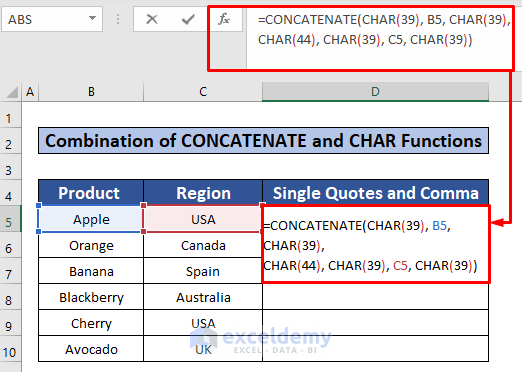
- Hit Enter to get the first result.
- AutoFill the formula throughout column D.
Read More: How to Add Single Quotes in Excel for Numbers
Method 3 – Apply Ampersand to Add Single Quotes and Comma in Excel Formula
Steps:
- Select cell D5.
- Use the following formula inside it:
="'"&B5&"'"& "," &"'"&C5&"'"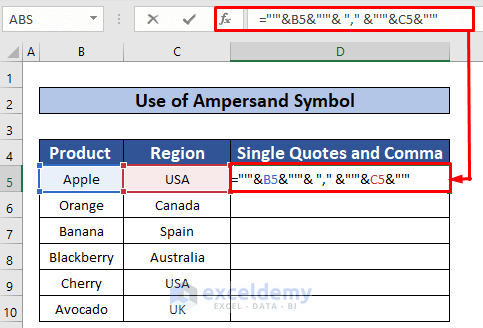
- Press Enter to get the first result.
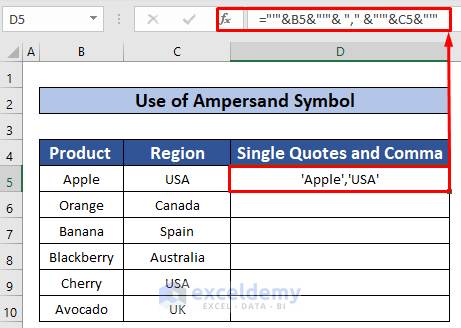
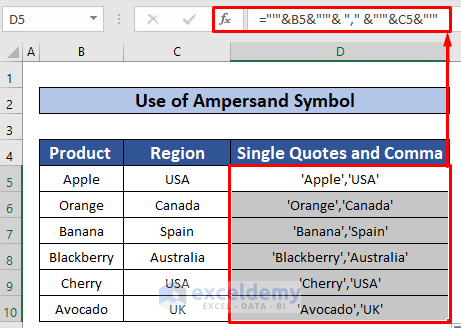
- AutoFill the formula to the rest of the cells in column D.
Method 4 – Create a User-Defined Function Using Excel VBA Code to Add Single Quotes and Comma
We have a modified dataset where we’ll concatenate the entire column in a single cell.
Steps:
- In the Developer tab, select Visual Basic.
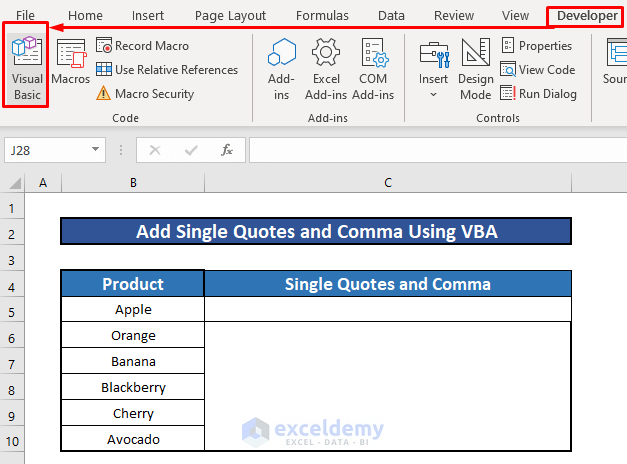
- A window named Microsoft Visual Basic for Applications will appear.
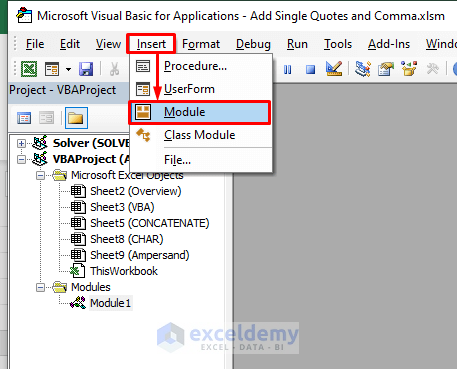
- Go to Insert and choose Module.
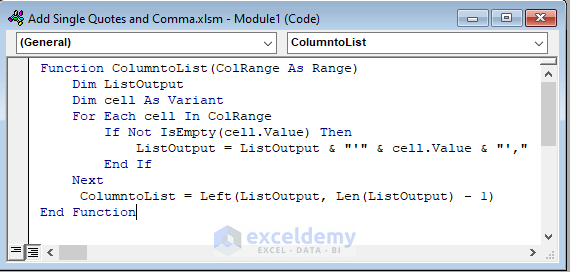
- Insert the following code in the Module.
Function ColumntoList(ColRange As Range)
    Dim ListOutput
    Dim cell As Variant
    For Each cell In ColRange
        If Not IsEmpty(cell.Value) Then
            ListOutput = ListOutput & "'" & cell.Value & "',"
        End If
    Next
     ColumntoList = Left(ListOutput, Len(ListOutput) - 1)
End Function
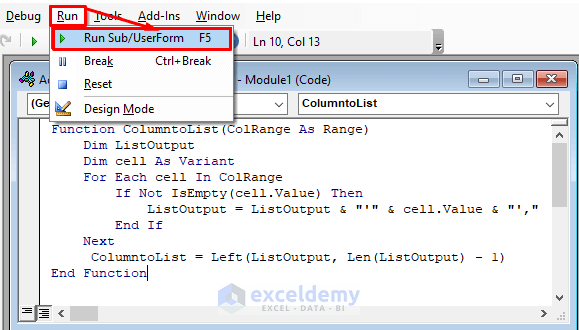
- Go to Run and select Run Sub or press F5.
- Go back to the worksheet.
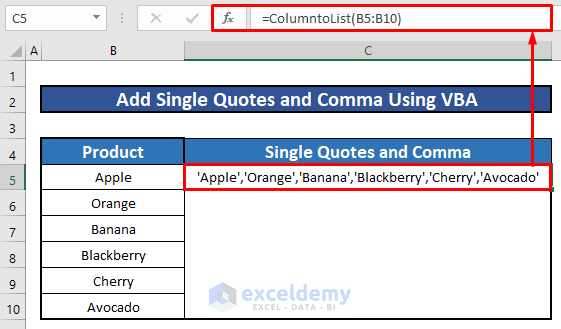
- Use the following code in cell C5.
=ColumntoList(B5:B10)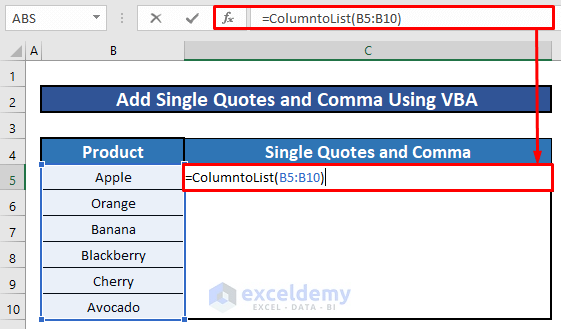
- Press Enter.
Things to Remember
#N/A! error arises when the formula or a function in the formula fails to find the referenced data.
#DIV/0! error happens when a value is divided by zero(0) or the cell reference is blank.
Download the Practice Workbook
Related Articles
- How to Add Single Quotes in Excel
- How to Remove Single Quotes in Excel
- How to Add Double Quotes in Excel
- How to Add Double Quotes in Excel Concatenate
- How to Add Double Quotes and Comma in Excel with CONCATENATE
- How to Remove Hidden Double Quotes in Excel
<< Go Back to Quotes in Excel | Concatenate Excel | Learn Excel
Get FREE Advanced Excel Exercises with Solutions!

