


As businesses and individuals continue to rely on Microsoft Excel for financial management, it becomes essential to understand specialized formats like Accounting Number Format, shortly ANF. The accounting number format (ANF) allows users to present numerical data professionally. Whether you are an experienced financial analyst or a beginner in using Excel, adopting the accounting number format can enrich your spreadsheet skills and simplify your financial reporting processes.
In this Excel tutorial, the details of the Accounting Number Format (ANF) of Excel have been explored with its unique characteristics, differences with currency format, applications, and uses. Additionally, two methods have been discussed to turn any monetary cell value into Accounting Number Format (ANF) in Excel. The convenient way to apply Accounting Number Format (ANF) in Excel is to use Ribbon Options and the Format Cells dialog box.
What is Accounting Number Format?
For money and currency-related cell values, Excel usually offers two types of number formatting: Currency format and Accounting Number Format (ANF). Both these types are almost similar and have some common features: show a currency symbol (usually a “$” sign by default), two decimal points, and comma separators. The uniqueness of the accounting number format is that it puts the dollar sign and the number perfectly in a column which makes it more reader-friendly and eye soothing.
Accounting Number Format (ANF) in Excel is a specific formatting option that makes numbers or monetary values easier to read for accounting and financial purposes. It adds dollar signs ($), commas for thousands, and parentheses for negative values. This formatting helps prevent errors and makes the financial data easier to interpret.
The main characteristics of the Accounting Number Format (ANF) of Excel have been discussed below with a pictorial illustration:
- Placement of Currency Symbol: The currency symbol (such as $, €, £, etc.) appears at the leftmost side of the cell, aligned with the left edge of the cell.
- Insertion of Thousand Separators: Numbers are formatted with a comma as a thousand separator to enhance readability. For example, the number 1000000 is displayed as 1,000,000.
- Two Decimal Places: The format typically displays two decimal places by default. However, you can customize the number of decimal places according to your preferences.
- Alignment of Amounts: The numbers are right-aligned within the cell, making it easier to add and subtract values without the need to adjust alignment manually.
- Brackets for Negative Value: In the Accounting Number Format (ANF) in Excel, three types of numerical values are presented differently.
- Positive numbers are displayed as is, with a currency symbol and formatting.
- Negative numbers are displayed in parentheses to represent losses or expenses, rather than using a minus sign.
- Zero values are usually displayed as a dash or a blank cell.
The Accounting Number Format (ANF) in Excel aligns the currency symbol at the leftmost side of the cell with commas as thousand separators, defaults to two decimal places, right-aligns numbers, and uniquely presents positive values with currency formatting, negative values in parentheses, and zero values as dashes or blanks.
Uses of Accounting Number Format in Excel
The Accounting Number Format (ANF) in Excel is widely used in various financial and accounting scenarios due to its specific formatting conventions. Here are some common uses of the Accounting Number Format:
- Bookkeeping and Accounting Records: In day-to-day bookkeeping and accounting records, the Accounting Number Format is commonly used to maintain a standardized representation of monetary values.
- Financial Statements: This formatting is extensively used in the preparation of financial statements like income statements, balance sheets, cash flow statements, etc. The format ensures consistency and readability when presenting financial data.
- Budgets and Forecasts: While preparing budgets or financial forecasts in Excel, the Accounting Number Format (ANF) can be applied to represent monetary values in a standardized and professional manner.
- Expense and Income Reports: Accounting professionals often use the Accounting Number Format when generating and presenting expense reports. The format helps to clearly distinguish between income and expenses by placing parenthesis to negative numbers.
- Corporate Reports: In corporate reporting, especially for publicly traded companies, the Accounting Number Format is commonly applied to financial figures for clarity and adherence to accounting standards.
- Financial Models: When building financial models or conducting financial analysis in Excel, the Accounting Number Format ensures that the displayed numbers follow accounting conventions, contributing to the accuracy and professionalism of the model.
- Invoice Preparation: When creating invoices or billing statements, the Accounting Number Format helps present the amounts in a clear and standardized way, making it easier for clients and stakeholders to understand the financial information.
- Loan Amortization Tables: In financial calculations, such as creating loan amortization tables, the Accounting Number Format can be applied to display payment amounts, interest, and principal in a format consistent with financial reporting standards.
Benefits of Using Accounting Number Format (ANF) in Excel
Accounting Number Format (ANF) in Excel offers numerous benefits. One of the primary benefits of using ANF in Excel is its ability to ensure consistency in financial reporting. ANF enables the presentation of financial data in a uniform and standardized format, making it easier to compare information across different periods and reports.
Enables Easy Comparison: It enables easy comparison of financial data across different periods or companies. By standardizing the format of financial data, ANF simplifies the identification of trends and patterns, which aids in making informed business decisions. Moreover, ANF can be customized to meet the specific requirements of various accounting practices or industries, making it a versatile tool for financial professionals.
Eases Error Identification: Another significant advantage of ANF is that it makes it easier to identify errors in financial data. By using consistent formatting, it is much simpler to spot discrepancies and inconsistencies in data, enabling faster and more accurate identification of errors.
Improves Readability: By using Accounting Number Format (ANF), financial data can be presented in a more organized and structured manner, making it easier for readers to understand and interpret the information. This can be especially helpful for non-financial professionals who may not be familiar with complex financial terminology and concepts.
Differences Between Accounting Format and Currency Format in Excel
In Microsoft Excel, both the Accounting format and Currency format are used to display numbers in a currency format. Still, they have some differences in how they handle negative numbers and formatting details. Below, a comparative illustration is presented:
- Negative Numbers: In Accounting Number Format negative numbers are displayed in parentheses. For example, if you have -100 in a cell, it will be displayed as (100). But, in Currency Format, negative numbers are typically displayed with a minus sign (-). For example, -100 would be displayed as -$100.00.
- Zero Values: Zero values are usually displayed with a dash or blank cell in Accounting Number Format, while zero values are displayed as 0 with the currency symbol.
- Currency Symbol Placement: In the Accounting Format, the currency symbol is usually aligned at the left edge of the cell, and the numbers are aligned to the right. But, in Currency Format, the currency symbol is typically placed left adjacent to the cell value.
- Decimal Places: Accounting Format often uses two decimal places by default, but the number of decimal places can be customized. Currency Format can display different precision levels based on your preferences.
- Commas as Thousand Separators: Both Accounting Format and Currency Format use commas as thousand separators, making it easier to read large numbers.
Both Accounting and Currency formats are suitable for displaying financial data, but Accounting Number Format (ANF) is often preferred for its unique display of negative numbers in parentheses and its alignment of currency symbols, especially when presenting financial statements.
How to Apply Accounting Number Format in Excel: 2 Easy Ways
Applying the Accounting Number Format (ANF) in Excel is a straightforward process. The Accounting Number Format (ANF) is commonly used for accounting and financial data as it aligns the currency symbols and decimal points in a column. But, remember that this formatting applies to numeric values only.
Before discussing the convenient ways to apply Accounting Number Format (ANF) in Excel, assume the following sample data of a business for your better understanding of the methods. The following data have some type of assets in the Particulars column and their corresponding values in the Amount column.
 This sample data will be used to discuss the steps of the methods to apply Accounting Number Format (ANF) on the numerical values of the Amount column.
Here are two easy ways to apply Accounting Number Format (ANF) in Excel:
Using Number Format Dropdown
Follow the steps below to apply Accounting Number Format (ANF) in Excel using the Number Format dropdown from Excel Ribbon.
- Select the cells or range of cells that you want to format.
Here, the selected cells for formatting are C5:C10. - Go to the Home tab in the Excel ribbon at the top of the window.
- Find the Number Format dropdown.
- Select Accounting from the category list.
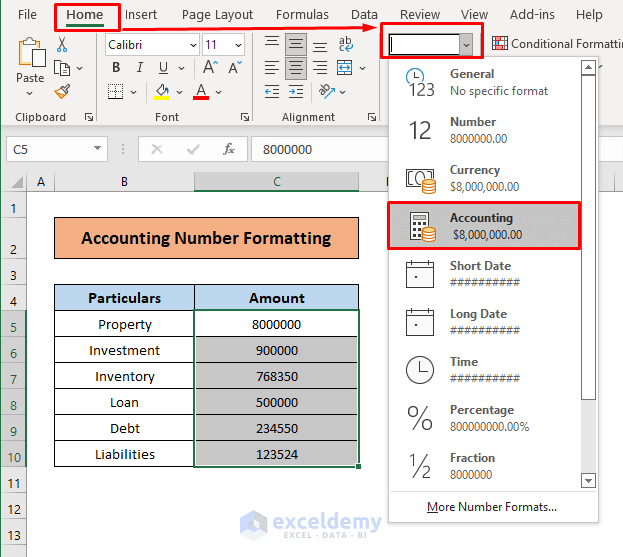
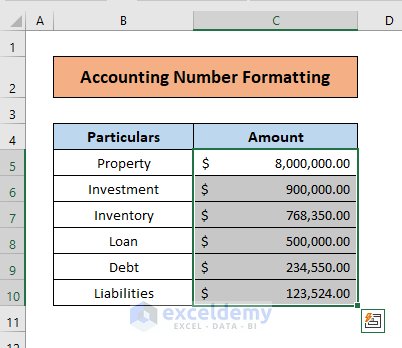
The above steps will convert the formats of the selected cells into Accounting Number Format (ANF), making them suitable for displaying financial data in a clear and organized manner.
Using Format Cells Dialog Box
- Select the cells that you want to format.
Here, the cells selected for formatting are C5:C10. - Right-click on the selected cells, and from the context menu, choose Format Cells.
 The Format Cells dialog box will appear.
Shortcut Key: Press CTRL + 1 to open the Format Cells dialog box. - Click on the Number tab, from the Format Cells dialog box.
- Select Accounting from the Category list.
- Customize the number of Decimal places and Symbol field, if needed.
- Click OK to apply your number formatting.

The above steps will convert the cell formats of the selected cells into Accounting Number Format (ANF) making them suitable for displaying financial data in a clear and organized manner.
Download Practice Workbook
Download this practice workbook to exercise while you are reading this article.
Conclusion
In conclusion, the Accounting Number Format (ANF) in Excel is a specialized formatting option that enhances the presentation and interpretation of financial data. It offers benefits such as consistency, error identification, improved readability, and customization options. The ANF differs from the Currency format in how it handles negative numbers and formatting details. There are two easy ways to apply the ANF in Excel: using Ribbon Options or the Format Cells dialog box. Feel free to use these methods in your dataset and reach out to us in the comments for any questions, corrections, comments, or technical assistance.
Frequently Asked Questions
What is formatting in Excel?
Formatting text or numbers can make them appear more visible especially when you have a large worksheet. Changing default formats includes things like changing the font color, style, size, and text alignment in a cell, or applying formatting effects.
What is number format in Excel?
You can use number formats to change the appearance of numbers, including dates and times, without changing the actual number. The number format does not affect Excel’s cell value to perform calculations. The actual value is displayed in the formula bar. Excel provides several built-in number formats.
What is the shortcut for Accounting Number Format in Excel?
One way is to use Alt + H + A + N to apply Accounting Number Format in Excel. That basically activates the Accounting format button ( ) on the Home tab of the ribbon. Another option is to right-click that button and Add to Quick Access Toolbar. Then move it to the first position in the toolbar.
How do I clear Accounting Number Format in Excel?
To remove all formatting, including number formats, font styles, colors, borders, and cell fill, from the selected cells, follow the steps below:
- Select the cell or range of cells from which you want to clear formatting.
- Go to the Home tab in the Excel ribbon.
- Locate the Styles group and click on the Clear button.
- From the drop-down menu, choose Clear Formats.
Can I customize the Accounting Number Format?
Yes, by selecting Accounting from the Format Cells dialog box, you can customize the appearance of numbers using additional formatting options.
Can I use Accounting Number Format in charts and graphs?
Yes. Accounting Number Format can be applied to data in charts and graphs just like in regular cells. The formatting will be reflected visually.
<< Go Back to Accounting Number Format | Number Format | Learn Excel
Get FREE Advanced Excel Exercises with Solutions!

