

You may need to enter duplicate information from multiple time spans in financial analysis. That is why you must combine data in one row to gather information and make your spreadsheet clear. In this tutorial, we will show you how to merge data from duplicate rows based on a unique column in Excel.
Merge Data from Duplicate Rows Based on Unique Column in Excel: 2 Handy Approaches
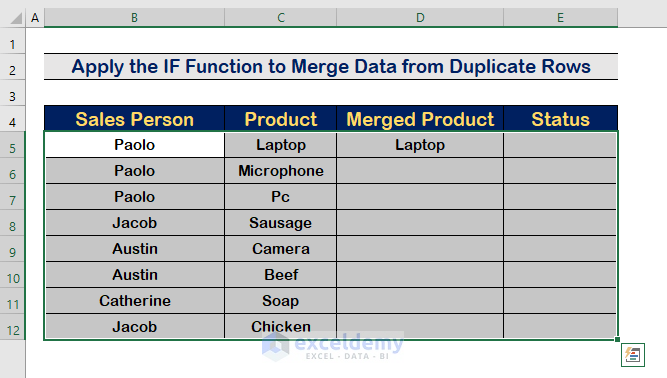
In the image below, we have supplied a data collection comprising the names of the Sales Persons and the Products they sold. The same Sales Person sells different Products in our data collection. As a result, we must integrate them into a single row. In the next sections, we will use the IF function and VBA code to complete the task.
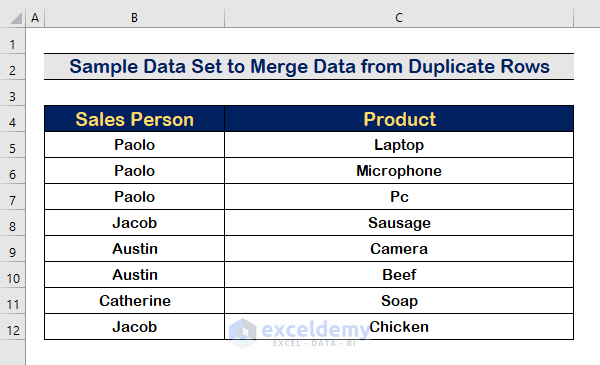
1. Apply IF Function to Merge Data from Duplicate Rows Based on Unique Column in Excel
To begin, we will use the IF function to merge the rows with duplicate values. We will later sort the merged values to maintain just the merged data. Follow the outlined steps below to accomplish the task.
Step 1: Insert the logical_test Argument
- Apply the IF function and define the logical_test argument with the following formula.
=IF(B5=B4
Step 2: Enter the Value_if_true Argument
- Type the following formula to insert the value_if_true
=IF(B5=B4,D4&","&C5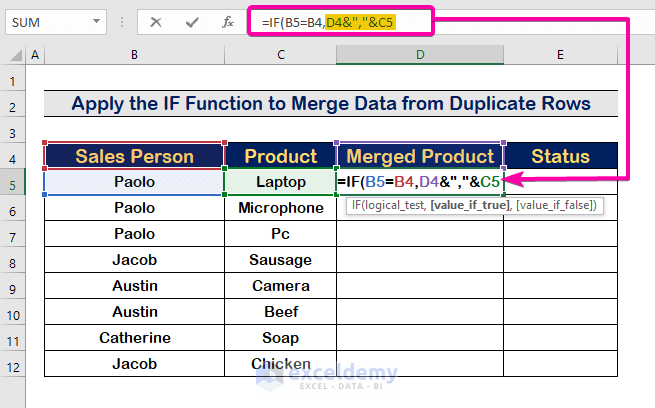
Step 3: Enter the Value_if_false Argument
- Then, complete the formula with the value_if_false
=IF(B5=B4,D4&","&C5,C5)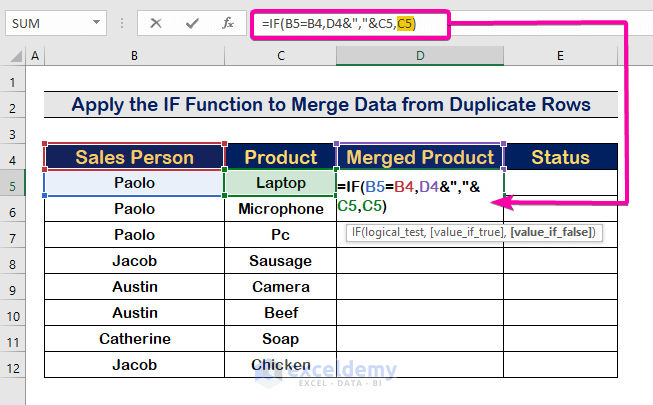
- Press Enter to see the result.
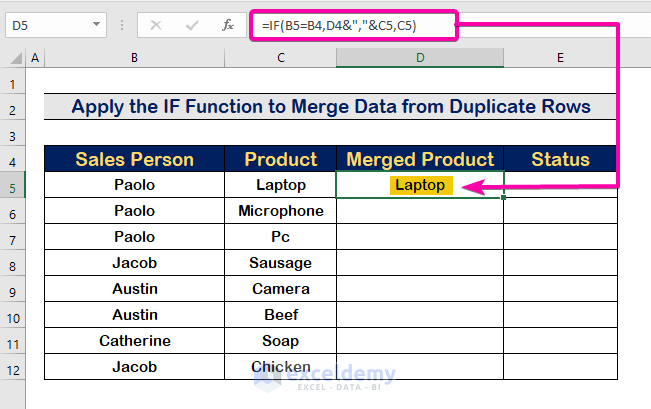
Step 4: Sort Data in Alphabetical Order
- To sort the data in alphabetical order (Z to A), select the data set.
- Then, click on the Data tab.
- Select the Sort option from the Sort & Filter.

- Select the Sales Person from the list.
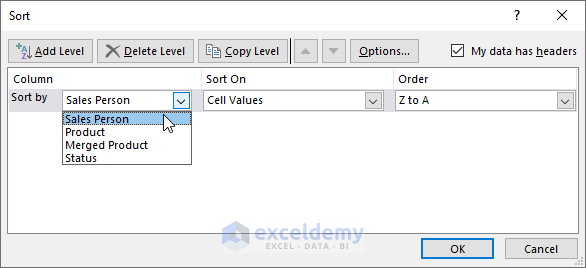
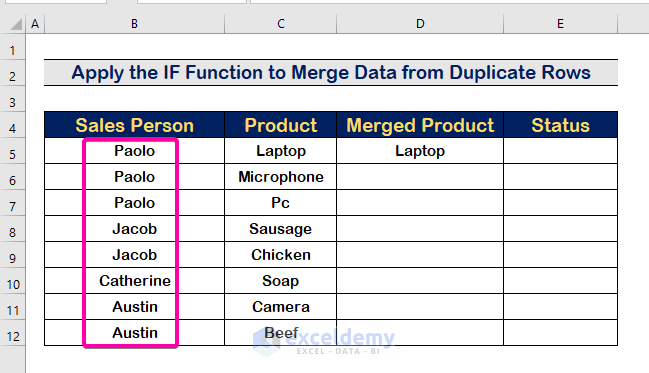
- Finally, click OK and get the results as the image shown below.
Step 5: Copy the Formula
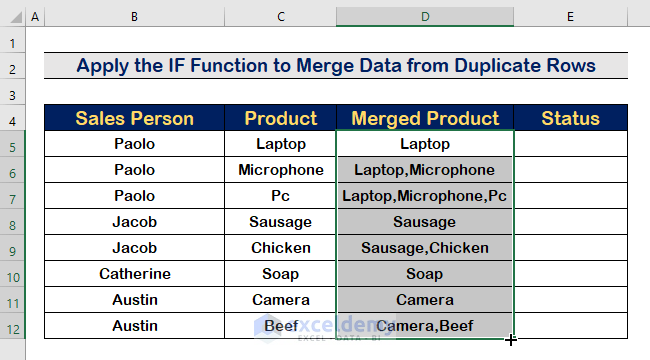
- To copy the formula of the IF function, use the AutoFill handle tool to auto-fill the rows.
Step 6: Apply the IF Function to Find the Merged Rows
- To separate the merged rows, type the following formula with the IF function.
=IF(B6<>B5,"Merged", " ")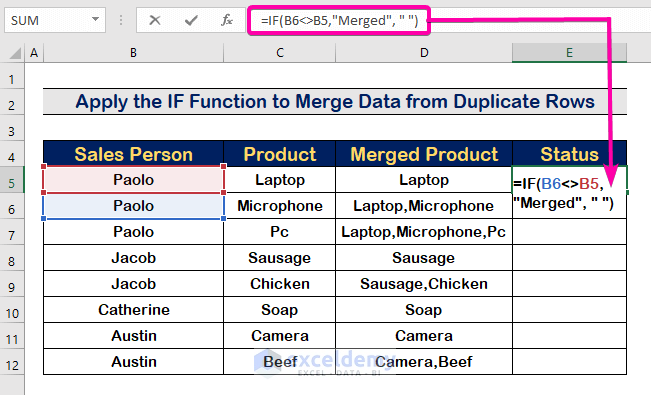
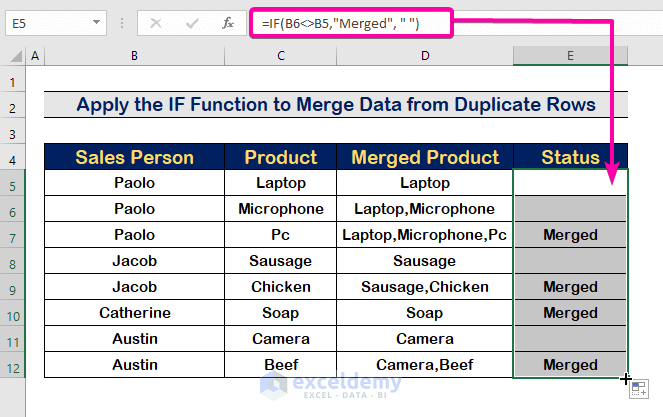
- Use the AutoFill handle tool to autofill the cells.
- As a result, the merged data is defined as “Merged” in the right-side column.
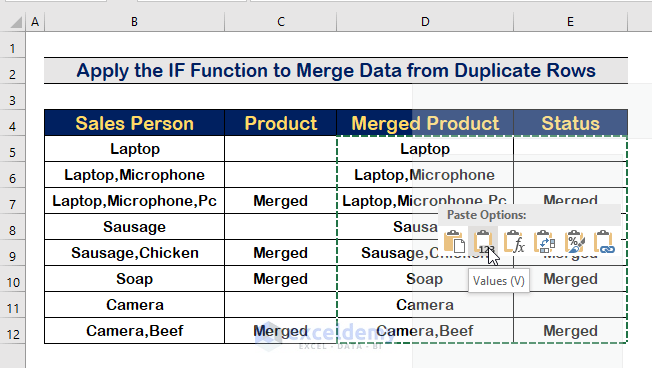
Step 7: Copy & Paste as Values(V)
- Select the following range and copy them.
- Finally, paste them as Values(V).
Step 8: Sort by the Merged Values
- Now, for differentiating the merged cell, sort the merged cells.
- Select the data set.
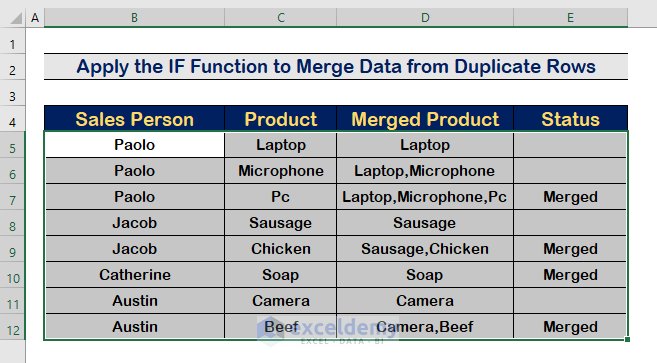
- Then, select the Status from the list.
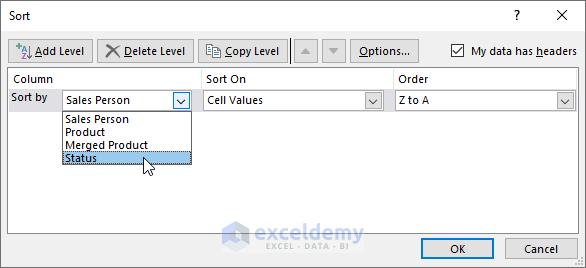
- Finally, press Enter.
- As a result, the merged cells are separated as shown in the image below.
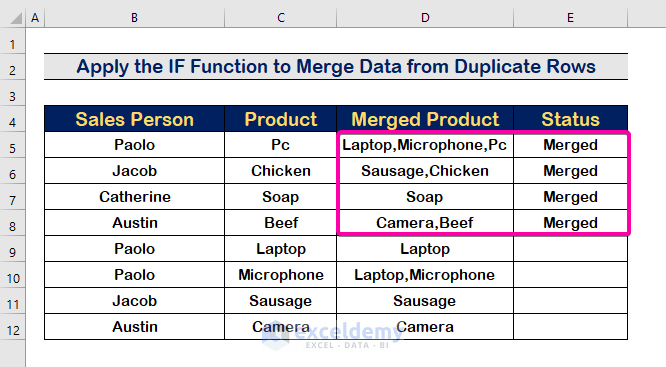
Step 9: Final Result
- Select the unmerged rows.
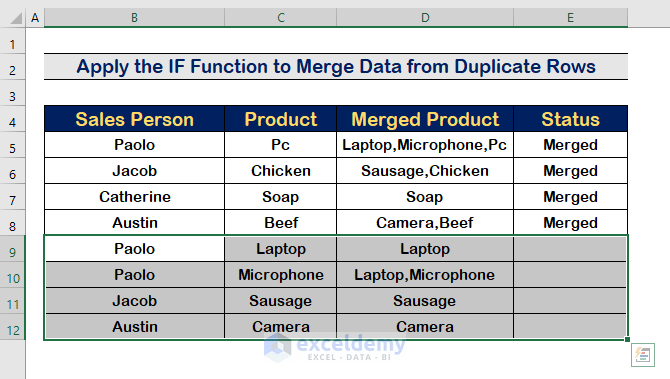
- Right-click the mouse and select the Delete option.
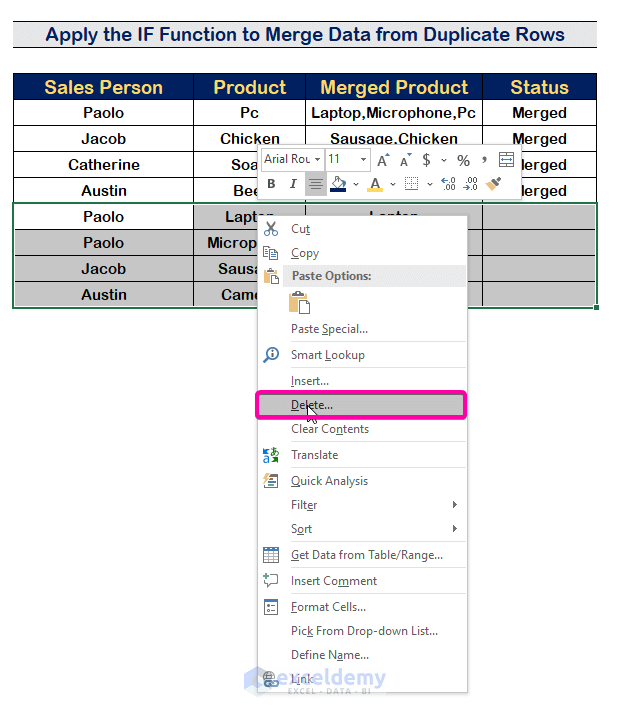
- Select the Entire Row to delete the entire rows in selection.
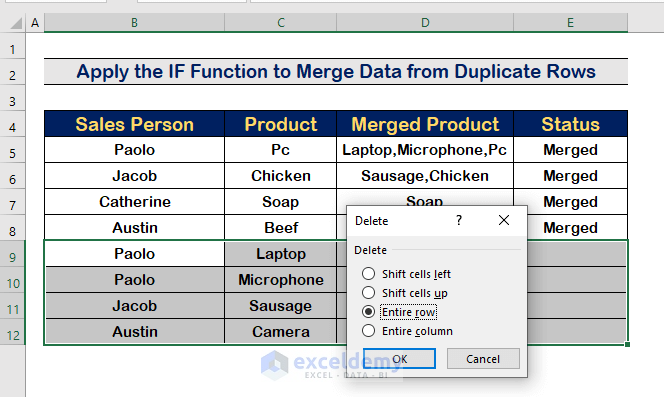
- Press Enter to see the results with a complete view.
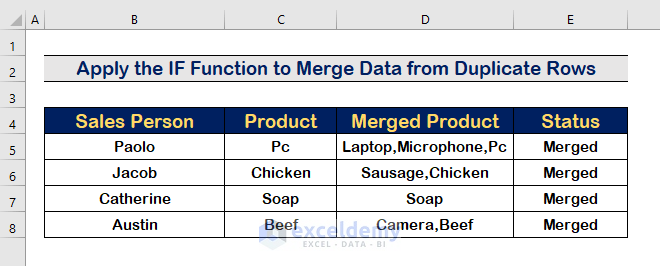
Read More: How to Combine Duplicate Rows in Excel without Losing Data
2. Run a VBA Code to Merge Data from Duplicate Rows in Excel
In addition to the previous method, you can do the same by running a VBA code. Follow the instruction below to apply the VBA code.
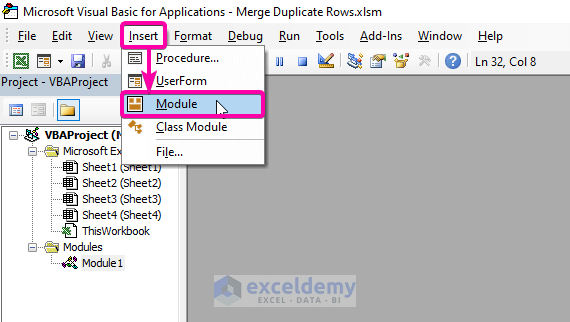
Step 1: Create a Module
- Firstly, press Alt + F11 to open the VBA Macro.
- Click on the Insert tab.
- Select the Module option.
Step 2: Paste the VBA Code
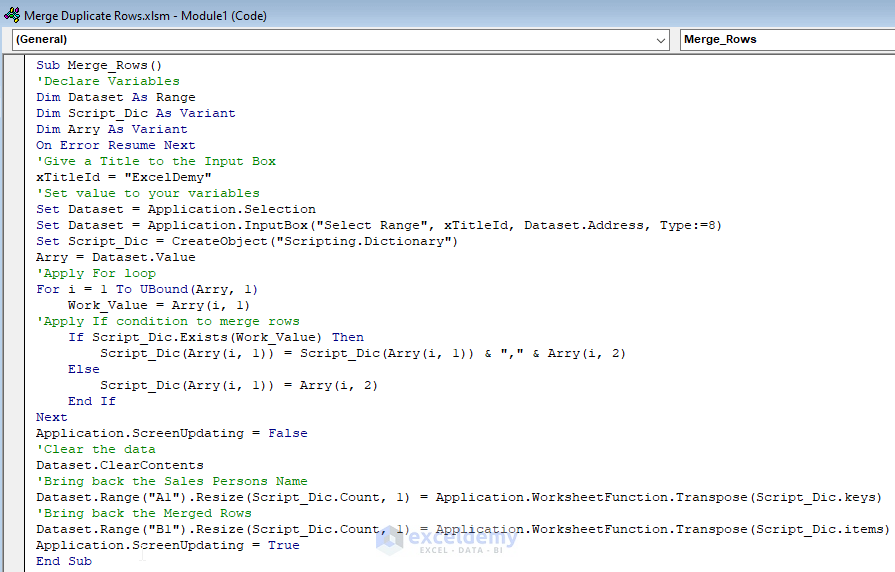
- Paste the following VBA codes.
Sub Merge_Rows()
'Declare Variables
Dim Dataset As Range
Dim Script_Dic As Variant
Dim Arry As Variant
On Error Resume Next
'Give a Title to the Input Box
xTitleId = "ExcelDemy"
'Set value to your variables
Set Dataset = Application.Selection
Set Dataset = Application.InputBox("Select Range", xTitleId, Dataset.Address, Type:=8)
Set Script_Dic = CreateObject("Scripting.Dictionary")
Arry = Dataset.Value
'Apply For loop
For i = 1 To UBound(Arry, 1)
    Work_Value = Arry(i, 1)
'Apply If condition to merge rows
    If Script_Dic.Exists(Work_Value) Then
        Script_Dic(Arry(i, 1)) = Script_Dic(Arry(i, 1)) & "," & Arry(i, 2)
    Else
        Script_Dic(Arry(i, 1)) = Arry(i, 2)
    End If
Next
Application.ScreenUpdating = False
'Clear the data
Dataset.ClearContents
'Bring back the Sales Persons Name
Dataset.Range("A1").Resize(Script_Dic.Count, 1) = Application.WorksheetFunction.Transpose(Script_Dic.keys)
'Bring back the Merged Rows
Dataset.Range("B1").Resize(Script_Dic.Count, 1) = Application.WorksheetFunction.Transpose(Script_Dic.items)
Application.ScreenUpdating = True
End Sub
Step 3: Run the VBA Code
- Save the program and press F5 to run it.
- Therefore, you will see an Input Box to select your data set.
- Select your Dataset and click OK.
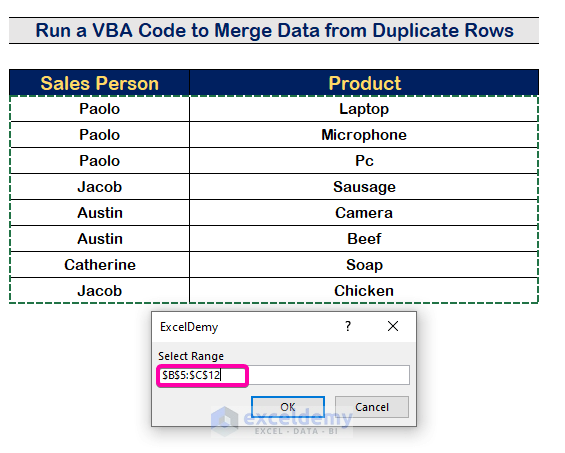
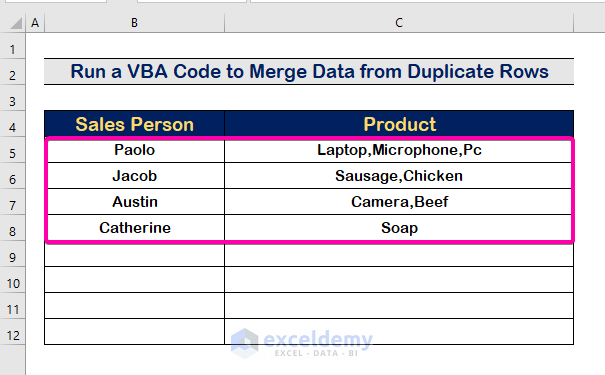
- Finally, you will get the merged row for duplicate rows.
Read More: How to Merge Duplicate Rows in Excel
Download Practice Workbook
Download this practice workbook to exercise while you are reading this article.
Conclusion
To conclude, I hope this article has given you some useful information about how to merge data from duplicate rows in Excel based on unique column. All of these procedures should be learned and applied to your dataset. Take a look at the practice workbook and put these skills to the test. We’re motivated to keep making tutorials like this because of your valuable support. If you have any questions – Feel free to ask us. Also, feel free to leave comments in the section below.
Further Readings
<< Go Back to Merge Duplicates in Excel | Duplicates in Excel | Learn Excel
Get FREE Advanced Excel Exercises with Solutions!

