


Indenting bullet points in Excel cells enhances data clarity by creating a visual hierarchy. This helps in presenting information in a structured manner, improving readability, and making it easier for users to grasp relationships within a list or outline.
In this Excel tutorial, you will learn to indent bullet points in Excel cell(s) by applying different approaches.
Considering a dataset with dates and work to do for personal development. We will add a bullet point and indent it in an Excel cell.

There are two ways to indent bullet points in Excel cell:
Using Increase/Decrease Indent Command
By using the Increase Indent and Decrease Indent commands, you can indent the bullet points of a cell in Excel. You will find these two commands in the Alignment group of the Home tab.
First, insert bullet points using the keyboard shortcut in Excel. Here’s how:
- Select the cell where you want to add bullet points.
For example, we select the C5 cell. - Double-click on the cell and place the cursor where you want to insert the bullet point.
 Press ALT + 7 (Number pad) to add a bullet point, and then press Enter.
 Similarly, insert bullet points into the rest of the cells.

To indent bullet points in Excel cells with the Increase Indent command, follow the steps:
- Select your data.
Here, we have selected the cell range C5:C10. - Then, go to the Home tab > Alignment group > Increase Indent command.

As a result, you can have an indentation before the bullet points.
Similarly, to decrease indent in Excel: Select data > Home tab > Decrease Indent command.

Using Keyboard Shortcuts
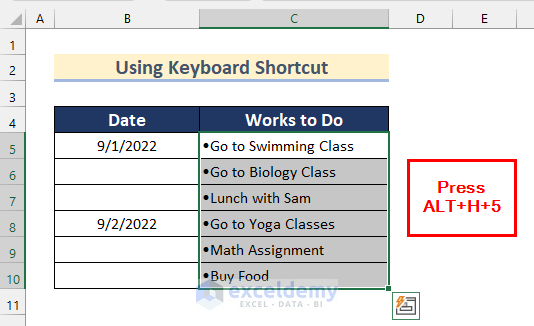
You can also use keyboard shortcuts to indent bullet points in Excel cells. The keyboard shortcut ALT + H + 6 is used for right indentation, and ALT + H + 5 is used to indent the cell value to the left.
Increase Indent:
To increase the indent of bullet points in Excel cells:
- First, select the cell range.
Here, we have selected the range C5:C10. - Then, press ALT + H + 6 to indent the cell value to the right.

Decrease Indent:
To decrease the indent of bullet points in Excel cells:
- Select your cell range.
Here, we have selected the range C5:C10. - Then, press ALT + H + 5 to indent the cell value to the left.
You can also indent bullet points in an Excel cell manually. Follow the steps to indent the bullet points of an Excel cell:
- Double-click on the cell and place the cursor where you want to indent.
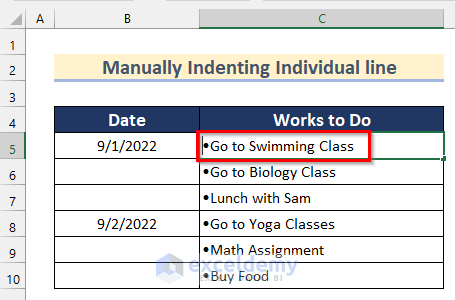 Press the Space Bar on your keyboard to get the desired indentation.
Read More: How to Change Indent in Excel
Download Practice Workbook
Conclusion
In short, we explained two ways to indent bullet points in an Excel cell(s). You can indent bullet points using the Excel keyboard shortcut and the Increase Indent command. These two approaches allow you to indent the Excel cell range altogether. Feel free to share your insights, suggestions, and queries in the comment box.
Frequently Asked Questions
Why should I indent bullet points in an Excel cell?
Indenting helps visually organize information, creating a clear hierarchy and improving readability.
Can I customize the level of indentation in Excel?
Yes, Excel allows you to adjust the level of indentation to create a specific hierarchy based on your data structure.
Does indenting impact formatting when copying/pasting cells in Excel?
Yes, when copying cells with indented bullet points, the formatting, including indentation, is typically retained.
Related Articles
- How to Indent Second Line in Excel Cell
- How to Indent Twice the Data in Excel
- How to Remove Indent in Excel
<< Go Back to Indentation in Excel | Excel Cell Format | Learn Excel
Get FREE Advanced Excel Exercises with Solutions!

