


Creating interactive, fillable forms in Microsoft Word is possible even without enabling the Developer tab. You can use other Word features to create fillable forms.
In this tutorial, we will show how to create a fillable form in Microsoft Word without developer mode.
Step 1: Set Up Your Form Layout
Before you begin, determine clearly what information you want to collect. Let’s assume you want to collect contact information.
- Name
- Phone
- Address
- Gender
- Date
Insert a Table:
Tables help structure your form neatly and clearly define spaces for users to enter their responses.
- Go to the Insert tab >> select Table.
- Choose the number of columns and rows depending on your form layout.
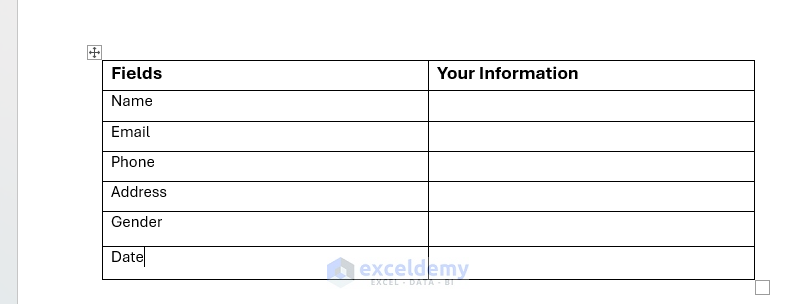
- Select grid 2*6 and then add one.

- Clearly label your table fields, such as “Name,” “Date,” “Address,” etc.
- Use one cell for each field label, with an adjacent cell for the user to input their responses.
- Adjust the width and formatting by clicking and dragging the table borders as needed.
Initial Table:
Step 2: Insert Fillable Text Fields
Use Content Controls:
Word offers built-in content controls to help guide user input even without the Developer tab.
Add Plain Text Content Controls:
- Click in the cell under “Your Information” where you want a fillable text box (e.g., Name, Email, Phone).
- Go to the Insert tab >> select Quick Parts >> select Document Property >> select Company, Email, Phone, etc. (These predefined properties work well as text placeholders).
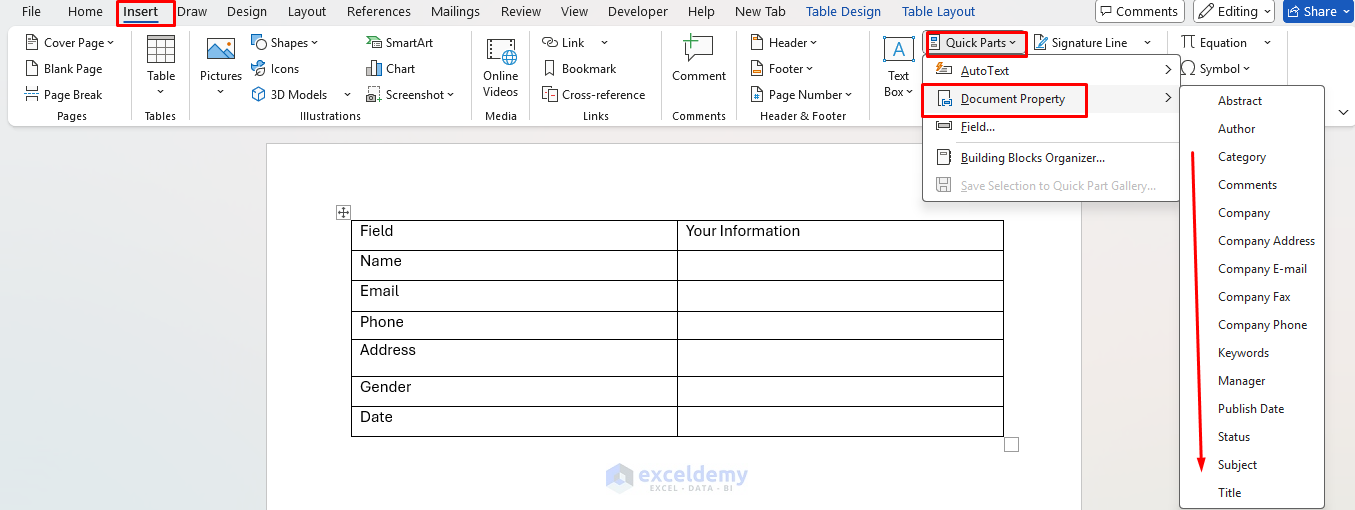
These become editable text fields that users can easily fill in:
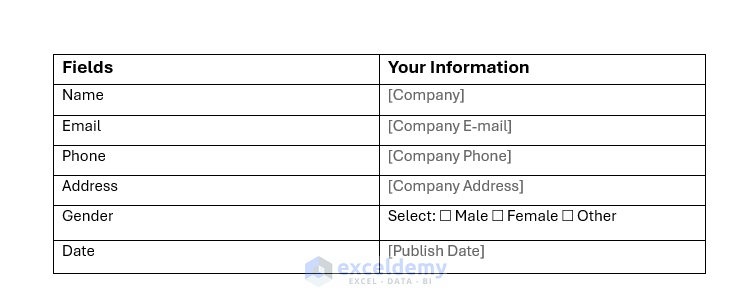
- Company: Use for “Name”.
- Company Email: Use for “Email”.
- Company Email: Use for “Phone”.
- Company Email: Use for “Address”.
- Publish Date: Use for “Date”.

If you run out of built-in fields, you can simply leave a cell blank and instruct users to fill it manually.
Manually Create Fillable Form:
- Go to the Insert tab >> select Table.
- Select grid 2*7.
- Clearly label your table fields, such as “Name,” “Date,” “Address,” etc.
- Go to the Table Design tab >> select Bottom Borders.
- This will give a fillable form look and will work as a fillable form.

Step 4: Insert Dropdown Lists (without Developer Tab)
Word allows dropdown lists through predefined building blocks known as Quick Parts.
Dropdown lists can be added using Quick Parts:
- Place your cursor in the Gender table response cell.
- Go to the Insert tab >> select Quick Parts >> select Document Property >> select Category.
- Or insert manually:
- Select: ☐ Male ☐ Female ☐ Other
This provides users with a neat dropdown menu directly in the document. Without the Developer tab, dropdown functionality is limited. Consider using simple instructional text like “Type Yes or No” instead.
Step 5: Format and Style Your Form
To make the form user-friendly:
- Select the table, go to Table Design, and choose a style.
- Adjust cell sizes by dragging borders.
- Hide borders if preferred by selecting the table and setting borders to “No Border” from the Table Design toolbar.

- Highlight labels using bold formatting or background shading.
- Adjust the cell widths and table borders for clarity.
- Add clear instructions at the top or bottom for users.
Fill the Form:

Step 6: Protect Your Form
While you cannot fully lock content controls without Developer mode, you can partially restrict editing:
- Go to the Review tab > select Protect >> select Restrict Editing.
- Check “Allow only this type of editing in the document” >> select Filling in forms.
- Click Yes, Start Enforcing Protection, and set a password if desired.
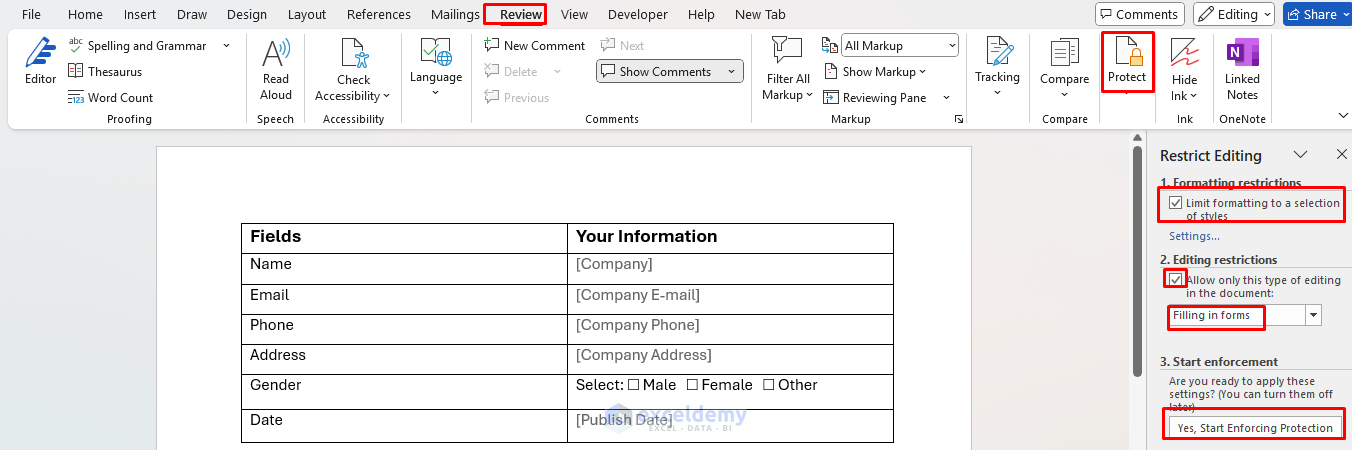
This ensures that users only fill the predefined fields.
Use Content Controls (via Templates)
Even without Developer mode, you can use built-in templates to access content controls:
- Go to File tab >> click New.
- Search “Form” in templates.
- Select a suitable template with fillable fields already set up.

- Edit the template directly to fit your needs.

Conclusion
By following this straightforward guide, you can create professional-looking, fillable forms in Word without ever needing to activate the Developer tab. This method simplifies the process while keeping the forms intuitive and practical for everyday use. You can explore Word features to make it more dynamic and professional.
Get FREE Advanced Excel Exercises with Solutions!


exceptionally clear, well-structured, and easy to follow, making a complicated task feel simple. I appreciate the step-by-step explanation and the effort put into making this topic so accessible.
My sincere thanks to Shamima and the ExcelDemy team for sharing such practical and valuable knowledge. Keep up the great work, your articles truly help readers like me learn and grow!
Best regards,
Mohammed Nadim
Hello Mohammed Nadim,
Thank you so much, for your kind and thoughtful feedback!
We’re truly grateful that you found the article clear, well-structured, and easy to follow. It’s always our goal to make complex Excel tasks more approachable, and it’s encouraging to know the step-by-step explanation helped simplify things for you.
Your appreciation means a lot to me and the entire ExcelDemy team. We’re committed to continuing to provide practical, valuable content to support learners like you.
Best wishes,
Shamima