


Office Scripts is a feature in Excel for the web (Excel Online) that enables users to automate repetitive tasks and workflows using JavaScript-based scripts. Unlike traditional Excel macros (which only work in the desktop app), Office Scripts are cloud-based and can run seamlessly in the browser. They’re ideal for automating data processing, formatting, reporting, and integrations with other Microsoft 365 tools like Power Automate.
In this tutorial, we will show how to automate workflows in Excel online using Office scripts.
What are Office Scripts?
Office Scripts are JavaScript/TypeScript scripts that automate tasks and workflows in Excel Online. They can handle formatting, calculations, data manipulation, etc.
- Automate repetitive tasks: Save time and reduce human error.
- Work in the cloud: No need for desktop Excel; it runs anywhere Excel Online is available.
- Integrate with Power Automate: Trigger scripts as part of multi-step workflows across Microsoft 365.
- Enhance collaboration: Anyone with access can run or edit the scripts.
Getting Started
Prerequisites:
- Microsoft 365 Business or Education subscription.
- Access to Excel for the web.
- Your admin must enable the Office Scripts feature.
Where to Find Office Scripts:
- Open Excel Online and your workbook.
- Go to the Automate tab (top ribbon).
- You’ll see options to Record Actions and New Script.
Creating Your First Office Script
Let’s automate a simple workflow: Clearing old data, importing new data, and formatting a table.
Step 1: Record Your Script
Record Actions:
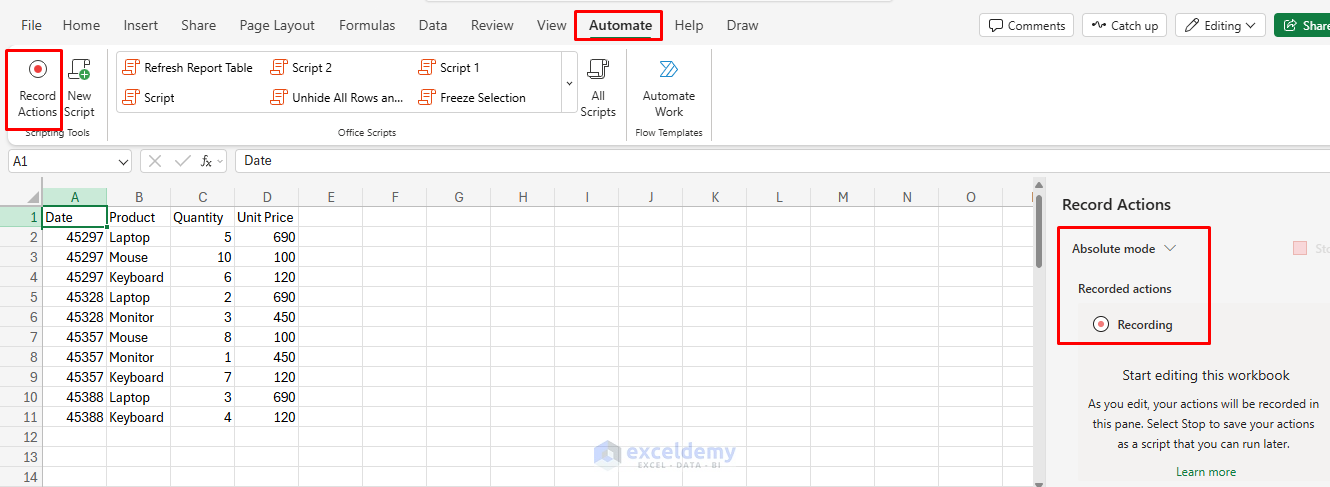
- Go to the Automate tab >> click Record Actions.
- Perform your desired actions in Excel (e.g., formatting cells, inserting formulas).
- When finished, click Stop. Your script actions are now recorded.
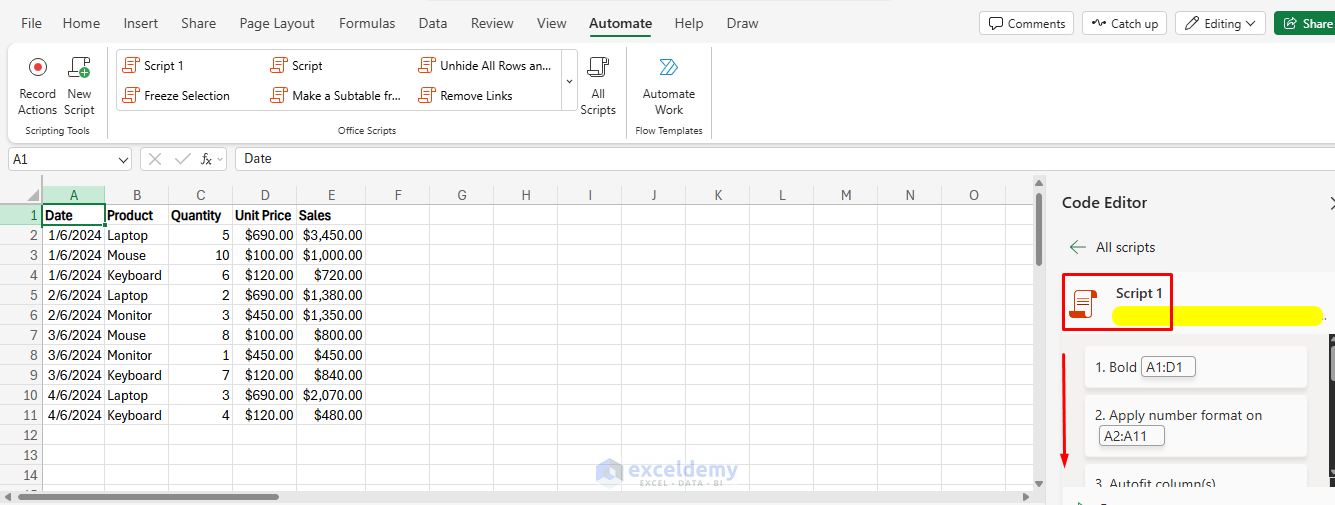
- The script is saved, and you can view/edit its code.
Steps to Automate:
- Go to the Automate tab >> click Record Actions.
- Select the headers and make them Bold.
- Select the OrderDate column and format it as Short Date.
- Select the Unit Price column and format it as Currency.
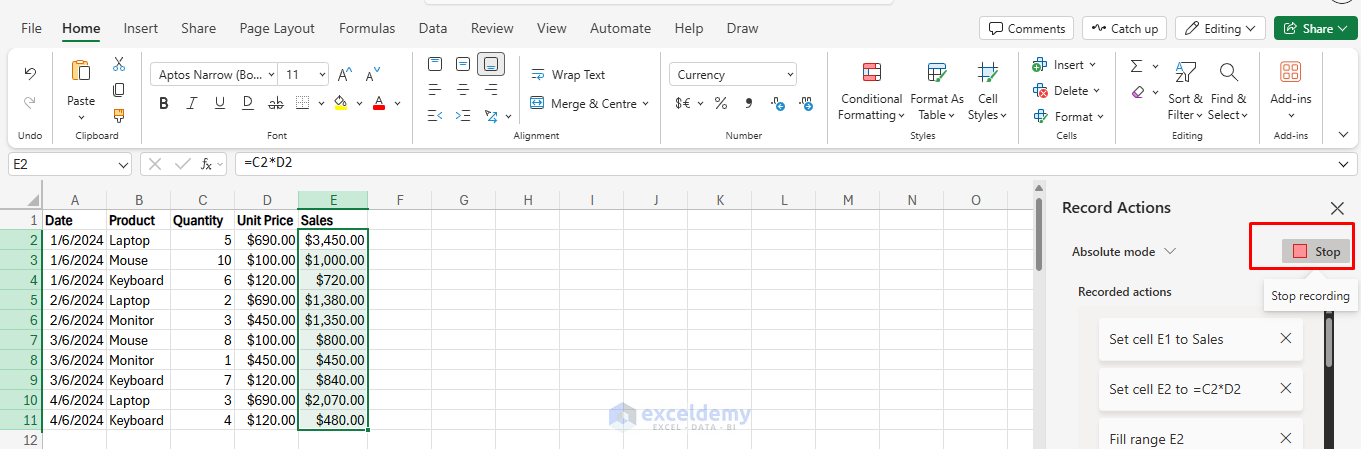
- In the next column (E), add the header Sales.
- In cell E2, insert the formula:
=C2*D2
- Autofill this formula for the remaining rows.
- Click Stop.
- View the script in the Code Editor.
Edit the Script:
You can view and edit the recorded script in JavaScript:
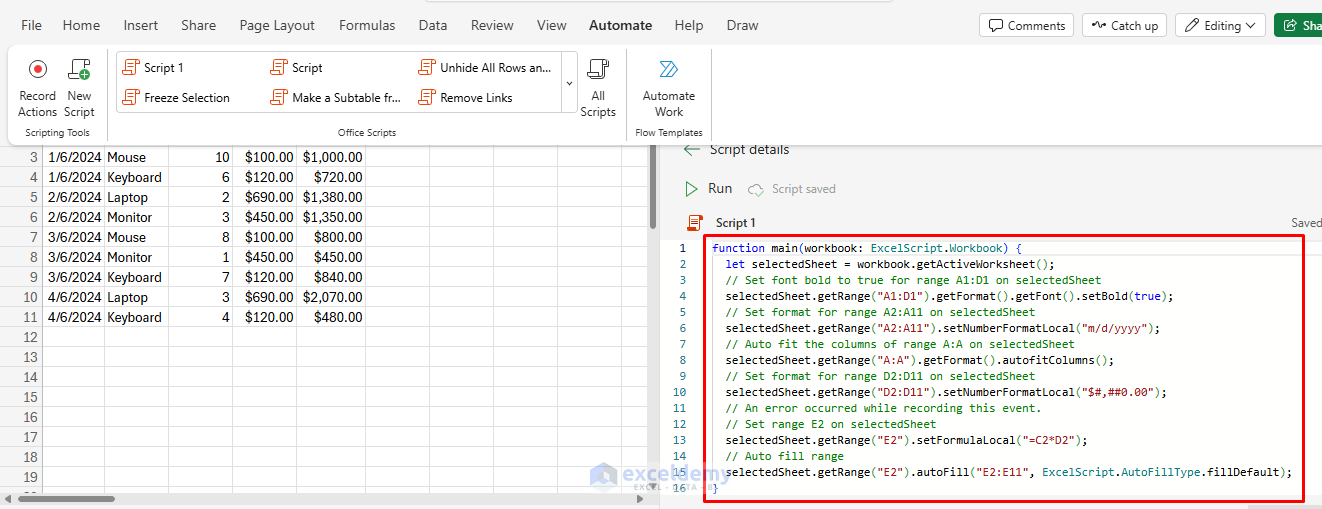
Office Script:
function main(workbook: ExcelScript.Workbook) {
	let selectedSheet = workbook.getActiveWorksheet();
	// Set font bold to true for range A1:D1 on selectedSheet
	selectedSheet.getRange("A1:D1").getFormat().getFont().setBold(true);
	// Set format for range A2:A11 on selectedSheet
	selectedSheet.getRange("A2:A11").setNumberFormatLocal("m/d/yyyy");
	// Auto fit the columns of range A:A on selectedSheet
	selectedSheet.getRange("A:A").getFormat().autofitColumns();
	// Set format for range D2:D11 on selectedSheet
	selectedSheet.getRange("D2:D11").setNumberFormatLocal("$#,##0.00");
	// An error occurred while recording this event.
	// Set range E2 on selectedSheet
	selectedSheet.getRange("E2").setFormulaLocal("=C2*D2");
	// Auto fill range
	selectedSheet.getRange("E2").autoFill("E2:E11", ExcelScript.AutoFillType.fillDefault);
}
Step 2: Automate Data Refresh and Formatting
Let’s consider that you want to automate data refresh and formatting.
- Clear existing data.
- Copy new data from another worksheet (“RawData”).
- Paste the data in the “Report” sheet.
- Format the range as a table.
Write a Script Manually:
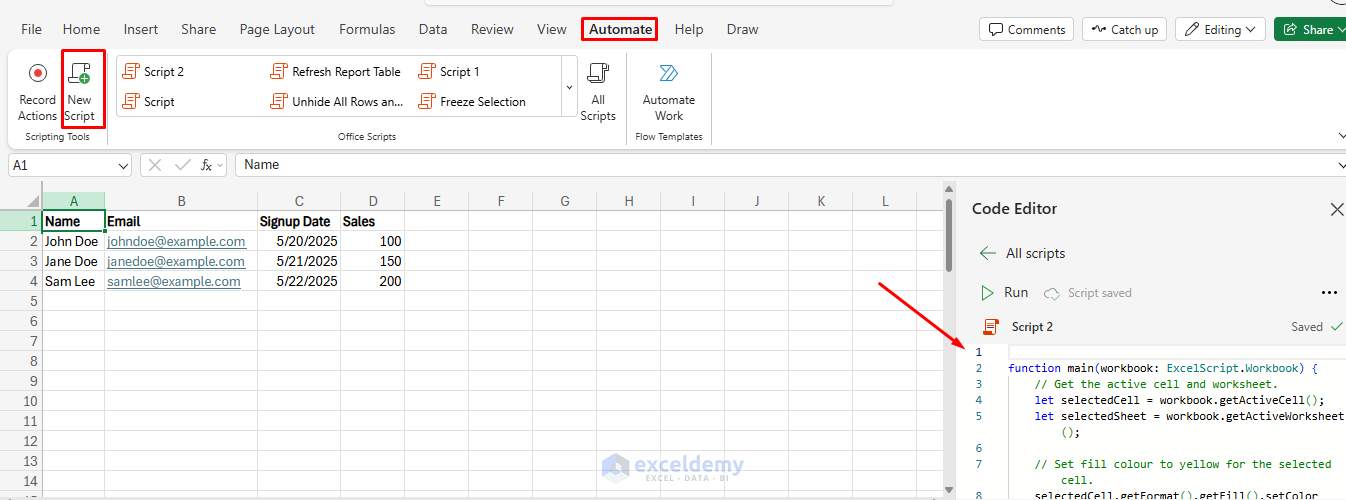
- Go to the Automate tab >> click New Script.
- The code editor opens with a basic function structure:
Office Script:
function main(workbook: ExcelScript.Workbook) {
    // Select the 'Report' worksheet
    let reportSheet = workbook.getWorksheet("Report");

    // Clear everything in A1:E15
    let clearRange = reportSheet.getRange("A1:E15");
    clearRange.clear(ExcelScript.ClearApplyTo.all);

    // Get the new data from 'RawData'!A1:E15
    let rawSheet = workbook.getWorksheet("RawData");
    let sourceRange = rawSheet.getRange("A1:E15");

    // Copy values, formulas, and number formats
    let values = sourceRange.getValues();
    let formulas = sourceRange.getFormulas();
    let numberFormats = sourceRange.getNumberFormats();

    // Paste new data into 'Report'
    let targetRange = reportSheet.getRange("A1:E15");
    targetRange.setValues(values);
    targetRange.setFormulas(formulas);
    targetRange.setNumberFormats(numberFormats);

    // Format as table
    let lastRow = values.filter(row => row[0] !== "").length + 1; // header + non-empty rows
    let tableRange = `A1:E${lastRow}`;
    let table = reportSheet.addTable(tableRange, true);
    table.setName("SalesReport");

    // Optional: Auto-fit columns
    reportSheet.getUsedRange().getFormat().autofitColumns();
}
- Clears the old report data.
- Imports new data from the raw data worksheet, data type, and formulas.
- Format imported data as a table.
- Auto-fit columns for better readability.
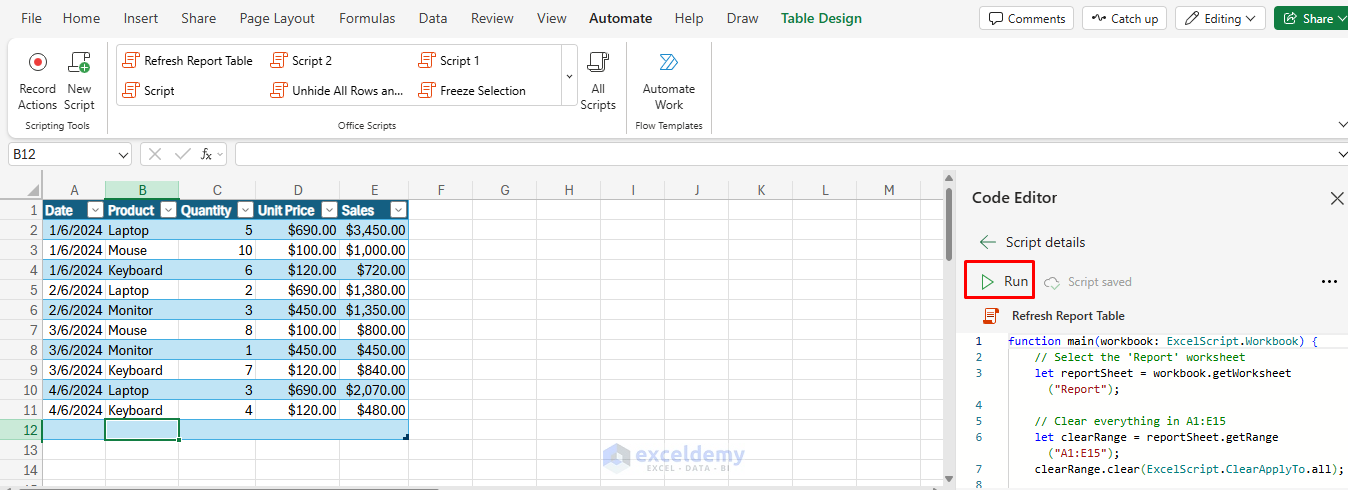
Step 3: Save and Run the Script
- Click Save Script, give it a name (e.g., “Refresh Sales Report”).
- Click Run to execute. The process is instant, and your report is refreshed!
Automating Script Execution with Power Automate
You can trigger Office Scripts automatically using Power Automate:
- Go to Power Automate and create a new flow.
- Use a trigger (e.g., “When a file is created in OneDrive”).
- Add the Run script action and select your Excel workbook and script.
- Automate multi-step processes: get data, process, send emails, notify teams, etc.
Use case: Schedule a script to run every Monday morning and email the updated report.
Tips & Best Practices
- Use comments in your scripts for clarity.
- Test on copies before running on real data.
- Name tables and ranges clearly.
- Combine with Power Automate for cross-app workflows.
- Leverage error handling to make scripts robust.
Real-World Examples
- Weekly sales report refresh: Pull raw sales data, clean, summarize, and format tables.
- Automatic data validation: Check for missing values or duplicates and alert the user.
- Formatting for consistency: Apply company styles, headers, and logos with one click.
- Batch data processing: Merge data from multiple sheets or workbooks.
Conclusion
Office Scripts dramatically simplify repetitive Excel tasks, enabling quick and consistent data manipulation and reporting. With integration into broader automation solutions like Power Automate, you can establish seamless workflows for your business operations. Start simple, explore recording actions, and gradually build up advanced automation and integrations with Power Automate.
Get FREE Advanced Excel Exercises with Solutions!

