

The collapse columns feature in Excel hides the marked columns from being displayed. We will use the sample dataset below to collapse columns D, E, and F.

Method 1 – Using Group Feature to Collapse Columns in Excel
Steps
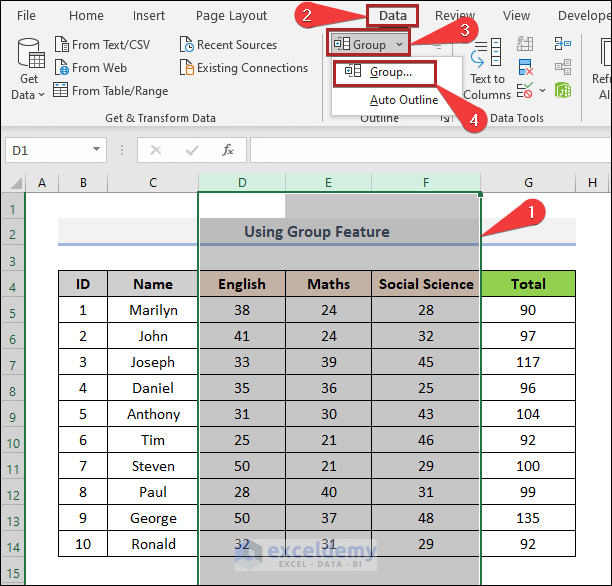
- Select the columns you want to collapse.
- Go to the Data tab.
- Select the Group drop-down on the Outline group.
- Select Group from the drop-down list.
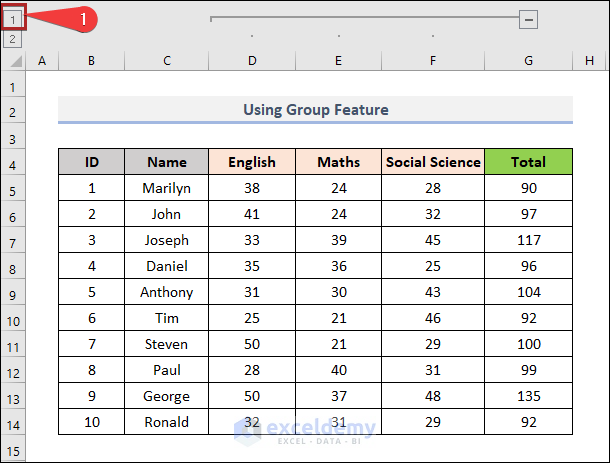
- The above steps will make the selected columns grouped as indicated on the upper side as shown in the image below.
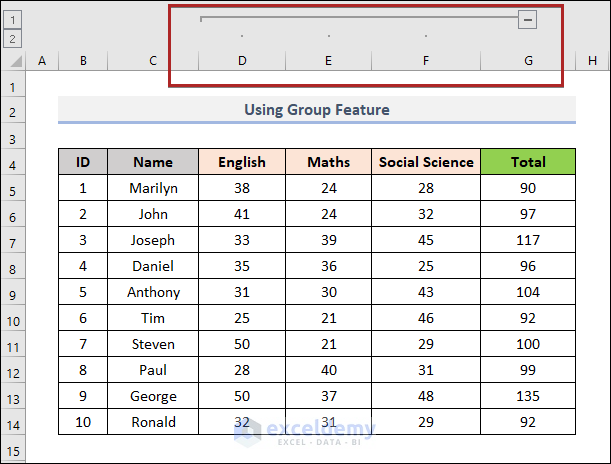
- Click on the negative (-) sign.

- Columns D:F will be collapsed.
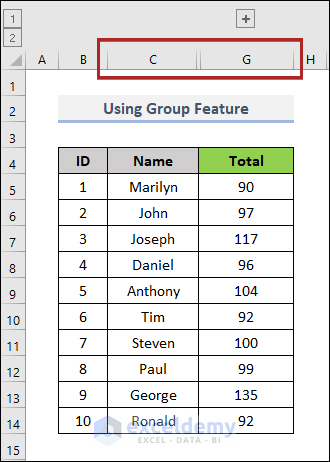
- Click on the plus (+) sign at the top of Column G.
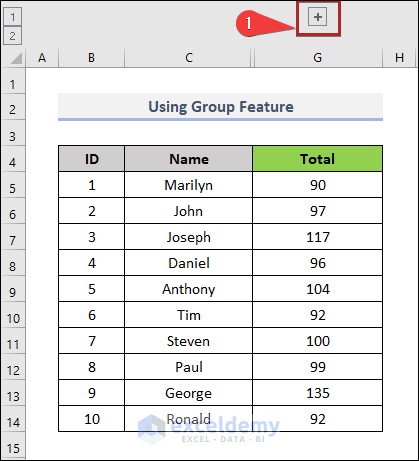
- You can expand or collapse columns using the plus (+) or negative (–) sign.
- Click on button 1 on the top left side as shown in the image below.
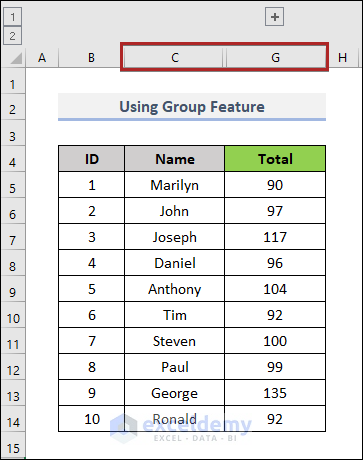
- The three columns in our dataset have collapsed.
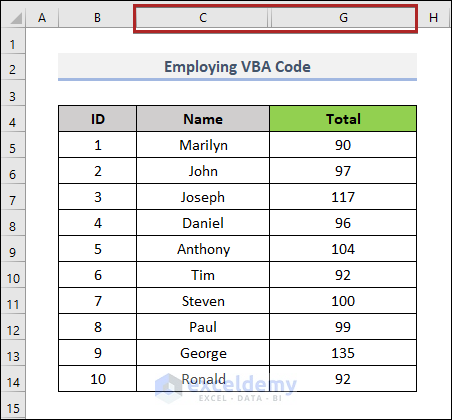
- You will notice that Column C and Column G are located side by side.
Method 2 – Applying Context Menu to Collapse Columns in Excel
Steps
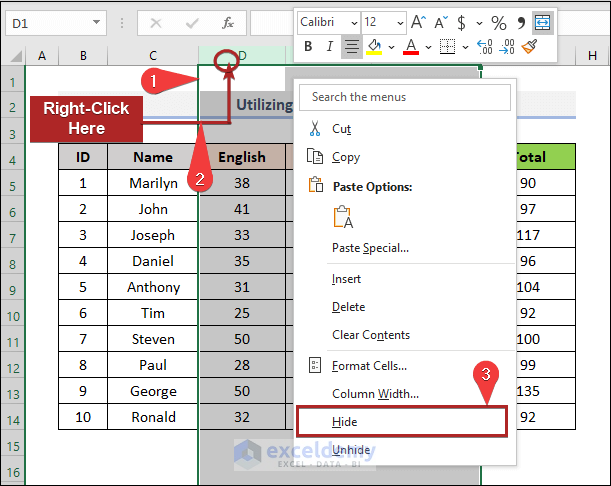
- Select columns in the D:F
- Right-click anywhere on the selected range.
- Select the Hide option from the context menu.
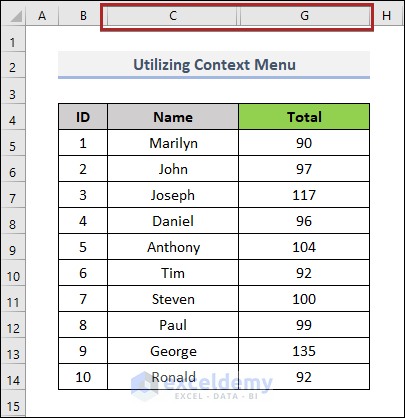
- It will collapse columns D, E, and F.
Method 3 – Collapse Columns with Excel Ribbon
Steps
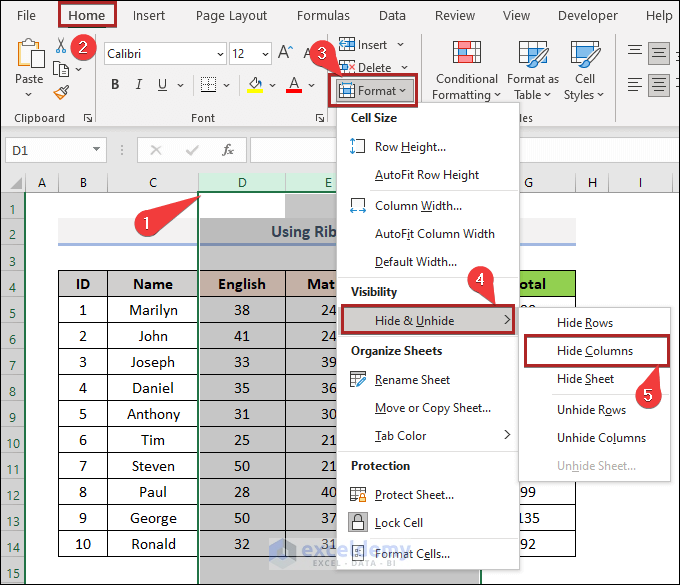
- Select columns in the D:F range.
- Go to the Home tab.
- Select the Format drop-down on the Cells group.
- Click on the Hide & Unhide batch under the Visibility section.
- Select Hide Columns from the available options.
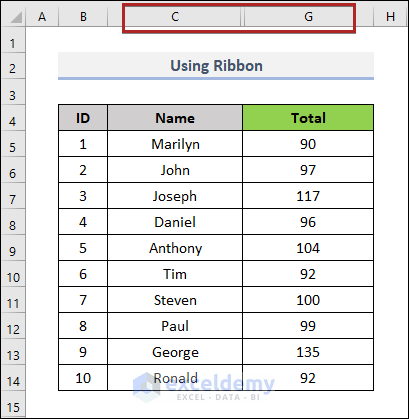
- Columns D:F will be hidden.
Method 4 – Setting Column Width to Collapse Columns in Excel
Steps
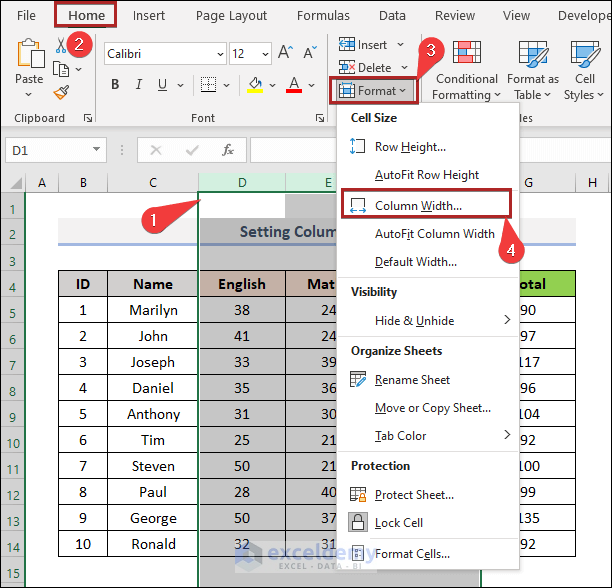
- Select the columns D:F that need to be collapsed.
- Move to the Home tab.
- Select the Format drop-down on the Cells group.
- Click Column Width from the options.
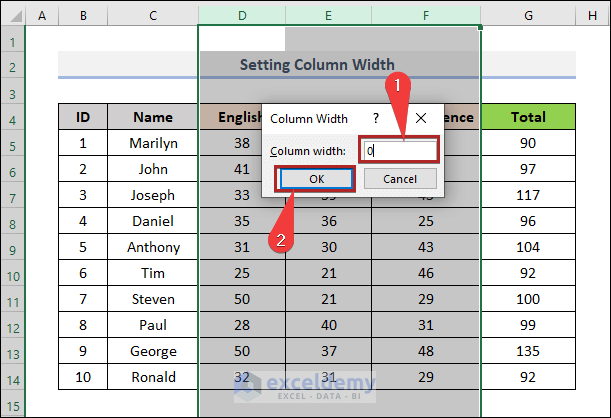
- Enter 0 in the Column Width box.
- Click OK.
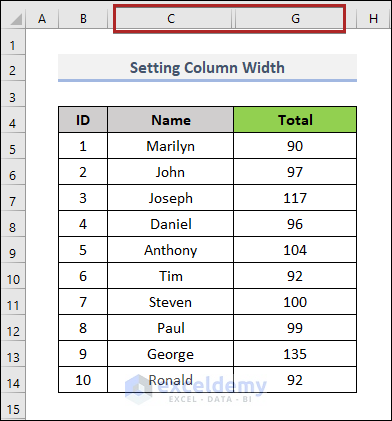
- Columns D:F will be collapsed.
Read More: How to Hide Columns in Excel with Minus or Plus Sign
Method 5 – Applying Keyboard Shortcut to Collapse Columns
Steps
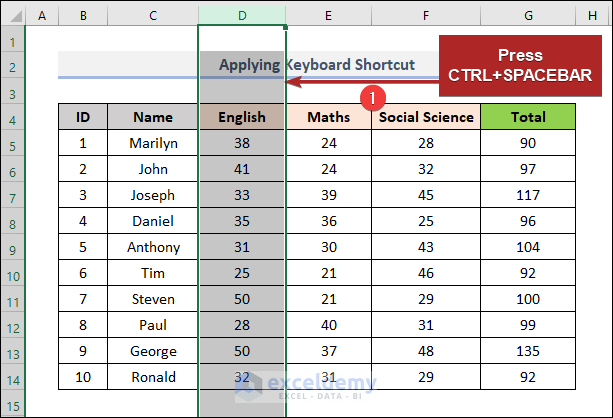
- Click on any cell of Column D.
- Press the CTRL+SPACEBAR.
- This will select the whole column.
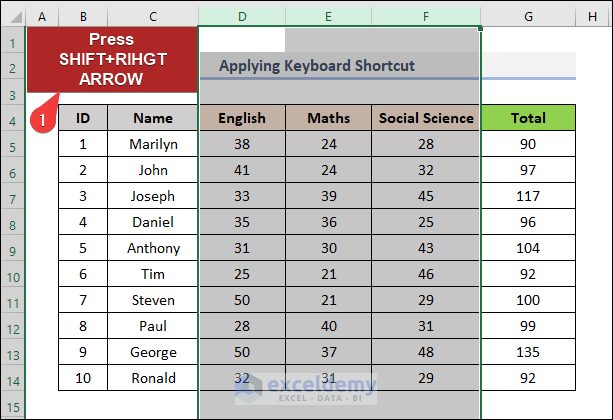
- Press the SHIFT key and tap the RIGHT ARROW (→) key twice to select from Column D to Column F.
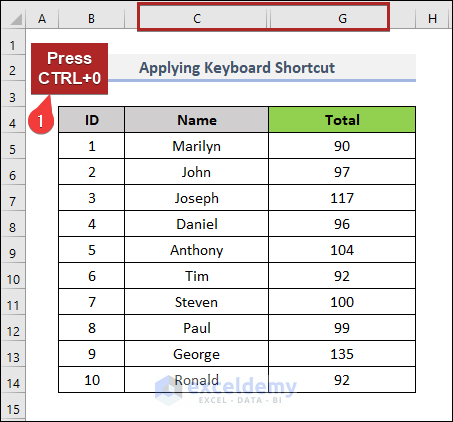
- Press CTRL+0 on your keyboard to get the desired result.
Method 6 – Applying VBA Code to Collapse Columns in Excel
Steps
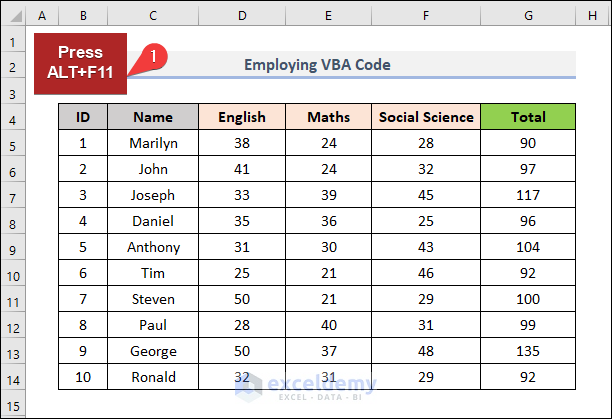
- Press ALT+F11.
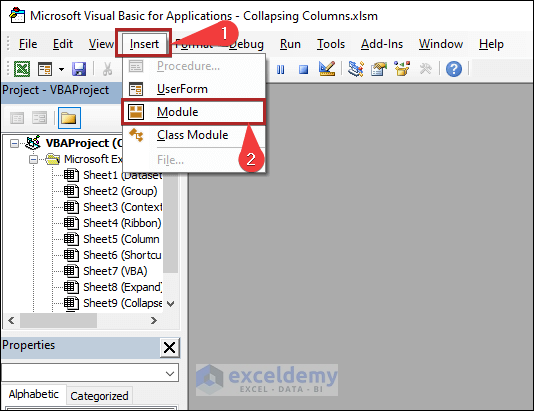
- Go to the Insert tab in the Microsoft Visual Basic for Applications window.
- Select Module from the options.
- Enter the following code in the Module.
Sub Collapse_Columns()
    Range("D:F").EntireColumn.Hidden = True
End Sub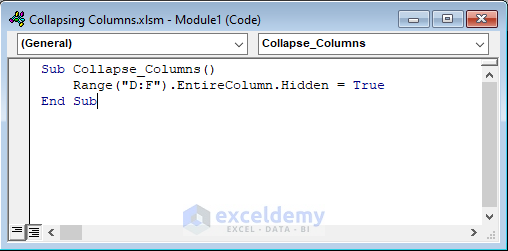
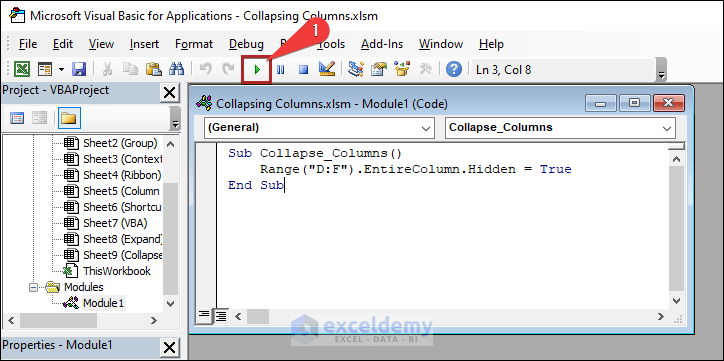
- Click on Run or press the F5 key on your keyboard.
- Return the worksheet.
- The worksheet will look like the one below.
How to Expand Collapsed Columns in Excel?
Steps
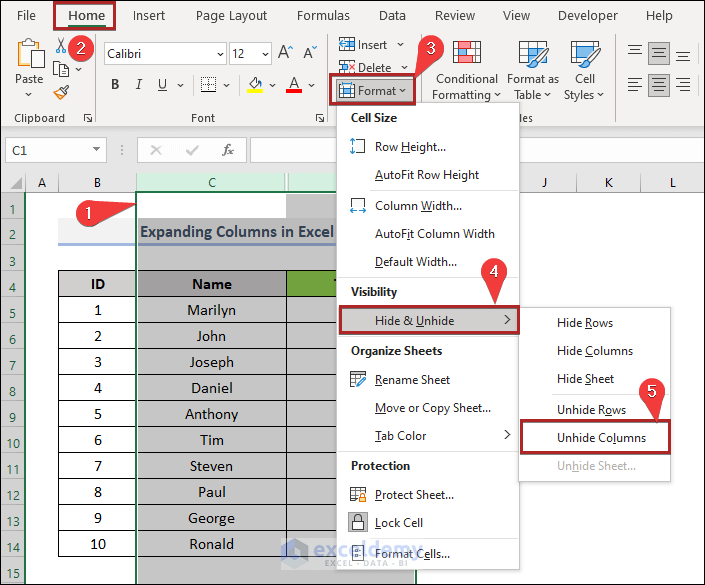
- Select Column C and Column G.
- Go to the Home tab.
- Select the Format drop-down on the Cells group.
- Click on the Hide & Unhide batch under the Visibility section.
- Select Unhide Columns from the options.
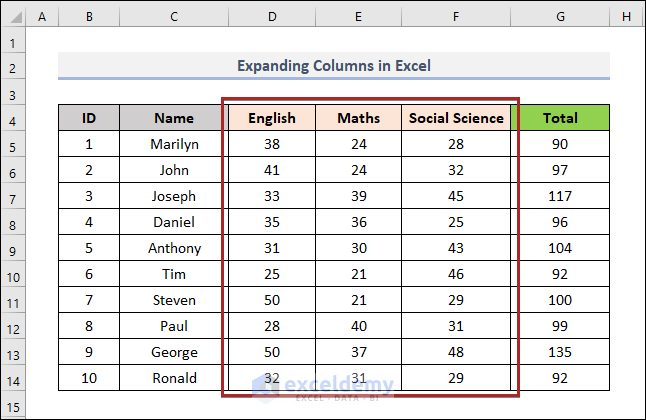
- The previously collapsed columns D:F will be expanded.
How to Collapse Rows in Excel?
Step 1: Prepare a Suitable and Structured Dataset
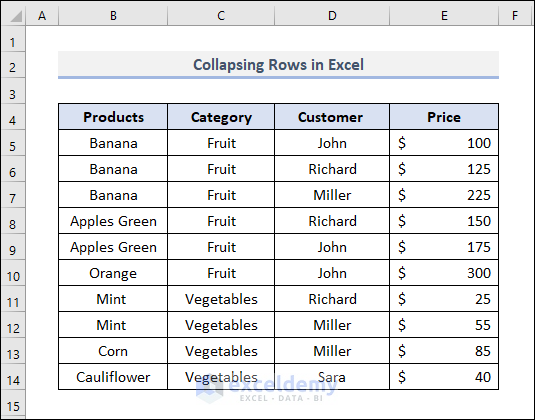
We’ll collapse the rows which contains the orders of Fruit in the sample dataset below.
Step 2: Use Group Feature
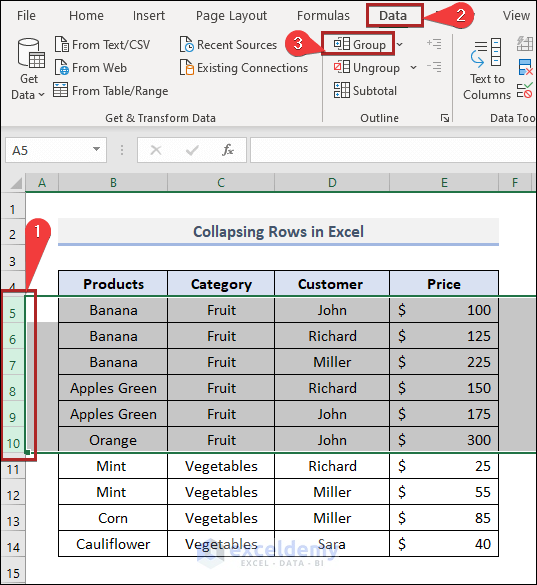
- Select the rows containing orders for the Category- Fruit (rows 5:10).
- Go to the Data tab.
- Select the Group option on the Outline group.
Step 3: Switch Between (+) and (-) Sign
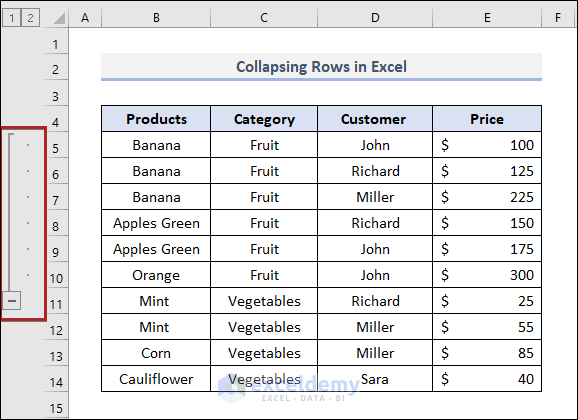
- The above steps will make the selected rows grouped as indicated on the left side as shown in the image below.
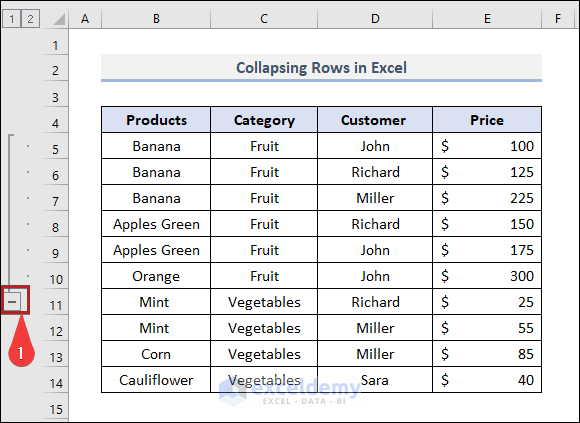
- Click on the minus (-) sign shown in the image below.
- Rows 5:10 will be collapsed.
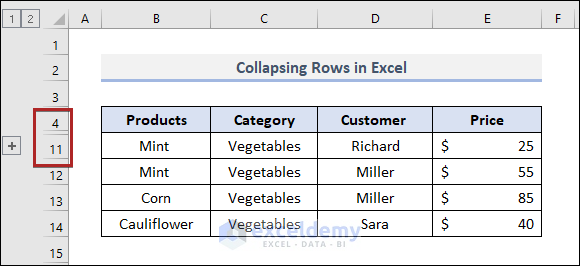
- You can expand these rows by following the steps shown above.
Download Practice Workbook
Related Articles
<< Go Back to Hide Columns | Learn Excel
Get FREE Advanced Excel Exercises with Solutions!

