

Most Excel users reach for the IF function for conditional logic. But when conditions multiply, you might find yourself building complicated nested IF formulas that are hard to read and prone to errors. Excel offers several alternatives to the IF function that can simplify your work.
In this tutorial, we’ll show you how to choose the right IF function. Instead of memorizing formulas, you’ll learn how to decide which function fits your situation.
Excel Function Map
Follow this flowchart to choose the right IF function and identify which function best fits your needs.

1. Use IF: When There is One Decision/Condition
Begin with your decision point: “Are you checking only one condition, or several?” If your logic has only one true/false check, the basic IF function is the best choice.
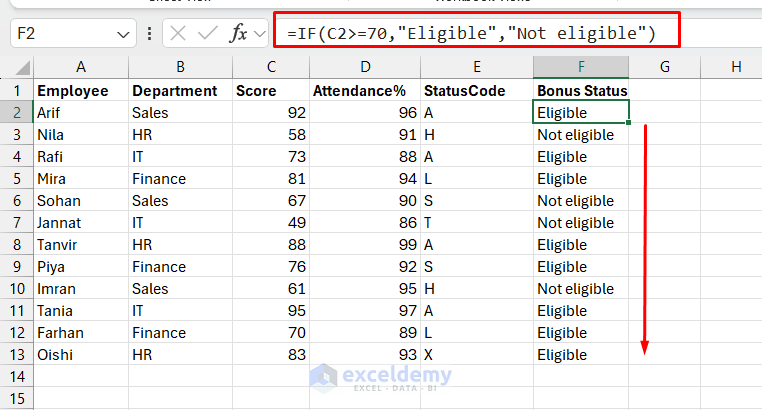
Let’s determine bonus eligibility based on the score.
Rule: If Score ≥ 70, return “Eligible”; otherwise return “Not Eligible”.
- Select a cell and insert the following formula
- Drag the formula down to fill the rest of the cells
=IF(C2>=70,"Eligible","Not Eligible")
This formula evaluates one condition and returns one of two labels.
When IF is the best choice:
- One simple logical test (true/false)
- Clear outcome for true and false
- You don’t expect to add many more conditions later
If you need to evaluate multiple conditions, move to the next decision point instead of immediately nesting IFs.
2. Use IFS: When You Have Multiple Logical Conditions
Do you need to check multiple conditions where only one can be true? The IFS function is ideal for conditions where the options are mutually exclusive.
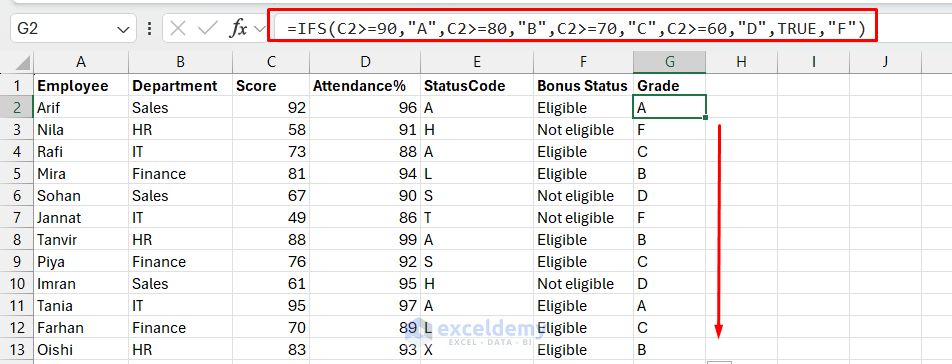
Suppose you want to assign a grade to an employee based on the score.
Rule:
- 90–100 = A
- 80–89 = B
- 70–79 = C
- 60–69 = D
- Below 60 = F
Formula:
=IFS(C2>=90, "A", C2>=80, "B", C2>=70, "C", C2>=60, "D", TRUE, "F")
In IFS, order matters because the function stops at the first TRUE condition. That’s why you start from the highest score downward.
When IFS is the best choice:
- Many conditions (usually 3+)
- Conditions are range-based (>, <, between)
- You want cleaner formulas than nested IFs
3. Use SWITCH: If You’re Matching Fixed Values
This is a critical branching point in the function map. If your logic compares one cell to several fixed values, SWITCH is often the cleanest option. The SWITCH function is designed for “lookup-like” logic: if value is A, return this; if value is B, return that…
Let’s convert a status code into a label.
Rule:
- A = Active
- H = Hold
- S = Suspended
- L = Leave
- T = Terminated
- Anything else = Unknown
Formula:
=SWITCH(E2,"A","Active","H","Hold","S","Suspended","L","Leave","T","Terminated","Unknown")

When SWITCH is the best choice:
- You’re matching exact values (codes, categories, text)
- You want a readable list instead of many comparisons
- You need a clean default result (“Unknown”)
4. When to Use Nested IFs
Nested IF means IF inside IF. This is the classic beginner approach. It works, but it can get messy fast.
Using nested IF, you can assign grades, but readability suffers.
Formula:
=IF(C2>=90,"A",IF(C2>=80,"B",IF(C2>=70,"C",IF(C2>=60,"D","F"))))
This produces the same output as IFS()
Use nested IFs only when:
- You don’t have IFS or SWITCH functions (older Excel)
- Later conditions depend on earlier outcomes in a way that’s awkward to express otherwise
- You truly have a small number of branches and can keep it readable
5. Complex or Overlapping Logic: Nested IFs
Sometimes conditions are not mutually exclusive. For example, “If score is high OR attendance is high” can overlap, and multiple conditions could be true at once.
In those cases, you must decide which condition takes precedence, and you often need AND() / OR().
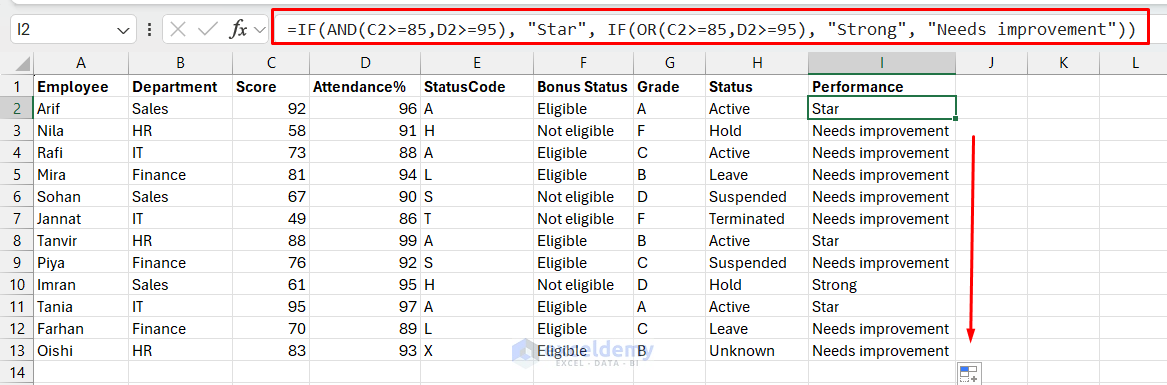
Suppose you want to flag performance based on both score and attendance—an overlapping logic.
Rule:
- If Score ≥ 85 AND Attendance ≥ 95% → “Star”
- Else if Score ≥ 85 OR Attendance ≥ 95% → “Strong”
- Else → “Needs Improvement”
Formula:
=IF(AND(C2>=85,D2>=95),"Star",IF(OR(C2>=85,D2>=95),"Strong","Needs Improvement"))
Here, nested IFs are well suited because the second test runs only if the first test fails (and you’re mixing AND/OR logic).
Quick Function Guide
- IF: One condition, two outcomes
- IFS: Multiple logical tests, evaluated in order; often range-based
- SWITCH: One value matched against many fixed options
- Nested IF: Complex or dependent logic only; use with AND/OR
Wrapping Up
The key to choosing the right IF function is to understand your specific scenario. Based on the number of conditions and the type of comparison, you can determine which IF function to use. Start with a simple IF function and only add complexity when needed. A readable formula that you can maintain is always better than a clever formula that confuses you six months later.
Remember, the goal isn’t to use the most advanced function; it’s to use the right function that makes your work easier, clearer, and more maintainable.
Get FREE Advanced Excel Exercises with Solutions!

