
Latest Posts From Mehedi Hasan Shimul

Multiplication of a number is a quite frequently used operation in Excel. We can multiply that from a range of cells by a specific number in various ways. We ...
 Mehedi Hasan Shimul

In this article, we will demonstrate 3 quick ways to copy highlighted cells to a new worksheet in Excel. To illustrate the methods, we'll use the following ...

Method 1 - Attach Zip File as an Icon Select a cell in the worksheet where you want to place the zip file. Go to the ribbon and choose Insert and ...

What Is a CSV? CSV or Comma-Separated Values stores the values as text strings separated by commas. Various software and programming languages ...
Method 1 - Change the Column Width with the Mouse We want to change the width of column C. Put the mouse cursor between column C and column D. ...
Method 1 - Use Excel SUMIFS Function Across Multiple Sheets with AND (+) Operator Select cell H5 and write the formula given below. ...

We can rename multiple sheets by using a simple Visual Basics for Applications (VBA) code. Step 1: Insert Multiple Sheets In this example, we have ...

While working in Excel sometimes we create different types of charts and we want to copy the chart into another sheet of the same or different workbook. It ...

Method 1 - Subtract One Time from Another to Calculate Hours in Excel Select the cell range B5:C7. Go to Number Format of the Home tab in the ...
Step 1: Create a Table We need to create a balance sheet table. The table can be like the following, which includes columns Category, Debit, Credit, ...

Step 1 - Creating the Dataset The dataset for the Leave Salary Calculation should include the employee names and a few quantities like Total working Days, ...
Method 1 - Calculate the Error Percentage Using the Percent Error Formula in Excel Create a dataset. Enter the following formula in D5 and press ...

Sometimes we may want to increase the price by a certain percentage. It's quite easy to change the price by a certain percentage in Excel. Here in this ...

Method 1: Use Excel FV Function to Create CD Interest Calculator Create a dataset including investment amount, rate of interest, term in year, and ...
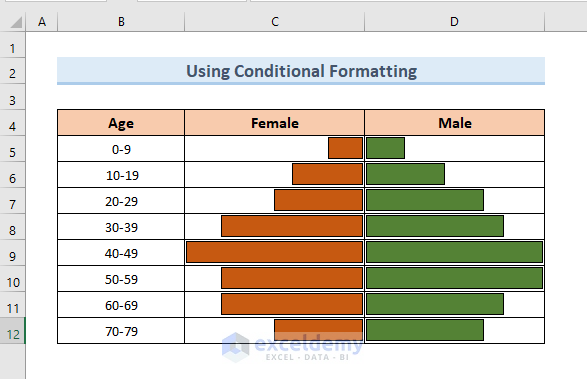
The Population Pyramid is a very useful tool for population statistics. It helps to analyze the population data of age and gender. In this article, we will ...
See Our Reviews at


Thank you for your queries. Let’s change the code a bit. Use the following code to copy the data and paste it as values.
Afterward, you will see result like this.
Thank you so much for your observation. We will rectify and update this error soon. Thanks again for your concern.
Hi MIGUEL,
We are glad, you asked the questions. It’s quite easy to import data from separate sheets and save it as separate documents. Simply, use the following code in a new module of VBA. Only, you have to change the file directory to save the doc file.
After running the code, you will see the doc files created according to your dataset.
Hi Anna!
You wanted to say what will happen if we input the same word with Upper and Lower case. The fact is Excel counts Upper and Lower case characters as the same. So you won’t have any issues. Even then I am showing one way to make your data to proper format first. Then, use the formatted text in the required formula.
=PROPER(B5)