
Latest Posts From Mehedi Hasan Shimul
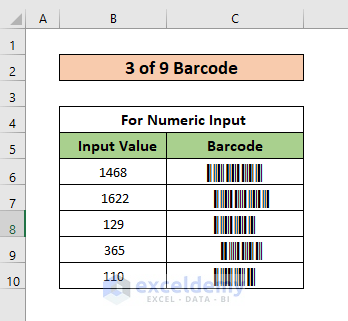
The 3 of 9 Barcode Font in Excel Barcode uses lines and spaces to represent information. Excel doesn’t include any barcodes fonts by default, but they can be ...
 Mehedi Hasan Shimul

Method 1 - Converting Radians to Degrees Using the DEGREES Function Select the cell to store the result. In our case, the cell is C6. Insert the ...

Tracer Arrows is a widely used tool in Excel. Though it is very helpful, we may want to remove these from the sheet after our desired work is done. In this ...

What Is Data Analysis Toolpak? Data Analysis Toolpak is an Add-Ins in Excel which is essential to enable Data Analysis. Steps to Install Data Analysis ...

Average is a very useful mathematical operation. In order to find the average of a few numbers, we need to sum the input numbers and divide them by the number ...

Sometimes we may need to average numbers from a column in Excel. Average means the mean value of the input numbers. We have to sum the numbers first and then ...
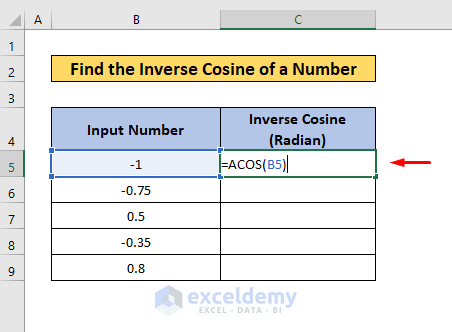
We may want to find the value of the inverse cosine of a number which gives an angle as a result. The result can be in radian or degrees. We can easily find ...

This is an overview: The sample dataset showcases the name of the Brand, and the present day, and the previous day sales. To find ...

Here's an overview of a histogram created by applying bin ranges. Method 1 - Using the Built-in Histogram Chart Option (For Excel 2016 and Later ...

While working on Excel we may need to add or subtract among the column data. In order to do that Excel has many built-in functions as well as many other ...

While using an Excel dataset we may need to select an entire row below a specific cell. Sometimes we may need to select some of the columns in a row. Whatever ...
- « Previous Page
- 1
- …
- 4
- 5
- 6
See Our Reviews at


Thank you for your queries. Let’s change the code a bit. Use the following code to copy the data and paste it as values.
Afterward, you will see result like this.
Thank you so much for your observation. We will rectify and update this error soon. Thanks again for your concern.
Hi MIGUEL,
We are glad, you asked the questions. It’s quite easy to import data from separate sheets and save it as separate documents. Simply, use the following code in a new module of VBA. Only, you have to change the file directory to save the doc file.
After running the code, you will see the doc files created according to your dataset.
Hi Anna!
You wanted to say what will happen if we input the same word with Upper and Lower case. The fact is Excel counts Upper and Lower case characters as the same. So you won’t have any issues. Even then I am showing one way to make your data to proper format first. Then, use the formatted text in the required formula.
=PROPER(B5)