
Latest Posts From Mehedi Hasan

Often, you might want to add up and down arrows in Excel so that you can easily understand the increase and decrease in the price of your business commodities ...
 Mehedi Hasan

Example 1 - Applying Conventional Formula Steps: Enter the following formula in Cell D5. =C5+(1/24) Press Enter and use the ...
Example 1 - Converting European Number Format to US Number Format Steps: Select the Cell C5 and enter the following formula. ...

The sample dataset contains hourly views of different blog posts of ExcelDemy from 9/20/2022 to 9/24/2022. From these hourly views for a day, we will return ...

In general, you must understand cell addresses clearly in order to use Excel. Since the cells contain the values, they are the most essential element for ...
Method 1 - Using a General Arithmetic Formula to Convert CAD to USD Steps: Enter the following formula in cell E5: =C5*D5 Press ENTER ...
We'll use the following sample dataset, with empty cells that will be filled by copying the first non-empty value from below. Method 1 - ...

Occasionally, you might need to create a histogram for data visualization. Basically, a histogram is a column chart that displays how frequently a variable ...
In this tutorial, we will demonstrate 3 easy ways to close a Dialog Box in Excel. Method 1 - Using a Keyboard Shortcut Suppose we open a Font ...

When we begin entering data into a cell, Excel suggests duplicate values from its related cells, and we can acquire the duplicate values by simply pressing ...

Method 1 - Using SUBSTITUTE Function to Remove Comma in Excel Steps: Enter the following formula in the formula bar. =SUBSTITUTE(B5,",","") ...
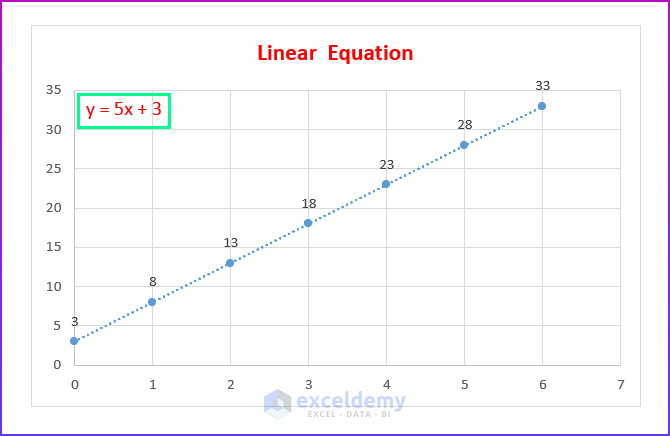
Method 1 - Plotting a Linear Equation in Excel Generally, linear equations are the most common type of equation in Excel. We use them on a regular basis. ...

Sometimes, we need to draw the Y equation on an Excel graph. Fortunately, it is quite simple and easy to do this in Excel. In this article, we will show you ...

For illustration, we will search for the text “Sample Dataset” in multiple Excel files. One of the file's texts is shown in the following image. ...

Doing a sum now becomes easier and more convenient with the AutoSum function in Excel. This tutorial will show you all easy and quick methods on how to use ...
See Our Reviews at


Hello ASHLEIGH,
Thank you for your question. We’re sorry to hear that you’re facing difficulties with the VBA code. In fact, the ExcelDemy team has tested the Excel file and the code with other workbooks following your comment and the code appears to be working correctly.
However, you can check the following 4 steps.
1. You can choose any of the two formats according to your need from Method-2. Additionally, read the Notes given after each code. This will help you to understand the code properly.
2. You must create a worksheet where you want to move the filtered rows.
3. Set the Input Worksheet and Destination Worksheet names properly with the Range.
4. In this code, we have selected Cable as filter criteria. So, the rows containing Cable within the given Range will be deleted and it will be moved to your Destination Workbook. So, make sure you have provided the criteria according to your dataset.
I hope this will solve your issue. If you still face problems, please feel free to comment again or send your workbook through e-mail so that I can check the issue.
Hello DERRELL,
Thank you for your question. I will be glad if I can help you even a little.
First of all, YES, you can sort two columns based on the second column without creating a new table.
If you want to know the process in detail, kindly read through the following article.
https://www.exceldemy.com/sort-data-in-excel-by-value/
I hope this will solve your issue. If you still face problems, please feel free to comment again or send your workbook through e-mail so that our team can check the issue.
Hello KOBUS,
Thank you for your question. We’re sorry to hear that you’re facing difficulties with the VBA code. In fact, the ExcelDemy team has tested the Excel file and the code with other workbooks following your comment and the code appears to be working correctly.
However, you can check the following 2 steps.
1. Follow the individual steps properly.
2. You have to insert the code by using the View Code option of a particular sheet. It will not work if you insert it in a VBA Module.
I hope this will solve your issue. If you still face problems, please feel free to comment again or send your workbook so that I can check the issue.