

Excel offers a variety of powerful functions, but even when using them regularly, the most common mistakes come from small details: using the wrong match mode, comparing formatted text instead of values, or assuming that cell formatting also rounds the underlying number.
In this tutorial, we will discuss 9 common Excel functions that are frequently used incorrectly and show you how to fix them.
1. VLOOKUP – Stop Using It for Everything
The Wrong Way: Many users depend on VLOOKUP for everything, even when other functions are more appropriate. VLOOKUP only searches to the right, requires sorted data for approximate matches, and can break when columns are inserted into the source data. By default, VLOOKUP uses an approximate match (TRUE), which requires a sorted first column and often returns an incorrect item if the data isn’t sorted properly.
Fix: Use XLOOKUP with an exact match in Microsoft 365, or INDEX+MATCH if you’re on an older version of Excel.
Use INDEX/MATCH for More Flexibility:
- Select a cell and insert the following formula to look up the price of a particular product.
=INDEX(G2:G101, MATCH(L3, E2:E101, 0))

This also handles “left lookups” by choosing any return column you like inside INDEX.
For Excel 365 Users, Consider XLOOKUP:
- Select a cell and insert the following formula.
=XLOOKUP(L3, E2:E101, G2:G101, "Not found", 0)

The 0 forces an exact match, and the fourth argument gives a friendly “not found” message.
- Works in any direction (left or right).
- Doesn’t break when columns are inserted.
- More efficient for large datasets.
- Clearer logic flows.
2. SUMIF/SUMIFS – Writing Criteria Incorrectly
The Wrong Way: Writing operators directly into the criteria string (e.g., “>=2025-03-01” as plain text) instead of concatenating them, mixing up the criteria_range and sum_range arguments, or using entire column references like A:A, which can slow down calculations.
Fix: Keep ranges aligned, and build operator criteria by concatenation; use DATE/EOMONTH for robust date filters.
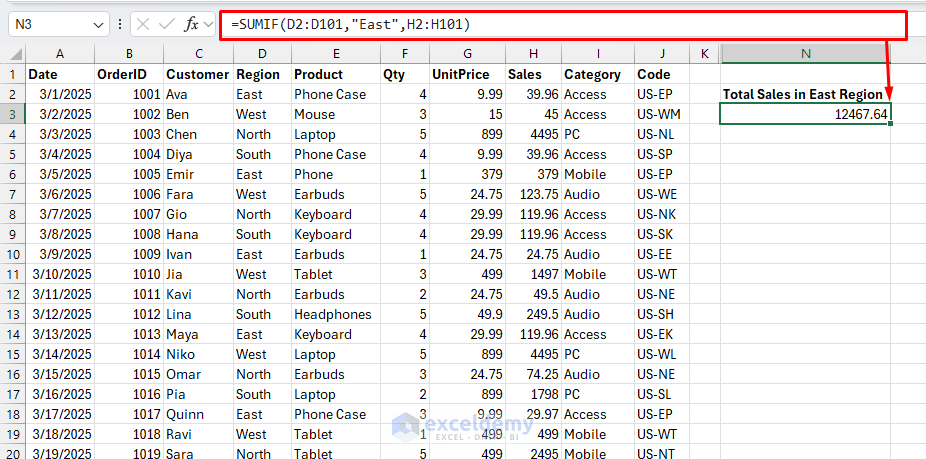
- Use specific ranges that contain your actual data, as it is faster and more precise.
=SUMIF(D2:D101,"East",H2:H101)
- Total March 2025 sales for the West region:
=SUMIFS(
H2:H101,
D2:D101, "West",
A2:A101, ">=" & DATE(2025,3,1),
A2:A101, "<=" & EOMONTH(DATE(2025,3,1),0)
)

This avoids locale surprises and text-date problems. Always ensure the sum_range and each criteria_range have the same size.
Pro tip: Use Excel Tables and structured references for automatic range expansion.
3. IF Statements – Nested Nightmare
The Wrong Way: Unnecessarily comparing a boolean function to TRUE (e.g., =IF(AND(E4=”Y”,F4=”Y”)=TRUE, …)) or creating deeply nested IF statements for simple category maps, which are difficult to read and maintain.
Fix: Let the AND/OR functions return boolean values directly. For multiple conditions, use IFS, CHOOSE/MATCH, or SWITCH for cleaner, more manageable formulas.
- A clean boolean test:
=IF(AND(D2="East", F2>=3), "Bulk East", "Other")

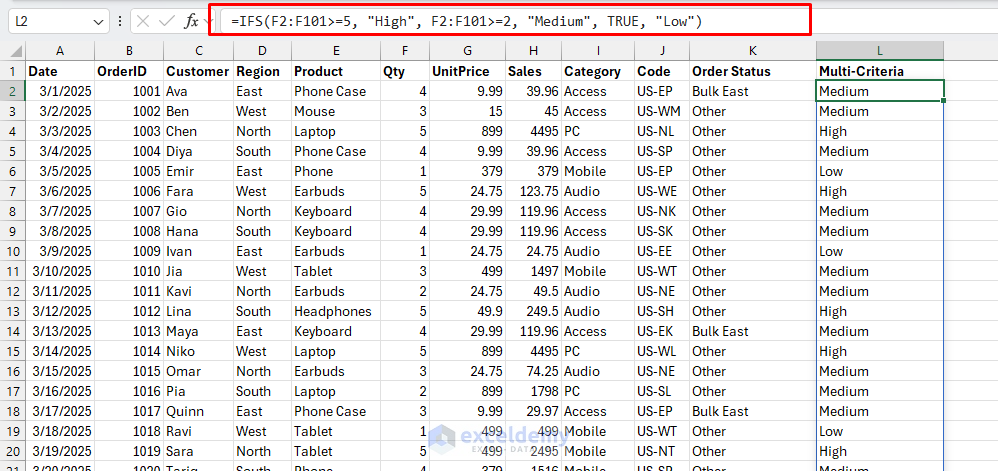
- A multi-condition score using IFS:
=IFS(F2:F101>=5, "High", F2:F101>=2, "Medium", TRUE, "Low")
- A neat category map with CHOOSE/MATCH (e.g., converting letter grades in J2 to GPA points):
=CHOOSE(MATCH(J2, {"A","B","C","D","F"}, 0), 4,3,2,1,0)
This is simpler and less error-prone than deep IF pyramids.
4. CONCATENATE – The Outdated Approach
The Wrong Way: Still using the outdated CONCATENATE function or chaining multiple ampersands for complex text joining, which can be cumbersome and error-prone.
Fix: Use TEXTJOIN in modern versions of Excel, as it can efficiently join multiple values with a specified delimiter.
- Use TEXTJOIN for multiple values with delimiters:
=IF(L2="","", TEXTJOIN(", ", TRUE, FILTER(E$2:E$101, C$2:C$101=L2)))

Use the & operator for simple concatenations, but TEXTJOIN shines when you need to:
- Skip blank cells automatically.
- Use the same delimiter throughout.
- Join a range of cells.
5. COUNTIF – Ignoring Multiple Criteria Efficiency
The Wrong Way: Using COUNTIF with literal operators instead of concatenating them, incorrectly expecting case-sensitive results, or forgetting that wildcards need to be enclosed in quotes. Another common mistake is summing multiple COUNTIF functions instead of using the more efficient COUNTIFS for multiple criteria.
Fix: Concatenate operators correctly. When you need case sensitivity or more complex “contains” logic, switch to SUMPRODUCT or FILTER.
- Count codes that start with US-E:
=COUNTIF(J2:J101, "US-E*")

- Count orders whose product contains the word “phone” (case-insensitive):
=SUMPRODUCT(--ISNUMBER(SEARCH("phone", E2:E101)))

If you need case-sensitive “contains,” replace SEARCH with FIND.
6. ROUND – Rounding at the Wrong Time
The Wrong Way: Assuming that formatting a cell to two decimal places also rounds the underlying value in calculations. Formatting only changes the appearance, not the stored value, which can lead to discrepancies in totals.
Fix: Round at the step where business rules require it. Use ROUND, ROUNDUP, ROUNDDOWN, or MROUND for increments.
- Rounded line amount:
=ROUND(F2:F101*G2:G101, 2)

- Round to the nearest 0.05 (common with cash pricing):
=MROUND(G2, 0.05)

Key principle: Round results for display, but preserve precision in intermediate calculations unless specifically required otherwise.
7. TEXT and Date Formatting Used in Calculations
The Wrong Way: Converting values to text for display purposes and then trying to use those text-based results in mathematical calculations, or comparing a formatted date string to a true date value. This often involves treating dates as text and using complicated text manipulation instead of dedicated date functions.
Fix: Perform calculations on raw numeric values. Use the TEXT function only at the final presentation step, such as for chart titles or report labels.
- Use proper date functions with actual date values:
=YEAR(A1)
=MONTH(A1)
=DAY(A1)
- A dashboard title that shows the month and the total without breaking your numbers:
="March " & YEAR(DATE(2025,3,1)) & " Sales: " &
TEXT(SUMIFS(H$2:H$101, A$2:A$101, ">="&DATE(2025,3,1), A$2:A$101, "<="&EOMONTH(DATE(2025,3,1),0)),"$#,##0")

- Robust month filter using dates (no TEXT needed):
=SUMIFS(H$2:H$101, D$2:D$101, "East",
A$2:A$101, ">="&DATE(2025,3,1),
A$2:A$101, "<="&EOMONTH(DATE(2025,3,1),0))

8. SUMPRODUCT – Forgetting Coercion or When FILTER Is Clearer
The Wrong Way: Forgetting to coerce boolean (TRUE/FALSE) arrays to numbers (1/0), or building arrays of mismatched sizes. Conversely, using a complex SUMPRODUCT formula when a simple SUM(FILTER(…)) combination in modern Excel would be more readable.
Fix: Use the double-unary — or multiply by 1 to force TRUE/FALSE into 1/0. In Microsoft 365, prefer a transparent SUM and FILTER pattern for multi-criteria sums.
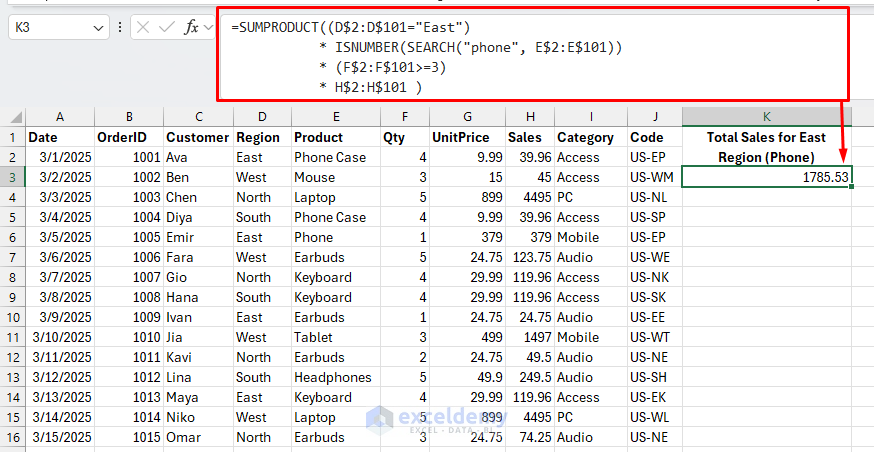
- Total sales for the East region, products containing “phone”, and quantity at least 3 legacy-friendly:
=SUMPRODUCT((D$2:D$101="East") * ISNUMBER(SEARCH("phone", E$2:E$101)) * (F$2:F$101>=3) * H$2:H$101)
- The same logic as dynamic arrays (365/2021):
=SUM(FILTER(H$2:H$101, (D$2:D$101="East")*(ISNUMBER(SEARCH("phone", E$2:E$101)))*(F$2:F$101>=3)) )

With FILTER, the criteria multiply together as 1/0 gates, and the result stays readable.
9. IFERROR Used as a Blanket Band-aid
The Wrong Way: Wrapping a large, complex formula in IFERROR(…,””) to suppress all errors. This is dangerous because it can hide real problems like misspelled range names, genuine #DIV/0! errors, or other logical flaws that you should be aware of.
Fix: Catch only the specific error you expect. Use IFNA for lookup functions when a value isn’t found, and use IF statements to handle blank cells before performing calculations.
- Show blank if the lookup key is blank; otherwise, show a friendly “not-found” message only when it’s truly missing:
=IF(L2="","", IFNA(XLOOKUP(L2, E$2:E$101, G$2:G$101),"No match"))
Blank:

No Match:

- Convert text to a number only when there’s something to convert:
=IF(A2="", "", VALUE(A2))
This preserves legitimate zeros and avoids masking unrelated errors.
Best Practices Summary
- Choose the right tool: Don’t default to familiar functions when better alternatives exist.
- Be specific with ranges: Avoid entire column references unless necessary.
- Think about maintainability: Write formulas that others (including future you) can understand.
- Use proper data types: Treat dates as dates, numbers as numbers.
- Test edge cases: Consider what happens with blank cells, errors, or unexpected data.
- Leverage Excel Tables: Use structured references for dynamic ranges.
- Stay current: Learn new functions in Excel 365 that can replace complex legacy formulas.
Conclusion
By avoiding these common mistakes, you can create more efficient, readable, and reliable Excel spreadsheets. The key takeaways are to choose the right function for the job, be precise with your criteria and ranges, and keep data types separate—perform calculations on numbers and use formatting functions only for final presentation. Breaking old habits learned from outdated tutorials will not only make your formulas less prone to error but will also make your work easier to maintain and understand.
Get FREE Advanced Excel Exercises with Solutions!

