


Image by Editor
Microsoft Excel is a powerhouse for crunching numbers, visualizing data, and automating tasks. But Excel hides some fascinating features that even experienced users might not know about. But even the most advanced users might not know that Excel also has a playful side.
In this tutorial, we’ll explore 7 Excel Easter eggs for power users.
1. The Hidden “LAMBDA” Superpower – Write Your Own Reusable Functions
Introduced in Excel 365, LAMBDA lets you create custom, reusable functions without VBA or macros.
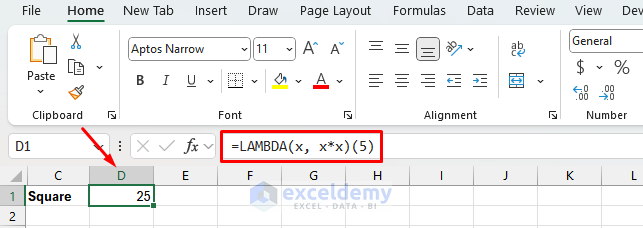
- Select a cell, and directly insert the following formula.
Formula:
=LAMBDA(x, x*x)(5)
This function returns 25.
Create Reusable Function:
- Go to Formulas tab >> select Name Manager.
- Click New, name your function (e.g., SQUARE).
- In Refers to: Insert the following LAMBDA function.
=LAMBDA(x, x*x)
- Click OK.

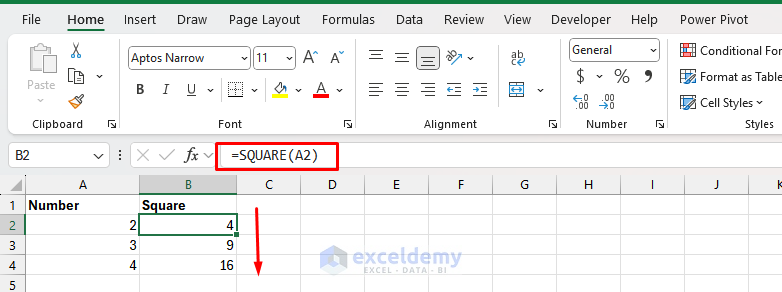
- Now you can use the SQUARE function anywhere.
=SQUARE(A2)
Most users don’t know that Excel now supports user-defined functions like a full programming language.
2. Evaluate Formula Tool – Debug Like a Pro
This tool can evaluate every step of a complex formula to see how Excel processes it.
Steps:
- Select a cell with a formula.
- Go to Formulas tab >> select Evaluate Formula.
- Click Evaluate repeatedly to step through.
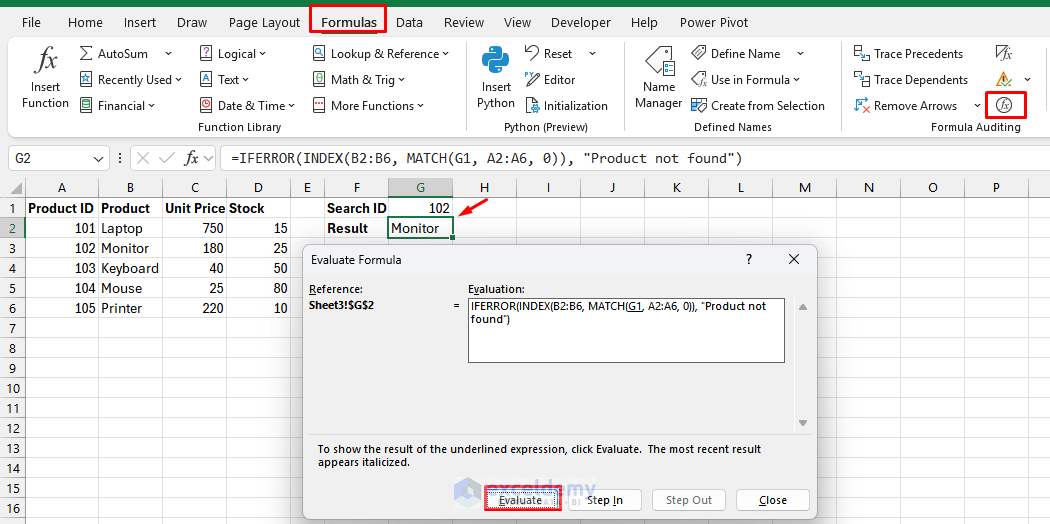
- Click Evaluate until you see the final result.
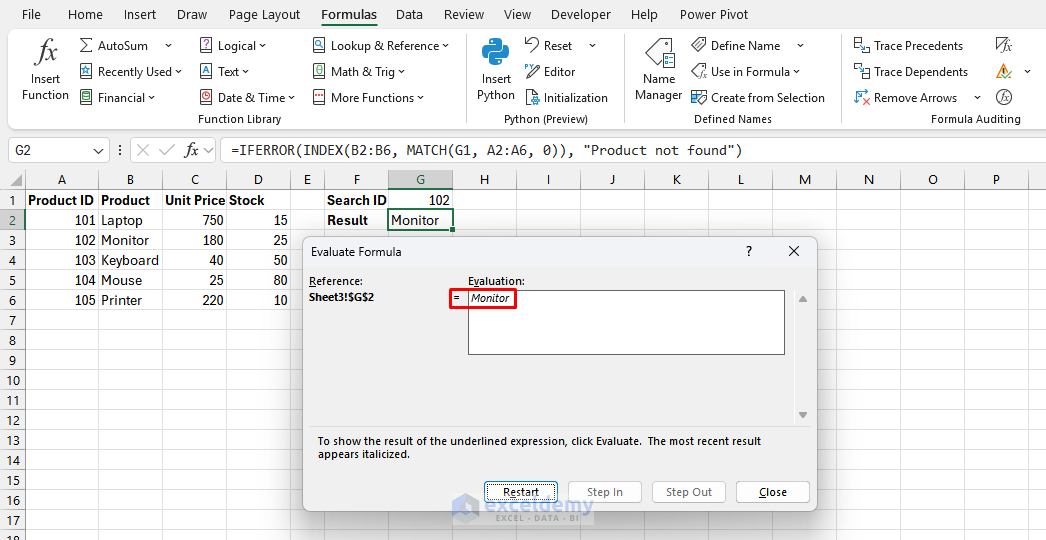
This lets you watch Excel solve your formula one step at a time, making troubleshooting much easier for nested formulas with multiple functions like INDEX, MATCH, IF, etc.
3. Camera Tool for Live Data Snapshots
The hidden Camera tool lets you take a live snapshot of any cell range and place it anywhere else. The Camera tool isn’t on any ribbon by default, but it’s incredibly useful.
How to enable:
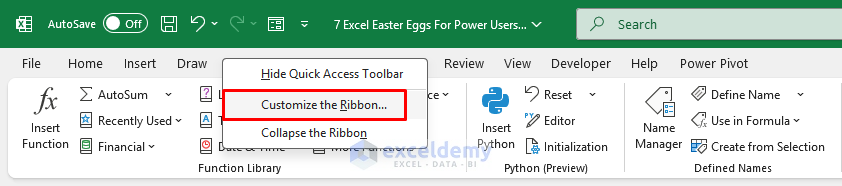
- Right-click any Excel ribbon >> select Customize the Ribbon.
- Select Commands Not in the Ribbon from the dropdown.
- Select the Camera tool >> click Add >> select New Tab (New Group).
- Click OK.
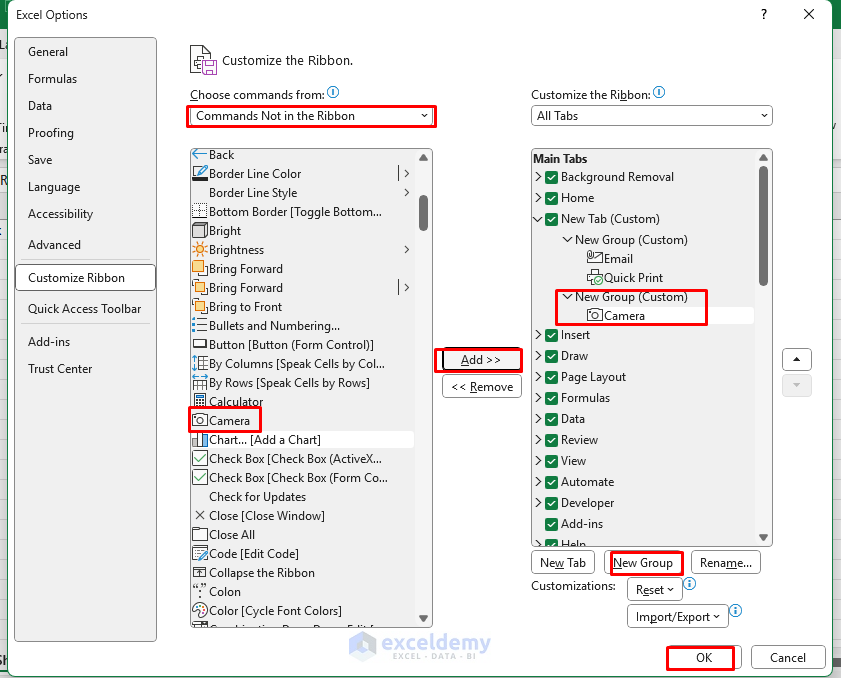
- This will add the Camera tool to the New Tab.
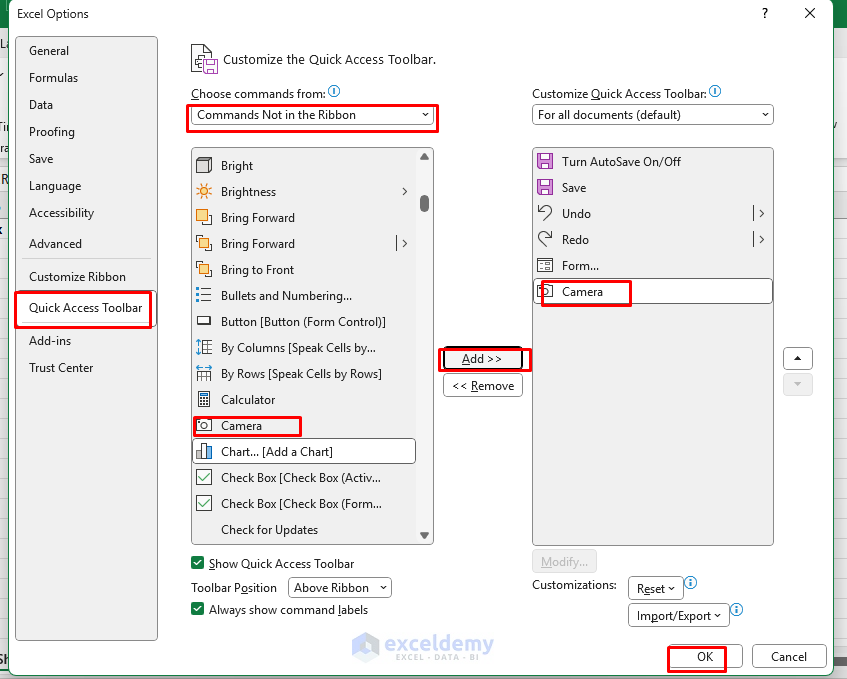
You can add it to the Quick Access Toolbar.
- Go to the Quick Access Toolbar.
- Select Commands Not in the Ribbon from the dropdown.
- Select the Camera tool >> click Add.
- Click OK.
How to use:
- Select a range of cells.
- Click the Camera button.
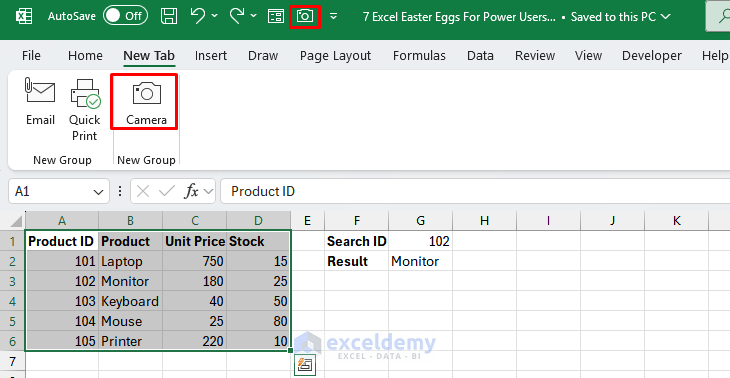
- Click anywhere on your worksheet.

This creates a live-linked picture of your selected data that updates whenever the source data changes. Perfect for dashboards!
4. Secret Excel 4.0 Macro Functions
Excel still supports hundreds of old Excel 4.0 macro functions not listed in the function wizard.
You can use the INFO function to get system info like OS type or directory.
- In a cell, type the following formula.
- Press Enter.
=INFO("system")
This shows your operating system. There are many other INFO variations and legacy functions.
=INFO("osversion")
This shows your OS version.
=INFO("directory")
This shows your current workbook path.
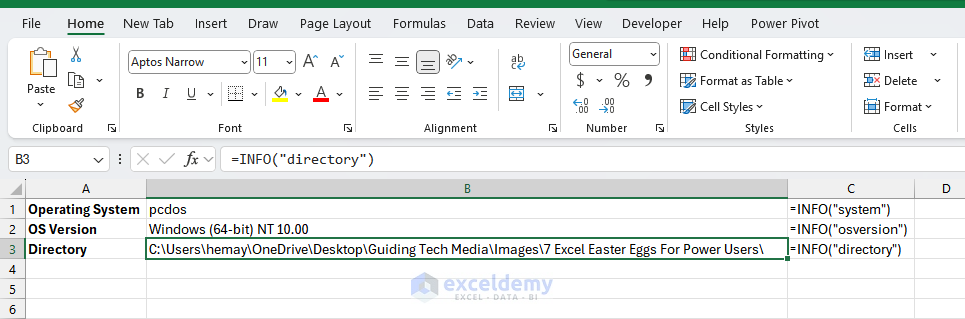
These legacy functions can sometimes access system information that is not available through standard functions. These functions are hidden gems for auditing or working in large workbooks.
5. Hidden Cell Comments with N() Function
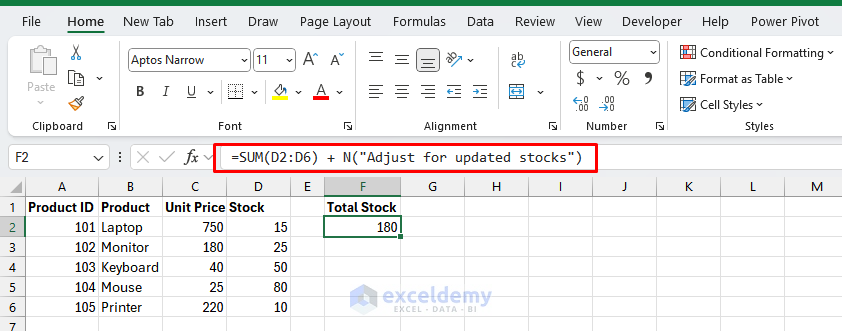
The N() function returns a number, but if given text, it returns 0. So… use it to add hidden notes inside formulas.
- Select a cell, and insert the following formula.
Formula:
=SUM(D2:D6) + N("Adjust for updated stocks")
The formula works normally, and the comment is hidden inside!
6. The UNICHAR Function’s Hidden Symbols
The UNICHAR function lets you insert any Unicode character by its code point. Many Excel users don’t realize this can be used to insert special symbols and emoji directly into cells:
- Select a cell, and insert the following formula.
Formula:
=UNICHAR(A2)
This returns a Dollar Money Bag emoji.
Insert a Unicode Character and the UNICHAR function to get your desired symbol.
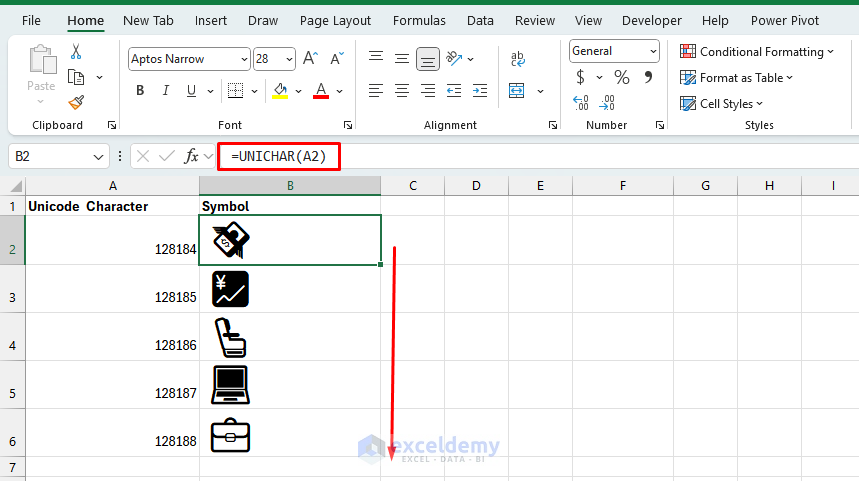
This is perfect for adding visual indicators to dashboards without having to insert shapes or pictures.
7. Secret Game Reference – The Flight Simulator (Excel 97)
Excel 95 contained an actual flight simulator! While this isn’t available in modern versions, it’s a fascinating piece of Excel history.
Sadly, this Easter egg was removed in modern versions due to security policies, but it’s legendary among Excel fans.
In Excel 95, if you:
- Create a new workbook.
- Press F5 to open the Go To dialog box.
- Typed X97:L97.
- Press Enter.
- Press Tab.
- Hold Ctrl+Shift and click the Chart Wizard button.
It is launched into a rudimentary 3D flight simulator with credits for the Excel development team. Modern Excel doesn’t have this, but it’s a fun bit of Excel lore.
Bonus: Excel Easter Eggs For Power Users
Excel Dark Mode (Kind Of)
You can enable Excel’s version of dark mode by adjusting system or theme settings.
How to enable:
- Go to File tab >> select Account
- Under Office Theme >> select Black or Dark Gray.

Bonus: You can use conditional formatting to create dark-themed sheets that match!
While it’s not a full-on dark mode for grid cells, it gives your eyes relief during late-night spreadsheet sessions.
The BAHTTEXT Function
This unusual function converts numbers to Thai text! While not useful for most users, it’s a quirky remnant from Excel’s internationalization:
- Select a cell, and insert the following formula.
Formula:
=BAHTTEXT(1234)
This formula returns “one thousand two hundred thirty-four” in Thai characters.

Final Thoughts
These hidden Excel easter eggs can make you both more efficient and more knowledgeable about Excel’s deep functionality and history. Whether you’re creating custom functions with LAMBDA, sneaking in invisible notes with N(), or debugging like a boss, these tricks will add flair to your spreadsheet skills. Try adding one of these to your daily workflow or impress your colleagues with the Camera tool during your next presentation!
Get FREE Advanced Excel Exercises with Solutions!

