


PivotTables are one of Excel’s most powerful tools for data analysis—they help you create interactive dashboards. Yet most users barely tap into their full potential. Beyond simple sum and count operations, PivotTables offer advanced features that can turn raw data into interactive, insightful reports.
In this tutorial, we’ll explore five essential PivotTable tricks to unlock deeper insights in your data.
Sample Dataset (Sales Table)
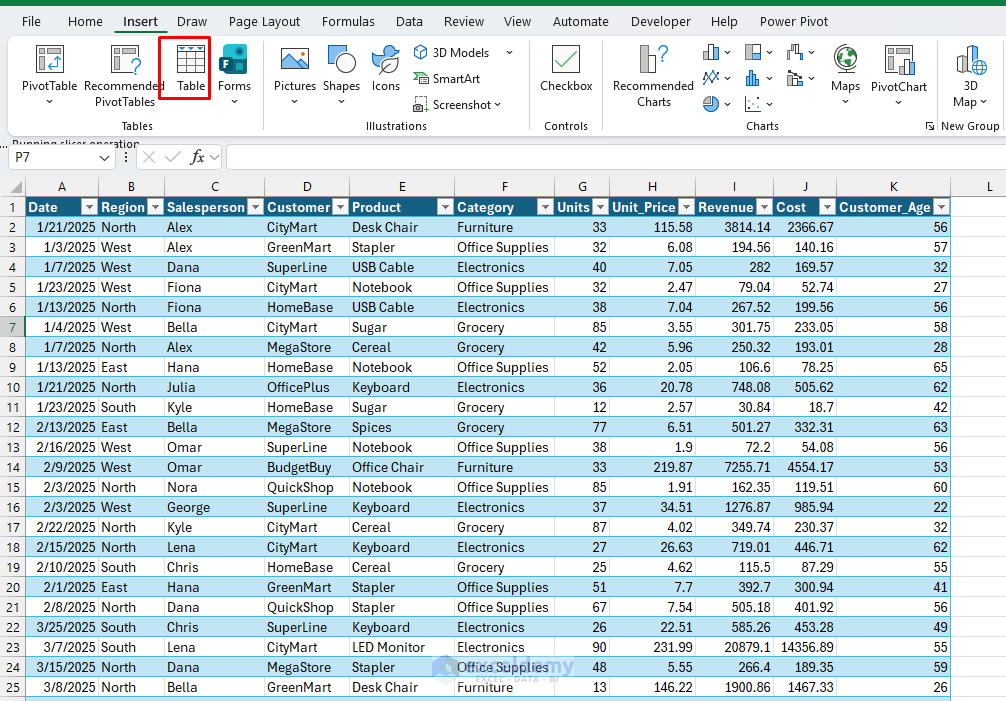
Imagine you have sales data in Excel; we’ll use this data set for all the examples below.
Convert Data into a Table:
- Select the entire data set.
- Go to the Insert tab >> select Table.
- Check “My table has headers”.
- Click OK.
- Go to Table Design >> name the table “SalesData”.
Create a Basic PivotTable:
- Click any cell in SalesData.
- Go to the Insert tab >> select PivotTable.
- Choose New Worksheet and click OK.

From the PivotTable Fields list:
- Drag Region to Rows.
- Drag Category to Columns.
- Drag Revenue to Values.

Now you have a standard report of revenue by region and category. We’ll turn it into something much smarter.
Trick 1: Insert Slicers for Interactive Filtering
Slicers are clickable, interactive filtering tools. They can turn any static report or dashboard into an interactive one. Slicers display all filtering options as buttons, making data exploration intuitive and fast.
Steps:
- Click anywhere inside the PivotTable.
- Go to the PivotTable Analyze tab >> select Insert Slicer.
- Select Salesperson, Customer, and Category, then click OK.

Excel will show three slicer boxes with buttons.
- Click a salesperson to filter the PivotTable to display only that person’s data.

- Hold Ctrl while clicking to select multiple names.
- Click the funnel icon in the slicer (top right) to clear the filter.

Connecting Slicers to Multiple PivotTables:
One of the most powerful features is the ability to connect a single slicer to multiple PivotTables.
- Select the slicer.
- Right-click >> select Report Connection.

- Select all PivotTables >> click OK.

This is the key to building a real dashboard on one sheet. Using the slicer, managers can quickly see metrics by salesperson, customer, or product without touching the PivotTable fields.
Customizing Slicer Appearance:
- Select the slicer.
- Go to the Slicer tab that appears.
- Choose from various Slicer Styles in the gallery.
- Adjust Columns to display buttons in multiple columns.
- Use Slicer Settings (right-click > Slicer Settings) to change the header caption.
- Resize and position slicers to create a clean dashboard layout.

Trick 2: Analyze Time Trends Instantly with a Timeline
Timelines are specialized slicers designed specifically for date fields. You can filter PivotTable data by time periods, allowing you to switch quickly between days, months, quarters, and years.
Steps:
- Click the PivotTable.
- Go to the PivotTable Analyze tab >> select Insert Timeline.
- Select Date >> then click OK.
You will see a horizontal bar with your date range.

- Use the dropdown on the Timeline to switch the level between Years, Quarters, Months, and Days.
- Drag the left or right handles to zoom in on a specific period.
- Click a single month like Jan 2025 to see just that month’s sales.
- Clear the filter by clicking the filter icon in the Timeline.

You can instantly review sales trends. Combined with slicers, you can answer questions like “What were North region electronics sales for Alex in January?” with just a few clicks.
Trick 3: Group Data into Age or Sales Brackets
Grouping lets you categorize data into larger, more meaningful buckets. This is invaluable for analyzing distributions, creating age brackets, segmenting by ranges, or organizing dates into custom periods.
Group Customers into Age Brackets:
- Create a new PivotTable.
- Drag Customer_Age to Rows.
- Drag Revenue to Values.
- Right-click any age in the row labels and choose Group.
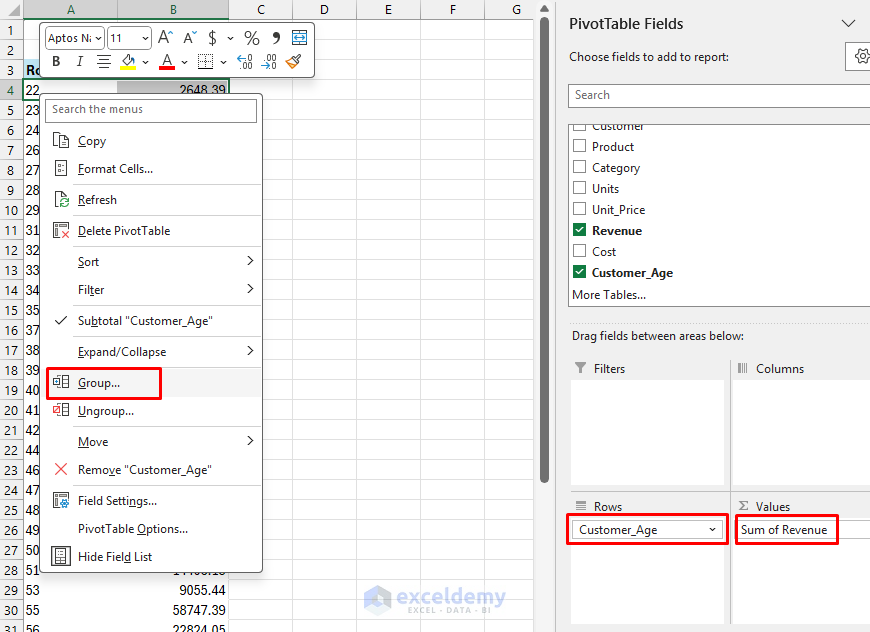
- In the Grouping dialog, set:
- Starting at: 20
- Ending at: 70
- By: 10
- Click OK. The PivotTable will show the age groups.

Now you can observe which age group generates the most revenue. Are the biggest orders coming from older or younger customers?

Group Revenue into Sales Amount Bands:
- Create another PivotTable.
- Drag Revenue to Rows.
- Drag Revenue to Values.
- Drag Region to Columns.
- Right-click any revenue value in the row labels and choose Group….
- Set reasonable bounds:
- Starting at: 0
- Ending at: 40000
- By: 2000
- Click OK.

You will see the following bands.

Product Price Tiers:
- Starting at: 0
- Ending at: 500
- By: 100
For example: 0–100 (Budget), 100–200 (Economy), 200–300 (Standard), 300–400 (Premium), 400–500 (Luxury).
Trick 4: Build Custom Metrics with Calculated Fields
Sometimes the raw fields aren’t enough. Calculated Fields let you create new fields using formulas based on existing PivotTable fields. This means you can calculate profit, profit margin, variances, conversion rates, and other custom metrics directly within your PivotTable—no extra columns needed in the source data.
Steps:
- Click anywhere in your PivotTable.
- Go to the PivotTable Analyze tab >> click Fields, Items, & Sets >> select Calculated Field.

- In the Insert Calculated Field dialog:
- Enter a Name for your field (e.g., “Profit Margin”).
- Click in the Formula box and create your formula.
- Double-click field names from the Fields list to insert them.
- Use standard operators: + (add), − (subtract), * (multiply), / (divide).
- Click OK.
Profit:
- Name: Profit
- Formula:
= Revenue - Cost

Profit Margin Percentage:
- Name: Profit Margin
- Formula:
= (Revenue - Cost) / Revenue
- Format as Percentage.
Create “Profit” as 30% of Revenue:
- Name: Profit as 30% of Revenue
- Formula:
= Revenue * 0.3

Using calculated fields, you can define business-specific KPIs right inside the PivotTable. If you add more rows to SalesData and refresh, the calculated fields update automatically.
Trick 5: See Percentages and Running Totals with “Show Values As”
A PivotTable usually shows raw numbers, but often a relative view is more insightful. PivotTables offer several display options, such as percent of total, percent of row/column, and running totals over time.
Percent of Total Revenue by Region:
- Build a PivotTable with Region in Rows and Revenue in Values.
- Right-click any number in the Revenue column.
- Choose Show Values As >> select % of Grand Total.

Now each region shows what percentage of overall revenue it contributes—far easier to interpret than raw amounts when comparing segments.

You can also choose:
- % of Column Total to see each region as a percentage of its column.
- % of Row Total to see each category as a percentage within each region.
Tip: Use PivotTable Formatting for Clear Insights
A well-formatted PivotTable makes insights easier to understand.
Add Number Formats:
- Right-click any value >> Number Format >> choose Currency, Percentage, etc.
Show Top 5 Contributors:
- Click the dropdown next to a Row Label.
- Choose Value Filters >> select Top 10 >> change to Top 5.
- Select Sum of Revenue.
Use Conditional Formatting:
- Select the PivotTable values.
- Go to the Home tab >> select Conditional Formatting.
- Choose Color Scales, Data Bars, or Icon Sets.
Insight: Highlighting top performance helps quickly identify best-selling items or strongest regions.
Putting It All Together: A Simple Interactive Sales Dashboard
By using these five tricks, you can build a mini dashboard on a single worksheet. Place the elements together on one sheet to create a cohesive dashboard:
- Revenue by Region and Category with slicers for Salesperson and Customer.
- Revenue by Age Bracket, grouped using Trick 3.
- A Timeline controls the date range for all time-based PivotTables.
- Slicers are connected to all PivotTables using Report Connections, so one click changes the entire view.
- Calculated fields provide Profit and Average Price across all reports.
Once everything is set up, you only need to paste new rows into SalesData and click Refresh. The PivotTables, calculated fields, slicers, timelines, and groupings update automatically, giving you fresh insights without rebuilding your reports.
Conclusion
You can use these five PivotTable tricks to unlock deeper insights in your data and transform static reports into interactive, analytical dashboards. By using slicers, timelines, calculated fields, and grouping, you can interpret patterns much faster and present your findings clearly. Practice with your own data and experiment with combining them in your dashboard. If your version of Excel lacks a feature (Timelines require Excel 2013 or later), check for updates.
Get FREE Advanced Excel Exercises with Solutions!


Practice file
Hello,
Here is the practice file: 5 PivotTable Tricks to Unlock Deeper Insights in Your Data
By following my tutorial practice all the tricks to unlock deeper insights.
Regards,
ExcelDemy