

MsgBox in VBA displays any kind of text and as its name indicates, it is a message box. It can return both default values and custom values. In this tutorial, I will write about how to return values from VBA MsgBox in Excel.
This short video is an example of how to use buttons and icon constants in real life. Here, I tried to find the Annual Salary of any specific employee.
How to Launch VBA Editor in Excel
There are various methods by which you can open the VBA editor. The most commonly used method is Developer tab >> Visual Basic and the simplest way to launch the VBA editor is to press ALT+F11.

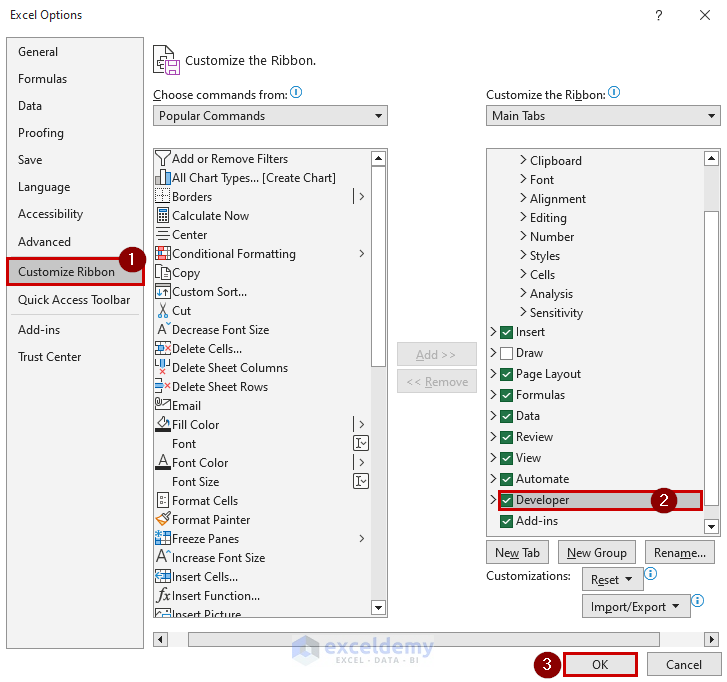
If you don’t have the Developer tab in your Excel workbook, follow the below steps:
- First, right-click anywhere on the Tab section. Then, click on Customize the Ribbon…

- Go to Customize Ribbon >> Developer. Next, select it and finally click OK.
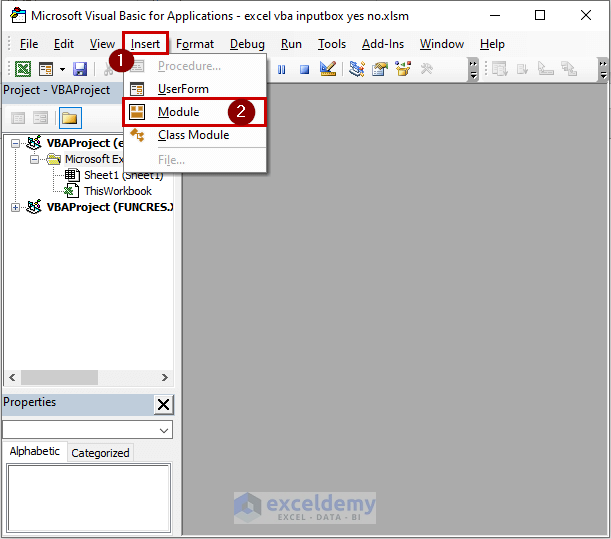
- Now, a blank Visual Basic window will appear. Go to Insert >> Module to create a module space.
Overview of MsgBox in Excel VBA
When the VBA code satisfies a condition or needs to show any error message, MsgBox is used in an appropriate manner. Whenever a MsgBox is displayed, the VBA code is temporarily stopped and only runs after the action is taken. By default, the MsgBox shows an OK button carrying the return value 1. It can also be said that the return value indicates which button was clicked.

One of the widely used practices is to display each part of a code to ensure the calculation is correct. That’s when a simple MSgBox is placed between each part of the code. In addition to that, with the help of MsgBox, you can get the proper message of the present condition of the code or what is required with which message. There are some default return values in MsgBox alongside the custom-made return values.
VBA MsgBox Function Syntax

MsgBox(Prompt, [Buttons As VbMsgBoxStyle = vbOKOnly], [Title], [HelpFile], [context]) As VbMsgBoxResultMsgBox arguments
Prompt – It is the required argument. It contains the information we want to display, which is usually a string expression. If we don’t put any information then it shows a blank MsgBox. Approximately 1024 characters are the limit of the prompt.
[Buttons] – It is optional. By default, MsgBox shows the OK button. There are some built-in buttons, that we can use with customizing the MsgBox by calling the name like vbOKCancel, vbAbortRetryIgnore, vbYesNo, etc.
[Title] – It is at the top part of the MsgBox. It gives hint about what the MsgBox is about. By default, MsgBox shows the name of the application which is Microsoft Excel. It can be customized by the user but is optional.
[HelpFile] – It is also optional. This argument helps to attach a help file to the help button, which will address the issue with a correlated line of code. One point to remember is that, when HelpFile is used, the Context argument is to be filled.
[Context] – It is an optional numeric expression. It is the Help context number assigned to a Help topic.
Arguments for buttons are provided below:
| Buttons | Button Constants | Value |
|---|---|---|
| OK Button (Default) | vbOKOnly | 0 |
| OK and Cancel Buttons | vbOKCancel | 1 |
| Abort, Retry, and Ignore Buttons | vbAbortRetryIgnore | 2 |
| Yes, No, and Cancel Buttons | vbYesNoCancel | 3 |
| Yes and No Buttons | vbYesNo | 4 |
| Retry and Cancel Buttons | vbRetryCancel | 5 |
| First Button is Default (Default) | vbDefaultButton1 | 0 |
| Second Button is Default | vbDefaultButton2 | 256 |
| Third Button is Default | vbDefaultButton3 | 512 |
| Fourth Button is Default | vbDefaultButton4 | 768 |
| Help Button | vbMsgBoxHelpButton | 16384 |
MsgBox Icon Constants
Constants and values for Icons in a MsgBox are listed below.
| Icons | Icon Constants | Value |
|---|---|---|
| Critical Icon | vbCritical | 16 |
| Question Icon | vbQuestion | 32 |
| Exclamation Icon | vbExclamation | 48 |
| Information Icon | vbInformation | 64 |
MsgBox Return Values
Return values with their perspective values are listed in the following table.
| Action | Constants/ Return Values | Value |
|---|---|---|
| Clicked OK button | vbOK | 1 |
| Clicked Cancel button | vbCancel | 2 |
| Clicked Abort button | vbAbort | 3 |
| Clicked Retry button | vbRetry | 4 |
| Clicked Ignore button | vbIgnore | 5 |
| Clicked Yes button | vbYes | 6 |
| Clicked No button | vbNo | 7 |
VBA MsgBox to Return Values in Excel: With Easy Steps
In this part of the tutorial, I will create some MsgBox implementing constants. Here, my Excel version is Microsoft Excel 365. You can use any available Excel version.
Step 1: Set MsgBox Type and Buttons
First I will show you how to implement the button constants using VBA. You will need to write the VBA code into the module of Excel. Then, run the code to get the output.
1. MsgBox with Only OK Button
Type the following code to create a MsgBox with Only OK button:
Sub OnlyOK_Button()
    MsgBox "Sample MsgBox"
End Sub
The below image shows the code in Visual Basic.

The output of the above VBA code will be like this:

2. MsgBox with OK and Cancel Buttons
Type the following code to create a MsgBox with OK and Cancel Buttons:
Sub OKCancel_Buttons()
    MsgBox "OK?", vbOKCancel
End Sub
The below image shows the code in Visual Basic.

Now, the MsgBox will look like this:

3. MsgBox with Abort, Retry, and Ignore Buttons
Type the following code to create a MsgBox with Abort, Retry, and Ignore Buttons:
Sub AbortRetryIgnore_Buttons()
    MsgBox "What will you do?", vbAbortRetryIgnore
End Sub
The below image shows the code in Visual Basic.

With the above VBA code, the MsgBox will look like this:

4. MsgBox with Yes, No, and Cancel Buttons
Type the following code to create a MsgBox with Yes, No, and Cancel Buttons:
Sub YesNoCancel_Buttons()
    MsgBox "Do you agree with the terms and conditions?", vbYesNoCancel
End Sub
The below image shows the code in Visual Basic.

The output of the above VBA code:

5. MsgBox with Yes and No Buttons
Type the following code to create a MsgBox with Yes and No Buttons:
Sub YesNo_Buttons()
    MsgBox "Do you agree with the terms and conditions?", vbYesNo
End Sub
The below image shows the code in Visual Basic.

The output of the above VBA code:

6. MsgBox with Retry and Cancel Buttons
Type the following code to create a MsgBox with Retry and Cancel Buttons:
Sub RetryCancel_Buttons()
    MsgBox "What will you do?", vbRetryCancel
End Sub
The below image shows the code in Visual Basic.

The output of the above VBA code:

7. MsgBox with Help Button
Type the following code to create a MsgBox with a Help Button:
Sub Help_Button()
    MsgBox "What will you do?", vbRetryCancel + vbMsgBoxHelpButton
End Sub
The below image shows the code in Visual Basic.

The output of the above VBA code:

8. Setting a Default Button in MsgBox
Type the following code to create a MsgBox with a Default Button:
Sub Default_Button()
    MsgBox "What will you do?", vbRetryCancel + vbMsgBoxHelpButton + vbDefaultButton2
End Sub
The below image shows the code in Visual Basic.

The output of the above VBA code:

Read More: Create VBA MsgBox Custom Buttons in Excel
Step 2: Setting VBA MsgBox Icons
Next, I will show how to apply icon constants to create an icon in a MsgBox.
1. MsgBox with Critical icon
Type the following code to create a MsgBox with a Critical icon:
Sub Critical_Icon()
    MsgBox "Critical Icon", vbCritical
End Sub
The below image shows the code in Visual Basic.

The output of the above VBA code:

2. MsgBox with Question icon
Type the following code to create a MsgBox with a Question icon:
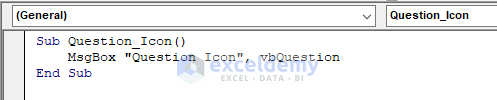
Sub Question_Icon()
    MsgBox "Question Icon", vbQuestion
End Sub
The below image shows the code in Visual Basic.
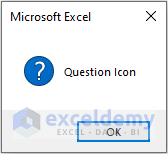
The output of the above VBA code:
3. MsgBox with an Exclamation icon
Type the following code to create a MsgBox with a Question icon:
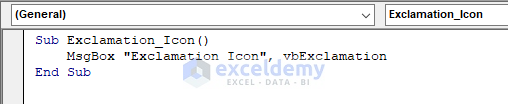
Sub Exclamation_Icon()
    MsgBox "Exclamation Icon", vbExclamation
End Sub
The below image shows the code in Visual Basic.
The output of the above VBA code:

4. MsgBox with Information Icon
Type the following code to create a MsgBox with an Information icon:
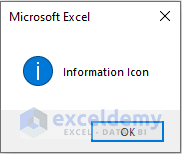
Sub Information_Icon()
    MsgBox "Information Icon", vbInformation
End Sub
The below image shows the code in Visual Basic.

The output of the above VBA code:
Read More: Excel VBA: Show Multiple Values with Multiple Variables in MsgBox
Step 3: Customize the Title and Prompt in the MsgBox
We can also customize the MsgBox according to our needs. Starting from the top part, which is the title, then the message prompt, and finally the buttons can be changed to our requirements.
Type the following code to create a customized MsgBox:
Sub Customize_MsgBox()
    MsgBox "Do you agree with the terms and conditions?", vbYesNo, "Step 1"
End Sub
The below image shows the code in Visual Basic.

The output of the above VBA code:

Read More: How to Use Excel VBA MsgBox Title
Final Step: Assigning MsgBox Return Value to Variable
Moreover, we can assign the returned values to a variable for further use. We can easily identify which value is returned. In the following VBA code, I have assigned the returned value to a variable to be able to show the Proceeding message and Cancelled message.
Type the following code to return value to a variable:
Sub ReturnValue_to_Variable()
Dim ReturnValue As String
ReturnValue = MsgBox("OK?", vbOKCancel)
If ReturnValue = vbOK Then
    MsgBox "Proceeding to Next Step"
ElseIf ReturnValue = vbCancel Then
    MsgBox "Cancelled"
End If
End Sub- Run the VBA code.
The below image shows the code in Visual Basic.

- Now, click the OK button.

- With the return value of OK, the message will show “Proceeding to Next Step”.

- But, I can try clicking on Cancel.

- Then, the message “Cancelled” will be shown.

Some Examples to Return Values in Excel VBA MsgBox
We can use VBA MsgBox as our purpose in daily life programs. There are two such examples are shown in this part of the tutorial.
Example 1: Getting Even Numbers of a Given List in Excel MsgBox
At first, we will take an array of numbers from the user as input (Separated by commas). Then we will need to write a VBA code to show the even numbers from the array as output in a message box.
Type the following code into Visual Basic:
Sub SubArrayEven()
    Dim arrayy() As String
    Dim evenNumbers As String
    inputt = InputBox("Enter Values Seperated by Comma")
    arrayy() = Split(inputt, ",")
    For i = LBound(arrayy) To UBound(arrayy)
        If Val(arrayy(i)) Mod 2 = 0 Then
            evenNumbers = evenNumbers & arrayy(i) & ","
        End If
    Next i
    'Remove trailing comma and display the even numbers in a message box
    If Len(evenNumbers) > 0 Then
        MsgBox Left(evenNumbers, Len(evenNumbers) - 1), vbOKCancel
    Else
        MsgBox "No even numbers found", vbOKCancel
    End If
End Sub- Run the VBA code.
The below image shows the code in Visual Basic.
- Put some integer numbers separated by commas.
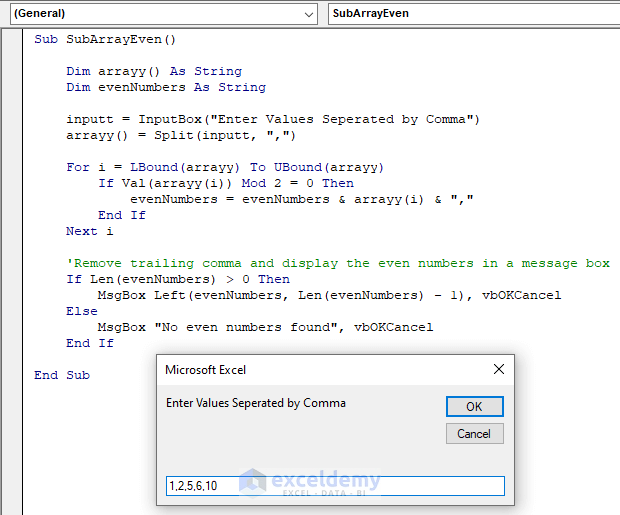
- Finally, the output is shown.

Example 2: Extracting Annual Salary Information from Dataset
In this problem, I need to take input the Full Name of an employee and find out his Annual Salary information. I have the Full Name, Job Title, and Annual Salary in the given dataset. The program will show a warning message if any input employee name does not have respective salary information.
The below image is the dataset:

Type the following code into Visual Basic Editor:
Sub Find_Salary()
    Dim Full_Name As String
    Dim Annual_Salary As Double
    Dim Found As Boolean
    Full_Name = InputBox("Enter the employee name:")
    'Search for the employee in the data set'
    Found = False
    For Each employee In Range("B5:B" & Range("B" & Rows.Count).End(xlUp).Row)
        If employee = Full_Name Then
            If employee.Offset(0, 2) = "" Then
                Annual_Salary = 0
            Else
                Annual_Salary = employee.Offset(0, 2).Value
            End If
            Found = True
            Exit For
        End If
    Next employee
    'Display the salary of the employee if found'
    If Found = True Then
        If Annual_Salary = 0 Then
            MsgBox "The salary of " & Full_Name & " is not available.", vbOKCancel
        Else
            MsgBox "The salary of " & Full_Name & " is " & Annual_Salary & " dollars.", vbOKCancel
        End If
    Else
        MsgBox "Employee not found", vbExclamation
    End If
End Sub
The below image shows the code in Visual Basic.

Now, I will run the VBA code to find the salary information of “Jaxson Liang” and “Hannah Martinez”.

Frequently Asked Questions
1. How to Create Custom Buttons in VBA MsgBox?
You can either use the MsgBoxCustom procedures or UserForm to create a custom button in VBA MsgBox. But like before MsgBoxCustom function is not built-in in VBA, so you can define it in your code. For that, you write simple VBA code like the below:
Function MsgBoxCustom(Prompt As String, Buttons As Long,
    Optional Title As String, Optional Button1 As String, _
    Optional Button2 As String, Optional Button3 As String) As Long
    ' Add your code to create a custom message box
End Function
Now write a CustomMsgBox code like this:
Sub CustomMsgBox()
    Dim response As Integer
    response = MsgBoxCustom("Do you want to continue?",
        vbCustom + vbExclamation, "Custom MsgBox", "Yes", "No")
    Select Case response
        Case 1 ' Yes button
            ' write code to perform desired action
        Case 2 ' No button
            ' write code to perform desired action
    End Select
End Sub
In addition to that, to create a custom button in VBA MsgBox using UserForm, you will need to add two or more CommandButton controls. After that, write VBA code to each button’s Click event to get the desired result.
2. How to Add a New Line in VBA MsgBox?
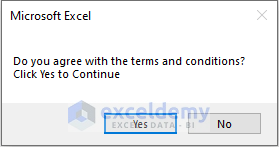
You can also add a new line in a MsgBox. Type the following VBA code for the desired result.
Sub NewLine_MsgBox()
    MsgBox "Do you agree with the terms and conditions?" & vbNewLine & "Click Yes to Continue", vbYesNo
End Sub
Now, run the code from visual basic in Excel.
3. How to Create Excel VBA Message Box Without Buttons?
For that, in earlier versions of Excel, you can use the status bar. For comparatively latest Excel versions you can use a visual basic non-modal message box or UserForm. I recommend using an UserForm.
Key Takeaways from This Article
- Arguments of a MsgBox show how the code can change results.
- Types of MsgBox button constants and icon constants.
- Moreover, you can assign the return value to a variable.
- Finally, how to implement MsgBox in real-life examples.
Download Practice Workbook
You can download the practice workbook here.
Conclusion
In this article, you learned about the VBA MsgBox to return values. You can suggest your thoughts about this below.
Related Articles
- VBA MsgBox Format in Excel
- Excel VBA: Work with Variable in MsgBox
- Excel VBA: Modeless MsgBox
- How to Use MsgBox and InputBox in VBA Excel


