


Row-Level Security (RLS) is one of Power BI’s most powerful features, but for any first-time user it can feel confusing and overwhelming. Once you understand the main concept, though, you’ll feel like a security expert. You can decide which users will see which parts of a report by controlling data access.
In this tutorial, we show how to implement Power BI Row-Level Security without going insane.
What Is Row-Level Security?
RLS allows you to restrict which rows of data different users can see in your Power BI reports. For example, sales managers should only see data for their region, and HR staff should only access records for their department.
Core Components:
Before diving in, understand these three pieces:
- Roles: Define the filtering rules (the “what”)
- DAX Filters: Write the actual filter logic (the “how”)
- Role Members: Assign users to roles (the “who”)
Step 1: Prepare Your Data Model
Imagine a simple regional sales report. You want each salesperson to see only their region’s sales. The key to sanity-preserving RLS is having the right structure. You need a security table that maps users to the data they are allowed to access.
Option A: Create or Load a Security Table
You will need to create or import a security table to apply RLS. This table defines who can view what — it’s like a permission map.
Steps:
- Open Power BI Desktop
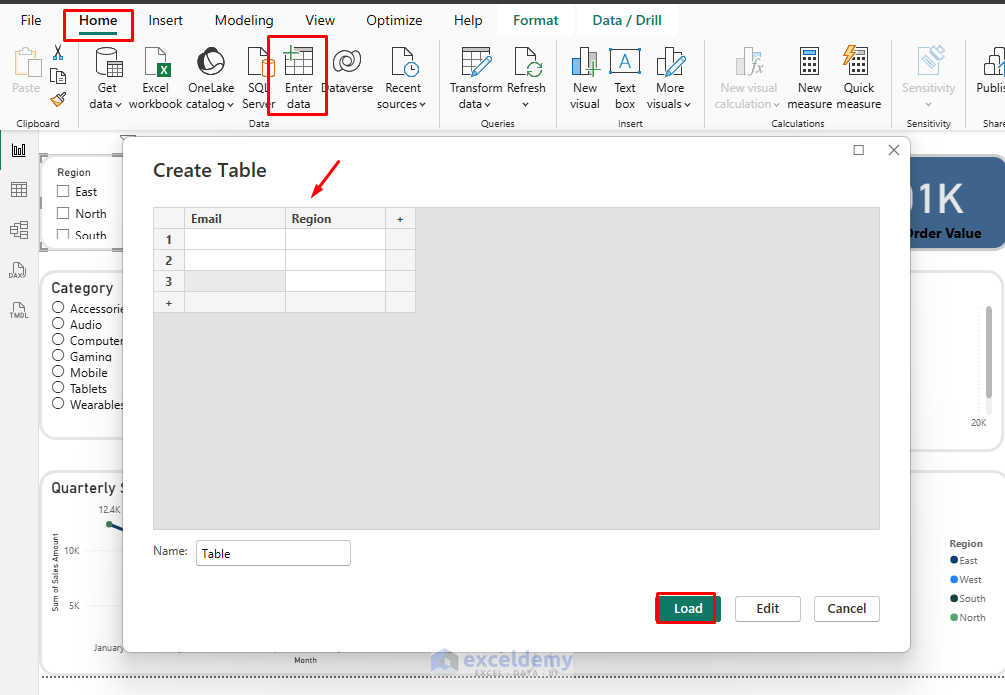
- Go to the Home tab >> click Enter Data
- This opens an Excel-like grid editor
- Insert the security table info
- Name the table UserSecurity at the bottom of the editor
- Click Load to add it to your model
Option B: Use Power Query
If you have thousands of users, instead of Enter Data, use Power Query. You can also pull the security table from your HR system, Active Directory, Azure AD group membership via Power Automate, etc.
- Go to the Home tab >> select Transform Data (opens Power Query Editor)

- Select New Source >> connect to your HR system, Azure AD, Excel file, etc.
- Shape the data to match the columns above (use “Remove Columns,” “Rename Columns,” etc.)
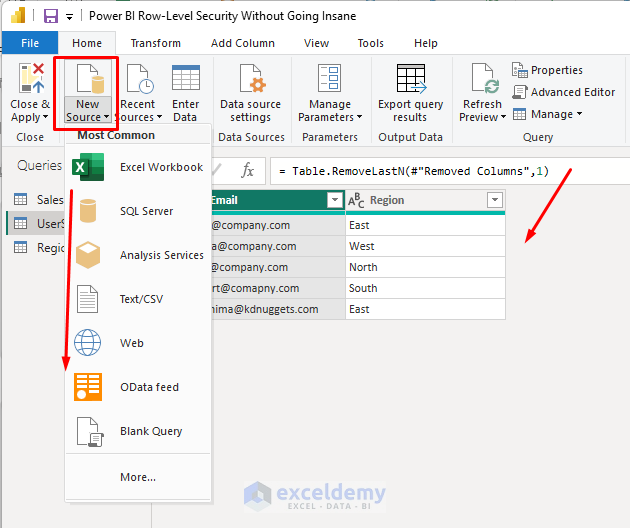
- Click Close & Apply to load it
- Once loaded, right-click the UserSecurity table in the Fields pane >> select Hide in report view (so users don’t see it in visuals)
Step 2: Create Relationships (If Needed)
For most RLS, no relationship is required; the security table can float independently. But if your security logic ties directly to a dimension (e.g., UserSecurity[Region] to Region[Region]), create the relationships.
As we plan to give access regionally to multiple users, you should have a separate Region table. If you don’t, create a Region table consisting of just the region names.
Steps:
- Go to the Model view
- If you have a proper table, Power BI may automatically detect the relationship
- Drag UserSecurity[Region] to Region[Region]
- Drag SalesData[Region] to Region[Region]
- Set cardinality to Many-to-One as appropriate (Power BI often auto-detects)
- Set cross-filter direction to Single to keep filters flowing from the Region table to your fact tables and avoid performance issues

This structure ensures that when a user is filtered, the filter flows through the Region table into the SalesData table.
Tip: Even if your SalesData table already contains a Region column, you should still use a separate Region dimension to avoid many-to-many relationships.
Step 3: Dynamic RLS — Let Power BI Read the User’s Email
This is where the magic happens. In the role editor, select the table you want to filter and add a DAX expression. Roles define the filters applied based on the logged-in user.
Steps:
- Go to the Modeling tab >> click Manage Roles
- In the Manage Roles window, click New
- Name it Dynamic RLS
- Under Tables >> select the table SalesData you want to filter
- Click Switch to DAX Editor
- In the DAX editor that opens, enter this for a basic region filter:
SalesData[Region] =
LOOKUPVALUE(
    UserSecurity[Region], // Value to return
    UserSecurity[Email],  // Lookup column
    USERPRINCIPALNAME()   // Current user's email
)
- Click Save to close the window

When a user views the report, Power BI detects their email via USERPRINCIPALNAME() (available in the Service with Microsoft accounts), looks it up in UserSecurity, and filters the data accordingly.
Step 4: Test Dynamic RLS
You can simulate different users in Desktop:
- Go to the Modeling tab >> select View as
- Tick Other user >> type [email protected]
- Also tick the role Dynamic RLS
- Click OK

You will only see the East region rows. Now test with another user’s email.

Handle “All” or Manager Scenarios
Let’s add admin users to see the full report.
Steps:
- Go back to your UserSecurity table (double-click it in the Fields pane or use Power Query)
- Add a new column if not already:
- Go to the Modeling tab >> select New Column
- Update one row to set CanSeeAll = “All”

- Edit your role
- Go to the Modeling tab >> select Manage Roles >> edit Dynamic RLS
- Modify the region filter DAX to:
VAR UserCanSeeAll =
    LOOKUPVALUE(
        UserSecurity[CanSeeAll],
        UserSecurity[Email], USERPRINCIPALNAME()
    )

VAR UserRegion =
    LOOKUPVALUE(
        UserSecurity[Region],
        UserSecurity[Email], USERPRINCIPALNAME()
    )

RETURN
    IF( UserCanSeeAll = "All", TRUE(), SalesData[Region] = UserRegion )
- Save the role

- Test with View as using [email protected]

Now you will see the report for all regions.

Tip: For a TRUE/FALSE variant:
IF(
    LOOKUPVALUE(UserSecurity[CanSeeAll], UserSecurity[Email], USERPRINCIPALNAME()) = TRUE,
    TRUE(),
    SalesData[Region] = UserRegion
)
Publish and Assign Users
- Publish your report to the Power BI Service
- Go to the Home tab >> select Publish
- Select My workspace >> click Select

- Go to My workspace and find your dataset
- Click the three dots (…) next to the dataset
- Select Security

- Add users or security groups to each role
- Click Save
Common Patterns That Keep You Sane
Admin Override: Always create an “Admin” role with no filters so administrators can see everything:
1 = 1
This DAX expression always evaluates to TRUE, showing all rows.
Security Table Approach: Create a dedicated Security dimension table and relate it to your fact tables. This keeps security logic separate from business logic.
Use Security Groups: Instead of adding individual users to roles, use Azure AD security groups. When new people join, just add them to the appropriate group rather than updating Power BI roles.
Conclusion
Security doesn’t have to be painful. Start with a clear data structure, write simple DAX filters, test thoroughly, and use security groups to manage access. With these foundations, you can implement secure, maintainable RLS that won’t drive you crazy when you need to update it six months later.
Get FREE Advanced Excel Exercises with Solutions!

