


Image by rawpixel.com on Magnific
When a Power BI dataset contains millions of transaction records, refreshing the entire dataset every day can become unnecessarily slow. Historical records from several years ago may rarely change, yet a normal refresh reloads them together with the newest records. Incremental Refresh solves this problem by dividing a table into date-based partitions and refreshing only the recent portion of the data. Older data remains stored in the semantic model without being reloaded during every refresh. This can significantly reduce refresh time and resource usage.
In this tutorial, we will configure incremental refresh in Power BI for handling large datasets without waiting. It drops refresh time from hours to minutes.
Step 1: Import the Data Power BI
Suppose we have a large SQL sales table named SalesData. For incremental refresh, the important column is OrderDate. Power BI uses a date or Date/Time column to determine which records belong to each partition.
- Open Power BI Desktop.
- Go to the Home tab >> select Get Data >> choose your data source, such as Excel or SQL Server.
- Connect to the data source.
- Select the SalesData table >> click Transform Data instead of Load.
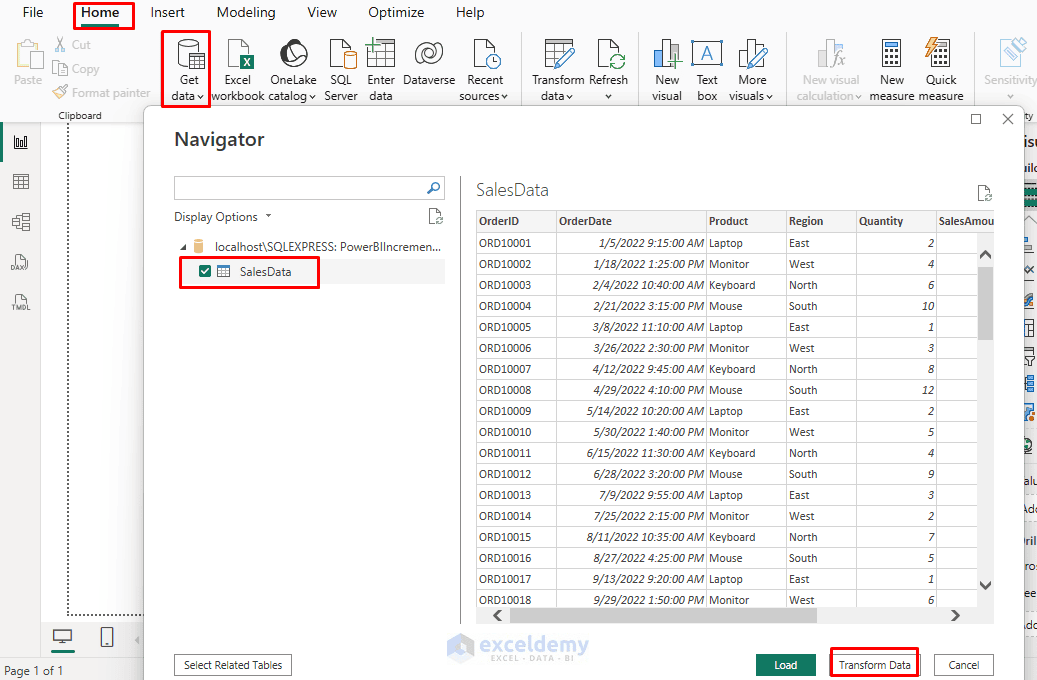
- The table will open in Power Query Editor.
- Before continuing, verify that OrderDate has the Date/Time data type.
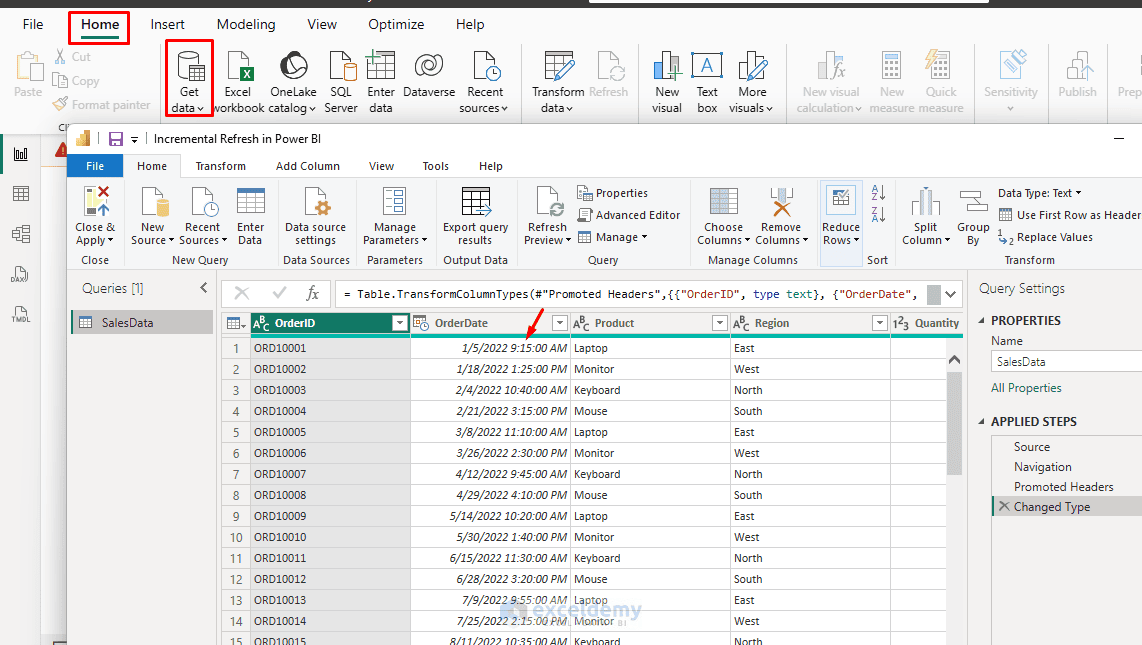
The parameters used for incremental refresh must also use Date/Time. A mismatch between the parameter type and the filtered column can prevent query folding.
Step 2: Prepare Your Query with Date Parameters
Incremental refresh relies on two special parameters: RangeStart and RangeEnd. Power BI uses these to dynamically filter your query for each partition. Their names are case-sensitive.
In Power Query Editor:
- Go to the Home tab >> click Manage Parameters >> select New Parameter.
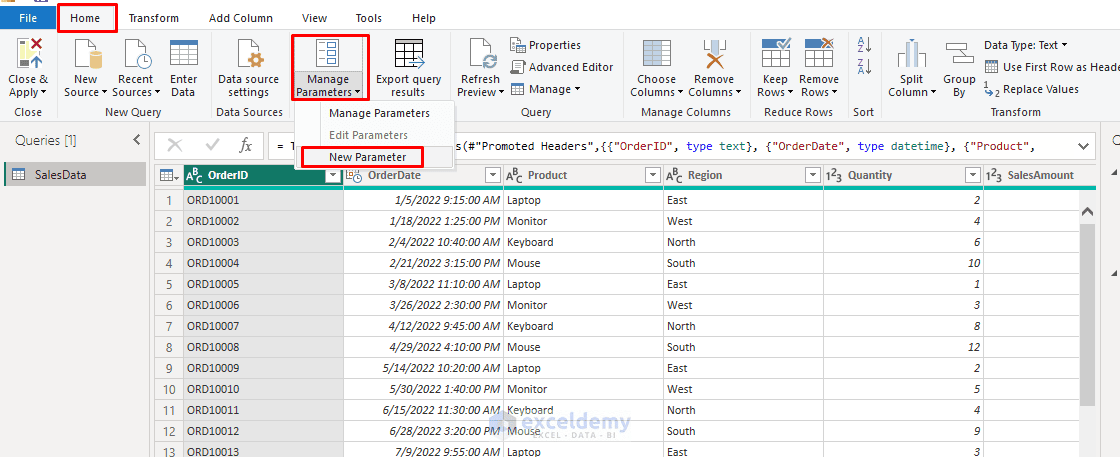
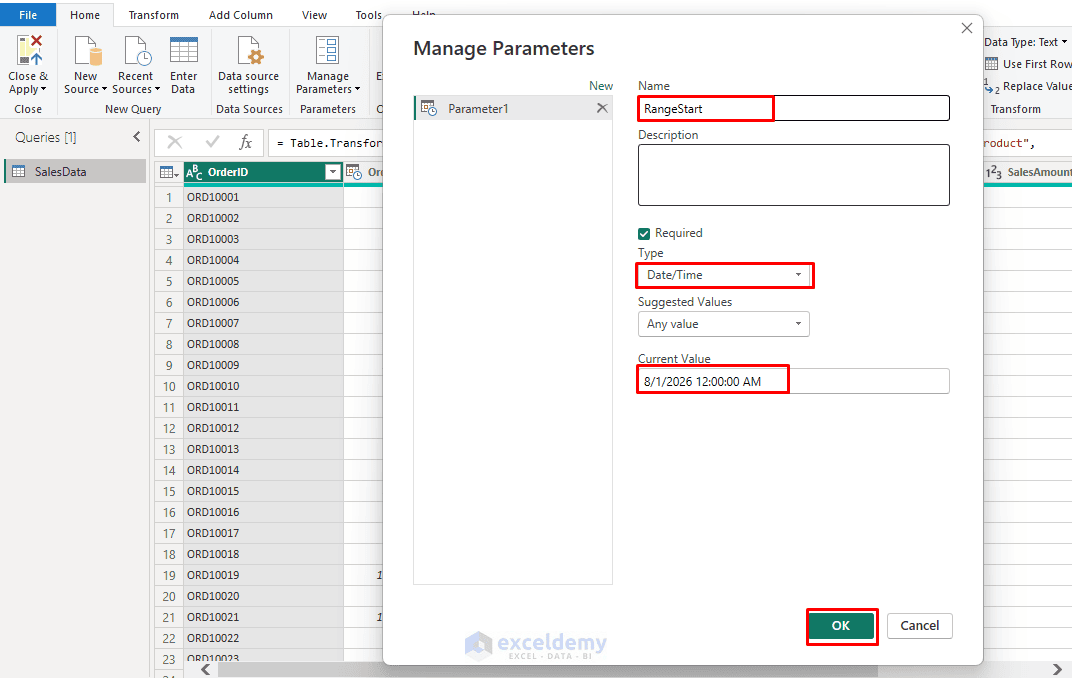
- Create a parameter named exactly RangeStart:
- Name: RangeStart
- Type: Date/Time
- Current Value: Any placeholder, e.g. 8/1/2026 12:00:00 AM
- Click OK.
- Create a second parameter named exactly RangeEnd:
- Name: RangeEnd
- Type: Date/Time
- Current Value: e.g. 8/17/2026 12:00:00 AM
- Click OK.
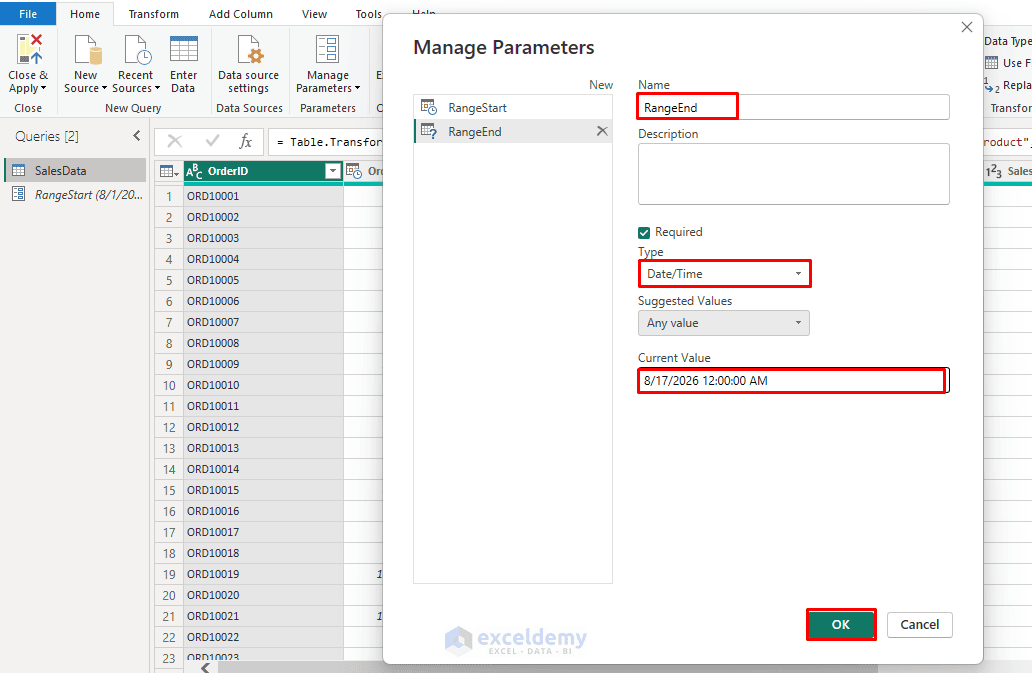
These names are not arbitrary labels; Power BI specifically looks for parameters named RangeStart and RangeEnd (case-sensitive) to recognize incremental refresh eligibility.
- RangeStart represents the beginning of the temporary date range that Power BI Desktop will load.
- RangeEnd limits the amount of data loaded while developing the report in Power BI Desktop.
After publishing, the Power BI service automatically overrides these values according to the incremental refresh policy.
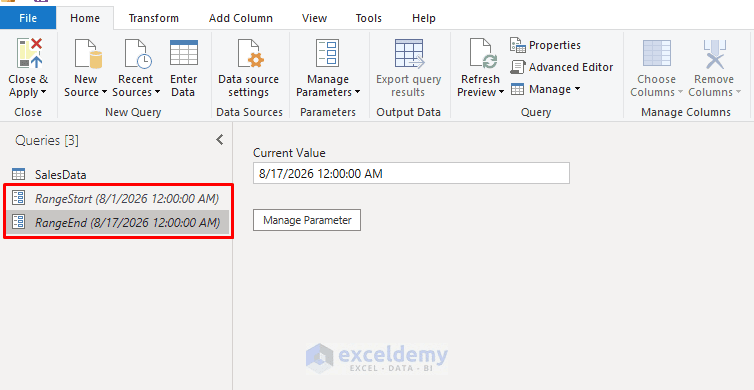
Step 3: Filter the Date Column Using the Parameters
Now you need to filter your sales table’s date column using these two parameters, so Power BI knows how to slice the data by range.
In Power Query Editor:
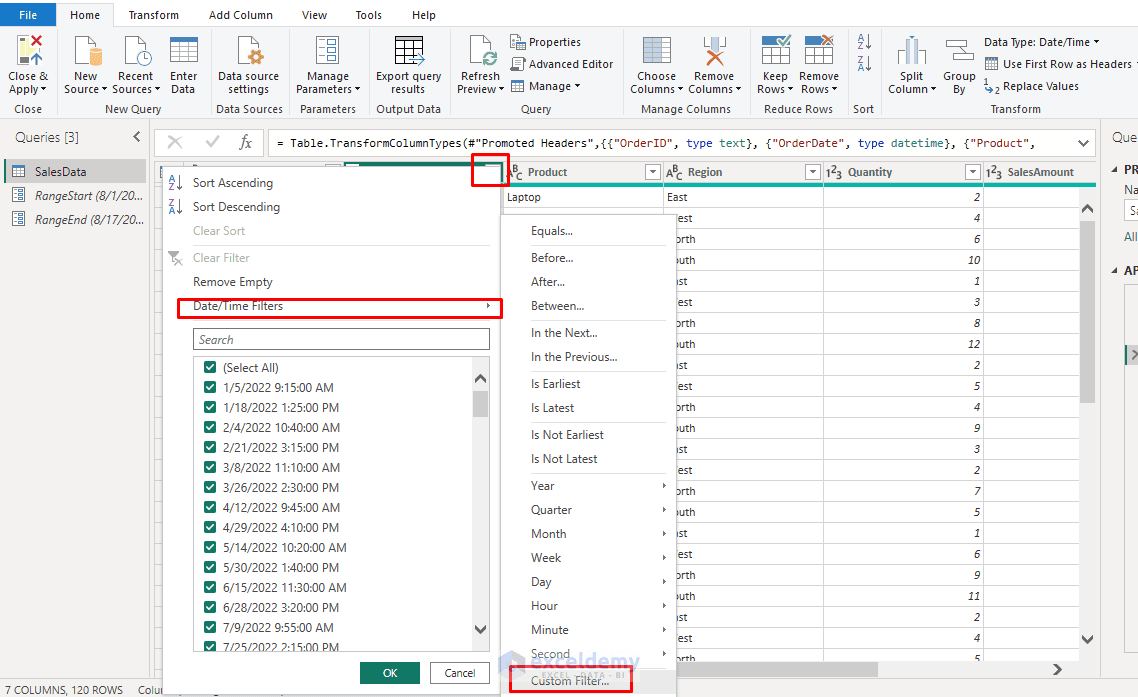
- Apply both parameters to OrderDate.
- Select the filter button beside OrderDate.
- Select Date/Time Filters >> choose Custom Filter.
Then configure it like this:
- First condition: is after or equal to
- Change the value type from Value to Parameter, then select RangeStart.
- Choose And.
- Second condition: is before
- Change Value to Parameter, then select RangeEnd.
- Click OK.
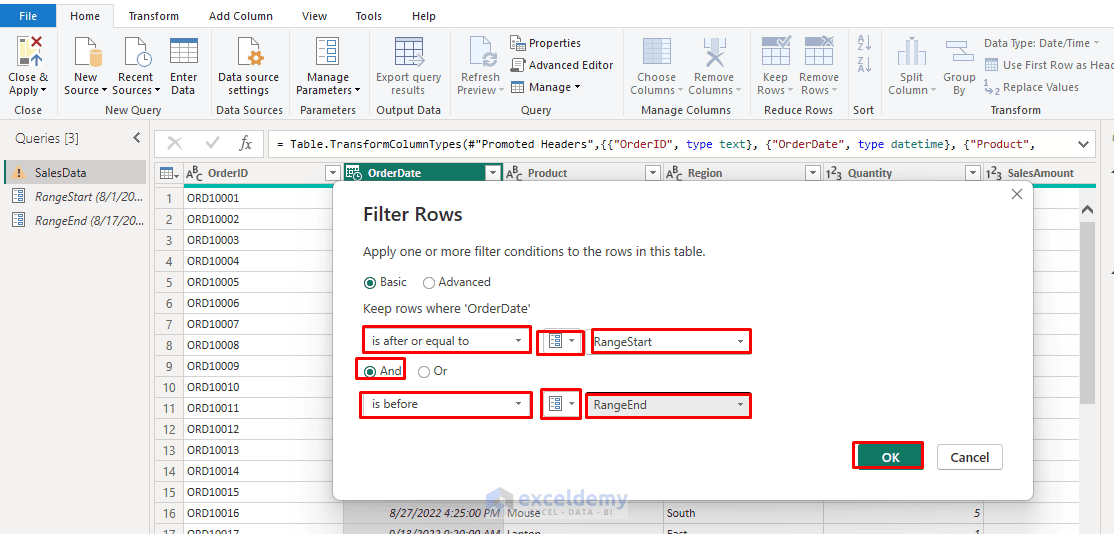
Final filter is:
OrderDate is after or equal to RangeStart
AND
OrderDate is before RangeEnd
Generated M code:
= Table.SelectRows(dbo_SalesData, each [OrderDate] >= RangeStart and [OrderDate] < RangeEnd)
After filtering, only records between your current RangeStart and RangeEnd values will appear in Power Query.
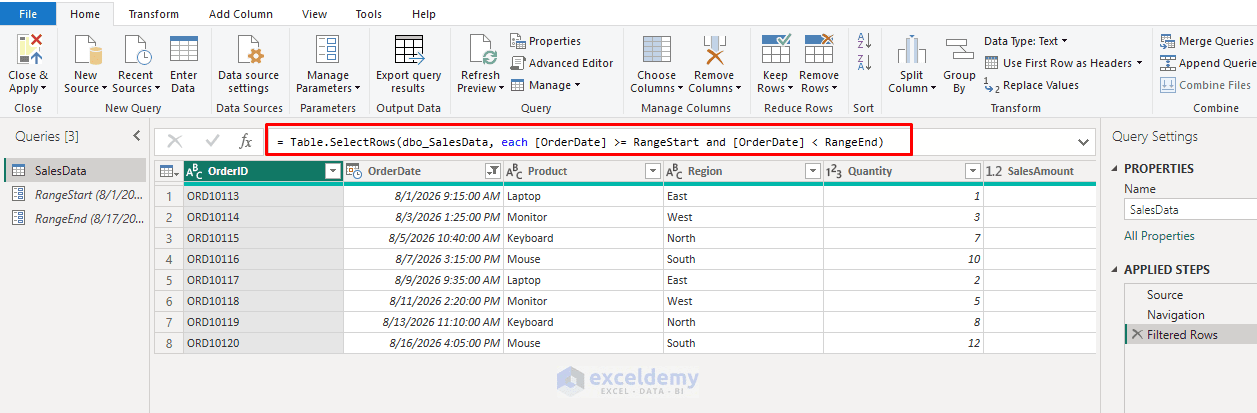
Tip: Do not use >= and <= together. Power BI recommends including equality on only one boundary. Otherwise, a record exactly on a partition boundary could appear in two partitions and cause duplicate data.
Step 4: Check Query Folding
This is one of the most important steps when working with very large datasets. Verify that this step folds back to the source.
- Right-click the final filtering step under Applied Steps.
- Look for View Native Query.
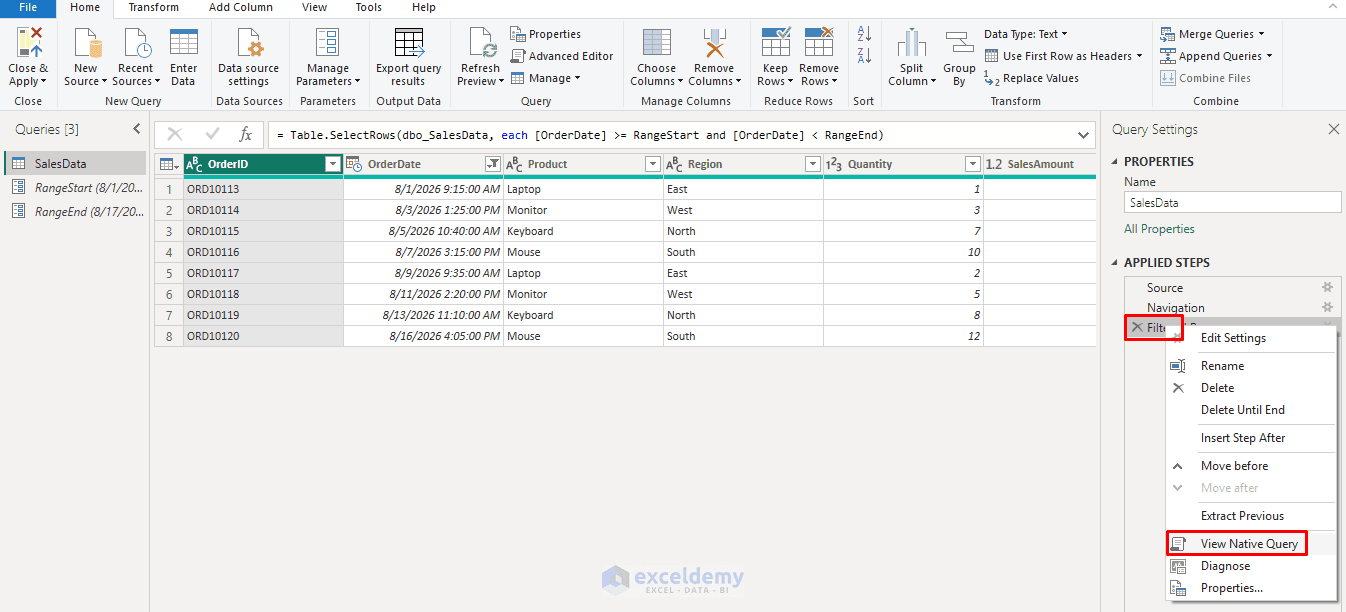
If View Native Query is available, Power Query can generally translate the transformations into a source query. Microsoft specifically recommends verifying query folding because a non-folding query can make incremental refresh slow or resource-intensive, largely defeating its purpose.
Tip: If it doesn’t fold, incremental refresh will technically still be configured, but every refresh will pull the entire table into memory before filtering client-side, defeating the purpose entirely.
Note: If you are using an Excel file, the View Native Query option will be grayed out because Excel does not support query folding. Incremental refresh works most efficiently with foldable sources such as SQL Server, where Power BI can push the RangeStart and RangeEnd filters directly to the source. Microsoft recommends query folding for large incremental-refresh models.
Step 5: Close and Apply the Query
After confirming the filter:
- Go to the Home tab >> select Close & Apply.
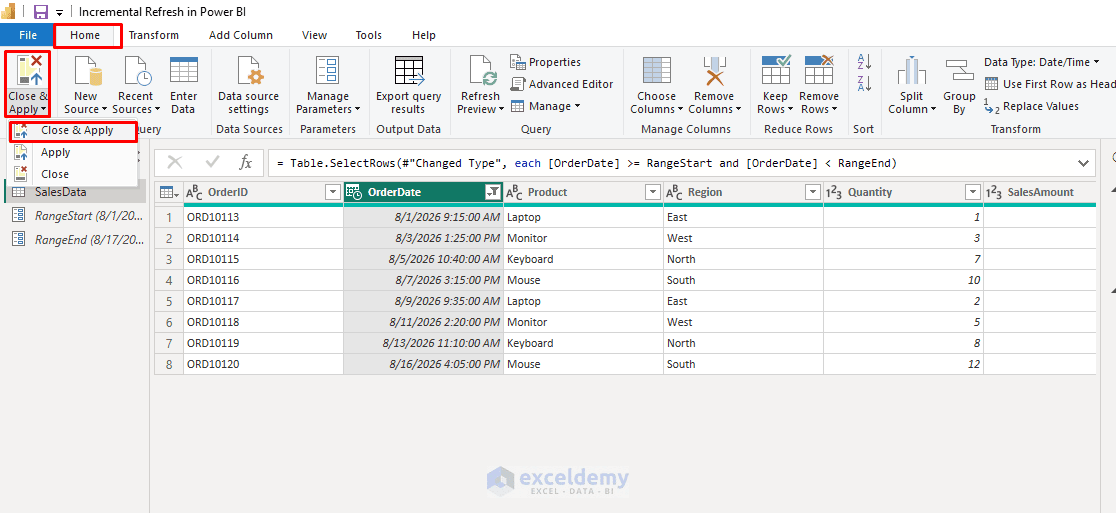
- Wait for the filtered dataset to load.
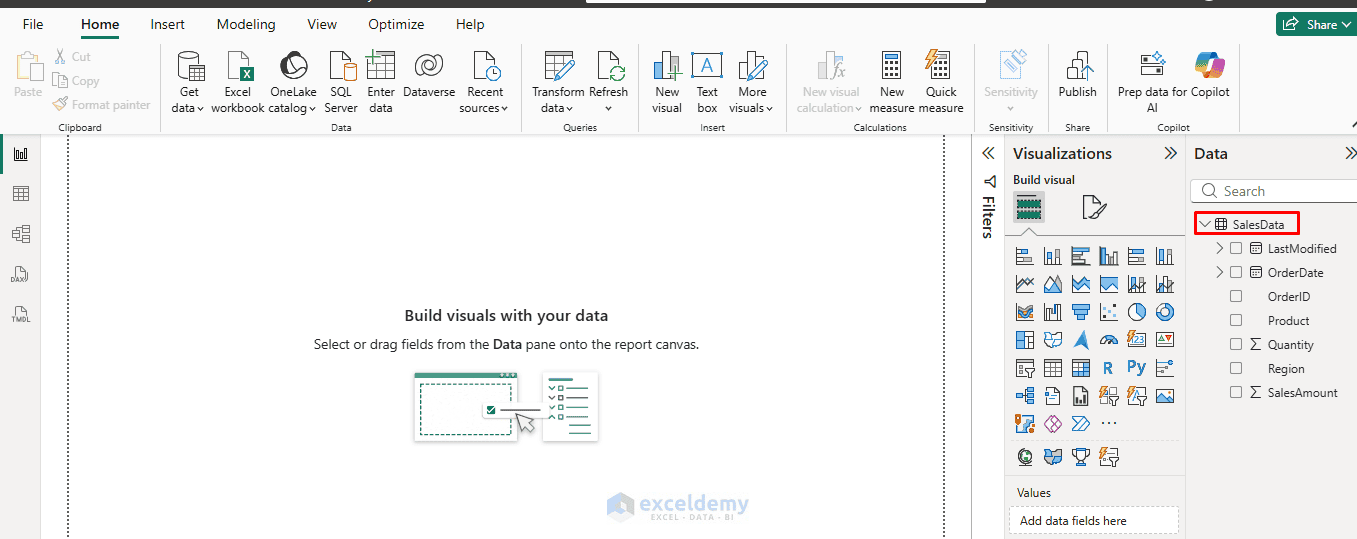
At this point, you may see only a small portion of your complete dataset. You don’t need to load all five years into Power BI Desktop first. The complete historical window will be built after the model is published and refreshed in the Power BI service.
Step 6: Configure the Incremental Refresh Policy
- Switch to the Table view in Power BI Desktop.
- Right-click SalesData in the Data pane >> select Incremental refresh.
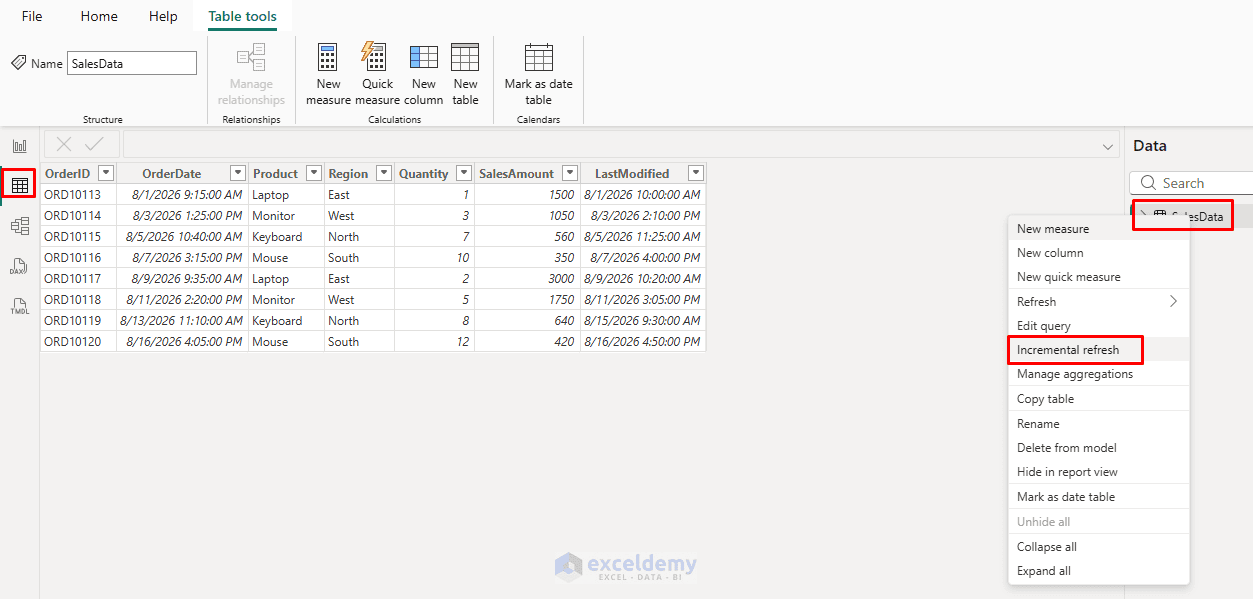
- Toggle Incrementally refresh this table to On.
- Configure the policy:
- Archive data starting: 5 Years before refresh date
- Incrementally refresh data starting: 10 Days before refresh date (padding beyond the typical 7-day lag for safety)
- Click Apply.
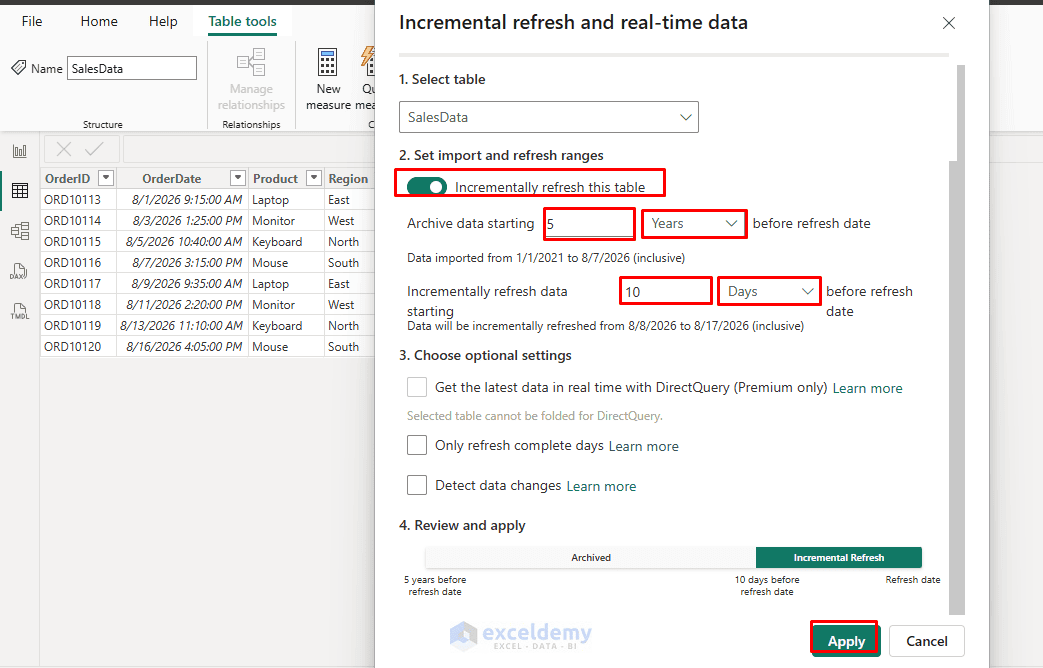
The configuration means:
| Setting | Purpose |
| Store rows from the last 5 years | Keeps five years of historical sales |
| Refresh rows from the last 10 days | Reloads only recent records during normal refresh |
Power BI doesn’t immediately create all these partitions in Desktop. The policy takes effect once the model is published and refreshed in the Power BI service.
Common Practical Combinations:
- Sales / operations: Store 3–5 years, refresh last 7–30 days.
- High-frequency IoT or transactions: Store 1–2 years, refresh last 1–7 days.
- Compliance-heavy: Store longer (7–10 years), still refresh only a short recent window.
How the Refresh Policy Works:
Suppose the complete table contains 50 million rows, but only 300,000 rows belong to the most recent 10 days. Without incremental refresh, Power BI would need to process the entire table during every full refresh.
With the policy configured above, historical periods are retained while the recent refresh partitions are processed again.
Conceptually:
5 Years of Sales Data

│

├── Historical Data

│   ├── 2022

│   ├── 2023

│   ├── 2024

│   ├── 2025

│   └── Older 2026 records

│

└── Refresh Period

└── Last 10 Days ← refreshed
As time moves forward, Power BI automatically rolls the windows forward and manages the underlying partitions. Older refresh partitions eventually become historical partitions.
Step 7: Detect Data Changes (Optional)
Sometimes recent records can be modified after they were originally created.
For example:
| OrderDate | SalesAmount | LastModified |
| 8/10/2026 | $1,200 | 8/10/2026 |
| 8/10/2026 | $1,350 | 8/15/2026 |
The order was created on August 10 but modified on August 15.
If your source contains a column such as LastModified, you can use the Detect data changes option.
In the Incremental Refresh window:
- Expand Optional settings >> select Detect data changes.
- Choose LastModified.
- Click Apply.
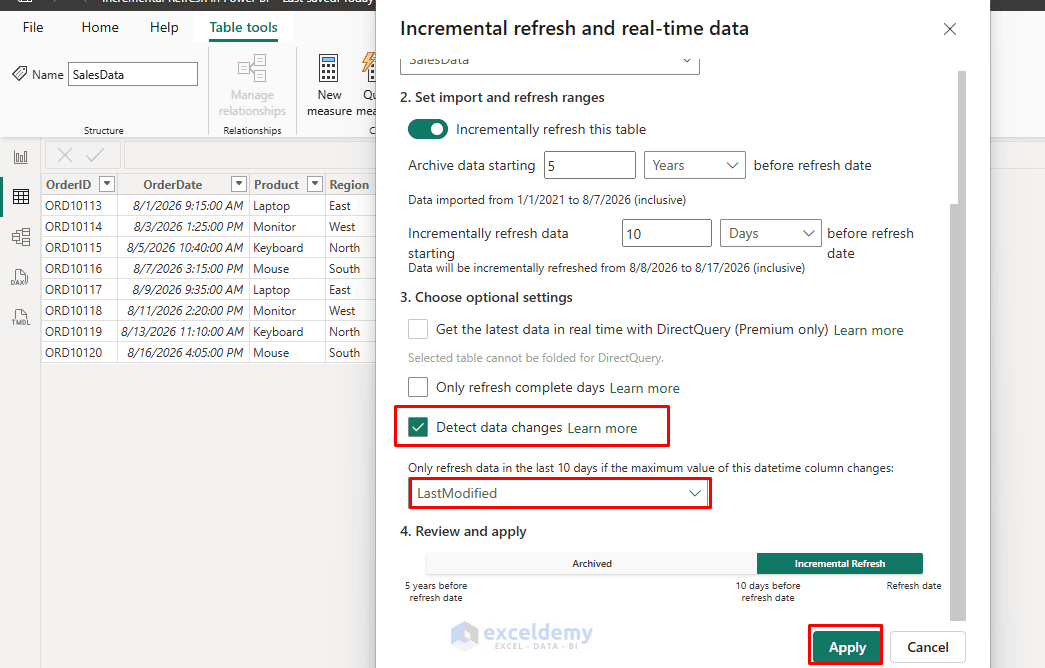
Power BI evaluates this column to determine whether a period has changed. If no changes are detected for a particular refresh period, Power BI can avoid refreshing that period. Do not use the same column for both the incremental partition filter and change detection.
Step 8: Publish and Run the First Refresh
Once the refresh policy is configured:
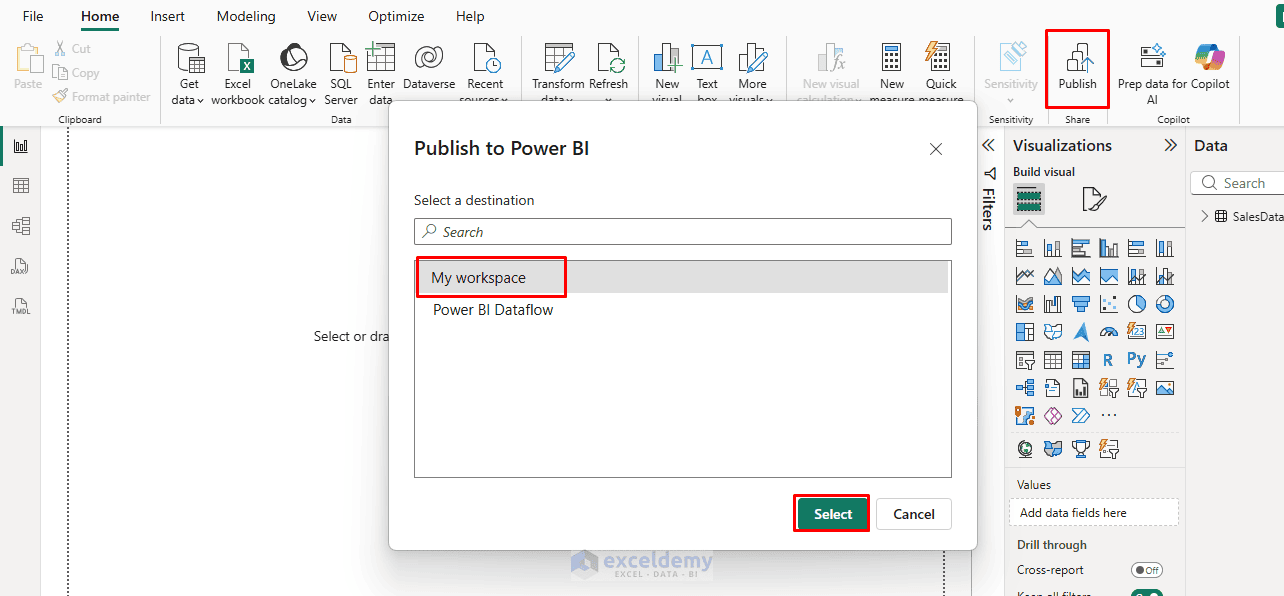
- Go to the Home tab >> select Publish.
- Select your Power BI workspace.
- Click Select.
Incremental refresh is supported for Power BI Pro, Premium, Premium Per User, and Embedded semantic models. The optional real-time DirectQuery partition has additional capacity requirements.
Run the First Refresh:
- Open the workspace in the Power BI service.
- Locate the semantic model >> select Refresh now.
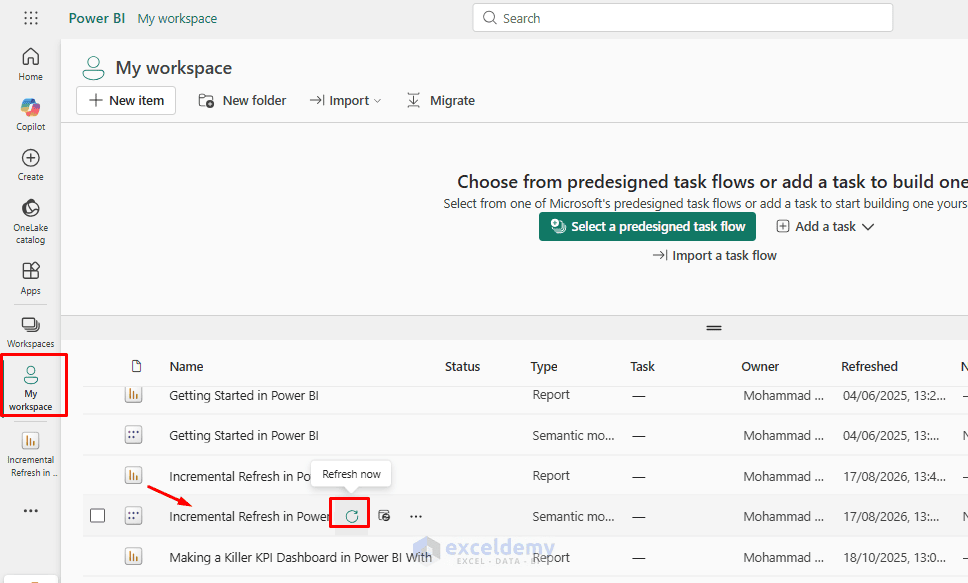
This first refresh is the expensive one — it has to build out every historical partition according to your archive window (e.g. load all 5 years). Expect it to take a while, similar to a full refresh, but it is a one-time cost.
Later refreshes are significantly faster because only data within the incremental refresh window needs to be processed.
Step 9: Configure Scheduled Refresh
Once the initial refresh succeeds, configure a regular schedule.
In the Power BI service:
- Open the semantic model’s Settings.
- Configure the required data-source credentials or gateway.
- Find the Scheduled refresh settings.
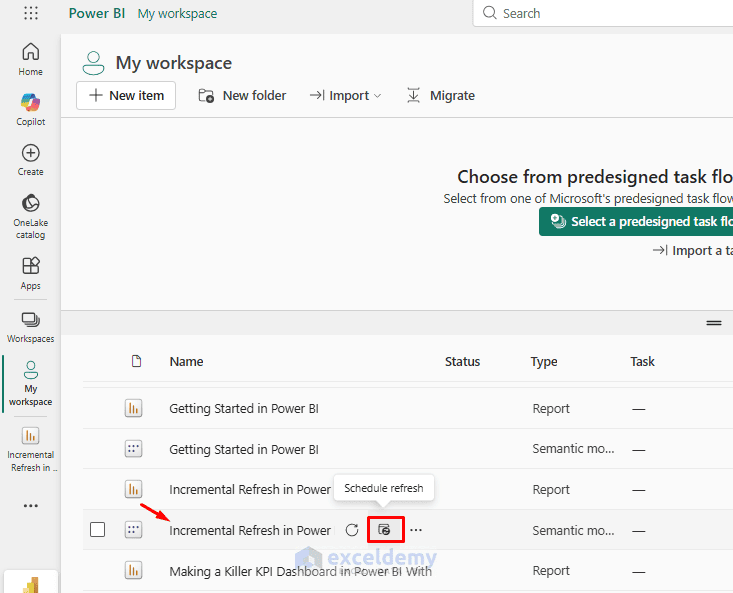
- Turn scheduled refresh on.
- Choose your desired refresh frequency.
For example, if the report is used for daily sales reporting, you might schedule it to refresh every morning. Each refresh will then use the incremental refresh policy rather than reprocessing all historical partitions.
Common Incremental Refresh Problems
- Incremental Refresh Option Is Grayed Out: If Incrementally refresh this table cannot be enabled, first check whether the table contains a valid filter referencing both RangeStart and RangeEnd. Power BI requires these parameters before the refresh policy can be configured.
- RangeStart or RangeEnd Isn’t Working: Check the parameter names carefully. They must be exactly: RangeStart, RangeEnd. The reserved parameter names are case-sensitive.
- Refresh Is Still Very Slow: Check query folding. If Power BI cannot push the date condition to the source, it may retrieve a much larger dataset before performing the filtering itself. For large relational datasets, this can largely defeat the purpose of incremental refresh. Microsoft recommends testing whether the source query includes the RangeStart and RangeEnd filters.
- The First Refresh Takes a Long Time: This is not necessarily an error. The initial refresh needs to create and populate the historical partitions.
Incremental Refresh vs. Full Refresh
| Full Refresh | Incremental Refresh |
| Reloads all relevant table data | Reloads selected recent partitions |
| Refresh becomes slower as data grows | Better suited to continuously growing fact tables |
| Historical data is processed repeatedly | Stable historical partitions can remain untouched |
| Simple configuration | Requires date parameters and a refresh policy |
| Suitable for smaller models | Particularly useful for large transaction datasets |
Conclusion
By following the steps above, you can set up incremental refresh in Power BI to handle large datasets without the wait. Incremental refresh is one of the most useful Power BI features for models built on continuously growing datasets. Instead of treating every refresh as a complete reload, Power BI divides the table into partitions and focuses refresh operations on the portion of data that actually needs updating. Once configured correctly, a model can retain years of historical information while routinely processing only days of new or modified records — making refresh operations faster, more reliable, and much easier to scale.
Get FREE Advanced Excel Exercises with Solutions!

