

Looking for a way to get rid of the Excel VBA InStrRev Not Working issue? If you are, you’ve come to the right place. This problem can occur for many reasons. The most common reasons for the InStrRev not working problem are described with easy solutions in this article.
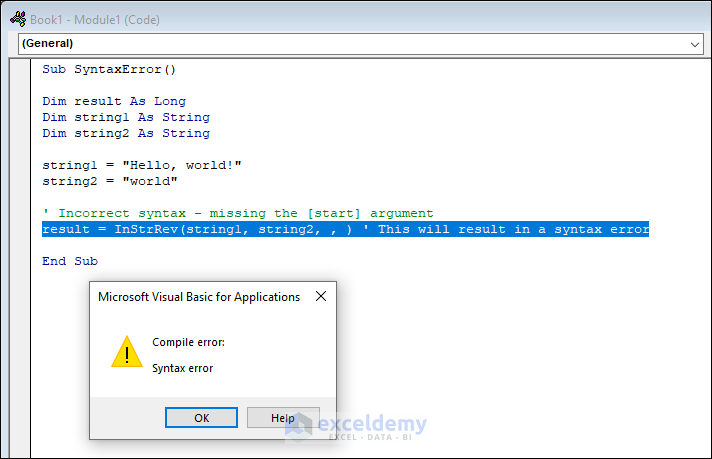
The above overview image shows the syntax error resulting in InStrRev not working problem. Follow along to learn about other reasons and their solutions.
Introduction to InStrRev Function in Excel VBA
The InStrRev function is a function that returns the position of the first occurrence of a string in another string, starting from the end.
Syntax
InStrRev(stringcheck, stringmatch, [ start, [ compare ]])| Argument | Required/optional | Function |
|---|---|---|
| stringcheck | required | String expression that is being searched |
| stringmatch | required | String that you want to find |
| start | optional | Starting position for the search |
| compare | optional | Used to perform comparison |
How to Launch VBA Editor in Excel
To access the Microsoft Visual Basic window, go to the Developer tab and then click on Visual Basic. You can also open it by pressing Alt+F11 on your keyboard.

Then go to the Insert tab and click on Module to open the code Module.

Excel VBA InStrRev Not Working: 6 Possible Reasons with Solutions
In this article, we will demonstrate 6 different reasons for Excel VBA InStrRev not working. We will look at their effective solutions as well.
1. Incorrect Syntax
The InStrRev function will not work if the syntax of this function is incorrect. In the following code, the syntax of the InStrRev function is incorrect. If you run the code, it will show a Syntax error.
Sub SyntaxError()
Dim result As Long
Dim String1 As String
Dim String2 As String
String1 = "Hello, world!"
String2 = "world"
Result = InStrRev(string1,string2, ,)
End Sub
Solution
To fix this code, follow this simple syntax of the InStrRev function.
InStrRev ( string, substring [, start [ , compare] ] )Then run the code and get your desired results.

Code Breakdown
InStrRev ( String1, String2, Len (String1), vbBinaryCompare)- The InStrRev function searches for the last occurrence of String2 in String1 and returns the position of String2.
2. Wrong Variable Type
You can also face Excel VBA InStrRev not working problem because of defining variables with the wrong data type. From the syntax, we can see that the start argument is supposed to be a number. If you insert a string in this option, it will show an error. For instance, run the following code and you will get a Type mismatch error.
Sub WrongVariableType()
Dim result As Long
Dim String1 As String
Dim String2 As String
Dim start As String ' Incorrect data type for [start] argument
String1 = "Hello, world!"
String2 = "world"
start = "world"
' Incorrect variable type for [start] argument - should be Long
result = InStrRev(String1, String2, start)
' This will result in a type mismatch error
MsgBox result
End Sub
Solution
You can fix this code easily by defining the string and substring argument as String and start augment as Long. The code will look like the following. Now run the code by pressing F5 on your keyboard and get the desired output.
Sub FixVariableDataType()
Dim result As Long
Dim String1 As String
Dim String2 As String
Dim start As Long ' Correct data type for [start] argument
String1 = "Hello, world!"
String2 = "world"
start = 5
result = InStrRev(String1, String2, start)
' Use Long data type for [start] argument
MsgBox result
End Sub
Code Breakdown
Dim start As Long- Declare a variable named start as Long.
start = 5- Selects the start position as 5.
result = InStrRev(String1, String2, start)- Search for the last occurrence of String2 in String1. The maximum starting position is specified by the start argument.
3. Case Sensitivity Issue
The InStrRev function is case-sensitive. You might not get the desired results because of this reason. In the following code, the InStrRev function will show a result of zero because of this case sensitivity.
Sub Casesensitivity()
Dim result As Long
Dim String1 As String
Dim String2 As String
String1 = "Hello, world!"
String2 = "WORLD"
' Case-sensitive comparison - will not find "WORLD" within "Hello, world!"
result = InStrRev(String1, String2) ' This will result in 0
MsgBox result
End Sub
Solution
To solve this issue, you can use the vbTextCompare method to make the function case insensitive. As a result, the code will look like the following.
Sub Casesensitivity()
Dim result As Long
Dim String1 As String
Dim String2 As String
String1 = "Hello, world!"
String2 = "WORLD"
'Case-insensitive comparison - will find "WORLD" within "Hello, world!"
result = InStrRev(String1, String2, , vbTextCompare)
' Use vbTextCompare for case-insensitive comparison
MsgBox result
End Sub
Code Breakdown
result = InStrRev(String1, String2, , vbTextCompare)- The InStrRev function returns the position of the last occurrence of String2 in String1.
- vbTextCompare indicates that the comparison to be used during the search should be case-insensitive.
4. Using Null or Empty String
If you leave the substring argument blank, you will get an error as this is a required argument. In the following code, the substring is empty. If you run the code, you will get a runtime error.
Sub NullEmptyString()
   Dim result As Long
Dim String1 As String
Dim String2 As String
String1 = "Hello, world!"
String2 = ""
' Empty string as [string2] - will always result in 0
result = InStrRev(String1, String2) ' This will result in 0
' Null string as [string1] - will result in runtime error
String1 = Null
result = InStrRev(String1, String2) ' This will result in a runtime error
End Sub
Solution
Make sure that the substring is not empty to avoid this error.

5. String Not Found
Excel VBA InStrRev not working can also occur if the substring contains something that is not present in the main string. In the following code, the substring contains “goodbye” which is missing in the main string. This will result in 0 when you run the code.
Sub StringNotFound()
Dim result As Long
Dim String1 As String
Dim String2 As String
String1 = "Hello, world!"
String2 = "goodbye"
result = InStrRev(String1, String2)
MsgBox result
End Sub
Solution
To fix this issue, ensure that the content of the substring is present in the main string. Then run the code and get the correct results.

6. Changes in Language Setting
Excel VBA InStrRev not working can also occur, if the language settings are not appropriate for the language you are working with. Before working with the InStrRev function, ensure that the language settings are set correctly on your computer.
User-Defined Function to Use It as Excel InStrRev Equivalent
You can create a user-defined function that can do the same function as the InStrRev function. In this example, we created a user-defined function named FindString that is equivalent to the InStrRev function. Run the following code and you will find that the function is working perfectly.
Sub InStrRevEquivalent()
    Dim result As Long
    Dim String1 As String
    Dim String2 As String
    String1 = "Hello, world!"
    String2 = "world"
    result = FindString(String1, String2)
    MsgBox result
End Sub
Function FindString(ByVal sourceString As String, ByVal SearchString As String) As Long
    Dim i As Long
    Dim j As Long
    FindString = 0 ' Initialize the result to 0
    For i = Len(sourceString) To 1 Step -1
    ' Loop through the sourceString from the end
        If Mid(sourceString, i, Len(SearchString)) = SearchString Then
        ' Compare searchString with a substring from sourceString
            FindString = i
            ' If found, set the result to the position of the found string
            Exit Function ' Exit the function after finding the first occurrence
        End If
    Next i
End Function
Code Breakdown
For i = Len(sourceString) To 1 Step -1
        If Mid(sourceString, i, Len(SearchString)) = SearchString Then
            FindString = i
            Exit Function ' Exit the function after finding the first occurrence
        End If
Next i- This code iterates from the last character of the sourceString to the first.
- If Mid(sourceString, i, Len(SearchString)) = SearchString Then compares searchString with a substring from sourceString.
- If String2 is found in String1, it sets the result as the position in the integer form.
How to Use VBA InStrRev for Second Occurrence in Excel
There are times when we might need the position of the second occurrence of a string. For this purpose, we can use the VBA InStrRev function. In the following example, we want the second occurrence of the string “world”. To do so, we will use the code given below.
Sub SecondOccurence()
    Dim String1 As String
    Dim String2 As String
    Dim i As Long
    String1 = "Say hello world to the world"
    String2 = "world"
    i = InStr(1, String1, String2, vbTextCompare)
    i = InStr(i + 1, String1, String2, vbTextCompare)
    MsgBox "Second occurance starts at position " & i
End Sub
Run this code and it will give you the position of the second occurrence of the string “world” as output.

Code Breakdown
i = InStr(1, String1, String2, vbTextCompare)- This line of code searches for the first occurrence of String2 within String1 using the InStrRev
i = InStr(i + 1, String1, String2, vbTextCompare)- This line searches for the second occurrence of String2 in String1.
Things to Remember
- Define the variables with the proper data type.
- Follow the syntax correctly.
Download Practice Workbook
Download this practice workbook to exercise while reading this article.
Conclusion
Thanks for making it this far. I hope you find this article helpful. In this article, we have demonstrated the 6 most common reasons and solutions for the issue of Excel VBA InStrRev not working. We have covered incorrect syntax, wrong variable type, case sensitivity, and some other common reasons and their effective solutions. If you have any queries or recommendations regarding this article, feel free to let us know in the comment section below.
Get FREE Advanced Excel Exercises with Solutions!

