

For more accurate data analysis, Microsoft Excel VBA provides a powerful method for filtering pivot tables based on multiple cell values. We’ll walk you through using VBA code to automate and personalize pivot table filtering in this blog post. By the end, you’ll have the skills you need to effectively filter pivot table based on multiple cell values using VBA and extract insightful knowledge from your data in Excel. Let’s investigate the world of pivot table filtering and Excel VBA!
Excel VBA to Filter Pivot Table Based on Multiple Cell Values: Step-by-Step Procedures
You can automate the filtering procedure and extract useful insights from your data by adhering to these easy steps. Prepare to improve your ability to analyze data with VBA filter pivot tables.

⦿ Step 1: Creating a Pivot Table with VBA Macro
As the main focus of this article is to make a pivot table dynamic, you need to start with a pivot table. So, this step will show the easy task of creating a pivot table in Excel. To insert a pivot table, you can do it manually by selecting the data range >> Insert tab >> Pivot Table >>From Table/Range or you can do the same thing using VBA. When working with large data sets, you can save time and effort by having Excel automatically create pivot tables. We’ll look at automating pivot table creation in Excel using VBA (Visual Basic for Applications) in this blog post. You can dynamically create pivot tables based on your data by using VBA code, making analysis and visualization simple.
- Modify your code as the following VBA code presumes that the data in the “Data” sheet starts at B4.
- The pivot table will be created in the sheet named “Pivot” where the table will start from A1.
Sub CreatePivotTable()
    Dim pivotSheet As Worksheet, dataSheet As Worksheet
    Dim pivotCache As pivotCache
    Dim pivotTable As pivotTable
    Dim dataRange As Range
    Dim lastRow As Long, lastCol As Long
    On Error Resume Next
    With Application
        .DisplayAlerts = False
        .ScreenUpdating = False
    End With
    Set pivotSheet = Worksheets("Data") ' Set the pivot sheet to "Data" sheet
    Set dataSheet = Worksheets("Data")
    lastRow = dataSheet.Cells(dataSheet.Rows.Count, 2).End(xlUp).Row
    lastCol = dataSheet.Cells(4, dataSheet.Columns.Count).End(xlToLeft).Column
    Set dataRange = dataSheet.Range("B4:D" & lastRow)
    Set pivotCache = ActiveWorkbook.PivotCaches.Create(SourceType:=xlDatabase, SourceData:=dataRange)
    Set pivotTable = pivotCache.CreatePivotTable(TableDestination:=pivotSheet.Range("F4"), TableName:="SalesPivotTable")
    With pivotTable
        .PivotFields("Region").Orientation = xlPageField
        .PivotFields("Sub-Category").Orientation = xlRowField
        .PivotFields("State").Orientation = xlColumnField
        .AddDataField .PivotFields("Sales"), "Sum of Sales", xlSum
    End With
    ' Display PivotTable Field List
    pivotTable.TableRange1.Select
    With Application
        .DisplayAlerts = True
        .ScreenUpdating = True
    End With
End Sub⦿ Step 2: Using VBA to Filter Pivot Table Based on Multiple Cell Values
You can quickly automate and customize your pivot table filters to extract precise data subsets using VBA code. Let’s explore the world of VBA and see how it can transform the way you filter pivot tables.
VBA Code:
- First, you have to insert a Module from the Insert tab to write the VBA Code in Excel.
- Copy the code below and paste it into the code window.
Sub FilterPivotTable()
    Dim filtvalues As Variant
    Dim i As Integer, j As Integer
    Dim pvt As PivotField
    Dim pitm As PivotItem
    ' Set the filter range with values to filter on
    filtvalues = Range("I5:I6")
    ' Set the pivot field object
    Set pvt = ActiveSheet.PivotTables("SalesPivotTable").PivotFields("Product") ' Modify "SalesPivotTable" and "Product" according to your pivot table and field names
    ' Clear existing filters
    pvt.ClearAllFilters
    ' Apply filter to pivot table
    For i = 1 To pvt.PivotItems.Count
        Set pitm = pvt.PivotItems(i)
        pitm.Visible = False
        For j = 1 To UBound(filtvalues, 1) - LBound(filtvalues, 1) + 1
            If pitm.Name = filtvalues(j, 1) Then
                pitm.Visible = True
                Exit For
            End If
        Next j
    Next i
End Sub
VBA Explanation:
Sub FilterPivotTable()
    Dim filtvalues As Variant
    Dim i As Integer, j As Integer
    Dim pvt As PivotField
    Dim pitm As PivotItem
    ' Set the filter range with values to filter on
filtvalues = Range("I5:I6")- The values to filter on are stored in the filtvalues variable, which is declared as a variant. The cells “I5:I6” will be assigned to it.
- The integer variables i and j are declared in order to serve as loop counters.
- The PivotField variable pvt is declared. The desired pivot field in the pivot table will be referred to using it.
- The PivotItem variable pitm is declared. It will be utilized to refer to every single pivot item contained within the pivot field.
    ' Set the pivot field object
Set pvt = ActiveSheet.PivotTables("SalesPivotTable").PivotFields("Product") ' Modify "SalesPivotTable" and "Product" according to your pivot table and field names- This line tells the active sheet’s pvt variable to use the pivot field “Product” in the pivot table “SalesPivotTable” as its point of reference. To reflect the names in your unique pivot table, you should change the “SalesPivotTable” and “Product” variables.
    ' Clear existing filters
pvt.ClearAllFilters- Prior to applying new filters, this line clears any existing filters that we have applied to the pivot field pvt.
 ' Apply filter to pivot table
    For i = 1 To pvt.PivotItems.Count
        Set pitm = pvt.PivotItems(i)
        pitm.Visible = False
        For j = 1 To UBound(filtvalues, 1) - LBound(filtvalues, 1) + 1
            If pitm.Name = filtvalues(j, 1) Then
                pitm.Visible = True
                Exit For
            End If
        Next j
    Next i
End Sub- This block of code applies the filter based on the values in the filtvalues range to each pivot item in the pivot field pvt as it iterates over each pivot item.
- We set the pitm variable in the outer loop to the current pivot item.
- Using pitm, we initially set the visibility of the current pivot item to False. False if visible.
- Here, the code iterates over each row in the range of filtvalues in an inner loop. It contrasts the values in the filtvalues range with the name of the current pivot item.
- If it discovers a match, the code uses pitm to set the visibility of the pivot item to True. True if visible. Since the item has already been found, the inner loop is ended using the Exit For statement.
- For each pivot item in the pivot field, the code repeats the procedure.
- For the purpose of filtering pivot table F4:G11 based on the range I5:I6 value, we have shown the worksheet window and VBA window side by side in the following video.
- In the following video, you can see the final result of the Excel VBA filter pivot table based on multiple cell values.
How to Filter Pivot Table Based on Single Cell Value with Excel VBA
We’ll look at how to filter pivot tables using VBA code based on cell value now. You can customize the filtering in your pivot table and gain useful insights from your data by following these easy steps. With Excel VBA and single-cell filtering for pivot tables, get ready to improve your data analysis skills.
- You must first run the VBA code. To launch VBA and insert a module in Microsoft Excel, click here.
- Insert a module from the Insert tab after starting VBA. Paste the code from below into the code window after copying it.
Sub FilterPivotTable()
    Dim filtvalue As Variant
    Dim i As Integer
    Dim pvt As PivotField
    Dim pitm As PivotItem
    ' Set the filter value from cell I5
    filtvalue = Range("I5").Value
    ' Set the pivot field object
    Set pvt = ActiveSheet.PivotTables("SalesPivotTable").PivotFields("Product") ' Modify "SalesPivotTable" and "Product" according to your pivot table and field names
    ' Clear existing filters
    pvt.ClearAllFilters
    ' Apply filter to pivot table
    For i = 1 To pvt.PivotItems.Count
        Set pitm = pvt.PivotItems(i)
        pitm.Visible = (pitm.Name = filtvalue)
    Next i
End Sub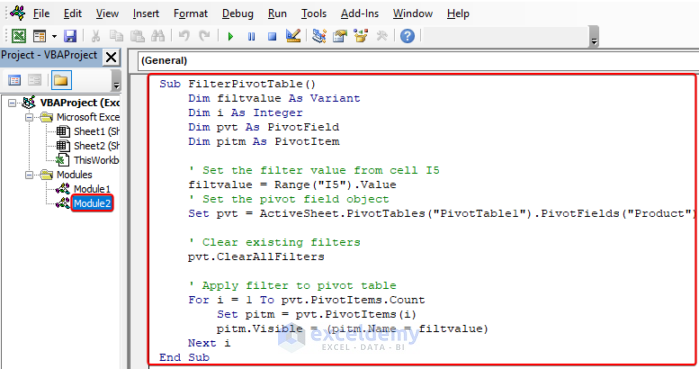
- In the following image, we have demonstrated the worksheet window and VBA window side by side for the purpose of filtering pivot table F4:G11 based on a single cell I5 value.
- After setting the I5 cell, press the Run button.
- A click on the Run button will modify the pivot table as shown in the following video.
Things to Remember
- Understanding Pivot Tables: Give a brief introduction to Excel’s pivot tables and the advantages they have for data analysis. Describe how pivot tables analyze and summarize large amounts of data, enabling users to quickly derive important insights. Stress the necessity of flexible filtering options so that you can concentrate on particular data subsets.
- Limitations of Default Pivot Table Filtering: Describe the restrictions placed on Excel pivot tables’ default filtering options. Describe how using multiple cell values requires manual selection or multiple filter operations because the built-in filter options do not easily support it.
- Enhancements and Customizations: You can discuss additional customizations and improvements using VBA. This might entail creating user-friendly interfaces for selecting filter values, dynamically updating the filter values based on modifications to the source data, or saving and reusing filter configurations.
Frequently Asked Questions (FAQs)
1. How do I set a filter range in VBA that includes multiple cell values?
You can use a variant variable to store the values from the desired range when setting the filter range in VBA with multiple cell values.
2. In order to use the multiple cell value filter in VBA, can I first clear any existing filters?
Yes, you can remove any filters that are currently in use in the pivot table before using the multiple-cell value filter. You can get rid of any current filters and make sure that the pivot table only displays the specified cell values by calling the ClearAllFilters method on the pivot field object.
3. Is it possible to set the visibility of pivot items using a VBA loop based on multiple cell values?
In VBA, it is possible to loop through a pivot field’s pivot items and change their visibility depending on a number of different cell values. You can compare the names of each pivot item with the values from various cells using nested loops, and then change the visibility of the items as necessary.
Download Practice Workbook
You can download the practice workbook from the following download button.
Conclusion
Finally, Excel VBA offers a potent method for filtering pivot tables based on a variety of cell values. You can automate the filtering procedure and complete a more accurate data analysis by putting the provided code into practice. This method makes it simple to modify and enhance your pivot table filters, which increases accuracy while saving time. Understanding pivot table filtering with VBA will enable you to maximize the value of your data and make wise decisions.
Related Articles
- How to Use Excel VBA to Filter Pivot Table
- Excel VBA Pivot Table to Filter Between Two Dates
- Excel VBA to Filter Pivot Table Based on List



Hi Amit, thanks for this post, was rather helpful with a project I am busy with at the moment. Been struggling quite a bit to filter a Pivot Table I am working with based on a dynamic range of cells. Tried your code you posted here to see if I can get it to work but still get stuck with the same problem: the code filters on the first cell value and then discards the rest of the range (another 4 cells in the test range I used). The exact same happened with other pieces of code I tried from other sources as well. I checked the cell values to ensure that they match the values in the Pivot Table and all is in order. Any ideas why it would do this?
Hello SHAWN,
Hope you are doing well. Well, you can try the code below to get multiple cells value in pivot table.
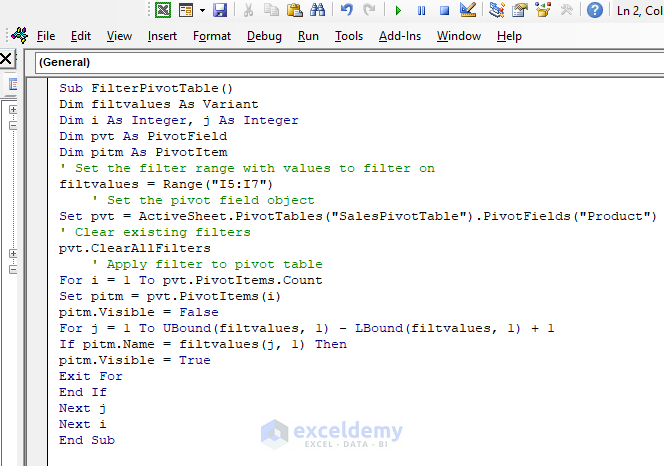
Code
Initially, the pivot table is similar to the below image.
Here is the final output.
Hi Amit, thank for your post.
I Applied the code but the “pitm.Visible = False” error with note unable to set the Visible property of the PivotItem class
Dear NU,
Thank you for your engagement with our content. If you’re using the provided code, please ensure it aligns with your specific dataset and pivot table configuration. To assist you further, could you kindly provide the specific dataset you are working with? Your dataset will be invaluable in ensuring we accurately address your query.
Alternatively, you may also try the following modified code, which aims to rectify the issue:
Note: This modified code includes a boolean variable
foundto track whether a matching item is found infiltvalues.If no match is found,
pitm.Visibleis set toFalseto hide the item.If a match is found,
pitm.Visibleis set toTrueto show the item.We appreciate your cooperation and look forward to resolving this matter promptly.
Best regards,
Al Ikram Amit
ExcelDemy