

Looking for ways to use Excel VBA to call private sub from userform? Then, this is the right place for you.
In Excel VBA, private subs are typically designed to be accessible only within the module or class where they are defined. However, there may be situations where you need to call a private sub from a UserForm. This can be achieved by modifying the access level of the private sub or creating a public sub that calls the private sub.
Understanding how to call a private sub from a UserForm opens up possibilities for enhancing the functionality and interactivity of your Excel applications. The private sub can also be applied in various practical situations like Data Validation, Complex Calculation, Data Manipulation, Custom Functionality, Error Handling, and so on.

How to Use Excel VBA to Call Private Sub from Userform: 3 Suitable Approaches
We are going to discuss a few approaches to calling a Private Sub. A private sub is a subroutine that is only accessible within the module or class where it is defined. Calling a private sub from a UserForm allows you to execute specific code that is encapsulated within that sub. Here are three suitable approaches to calling a private sub from a UserForm in Excel VBA:
1. Using UserForm and Module to Call a Private Sub in Excel VBA
Here we will call a Private Sub from a UserForm code and run that code by using a separate module.
To do that
- Press Alt+F11 to open the VBA window
- Then follow this-
Insert >> UserForm
- Place your mouse cursor on the UserForm. Then Double Click there
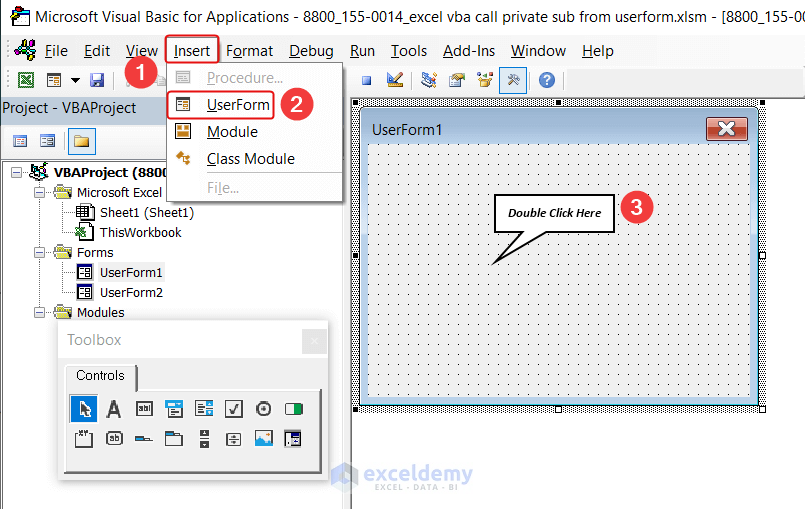
- After double-clicking, a window will appear before you
- Paste the following code there
Private Sub UserForm_Click()
    MsgBox "Private sub called!"
End Sub
Public Sub CallPrivateSub()
    UserForm_Click
End Sub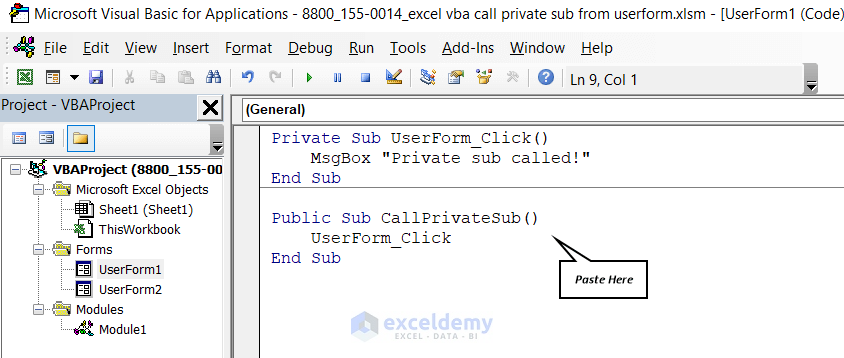
- After pasting the code, Insert a Module.
- To do that, Go to press Insert then select Module
Insert >> Module
- After that, select Module1.
- Paste and then Run the following code-
Sub CallUserformPublicSub()
    UserForm1.CallPrivateSub
End Sub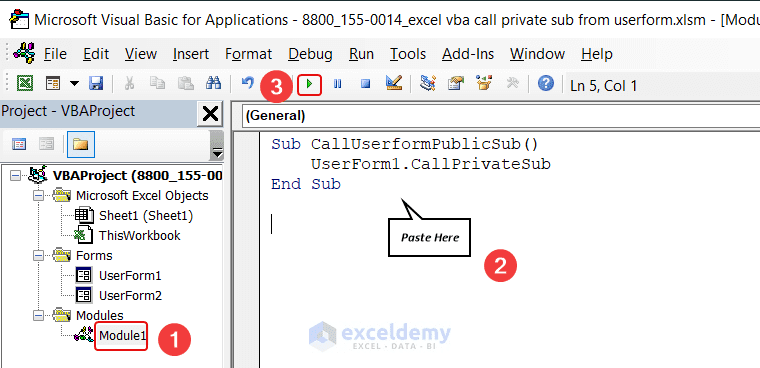
- You will see a message box inside there writing “Private sub called!” like the image below
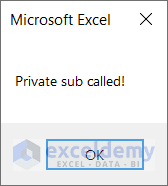
The image above shows the output of the UserForm1 code. However, we run Module1’s code.
It’s happening because we call a Private Sub of UserForm1 code in Module1.
This is why the output of UserForm1 is displayed here.
Read More: Excel VBA Private Sub vs Sub (Comparison & Differences)
2. Showing an UserForm with Boxes and Button by Calling Private Sub in Excel VBA
In this section, we will discuss how to show UserForm with boxes and buttons by applying a private sub in VBA.
For that,
- Insert a new UserForrm in your Microsoft VBA by following the first approach
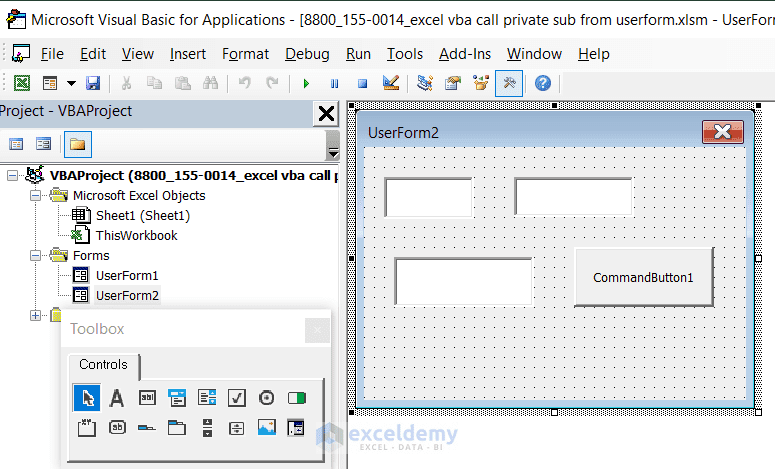
- Design the UserForm like the image below. We named the UserForm as UserForm2 and added two TextBoxes, one ListBox, and a CommandButton in the UserForm.
- After that, Double Click on the UserForm
- A new window will open.
- Paste the following code in that window.
Private Sub UserForm_Click()
UserForm2.Show
End Sub

- After pasting the code press F5 or click on Run Button to execute the code.
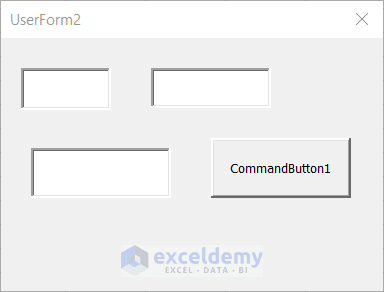
- You will able to see the UserForm2 like the image below.
Read More: How to Run a Private Sub in VBA
3. Use of CommandButton by Calling Private Sub in Excel VBA
We will show you how to utilize your CommandButton, TextBox, and ListBox using a private sub in Excel VBA. To put this into action, follow the steps below:
- First, Go to UserForm2 and press the Right Button of the mouse and from the pop-up window select View Code:
UserForm2 >> View Code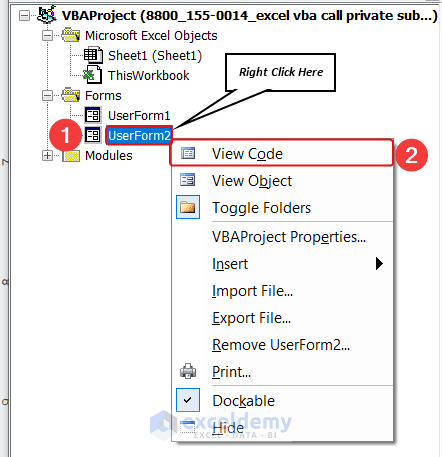
- A new window will appear before you.
- Just paste the below code there:
Private Sub CommandButton1_Click()
ListBox1.AddItem TextBox1.Text & "-----" & TextBox2.Text
End Sub- Then press F5 or Run button.

- UserForm2 will appear before you.
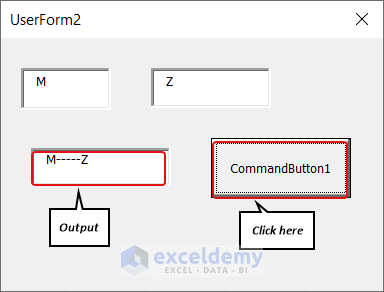
- Then in TextBox1 write “M” and in TextBox2 write “Z”.
- After that, Press CommandButton1.
- So, the final output will be “M—–Z”
Read More: Excel VBA to Call Private Sub from Another Module
Things to Remember
- UserForm module: Make sure you are working within the module of the UserForm where you want to call the private sub. This is where you will define the public sub or modify the access level of the private sub.
- Proper procedure naming: Ensure that the names of your subs are correct and that you are using the correct syntax when calling the sub. Pay attention to spelling, capitalization, and any parameters the sub may require.
- Object references: If the private sub interacts with specific objects or variables, ensure that the necessary object references or variable declarations are in place and accessible within the UserForm module.
- Macro-enabled workbook: Save your Excel workbook as a macro-enabled file format (e.g., .xlsm) to preserve the VBA code and allow the macros to run.
Frequently Asked Questions
- What is Private Sub in VBA?
A Private Sub in VBA is a procedure that can only be accessed by other procedures in the same module. It is declared using the Private keyword. For example, the following code declares a Private Sub called ShowMessage:
Private Sub ShowMessage()
    MsgBox "Hello, world!"
End Sub
This Sub can only be called by other procedures in the same module.
- Is it possible to call Private Sub from another workbook VBA?
No, it is not possible to directly call a private sub from another workbook in VBA. Private subs are designed to be accessible only within the same module or class in which they are defined. They cannot be accessed or called from other modules, classes, or workbooks.
However, there are a few alternative approaches you can consider:
- Change the sub to a public sub
- Create a public sub in the source workbook
- Use events
- What is the difference between private and public in Access VBA?
In Access VBA:
Private: Scope limited to the module or class where it is defined. Not accessible from outside.
Public: Scope allows access from any module or class within the same project or database. It can be called or referenced from anywhere.
Download Practice Workbook
If you want a free copy of the illustrated workbook we discussed during the presentation, please click the link below this section.
Conclusion
After reading this article, now you will easily call a private sub from UserForm in VBA. We also added some guidelines to execute this problem. Please carefully follow the guidelines before accomplishing the problem.
Please feel free to ask us questions in the comments section below if you have any tips, thoughts, or concerns about this topic.
Related Articles
- Excel VBA Call Sub from Another Sheet
- How to Call a Sub in VBA in Excel
- VBA to Call Sub From Another Workbook in Excel
- Excel VBA to Call Sub with Parameters
- How to Use Excel VBA Sub to Return Value
- Excel VBA Call Sub from Another Module


