


Excel is powerful on its own, but repetitive tasks like cleaning messy data, merging sheets, finding duplicates, advanced formatting, or batch operations can eat hours. The right add-ins turn multi-step processes into one- or two-click actions. There are proven, widely used productivity add-ins that deliver immediate gains for analysts, finance teams, operations staff, and power users.
In this article, we will cover 3 Excel add-ins that instantly level up your workflow. We’ll enable each add-in and use it for a practical Excel task.
1. Power Query: Get & Transform (Built-in, but Underused)
Power Query technically ships with Excel (2016+), but most users never activate its full potential — it functions like a separate ETL add-in bolted onto your spreadsheet.
What it does:
- Connects to dozens of data sources (CSV, databases, web APIs, folders of files, PDFs)
- Cleans and reshapes data through a repeatable, recorded set of steps
- Automatically refreshes when source data changes, with no manual copy-pasting
How to Use It
Import Data:
- Go to the Data tab >> select Get Data from the Get & Transform Data group
- You’ll see options like “From File,” “From Database,” or “From Web”
- Select your file. Power Query loads a preview
- Click Transform Data to open the Power Query Editor
Apply Transformations:
- Remove columns: Right-click the column header >> click Remove
- Split a column: Go to the Home tab >> select Split Column >> choose By Delimiter
- Filter rows: Click the dropdown arrow on any column header
- Change data types: Click the type icon (ABC, 123) next to each column header
Every action you take appears as a step in the Applied Steps pane on the right — this is your reusable transformation recipe.
Load and Refresh:
- Go to the Home tab >> click Close & Load
- Your cleaned data lands in a new sheet as a table
- Next time your source file updates, just right-click the table >> select Refresh
- Or go to the Data tab >> select Refresh All — every transformation reruns automatically
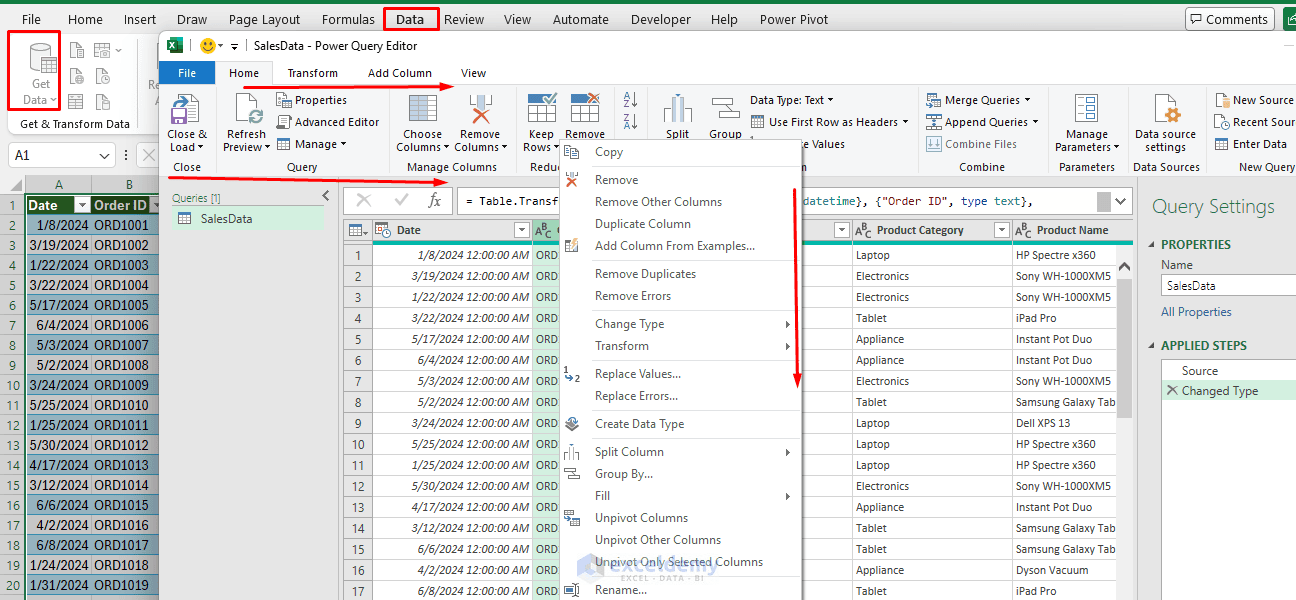
Why it levels up your workflow: If you regularly pull messy exports (from a CRM, an accounting system, or a shared drive of CSVs) and manually clean them each time, Power Query turns that into a one-click refresh. It removes the single biggest time sink in most reporting workflows: repetitive data cleanup.
2. ASAP Utilities: Everyday Time-Saver with Broad Practical Tools
ASAP Utilities is useful for power users and teams who want reliable, no-frills automation for file handling, formatting, numbers/dates, ranges, and hundreds of small but frequent tasks. Highly rated and award-winning (including “Best Microsoft Excel Add-in” recognition), ASAP Utilities is a long-standing third-party add-in (free for non-commercial use) that bundles dozens of small but high-friction tasks into one menu.
What it does:
- One-click removal of empty rows/columns
- Batch file operations (open, close, save multiple workbooks)
- Advanced find-and-replace across multiple sheets/workbooks
- Quick formatting tools (borders, number formats, text case conversion)
- Compare two worksheets and highlight differences
Installation:
- Go to the ASAP Utilities website
- Download the installer for your Excel version
- Close Excel, run the installer, then reopen Excel
- You’ll see a new ASAP Utilities tab in the ribbon
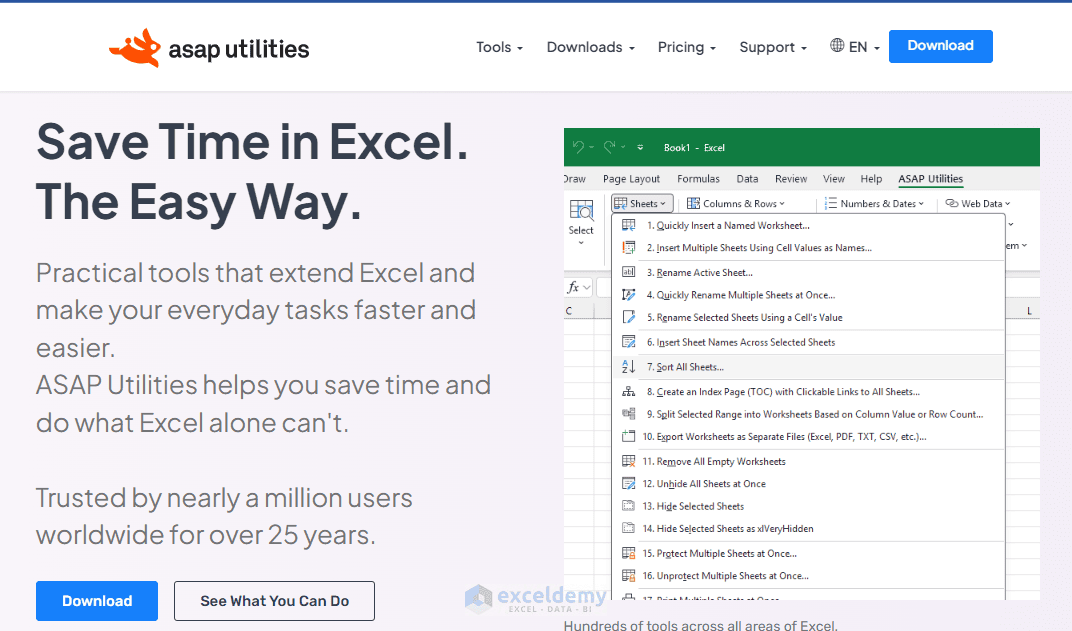
Quick Example: You regularly need to export multiple sheets as separate PDFs or CSVs, create timestamped backups, or clean imported numbers stored as text. These become menu selections instead of multi-step manual processes or custom macros.
Tip: Explore the menu systematically or use the search tool — the breadth is a strength once you know a few favorites.
3. Kutools for Excel: All-in-One Productivity Powerhouse
Kutools is best for users who want hundreds of shortcuts for data management, formatting, formulas, charts, and workbook navigation. Kutools adds 300+ tools organized into ribbon tabs (Kutools, Kutools Plus, and often a Design/AI tab). It turns complex operations that normally require nested formulas, helper columns, or VBA into simple clicks. Recent versions include AI-assisted features for generating formulas, recommending tools, and natural-language cell operations.
What it does:
- Merge cells/rows/columns or combine worksheets/workbooks without losing data
- Advanced duplicate handling, special filters, and batch find/replace across workbooks
- Flexible drop-down lists (multi-select, searchable), text tools (split, extract, case changes), and formula helpers
- Extra chart types (speedometer, bubble, etc.) and a navigation pane for quick sheet/range jumping
- One-click solutions for deleting blank rows, inserting checkboxes, or consolidating data
Quick Example: Instead of writing formulas or copying sheets manually to combine monthly reports from 20 workbooks, use the Combine Worksheets tool — select your files, choose how to match headers or positions, and get a single clean sheet in seconds.
Tip: Start with the most-used tools (merge, duplicates, navigation) so the large feature set doesn’t feel overwhelming.
Choosing and Combining Them
- Heavy data cleaning & merging → Power Query
- Reliable daily file, format, and range utilities + free non-commercial option → ASAP Utilities
- Broadest toolkit + occasional AI help → Kutools
If you only adopt one this week, start with Power Query — it’s already installed, costs nothing, and solves the most common time sink (manual data cleanup and refresh) that nearly every Excel workflow has. Many users run more than one; they complement rather than fully overlap. Pair any of them with Excel’s built-in Power Query for repeatable ETL pipelines — the add-ins handle the one-off or interactive jobs Power Query is overkill for.
Conclusion
These three Excel add-ins can instantly level up your workflow. Start with the free trials on the tasks that currently slow you down most. Within a day or two of focused use, the time savings usually become obvious. These three remain among the most consistently recommended productivity add-ins because they solve real, frequent friction points without requiring you to become a VBA expert overnight.
Get FREE Advanced Excel Exercises with Solutions!

