


Anomaly detection in Power BI is a powerful AI-driven feature that automatically identifies unusual patterns, spikes, and dips in your data. Time series anomaly detection can identify unusual patterns or outliers in your time series data within line charts. This can enhance your visualizations by highlighting deviations from expected trends, making it easier to spot issues such as unexpected spikes or drops in metrics like sales, revenue, or website traffic.
In this tutorial, we will show you how to perform time series anomaly detection in Power BI to enhance your line charts and gain deeper insights into your data trends.
What Is Anomaly Detection?
Anomaly detection uses machine learning algorithms to identify data points that deviate significantly from expected patterns. In Power BI, this feature analyzes your time series data. Time series anomaly detection identifies data points that deviate significantly from expected patterns over time. Anomaly detection works on line charts with a date/time axis and uses AI-based forecasting models to determine whether a point is statistically unusual.
- Unexpected Spikes: Values significantly higher than normal, like an unexpected sales surge
- Unusual Dips: Values significantly lower than expected, like a sudden drop in sales
- Pattern Breaks: Deviations from established trends and seasonality
Step 1: Prepare Your Data
- Open Power BI Desktop
- Import your time series dataset. Your dataset should include:
- A date/time column (daily, weekly, monthly, etc.)
- A numeric measure to analyze (sales, revenue, visits, etc.)
- Sufficient historical data (at least 12-24 data points are recommended)
- Ensure the date column is recognized as a Date type in the data model. If not, use the Modeling tab to set it
Step 2: Create a Line Chart
- From the Visualizations pane, select the Line chart
- Drag the OrderDate field to the X-axis
- Keep the Date hierarchy
- Drag the Sales Amount field to the Y-axis
- Ensure your data displays correctly as a continuous line
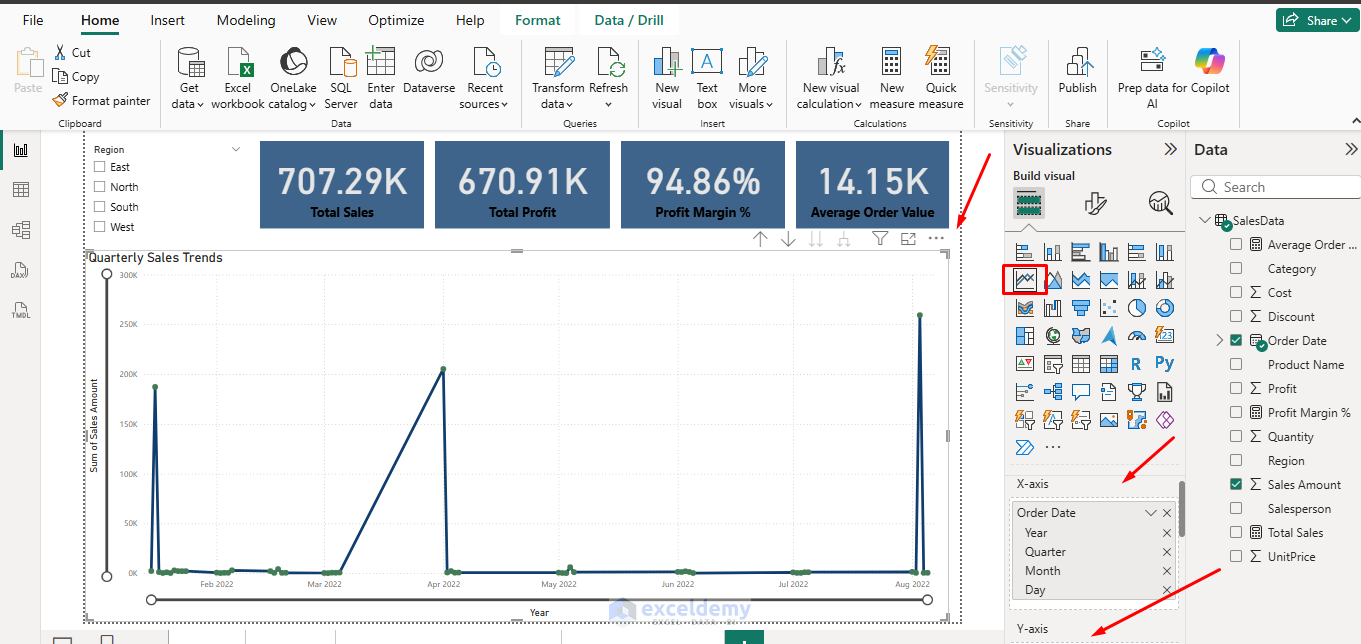
Step 3: Enable Anomaly Detection
- Select your line chart visualization
- Click on the Analytics pane (magnifying glass icon) in the Visualizations section
- Locate the Anomalies section and toggle it On
- Power BI will automatically analyze the data, detect anomalies, and display them as highlighted points (for example, black dots) on the chart, along with a shaded expected range

Step 4: Configure Anomaly Detection Settings
Once enabled, Power BI will automatically analyze your data. You can customize the detection in the Analytics pane under Anomalies.
Sensitivity:
Adjust the Sensitivity slider to control how strict the anomaly detection is. Slide this from 0% to 100%.
- High sensitivity: Detects more anomalies, including minor deviations
- Low sensitivity: Only flags significant outliers
- Default (70%): Balanced approach for most use cases
Tip: Start with the default sensitivity and adjust based on your results.
Anomaly shape:
- Choose from options like circle, triangle, or teardrop
Anomaly Shape Size:
- Adjust the size of the anomaly markers (1-10)

Anomaly Color:
- Pick a color for the markers (for example, red)
Anomaly Border:
- Toggle On the Border and Match line color

Expected Range:
The expected range shows the normal boundaries for your data:
- Toggle Show expected range to On to display shaded areas representing normal behavior
- The shaded band shows where values are expected to fall
- Anomalies appear outside this range

Dimensional Analysis:
- Drag fields like Product Name and Quantity into the Explain by field
- Click on Apply
- This restricts explanations to those dimensions

Step 5: View Anomalies And Explanations To Interpret The Results
Visual Indicators:
Power BI marks anomalies with:
- Dots/markers on anomalous data points
- Shaded regions showing the expected range
- Different colors to distinguish anomalies from normal data
Anomaly Explanation:
Hover over any detected anomaly to see:
- The actual value at that point
- The expected value
- The expected range (min and max) for that time period

Open Anomalies Pane:
- Click on an Anomaly point, and a pane will appear with a natural language explanation (for example, “Revenue spiked due to high sales in Electronics.”)
- Explanations are sorted by strength. Power BI analyzes related fields to suggest root causes

- Click Add to report next to an explanation to generate supporting visuals

- A bar chart showing product contributions on your report page

Step 6: Advanced Customization
Multiple Series:
For line charts with multiple series:
- Anomaly detection analyzes each series independently
- Each series gets its own expected range
- Anomalies are detected relative to each series’ pattern
Step 7: Combining With Other Features
Trend Lines:
- Enable Trend line alongside anomaly detection
- Visualize the overall trend while identifying deviations
- Useful for distinguishing anomalies from trend changes

Tips And Best Practices
- Use clean, unique, evenly spaced time series data for accurate results
- Test with sample data first to understand sensitivity impacts
- Combine with other Power BI features like forecasting (but note: they can’t be used together)
- For large datasets, performance may vary; aggregate data if needed
- In the Power BI service, use “Get Insights” to quickly find anomalies across reports
- If you need batch processing or custom models, consider integrating with Azure AI Anomaly Detector via Power Query for advanced scenarios
- Regularly review and validate anomalies; AI detections are an aid, not absolutes
Conclusion
By following the above steps, you can perform time series anomaly detection in Power BI. Time series anomaly detection in Power BI transforms your line charts into intelligent monitoring tools. By automatically identifying unusual patterns, you can respond quickly to both problems and opportunities in your data. Start with the default settings, adjust sensitivity based on your needs, and always investigate detected anomalies in the context of your business. Anomaly detection is a tool to enhance your analysis, not replace your domain expertise. Use it to find anomalies, but always apply your business knowledge to interpret the results.
Get FREE Advanced Excel Exercises with Solutions!

