


Excel tables are one of the most powerful features in Excel. They automatically format data and give it a clean, structured look. Excel allows you to create and manage multiple tables within a single worksheet. Tables provide features like automatic filtering, sorting, structured references, and built-in formatting, making data easier to manage and analyze.
In this tutorial, we will show you how to create multiple tables in the same sheet. You will also learn the rules you must follow so formulas, sorting, and analysis continue to work smoothly.
Preparing Your Data
Let’s imagine you have sales data that includes information about orders, products, and customers in separate datasets. You want to keep all sales-related tables in one sheet.
- Open your Excel workbook and go to the sheet where you want to add multiple tables
- Enter each dataset into separate ranges on the sheet
- Ensure there are at least two blank rows or columns between each dataset to avoid overlap
- Create your first table in the upper-left area of your sheet
- In cells A1:E11, enter data for your first table (Orders)
- In cells G1:J11, enter data for your second table (Products)
- In cells L1:O11, enter data for your third table (Customers)

Tip: Use headers in the first row of each data range for proper table functionality.
Creating the First Table
- Select the entire range of your first dataset
- Go to the Insert tab >> select Table (or press Ctrl + T)
- Check the box for “My table has headers”
- Click OK
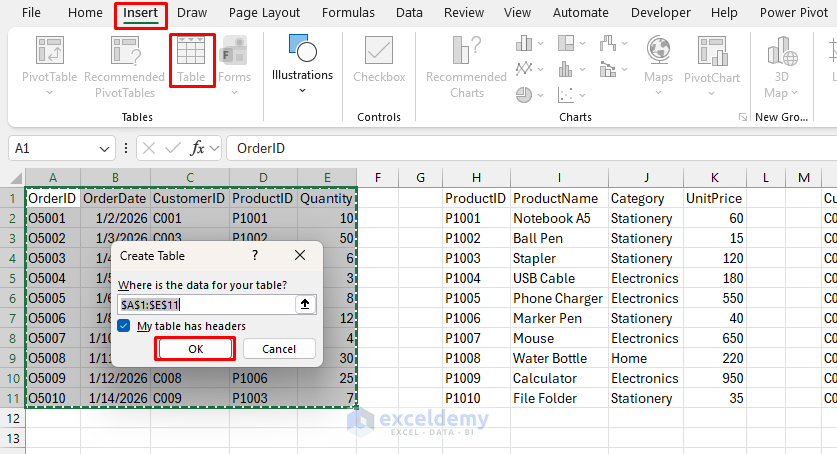
Your data is now formatted as a table with filters, banded rows, and a default style. The table will be named something like “Table1” by default.
Renaming the Table Properly:
- Click anywhere in the table
- Go to the Table Design tab >> set a clear name such as Orders in the Table Name box

Give meaningful table names; this makes it easier to understand your data and is essential when working with multiple tables.
Creating Additional Tables
- Repeat the same process for your second and third datasets
- Select the range
- Go to the Insert tab >> select Table
- Check the box for “My table has headers”
- Click OK

- Rename the second table Products and the third table Customers
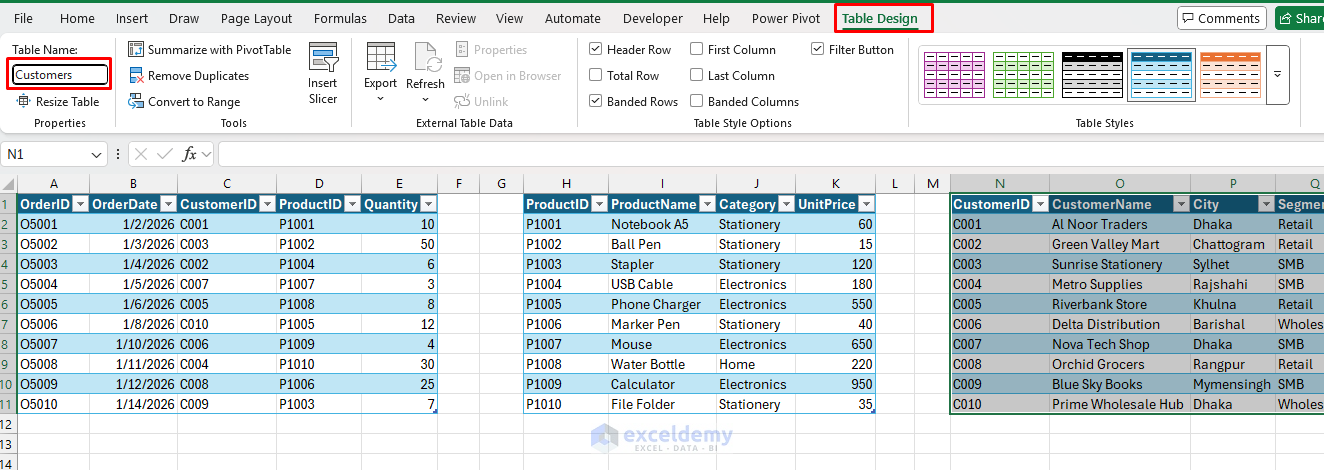
Excel automatically creates each new table without conflicting with existing ones, as long as they do not overlap. You can add as many tables as needed, depending on your data size and system resources.
Using Formulas Across Tables
One of the main advantages of tables is structured references. They create dynamic formulas and make calculations and lookups easier. In this example, the Orders table will look up related details from the Products and Customers tables.
In the Orders table, add three new headers to the right: CustomerName, UnitPrice, and Sales.
CustomerName:
- Select the first cell under the CustomerName column and enter the following formula to extract the customer name from the Customers table
=XLOOKUP([@CustomerID],Customers[CustomerID],Customers[CustomerName],"Not found")
UnitPrice:
=XLOOKUP([@ProductID],Products[ProductID],Products[UnitPrice],0)
Sales:
=[@Quantity]*[@UnitPrice]

Excel automatically understands which table and column you are referencing, even though all tables are on the same worksheet. The formulas expand automatically as new rows are added, and the references remain readable.
Customizing and Managing Your Tables
- Formatting:
- Select a table
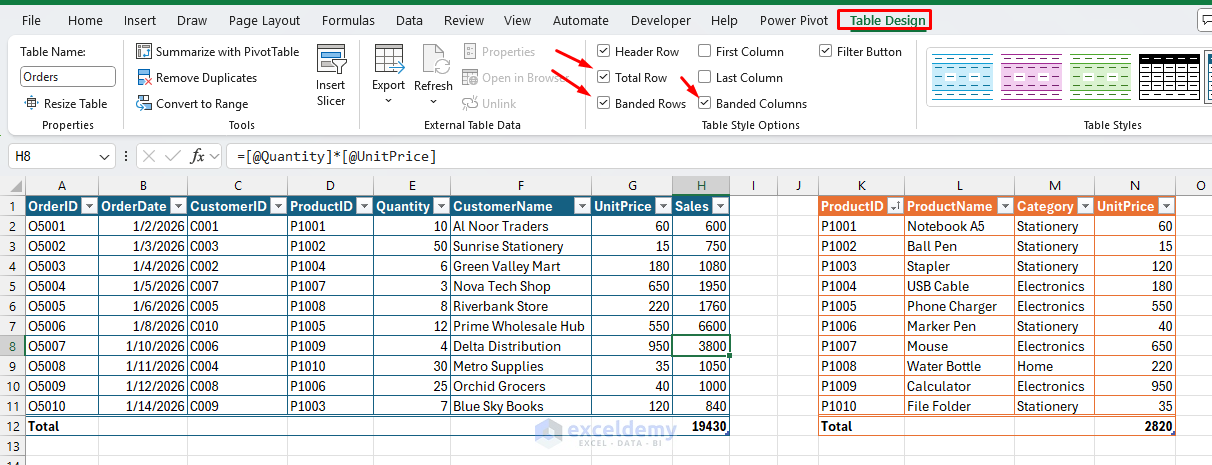
- Go to the Table Design tab >> choose a Style

-
- Check Total Row to add a totals row
- Check Banded Rows or Banded Columns
- Sorting:
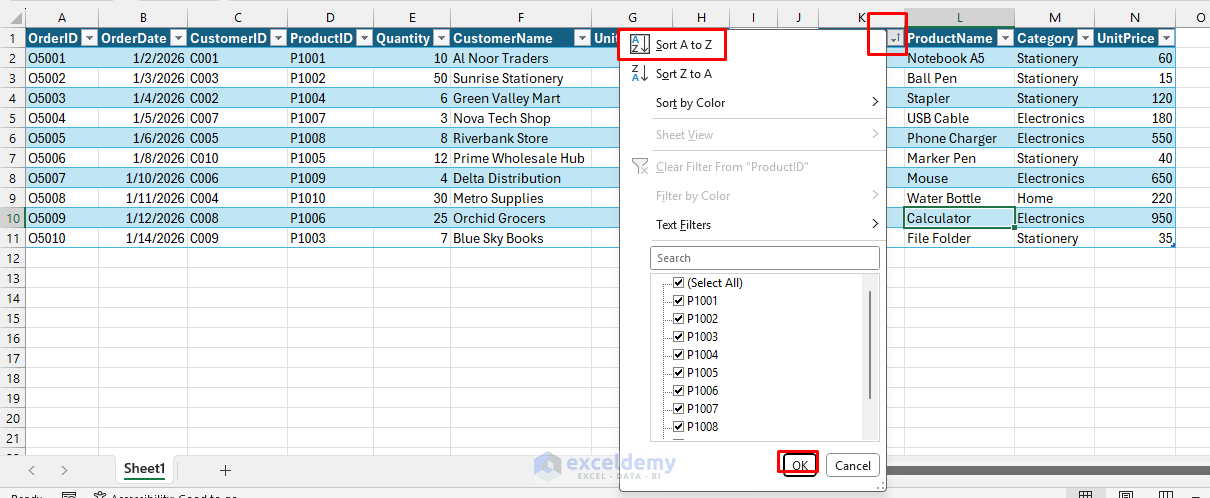
- Click the dropdown arrows in the header row >> select Sort (A–Z)
- Each table sorts independently of the others
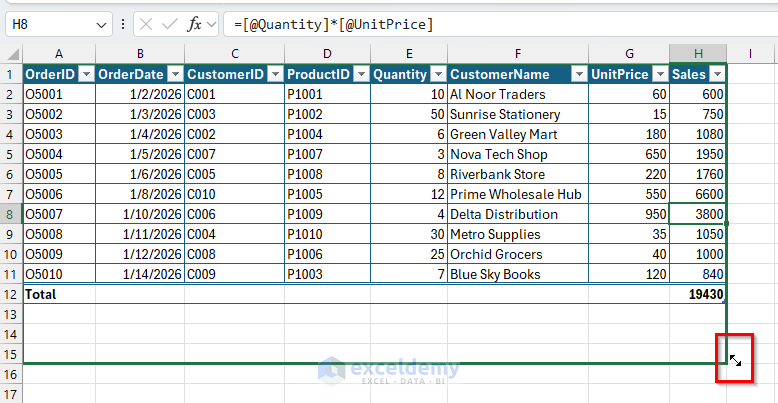
- Resizing: Tables automatically expand if you add rows or columns at the bottom or right edge. To resize manually, drag the blue resize handle in the bottom-right corner.
- Converting Back to a Range:
- Select the table
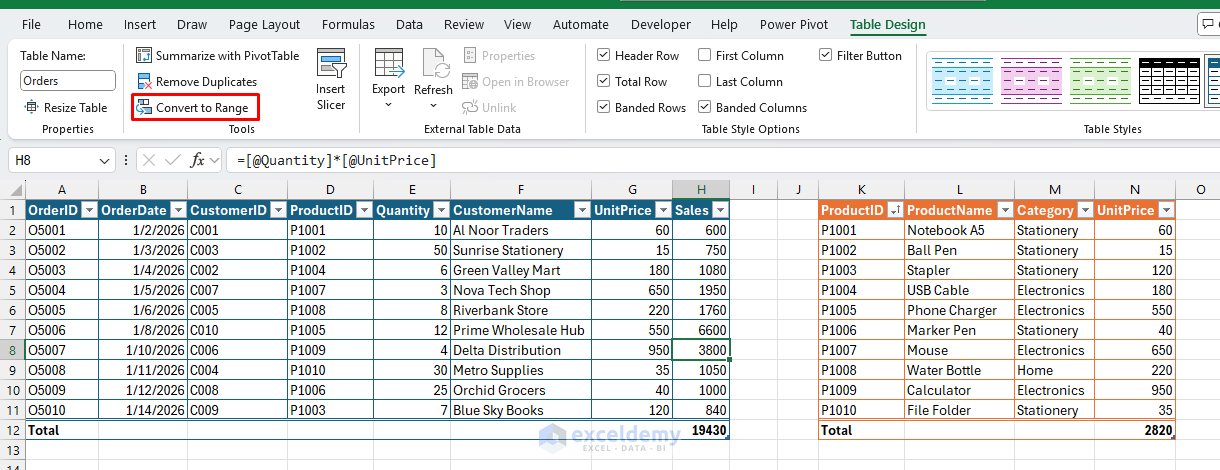
- Go to the Table Design tab >> select Convert to Range to turn it back into normal cells
Stacking Tables Vertically for Independent Filtering
You can also place tables vertically on the same sheet. Insert the Orders table, leave blank rows, then insert the Products table, leave blank rows, and finally insert the Customers table.

Here, filtering a column such as Category only hides rows within that specific table, not the others, because each table operates independently.
Conclusion
By following the steps above, you can create multiple tables in the same sheet and efficiently organize separate datasets in one Excel worksheet. Creating multiple tables in the same sheet is not only allowed, it is considered best practice when datasets are related but logically separate. By spacing datasets correctly, converting each into a table, and using structured references, you gain clarity, flexibility, and a more professional spreadsheet structure.
Get FREE Advanced Excel Exercises with Solutions!

