

In Power BI and similar business intelligence platforms, adding a numeric field to a visual typically summarizes it as a sum by default. Many beginner Power BI users struggle to find other aggregation options, such as Average, Count, and more. If you want a visual to show an average instead, you can change it directly from the visual field well. This setting lives in the field wells area inside the Visualizations pane.
In this tutorial, we will show how to change a visual’s data summary from sum to average using the field wells. Select the visual, expand the value field in the field well, and choose average.
Method 1: Right-Click In The Visualizations Pane
- Select the visual on your report canvas
- Look at the Visualizations pane on the right side of the screen
- In the field wells section (Axis, Legend, Values, Tooltips, etc.), find the numeric field you’re using
- By default, it shows Sum of…
- Right-click the field name inside the well
- A small context menu appears >> choose Average

That’s it! The visual instantly updates to show averages instead of sums.

Method 2: Using The Dropdown Arrow
- Select your visual
- In the Visualizations pane, go to the field wells area and locate the numeric field
- Click the small downward arrow ▼ next to the field name

- From the menu, select Average
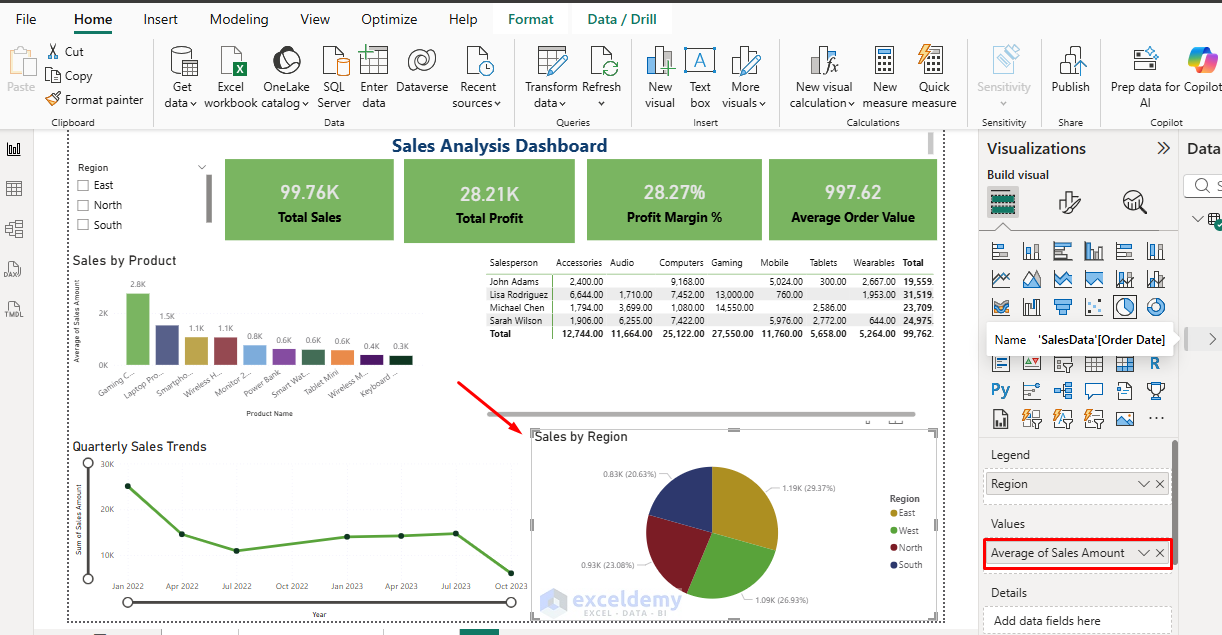
This dropdown sometimes appears only when the field supports multiple aggregation options.
Pro Tip: If you find yourself switching aggregation types frequently, consider creating dedicated measures in your data model when appropriate. This can help keep your visuals consistent across multiple reports.
Alternative Aggregation Options
While you’re in the dropdown menu, you’ll also see other options such as:
- Sum
- Average
- Minimum
- Maximum
- Distinct count
- Count
- Standard deviation
- Variance
- Median
Each option serves a different purpose depending on your analysis needs.

Quick Troubleshooting Tips
- Clicking the chart instead of the field well: Aggregation changes are made in the field well or data pane, not by clicking the bars or numbers in the chart itself.
- Can’t see Average in the list? The field might be set to Don’t summarize, or it may be a measure with fixed behavior.
- Remove the field from the visual and add it again
- Right-click again, or go to the Data pane >> right-click the column >> select Default summarization >> set it to Average
- Do you want an average, but see individual row values instead? Make sure the field is in the Values well, not in Axis or Legend. Also remove any extra grouping fields that prevent aggregation.
- Calculated measures (DAX): You usually can’t change their aggregation in visuals because the aggregation is defined in the measure formula itself.
- Changes apply to only one visual: Aggregation is set per visual, per field. If you use the same field in multiple charts, you’ll need to change each one separately.
Conclusion
By following these steps, you can change a visual’s data summary from sum to average. Changing a field’s aggregation from sum to average is a small adjustment, but it can have a big impact on how your data is interpreted. A sum shows the total, while an average shows what is typical, and knowing when to use each is a fundamental part of building clear, meaningful visuals. You can also experiment with other aggregation options such as count, min, max, and median, depending on the question you’re trying to answer. Making the right aggregation choice will help you create more accurate and effective dashboards.
Get FREE Advanced Excel Exercises with Solutions!


thank you so much.
Hello Mohammad Afzal,
You are most welcome. Thanks for your appreciation.
Keep exploring Excel with ExcelDemy!
Regards,
ExcelDemy