

Working Capital and Working Capital Days are very frequently used terms in any business model. A proper illustration of these two terms is undoubtedly necessary if you work for an organization or own a company yourself. This tutorial will provide you with a proper overview of these terms and the process of calculating working capital days in Excel.
Overview of Working Capital Days
What Is Working Capital?
Working Capital shows how much the current assets exceed current liabilities. This is a common term frequently used in any business model. It is also known as net working capital. Every company holds some current assets, (i.e. accounts receivable, cash, and inventories of raw materials and finished products), and also some liabilities, (i.e. Debts in recent times, accounts payable, and penalties for various issues). Working capital denotes the difference between the current assets and current liabilities of a company. So, working capital provides an idea about the company’s surplus or shortfall in cash on a short-term basis.
Working Capital Formula
Notes:
- If the ratio of current assets to liabilities is greater than 1 then the company’s working capital is positive. The company is considered financially healthy over that short period, indicating that it can fund its current activities and invest in the future for the overall development & progress and vice versa.
- However, it should be kept in mind that positive working capital is not a universal indicator of the upliftment of a company. Sometimes huge working capital may result from unwise decisions like not investing extra capital, a surplus of inventory over a long period without taking action to make revenue, etc.
Understanding Working Capital Days
The working capital days provide an overview of the efficiency of a company. The term denotes the number of days needed for a company to convert the working capital into revenue. So higher working capital days are an indicator of more time taken to convert working capital into sales.
Working Capital Days Formula
So, the lower the working capital, the better it is for a company as it can quickly turn the working capital into profits and vice versa. So, it is much needed for the authority to compare the working capital days with different companies to get an overview of their performance and for better insight into them. High working capital days are usually induced by a decrease in the cash inflow from sales.
How to Calculate Working Capital Days in Excel: Easy Steps
Let’s interpret the term working capital days step-by-step. Consider the assets and liabilities of a company and extract the working capital days from it.
⏩ Step 1: Input Particulars of the Balance Sheet
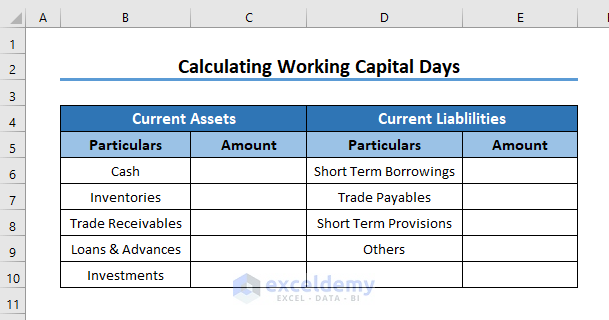
In the concerning balance sheet, there are two segments: Current Assets and Current Liabilities. You have to assign particulars to these two categories.
- First of all, input particulars for the two segments. For Currents assets, we have used the particulars:
- Cash
- Inventories
- Trade Receivables
- Loans & Advances
- Investments
For Current liabilities, particulars used here are:
- Short-term Borrowings
- Trade Payables
- Short Term Provisions
- Others
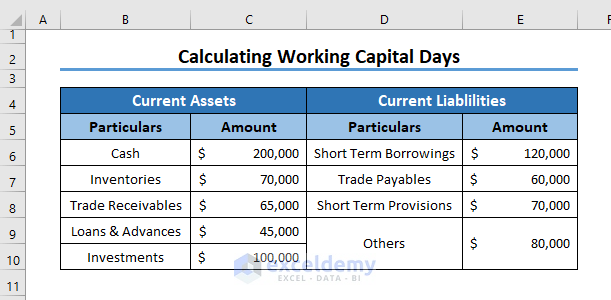
- Assign the amount of each particular used in the balance sheet.
⏩ Step 2: Calculate Current Assets and Liabilities
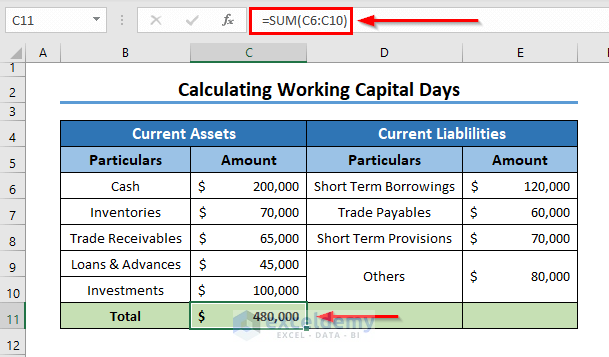
Then calculate the total amount of Current Assets and Current Liabilities.
- Here, for calculating the total Current Assets, apply the following formula.
=SUM(C6:C10)Here,
- C6:C10 = Range of particulars of Current Assets.
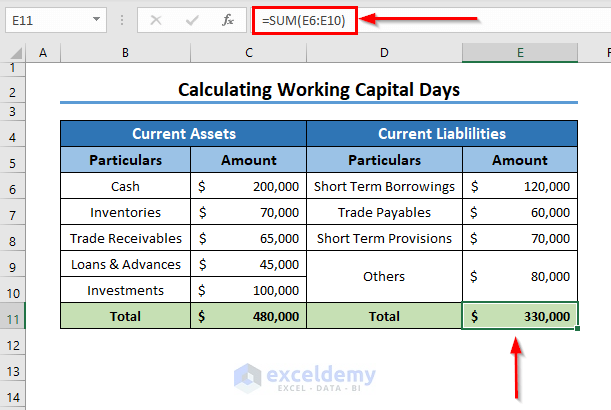
- Then, apply the formula below to calculate the total Current Liabilities.
=SUM(E6:E10)Here,
- E6:E10 = Range of particulars of Current Liabilities.
Read More: How to Calculate Overdue Days in Excel
⏩ Step 3: Calculate Working Capital
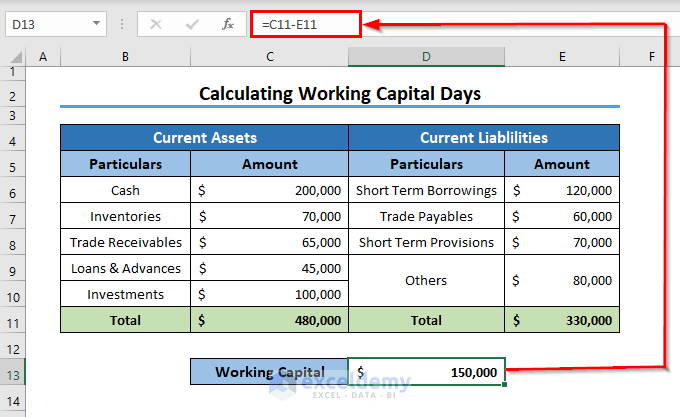
After finding the total current liabilities and assets, move on to the next part and calculate the working capital which is the difference between assets and liabilities.
- Now, select a cell for calculating the working capital and apply the formula below in the selected cell.
=C11-E11Here,
- C11 = Total Current Assets
- E11 = Total Current Liabilities
Read More: How to Calculate Remaining Days in Excel
⏩ Step 4: Calculate Working Capital Days
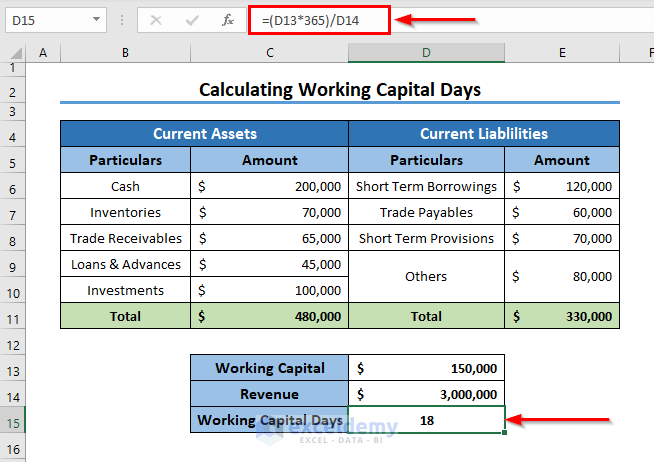
Let’s say, the balance sheet we are dealing with has made a revenue of $3000000 from sales.

From Step 4, we have calculated the Working Capital. Now it’s time to calculate working capital days in Excel which indicates how much time the company is spending on holding the products in inventory.
- To calculate the working capital days from the working capital calculated in the previous step, type the formula below in that cell.
=(D13*365)/D14Here,
- D13 = Working Capital
- D14 = Revenue from Sales

- Press ENTER, and the cell will calculate the working capital days.
Read More: How to Calculate Days Outstanding in Excel
Practice Section
Here, I am providing you with a practice worksheet with the relevant formula so that you can practice yourself.

Points to Remember
- In business terms, current refers to a period of 12 months or less.
- Positive working capital is an indicator of the upliftment of the company.
- Less working capital days indicates that the company can quickly achieve revenue from sales.
📁 Download Practice Workbook
You can download the practice book from the link below.
Conclusion
In this article, I have tried to give an overview of working capital and calculate working capital days in Excel. Hope you like the article. If you have better methods, questions, or feedback regarding this article, please don’t forget to share them in the comment box. For more queries, kindly visit our website. Have a great day!
Related Articles
- How to Calculate Average Tenure of Employees in Excel
- How to Calculate Tenure in Years and Months in Excel
- How to Calculate 90 Days from a Specific Date in Excel
- How to Create a Day Countdown in Excel
<< Go Back to Days Between Dates | Calculate Dates | Date-Time in Excel | Learn Excel
Get FREE Advanced Excel Exercises with Solutions!

