


Excel is a go-to tool for detailed analysis and reporting. Power BI is a fantastic tool for managing enterprise datasets and distributing analytics. Teams often want to combine both platforms to get the best of each. You can connect Excel workbooks directly to Power BI datasets for flexible reporting, but this requires frequent data updates to stay in sync.
In this tutorial, we show how to automate Excel file refreshes based on Power BI data updates.
Method 1: Excel Automation Using VBA and Refresh Properties
This method is useful if you store your Excel file locally and prefer a quick, machine-based solution.
Step 1: Connect Excel to the Power BI Dataset
- Open Excel Desktop
- Go to the Data tab >> select Get Data >> select From Power Platform >> select From Power BI (Datasets)
- Sign in with your Power BI account
- Select the dataset >> click Insert PivotTable or Insert Table
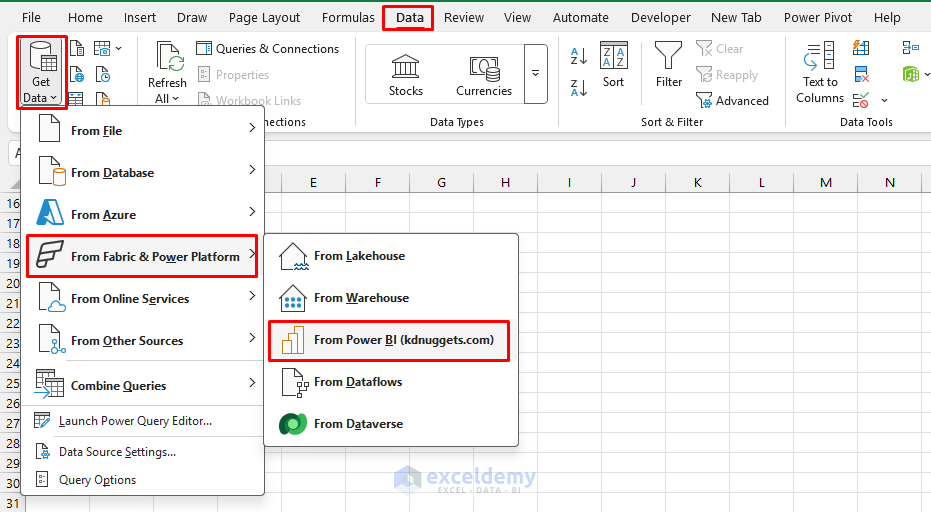
Now that Excel is linked to Power BI, it refreshes by default only when you manually trigger it.
Step 2: Enable Workbook Refresh Settings
You can schedule a workbook refresh in Excel.
- Go to the Data tab >> select Refresh All to manually update data

Excel Automation:
- Go to the Data tab >> select Connections >> Properties

- In the dialog box:
- Check Refresh data when opening the file
- Check Refresh every and set a frequency
- Click OK

This ensures that whenever the file opens, Excel automatically pulls fresh data from Power BI.
Step 3: Create a Refresh Macro
You can also use VBA to automate the refresh process.
- Go to the Developer tab >> select Visual Basic
- Click Insert >> select Module
- Copy and paste the following VBA code
Sub AutoRefreshAndSave()
    ThisWorkbook.RefreshAll
    Application.Wait Now + TimeValue("0:00:20") ' wait 20 sec for refresh
    ThisWorkbook.Save
    Application.Quit
End Sub

Method 2: Cloud Automation (Office Scripts & Power Automate)
This is the most reliable and modern approach. It requires storing your workbook in OneDrive or SharePoint and setting up a Power Automate flow that runs right after your Power BI dataset refreshes.
Step 1: Prepare Your Excel Workbook
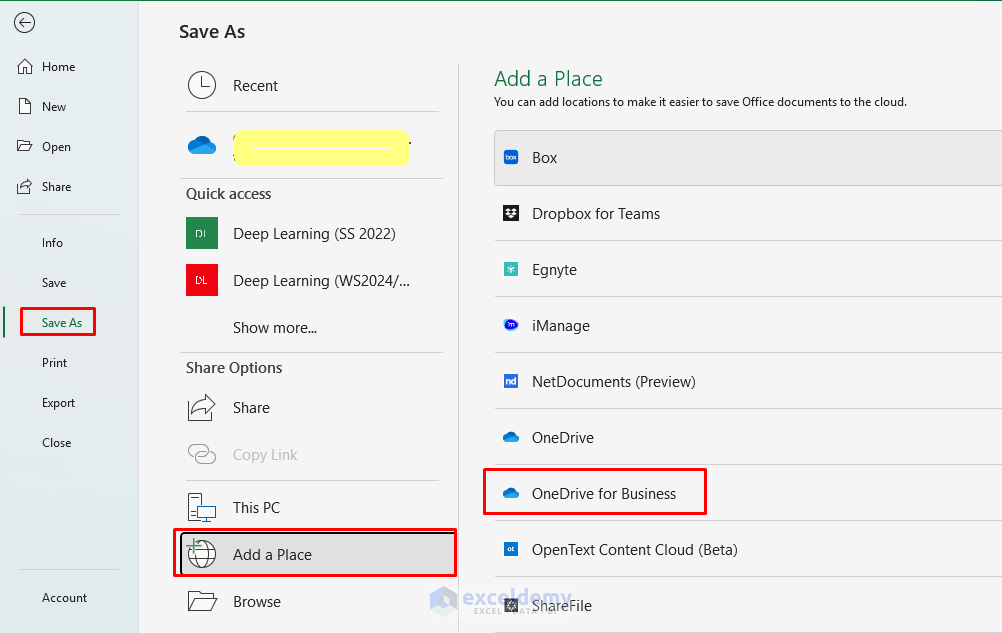
- Save the workbook in OneDrive or SharePoint
- Ensure it is connected to a Power BI dataset (via PivotTables or Power Query)
Step 2: Create an Office Script in Excel for the Web
- Open the workbook in Excel for the web
- Go to Automate >> select New Script
- Replace the contents with the script below and save (e.g., as RefreshAll)
function main(workbook: ExcelScript.Workbook) {
    // Refresh Power BI dataset connections
    workbook.refreshAllDataConnections();

    // Refresh all PivotTables
    workbook.refreshAllPivotTables();

    // Optional: log refresh time
    const ws = workbook.getActiveWorksheet();
    ws.getRange("A1").setValue("Last cloud refresh:");
    ws.getRange("B1").setValue(new Date().toISOString());
}
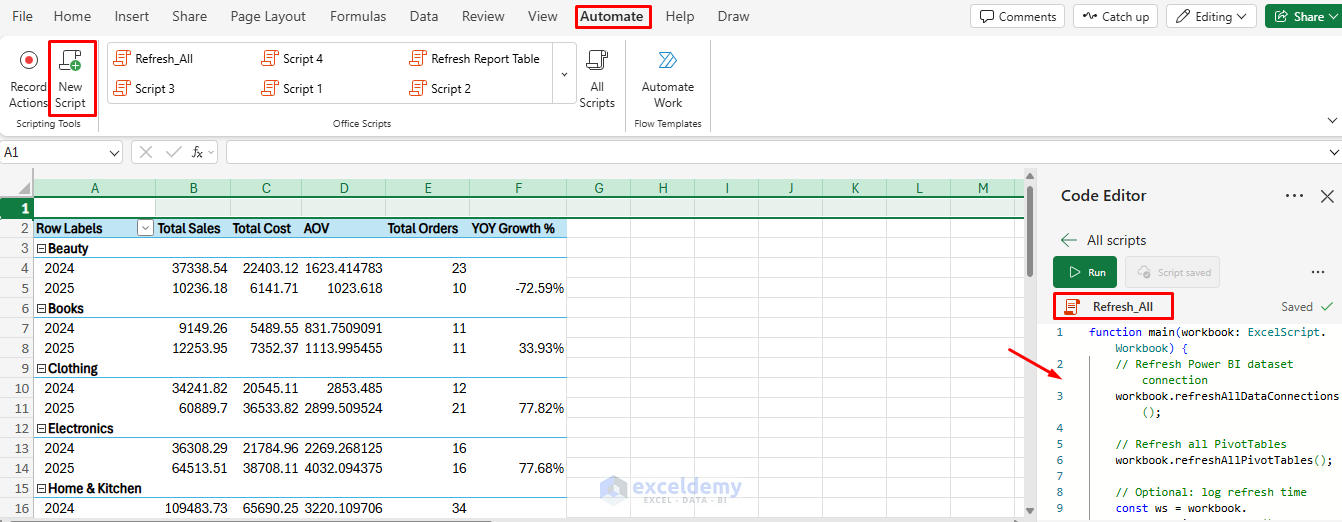
This script tells Excel to refresh all Power BI connections and PivotTables, then mark the refresh time.
Step 3: Build the Flow in Power Automate
If you have a Premium Power Automate plan, you can use the dataset refresh trigger to automate the process end to end.
- Open Power Automate in the browser
- Or go to the Automate tab >> select Automate a Task >> select See all templates if the trigger is not available

- Click Create >> select Automated cloud flow

- Name the flow (e.g., Excel refresh after Power BI dataset refresh)
- In Choose your flow’s trigger, search for Power BI
- Select When a Power BI dataset refresh completes (ideal)
- Configure the trigger:
- Workspace: choose the workspace hosting your dataset
- Dataset: choose your dataset
- (No other fields are needed here)
Tip: Your account must have permission on that dataset (Workspace Admin/Member, or at least “Build”).
If the Dataset Refresh Trigger Is Missing (Use a Data-Driven Alert)
In some tenants, you may only see “When a data-driven alert is triggered.” You can use the following steps instead.
Create a RefreshPulse measure in Power BI:
- In Power BI Desktop, create the following DAX measure
RefreshPulse = VALUE(UTCNOW())
- Add this measure to a Card visual
- Publish the report

- Open Power BI Service
- Pin the card to a dashboard

Create a Data Alert on the Dashboard Card
- In Power BI Service, hover the card
- Click Add alert
- Add an alert rule with the condition “is greater than 0”
- Save the alert
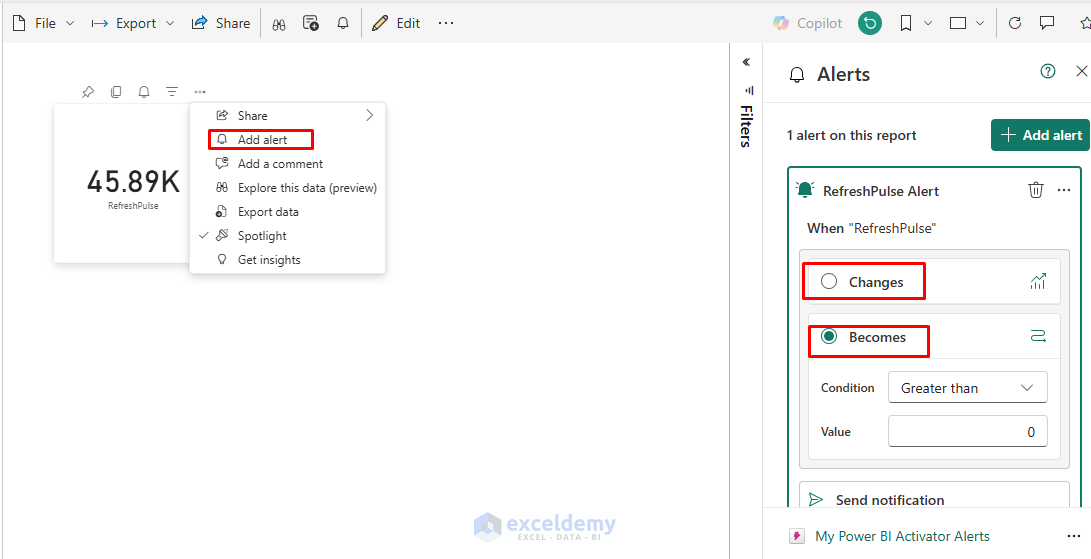
Now every dataset refresh changes the value, which fires the alert.
Build the Flow in Power Automate:
- In Power Automate, create a new flow
- Choose Power BI >> select When a data-driven alert is triggered

- Add an action:
- Excel Online (Business) >> Run script
- Location: OneDrive/SharePoint
- File: your Excel workbook
- Script: RefreshAll
Now data updates will happen automatically in the cloud, even if your computer is off.
Best Practices
- Store files in OneDrive/SharePoint, not local drives
- Test the script manually once before scheduling
- Use a timestamp cell to confirm refreshes ran as expected
- For large models, add a Delay action before refreshing Excel
Conclusion
Power BI dataset updates and Excel refreshes are separate; one does not automatically trigger the other. By following the methods above, you can automate the Excel file refresh based on Power BI data updates. Desktop users can automate refresh with VBA and refresh properties. Cloud users can automate refresh with Power Automate and Office Scripts, tied to the dataset refresh or to data-driven alerts. If your reports are business-critical, use the Power Automate + Office Scripts approach—it ensures your Excel workbooks are always up to date with Power BI data.
Get FREE Advanced Excel Exercises with Solutions!

