

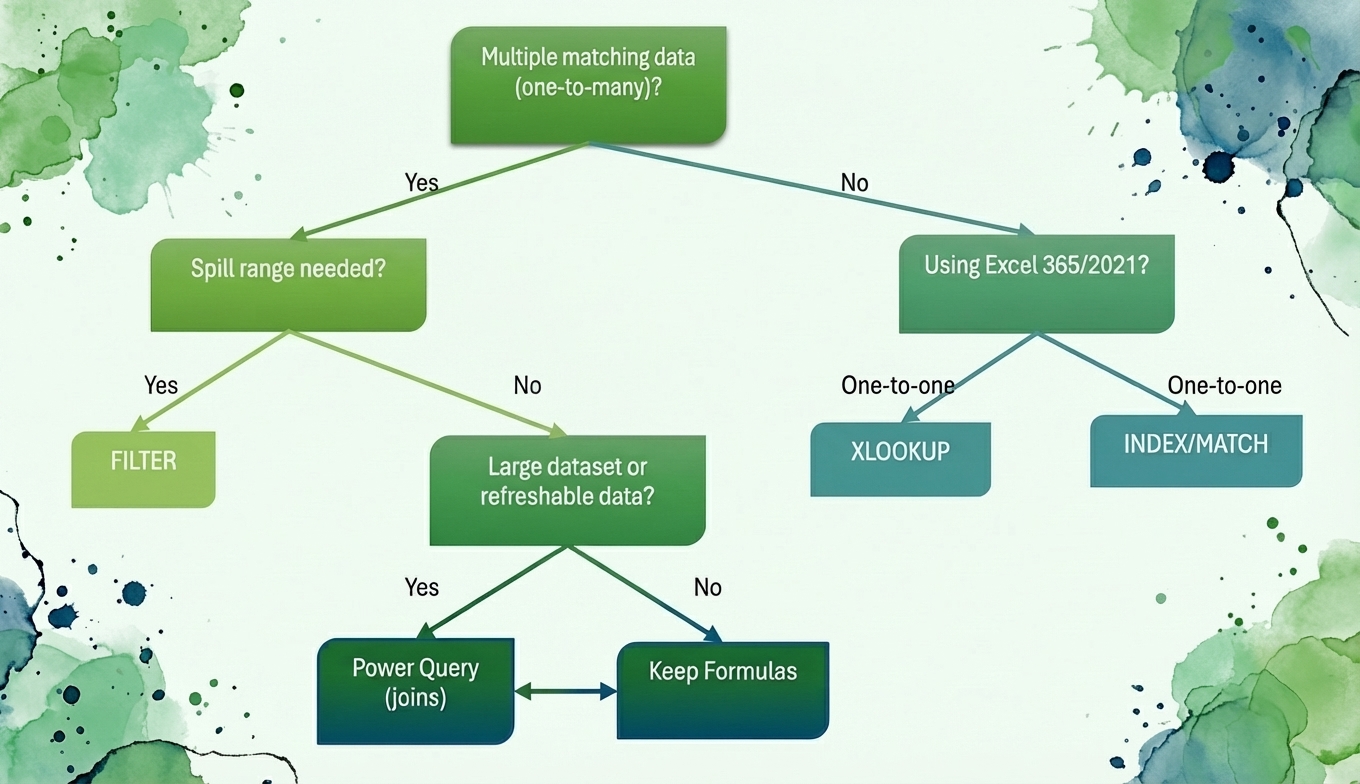
Lookup functions make data retrieval efficient. Excel offers multiple lookup options, and choosing the right strategy can be tricky. Selecting the optimal approach yields the most reliable result. In this tutorial, we create an Excel lookup function framework for choosing the right strategy. This framework helps experienced users decide which approach fits best based on data shape, scale, and intent.
You can follow the above flowchart to choose the right lookup strategy.
XLOOKUP: Best for One-to-One Lookup (Modern Excel)
First, decide what you are looking for. Are you retrieving a single matching record, or do you need all records that match your criteria?
Use XLOOKUP when you want a single result, readable formulas, and optional “not found” handling.
Consider a sample sales dataset where orders, product details, and customer information live in separate tables. We explore lookup strategies for retrieving sales information from various tables.
Lookup UnitPrice into Orders:
=XLOOKUP(D2, Products!$A$2:$A$7, Products!$D$2:$D$7, "Not found")

Similar Formula in Table Format:
=XLOOKUP(Orders[@SKU], Products[SKU], Products[UnitPrice], "SKU not found")
Finding the CustomerName in Orders:
=XLOOKUP(Orders[@CustomerID], Customers[CustomerID], Customers[CustomerName], "Customer not found")

These formulas look up values in different tables and return a single matching record. XLOOKUP can be your default choice for one-to-one lookups in modern Excel. It offers:
- Clean, readable syntax with built-in error handling via the if_not_found argument
- Native support for leftward and bidirectional lookups
- Exact and approximate match modes without arcane match-type parameters
Use XLOOKUP when you have Microsoft 365 or Excel 2021+ and need straightforward single-value retrieval.
INDEX/MATCH: Best for Compatibility and Still Powerful
Choose INDEX/MATCH if your file must work in older Excel versions, or when your team standard is INDEX/MATCH.
UnitPrice via INDEX/MATCH:
=INDEX(Products[UnitPrice], MATCH(Orders[@SKU], Products[SKU], 0))
This formula remains a solid choice for older versions, but it’s easier to misread and harder to maintain at scale than XLOOKUP for many teams.

FILTER: Best for One-to-Many Results (Spilled Lists)
Choose FILTER when you want a dynamic list of records that updates automatically. It extracts a subset of data based on criteria and keeps those results updated automatically. FILTER is purpose-built for one-to-many retrieval:
- Returns all matching rows as a dynamic spill array
- Handles multiple criteria with Boolean AND/OR logic
- Automatically expands and contracts as source data changes
- Integrates seamlessly with other dynamic array functions
Show All Orders for a CustomerID:
=FILTER(Orders, Orders[CustomerID]=H2, "No orders found")

All West Region Orders for SKU P-101:
=FILTER(Orders, (Orders[Region]=H9)*(Orders[SKU]=H7), "No matches")

These formulas differ from XLOOKUP because FILTER doesn’t return a single value—it returns a spilled, table-shaped answer. That’s a different job than XLOOKUP/INDEX-MATCH.
Power Query: Best When the Lookup Is Really a “Join” (Data Modeling)
Power Query becomes the better choice when you need to perform transformations on filtered results. Use it when,
- The data is large,
- Data comes from external sources and must be refreshed,
- You want a repeatable transformation pipeline,
- You want to build a clean, merged table for PivotTables/dashboards.
Let’s create a table that includes Product and Customer columns (UnitPrice, Product, CustomerName, Segment).
Steps (Merge/Join):
- Convert ranges to tables (press CTRL+T). Our data is already in table format.
- Go to Data tab >> select Get Data >> select From Table/Range (start with Orders).

- In Power Query Editor: Home >> select Merge Queries
- Merge Orders with Products table
- Select Orders[SKU] and Products[SKU]
- Join kind: Select Left Outer (keep all Orders)
- Click OK

-
- Click the Expand icon >> select Product, Category, and UnitPrice
- Click OK

- Merge Orders with the Customers table
- Match Orders[CustomerID] to Customers[CustomerID]

-
- Click the Expand icon >> select CustomerName, Segment
- Click OK

- Click Close & Load to load the data in Excel.

Here is the new Orders-enriched table, which includes product and customer details.

You merge once, refresh anytime, and avoid repeating lookups across thousands of rows and multiple columns.
Choosing Between FILTER and Power Query for One-to-Many
Both FILTER and Power Query offer advanced, automated results. Sometimes users face a dilemma when choosing one for one-to-many.
- Choose FILTER when an interactive sheet experience is needed. Change the criteria cell, and the list updates instantly. It is useful for interactive dashboards.
- Choose Power Query when a refreshable dataset is needed to feed reporting (PivotTables, charts, model tables), especially with bigger data.
Tips and Tricks
- If the output is one cell, choose XLOOKUP (or INDEX/MATCH for compatibility).
- If the output is a list/table that should grow automatically, choose FILTER.
- If the task is fundamentally joining datasets and must be refreshable/scalable, use Power Query.
- If you’re doing the same lookup across many columns (price, category, name, segment…), we strongly recommend a Power Query merge instead of repeating formulas.
Conclusion
This tutorial flowchart helps you choose the right lookup strategy. Decide first which type of lookup your data requires. There is no universal “best” lookup function—context determines the optimal approach. Master the framework, not just the functions, and your lookup strategies will scale with your needs. Develop the strategic sense to choose the right lookup method, and your solutions will be faster to build, easier to maintain, and more robust as requirements evolve.
Get FREE Advanced Excel Exercises with Solutions!

