

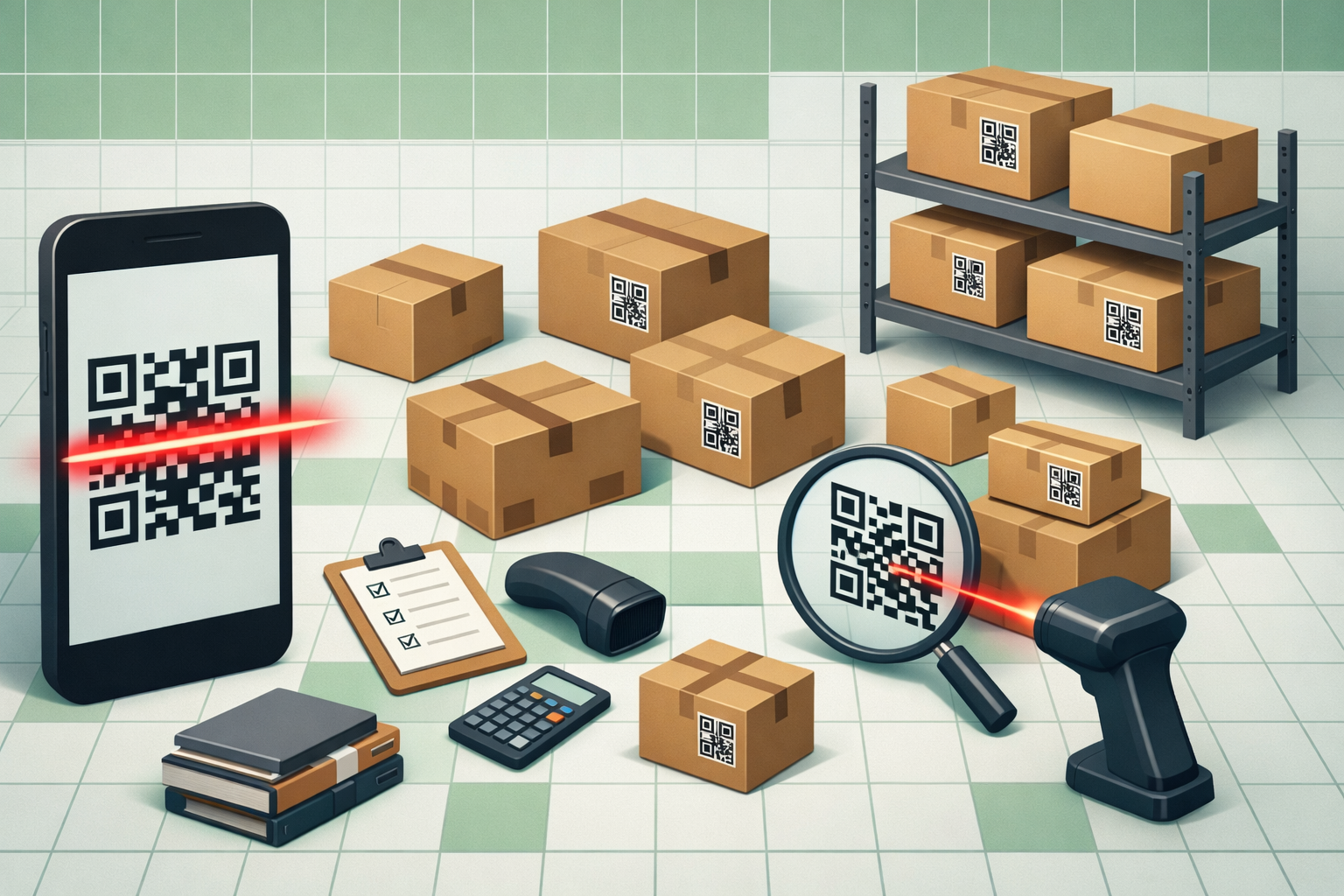
Excel is a dynamic tool, and users can use it as an inventory tracker for lightweight inventory management. If someone wants a simple inventory system without buying expensive software, a QR-based tracker is one of the cleanest setups. A QR inventory tracker works best when each scan creates a new log entry (append-only), and Excel calculates the current status of every item from the most recent log rows. The smoothest user experience is when the QR code opens a pre-filled Microsoft Form. It’s perfect for small businesses, warehouses, schools, and home organizations.
In this tutorial, we will show you how to build a QR code inventory tracker with Excel.
Step 1: Set Up Your Excel Workbook
- Open Excel and create a new file
- Save it to OneDrive (important for mobile sync)
- Create three sheets:
- Inventory (master list)
- ScanLog (every scan becomes a row here)
- Dashboard (current status + quick summaries)
Use this structure in the Inventory sheet:
- ItemID
- ProductName
- Category
- CurrentStock
- MinStock
- Location
- QRText
- QRImage
Convert to Table:
- Select the cell range
- Go to the Insert tab >> select Table
- Check “My table has headers”
- Click OK
- Go to the Table Design tab >> name it: Inventory

Rules:
- ItemID must be unique (this is what goes inside the QR code)
- QRText stores the exact string encoded into the QR code
Generate ItemID (Simple, Readable):
In ItemID, use a consistent format like:
- ITM-0001, ITM-0002, …
If someone wants an automatic formula, use:
="ITM-"&TEXT(ROW(A1),"0000")
- Drag the formula down
Create QRText (Optional):
In QRText, keep it clean and stable:
="ItemID="&[@ItemID]
Now the QR code content will look like ItemID=ITM-0001. This avoids scanning errors and makes parsing easier later.
Step 2: Generate QR Codes Automatically
Option A: Using Excel To Generate QR Codes In Bulk
In the QRImage column of the Inventory table, enter this formula in the first data row:
=IMAGE("https://api.qrserver.com/v1/create-qr-code/?size=180x180&data=" & [@ItemID])
- Drag the formula down
- This creates a clean, high-quality QR code that contains only the ItemID

Alternative free APIs (if QR server is slow): goqr.me or https://chart.googleapis.com/chart?chs=180×180&cht=qr&chl=
Option B: Using A Free Online Generator
- Visit a free QR code generator like QR Code Generator (qr-code-generator.com) or QRCode Monkey (qrcode-monkey.com)
- For each item, create a QR code containing just the ItemID
- Download each QR code as a PNG or JPG
- Print and attach the QR codes to your physical items
Pro tip: Use a batch QR code generator if you have many items. Websites like QRExplore allow you to upload a CSV file and generate multiple QR codes at once.
Step 3: Print QR Code Labels
Make a printable label sheet in Excel so you can attach QR codes to items.
- Select ItemID, ProductName, and QRImage
- Copy and paste to a new sheet named Label
- Format for printing:
- Set row height so the QR fits
- Go to the Page Layout tab >> select Margins >> select Narrow
- Print on sticker paper or cut out labels
- Stick the labels on your products/shelves/boxes

Step 4: Choose Your Scanning App That Sends Data To Excel
Option A: Use A Scan App That Can Export History
You can use a scanning app that reads QR codes and sends the data to Excel.
- App name: Scan to Excel – QR & Barcode (by Dynamiq Data)
- The free tier provides enough scans for most users; a subscription typically costs ~$3–5/month for heavy use
- Install from Google Play
- Open the app and sign in with a Microsoft account
- Connect to your OneDrive Excel file
- Select the ScanLog table
- Set the schema:
- Timestamp >> Automatic timestamp
- ItemID >> Scanned data
- Action >> Manual selection (choose “Receive” or “Issue” after each scan)
- Quantity >> Default to 1
- Start scanning
Most QR scanners store scan history and allow export/share.
- Scan a QR label
- Immediately type a short note in the app (if it supports notes)
- At the end of the day/week: Export scan history to CSV
- Paste/append into ScanLog
Option B: Create A Microsoft Form For Scan Submissions
You can create a Microsoft Form, scan the QR code with your phone, submit the transaction, and have Excel update automatically. This is what most people want.
- Go to the Insert tab >> click New Form
- It will open a form interface. Add these fields:
- ItemID (Short answer)
- Action (Choice): Receive, Issue
- Quantity (Short answer): Later convert it to a number in Excel

- Click on Collect Responses

- Click on Copy link to share the URL

This form automatically creates a connected Excel workbook where every submission becomes a new row. Test it with a few sample submissions:
- Scan QR with phone
- Confirm ItemID (or type it manually)
- Select Action
- Type Quantity
- Click Submit

- Open the Excel workbook and check the Form responses sheet
- Every submission is added as a row automatically
- Update column names and remove unnecessary columns
- Name the sheet ScanLog

Option C: Make Scanning Auto-Fill The ItemID Field
Instead of putting only ITM-0001 in the QR code, you can encode a pre-filled form link. Microsoft Forms supports pre-filled fields using a URL pattern (depending on the form settings). You can set up the Inventory sheet to encode a pre-filled form link inside each QR code.
- Open form >> three dots >> select Get pre-filled link

- Enter a sample ItemID (like ITM-0001)
- Click Get pre-filled link
- Click Copy link to get the generated link
- Replace that sample ItemID with a placeholder

A pre-filled URL looks like:
https://forms.office.com/Pages/ResponsePage.aspx?id=DQSIkWdsW0yxEjajBLZtrQAAAAAAAAAAAAN__gCq2f5UNloxU0IwWTM0Nj……..=ITM-0001
Create the per-item PrefilledLink in Excel:
- Insert a new column named PrefilledLink in the Inventory sheet
- Paste the copied pre-filled URL in a FormPrefillTemplate cell (for example, in G2)
- Insert the following formula to replace the sample ITM-0001 inside the template with the current row’s ItemID
=SUBSTITUTE($G$2,”ITM-0001″,[@ItemID])
Now each row has its own unique URL that opens the form with the correct ItemID already filled.

Turn each PrefilledLink into a QR code:
In the QRImage column, insert the following formula:
=IMAGE(“https://api.qrserver.com/v1/create-qr-code/?size=180×180&data=” & ENCODEURL([@PrefilledLink]))
It will return a QR image that opens the pre-filled form link.

Print and label items:
Make a simple label layout (same sheet or a separate “Labels” sheet) that shows:
- ItemID
- ProductName
- QRImage
Print on sticker paper, then attach labels to items. After labels exist, avoid changing ItemIDs.
Test the scanning workflow:
Most users will scan using the phone scanner:
- Open the scanner on the phone
- Scan the QR label
- It will automatically open the form with ItemID filled in

- Confirm ItemID is already filled
- Select Action and Quantity
- Click Submit

This is the smoothest real-world workflow.
Step 5: Design the Scan Log Structure
Every scan is treated as an inventory transaction. Microsoft Forms creates a responses table with a timestamp column and one column per question. Rename the responses sheet to ScanLog.
Make sure ScanLog includes these columns:
- Timestamp
- ItemID
- Action
- Quantity
This log should remain append-only. The tracker is reliable because the history is preserved, and stock is always calculated from the full log.
Key principle:
- This table is append-only
- No rows are edited or deleted
Step 6: Calculate Current Stock
In the CurrentStock column of the Inventory table, use this formula to calculate stock on hand:
=LET(
id, [@ItemID],
initial, 0,
received, SUMIFS(ScanLog[Quantity], ScanLog[ItemID], id, ScanLog[Action], "Receive"),
issued, SUMIFS(ScanLog[Quantity], ScanLog[ItemID], id, ScanLog[Action], "Issue"),
initial + received - issued
)
This automatically updates stock every time you scan.

Low Stock Alert:
- Select the CurrentStock column >> select Conditional Formatting >> select Highlight Cells >> select Less Than
- Select MinStock >> select Format
- Click OK

Low and negative stock values will be highlighted.

Step 7: Build A Simple Dashboard
Create a Dashboard sheet and summarize the inventory.
Total Unique Items:
=COUNTA(UNIQUE(Inventory[ItemID]))
Total Stock On Hand:
=SUM(Inventory[CurrentStock])
Overdrawn Items (Negative):
=COUNTIF(Inventory[CurrentStock], "<0")
Last Scan Time:
=MAX(ScanLog[Timestamp])
Total Transactions:
=COUNTA(ScanLog[Timestamp])
Show Low Inventory:
=FILTER(Inventory[[ItemID]:[Location]], Inventory[CurrentStock] < Inventory[MinStock], "No items to reorder")

Workflow Summary
- Scan the item’s QR code with your phone or scanner app
- Choose Receive or Issue
- Excel updates automatically (refresh if the workbook isn’t syncing)
- Stock is always up to date
Conclusion
By following the steps above, you can build a QR code inventory tracker with Excel. This system works best when the process stays simple for users and reliable for reporting. By assigning each item a permanent ItemID, generating QR labels, and logging every scan through a pre-filled Microsoft Form, each interaction becomes a clean, timestamped record — without anyone manually editing inventory cells. You can use a free or low-cost scanner app, or build your own workflow using Microsoft Forms. Excel formulas and a lightweight dashboard make it easy to monitor stock levels, review transaction history, and audit changes as your inventory grows.
Get FREE Advanced Excel Exercises with Solutions!

