

A complex number is a combination of real numbers and imaginary numbers represented in x+iy format. Where x is the real part and y is the coefficient of the imaginary part. In Excel, there are some functions to deal with complex numbers located in the Engineering functions category.
In this tutorial, you will learn how to use 11 complex number functions in Excel with proper examples and illustrations.
Here’s an overview of the application of some complex number functions in Excel.
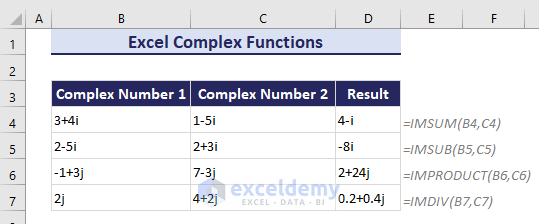
11 Complex Functions in Excel
1. COMPLEX Function
The COMPLEX function returns a complex number from real and imaginary coefficients. It maintains the form of x + yi or x + yj.
The syntax of the COMPLEX function is:
COMPLEX(real_num, i_num, [suffix])
In the below dataset, there are some real coefficient in range B6:B10 and imaginary coefficients in C6:C10.
- Insert the following formula in cell D6 to return the corresponding complex number:
=COMPLEX(B6,C6) - Then used the Fill Handle tool to copy the formula for the other cells.
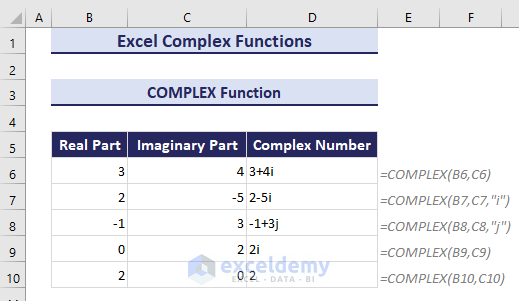
Note: All complex number functions accept “i” and “j” for suffixes, but neither “I” nor “J”.
2. IMREAL Function
The IMREAL function returns the real part of a complex number that is in x + yi or x + yj format.
The syntax of the IMREAL function is:
IMREAL(inumber)
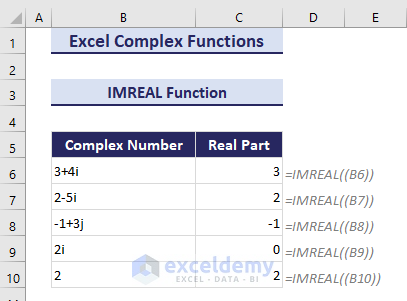
In our below dataset, there are some complex numbers within range B6:B10.
The formula for the real part using the IMREAL function in cell C6 is: =IMREAL((B6))
3. IMAGINARY Function
The IMAGINARY function is used to calculate the imaginary coefficient of a complex number.
The syntax of the IMAGINARY function is:
IMAGINARY(inumber)
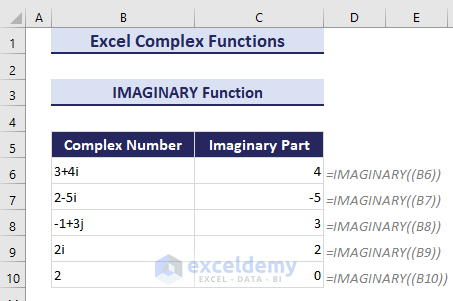
To obtain the imaginary component of the complex number in cell B6, the formula in cell C6 is: =IMAGINARY((B6))
4. IMABS Function
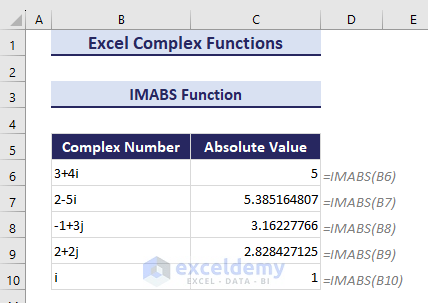
The IMABS function is used to return the absolute/modulus value of a complex number in x + yi or x + yj text format.
The syntax of the IMABS function is:
IMABS(inumber)
We applied the following formula to cell C6 to return the absolute value for the complex number of cell B6: =IMABS(B6)
5. IMARGUMENT Function
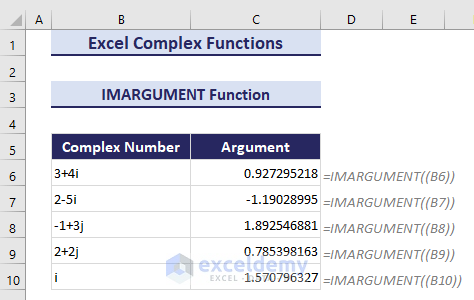
The IMARGUMENT function is used to return the angle/theta() of a complex number in radians.
The syntax of the IMARGUMENT function is:
IMARGUMENT(inumber)
To return the argument of the complex number of cell B6, we used this formula in cell C6: =IMARGUMENT((B6))
6. IMCONJUGATE Function
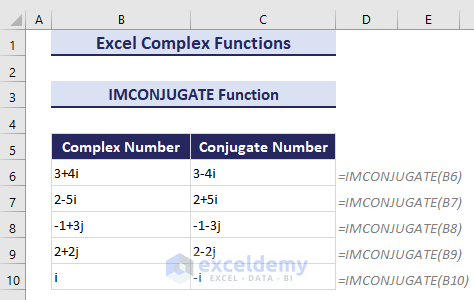
The IMCONJUGATE function is used to return the complex conjugate of a complex number in x + yi or x + yj text format.
The syntax of the IMCONJUGATE function is:
IMCONJUGATE(inumber)
Here’s the formula to return the conjugate complex number in cell C6: =IMCONJUGATE(B6)
7. IMSUM Function
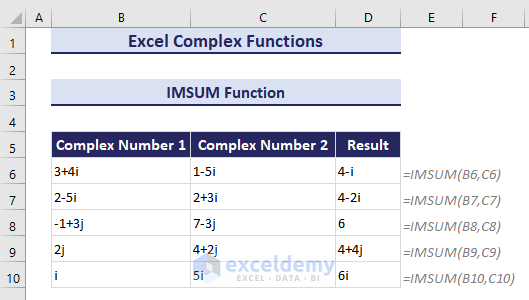
The IMSUM function is used to add multiple complex numbers in Excel. Remember, the complex number’s format will have to be in x + yi or x + yj format.
The syntax of the INSUM function is:
IMSUM(inumber1, [inumber2], …)
In the below dataset, there are some complex numbers within the range B6:C10.
To sum the complex numbers from cells B6 and C6, the formula in cell D6 is: =IMSUM(B6,C6)
8. IMSUB Function
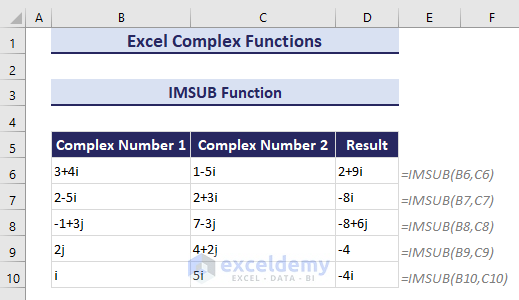
To return the difference between two complex numbers, the IMSUB function is used in Excel.
The syntax of the IMSUB function is:
IMSUB(inumber1, inumber2)
To subtract the complex number of cell C6 from the complex number of cell B6, the formula in cell D6 is: =IMSUB(B6,C6)
9. IMPRODUCT Function
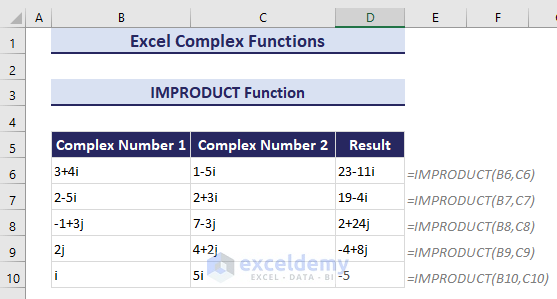
The IMPRODUCT function in Excel is used to return the output of multiplying complex numbers. The numbers must have to be formatted in x + yi or x + yj.
The syntax of the IMPRODUCT function is:
IMPRODUCT(inumber1, [inumber2], …)
The formula in cell D6 to multiply the complex numbers from cells B6 and C6 is: =IMPRODUCT(B6,C6)
10. IMDIV Function
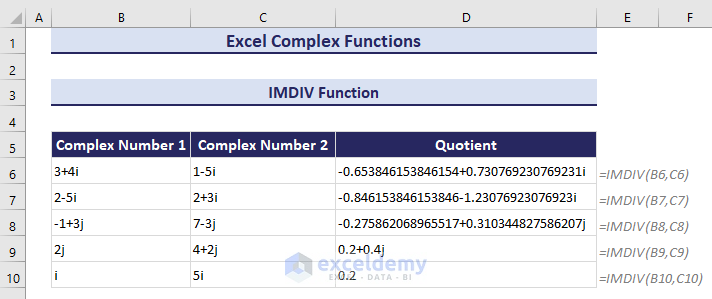
To divide one complex number by another complex number, Excel’s IMDIV function is used.
The syntax of the IMDIV function is:
IMDIV(inumber1, inumber2)
To divide the complex number of cell B6 by the complex number of cell C6, we used the formula in cell D6: =IMDIV(B6,C6)
11. IMPOWER Function
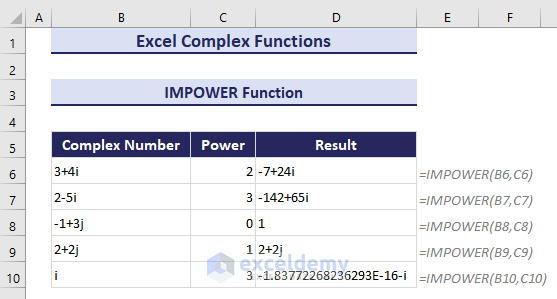
To return a complex number raised by a specific power, the EMPOWER function is used in Excel.
The syntax of the EMPOWER function is:
IMPOWER(inumber, number)
In the below dataset, there are some complex numbers in the range B6:B10 and powers in the range C6:C10.
The formula to return the complex number raised by the given power in cell D6 is: =IMPOWER(B6,C6)
Download Practice Workbook
Conclusion
Complex numbers are mostly used in the fields of physics, mathematics, engineering, and many more. By using the Excel complex number functions, you will be able to apply them to different kinds of complex calculations with automation. So practice more and increase your productivity.
Thanks for reading the article. If you have any further queries, please let us know in the comment section.
<< Go Back to Excel Function Categories | Excel Functions | Learn Excel
Get FREE Advanced Excel Exercises with Solutions!


Missing IMEXP()
Hello Fer,
Thank you for your comment. IMEXP() is indeed another important function in Excel’s Complex Number category. This article covers many of the commonly used complex functions, but not every function available in the category. We appreciate your feedback and will consider adding IMEXP() in a future update to make the resource more comprehensive.
Regards,
ExcelDemy