

In MS Excel, users often need to enter a lot of data. Entering each data manually is a laborious task. The autocomplete feature of Excel lessens their labor. In this article, we will show how to turn on autocomplete in Excel.
In this article, we will discuss 3 easy ways to turn on autocomplete in Excel. Firstly, we will talk about turning on the autocomplete feature for cell values. Secondly, we will turn on the autocomplete feature for formulas. Finally, we will use the Pick From Drop-down List command to autocomplete.
1. Turning On Autocomplete for Cell Values
In this method, we will turn on autocomplete cell values. This will allow us to complete the cell values automatically.
Steps:
- Firstly, go to the File tab.
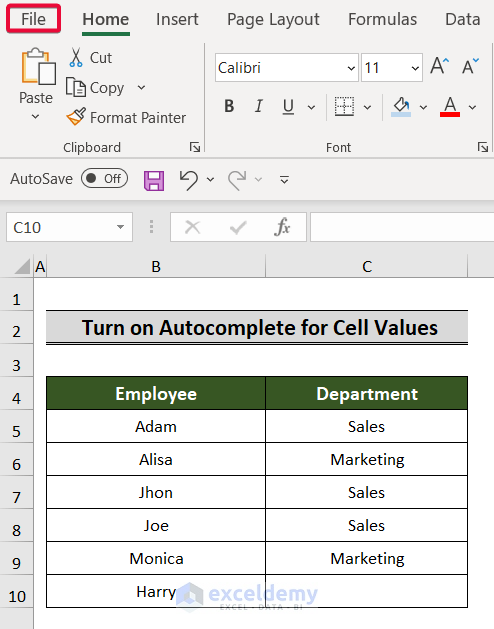
- Then, select the Options option from the menu.

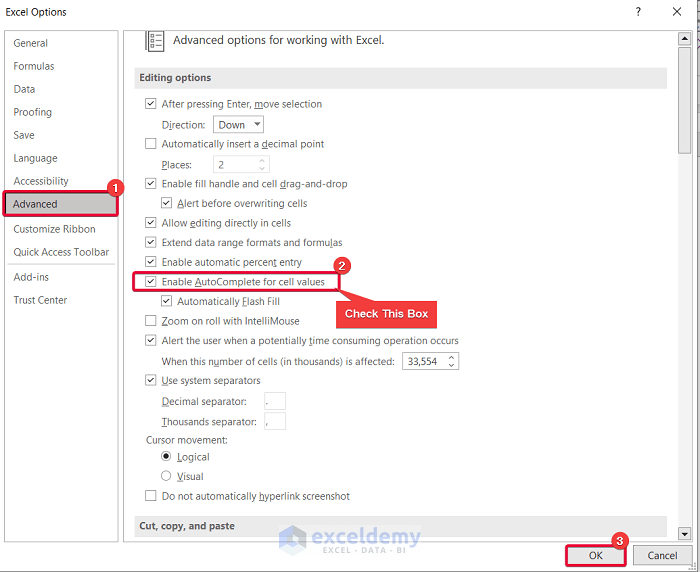
- In the Excel Options window, first, select the Advanced option.
- Then from the Editing options, select the Enable Autocomplete for cell values box.
- Finally, click OK.
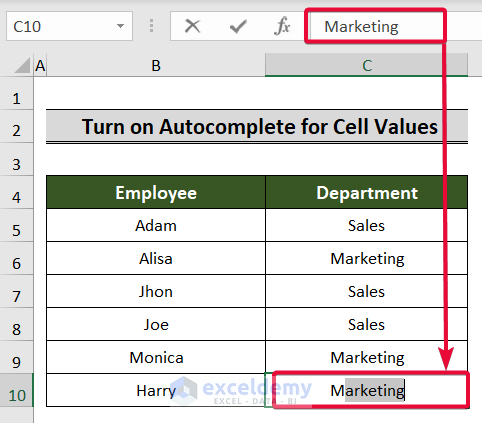
- As a result, when we type M in the C10 cell, Excel will autocomplete as Marketing.
Read More: How to Edit AutoComplete in Excel
2. Turning On Autocomplete for Formulas
In this instance, we will turn on autocomplete for formulas. This will enable us to complete the formulas automatically.
Steps:
- Firstly, select the File tab from the ribbon.

- Then, choose the Options option from the menu.

- In the Excel Options window, first, select the Formulas option.
- Then from the Working with Formulas section, select the Formula Autocomplete box.
- Finally, click OK.
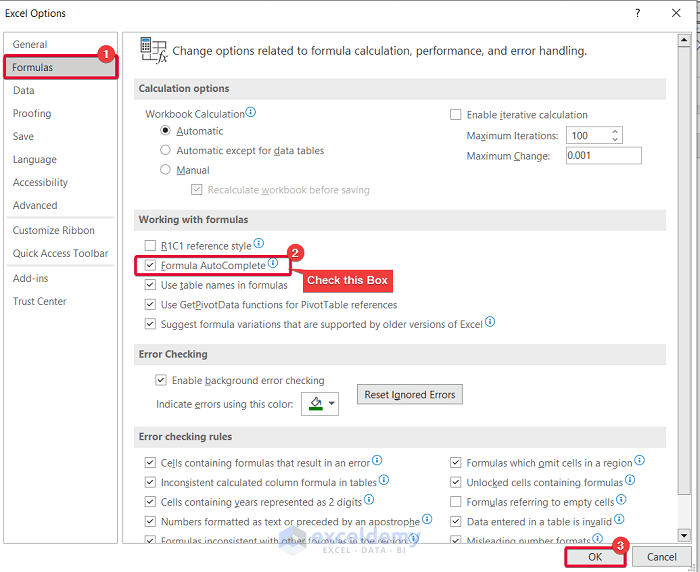
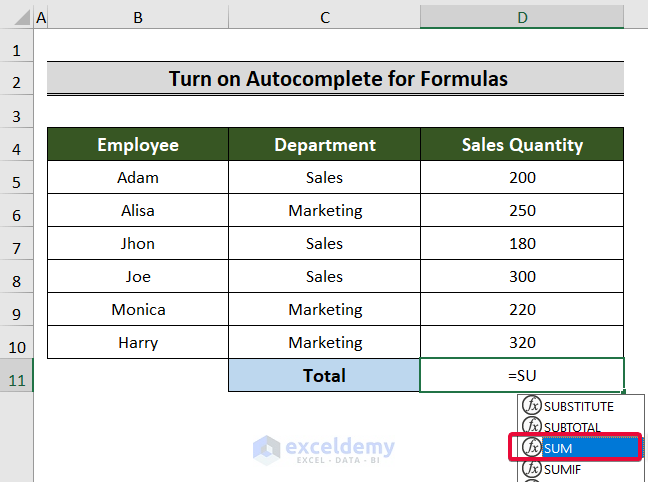
- As a result, when we type SU in the D11 cell, Excel will show autocomplete formulas.
Read More: How to Use AutoComplete in Excel
3. Using Pick From Drop-down List Command
In this example, we will use the Pick From Drop-down List command to get the job done.
Steps:
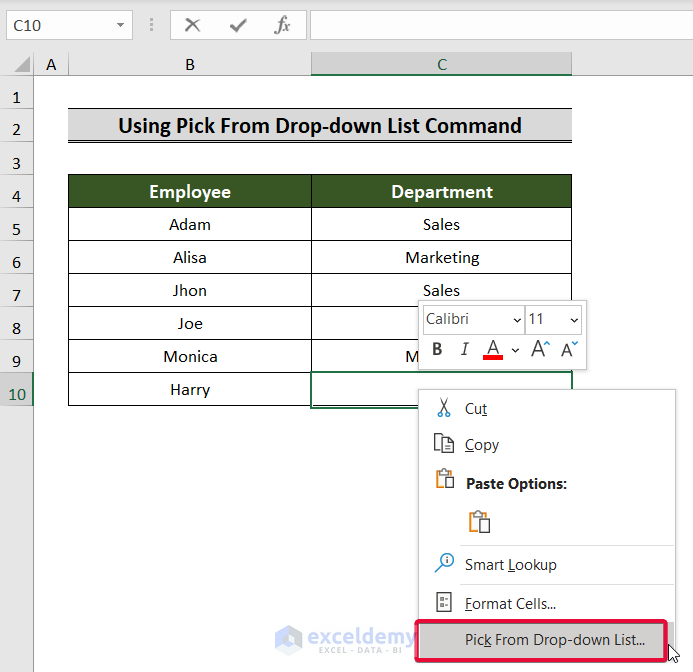
- Firstly, select the C10 cell and right-click.
- Then, from the available options, select the Pick From Drop-down List option.
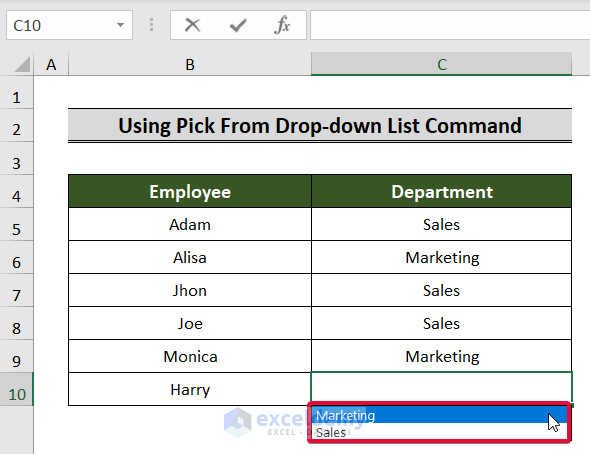
- Consequently, Excel will automatically show the available data options in that cell relative to the column.
Read More: How to Autocomplete from List in Excel
How to Autocomplete for Formulas Using Keyboard Shortcuts
We often use double-click to AutoFill the entire column according to a formula. This is a bit time-consuming. In this method, we will use simple keyboard shortcuts to autocomplete formulas in a column.
Steps:
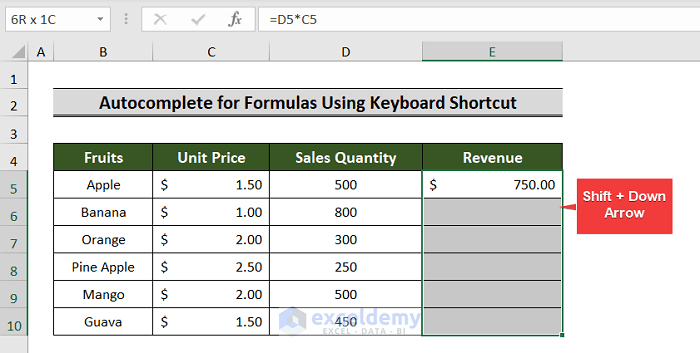
- Firstly, choose the E5 cell and write down the formula you need.
- In our case, the formula is,
=D5*C5- Then, hit Enter.

- As a result, we will get the result for that cell.
- Then, press Shift+Down Arrow to select each cell in the column.
- After that, press Ctrl+D.
- As a result, the formula will be copied down to the last data cell.

Download Practice Workbook
You can download the practice workbook from here.
Conclusion
The Excel autocomplete feature saves a lot of time and effort for users. After going through this article, they will have a clear understanding of how to turn on the autocomplete feature in Excel. If you find it useful, please let us know in the comment section below and share any recommendations and thoughts regarding this or any other content of ours. Thank you for your time.
Related Articles
<< Go Back to Autocomplete Excel | How to Create Excel Formulas | Excel Formulas | Learn Excel
Get FREE Advanced Excel Exercises with Solutions!

