

After learning the basics of Power BI, the next step is creating a DAX measure. This is one of the first practical skills every beginner needs because measures are how you calculate totals, averages, percentages, and other dynamic results inside your reports.
In this tutorial, we will show you how to create your first DAX measure by clicking New measure. We’ll keep it simple and literal — just the clicks and the most basic formulas.
What Is A DAX Measure?
A measure is a calculation created in Power BI using DAX (Data Analysis Expressions). Unlike a calculated column, a measure does not store values row by row. Instead, it calculates a result based on the data shown in your visual.
For example, a measure can calculate total sales, average sales, total profit, time intelligence calculations, and more.
Measures are especially useful because they automatically update depending on filters, slicers, and visuals in your report.
Step 1: Choosing Where To Create The Measure
- Look at the Data pane on the right side, which shows all your tables and columns
- In the Data pane, click once on the table where you want to create the measure
- For example, if you have a SalesData table, click it to select it
- The table will be highlighted

Tip: Functionally, it does not matter which table holds your measure, but grouping related measures keeps your model organized.
Step 2: Clicking “New Measure”
You have multiple ways to open the measure editor:
Using The Ribbon
- Select the table from the Data pane
- Go to the Table tools tab >> select New measure
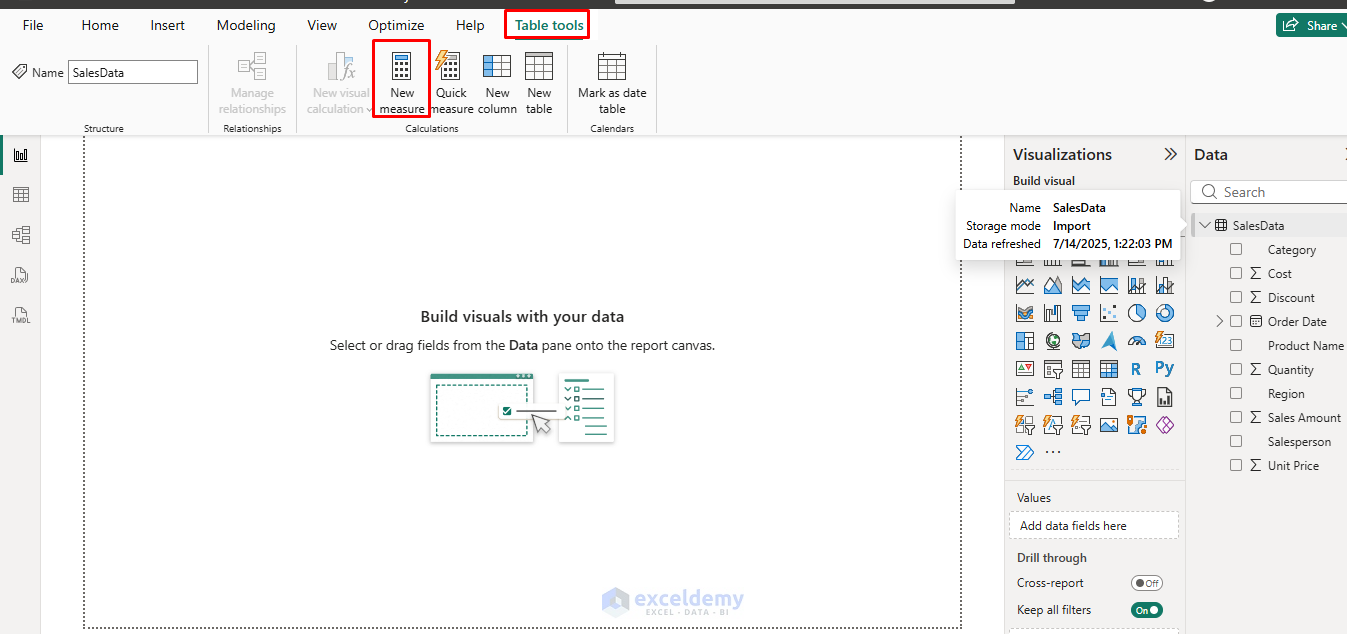
Using The Context Menu
- In the Data pane, right-click the table name
- Select New measure from the context menu

Either way, a formula bar appears at the top of your screen with a default placeholder that looks like this:
Measure =

Step 3: Writing Your First Formula
The formula bar is now active and waiting for your input. The cursor will be placed right after Measure =. You are going to replace that placeholder with your own measure name and formula.
Creating A Simple SUM
Let’s say your SalesData table has a column called Sales Amount. Click in the formula bar, clear the placeholder text, and type:
- As you type SUM, IntelliSense appears >> press Tab or Enter to auto-complete

- After typing the opening parenthesis (, start typing your column name >> select it from the dropdown, then close the parenthesis )

Total Sales = SUM(SalesData[Sales Amount])
- Press Enter or click the ✓ (Commit) button in the formula bar to save the measure

This formula means:
- Total Sales is the name of the measure
- SUM is the DAX function
- SalesData[Sales Amount] tells Power BI which numeric column to add up
This measure adds up every value in the Sales Amount column whenever it is used in a visual.
Creating A Simple AVERAGE
Using the same table and column:
Average Sales = AVERAGE(SalesData[Sales Amount])
This calculates the mean of all sales values in the current filter context.

If there is a syntax error, Power BI will show a red error message in the formula bar describing the problem. Double-check the column name spelling and make sure your brackets and parentheses are closed correctly.
You now have your first measure. It appears in the Data pane under the table you chose, with a small calculator icon.
Step 4: Using The Measure In A Visual
Your measure does nothing until it is placed in a visual — that is by design. To test it:
- Click on a blank area of the Report canvas
- In the Visualizations pane, select a Card visual, which is the simplest way to display a single number
- From the Data pane, drag your new measure (Total Sales) into the Fields well of the card

Try it in a table too:
- Add a table visual
- Drag a category field (for example, Category or Product) along with your Total Sales measure
- Watch how the total changes dynamically per row — that is the magic of measures

The card and table will display the calculated result across your entire dataset. If you click a slicer or another visual element, you will see the number update. That is DAX filter context in action.

Best Practices For Beginners
- Give measures clear, business-friendly names instead of names like “Measure1” or “Calc5”
- Store measures in a “home” table, usually the fact table, instead of scattering them randomly
- Use the Table[Column] format instead of column names by themselves
- Let IntelliSense help you — type the first 2–3 letters and then press Tab or Enter
- After creating a measure, always drag it to a card or table to verify that the number looks correct
Conclusion
Now you know how to create your first DAX measure by following the steps above. Creating your first DAX measure in Power BI is simpler than many beginners expect. You can use these measures in charts, cards, tables, and other visuals. Once you are comfortable with this process, you can move on to more advanced calculations such as counts, percentages, and conditional logic.
Get FREE Advanced Excel Exercises with Solutions!

