


Rotating cell content dynamically in Excel based on a formula is a clever way to visualize changes, flags, or statuses, especially when you use special fonts or symbols. While Excel does not allow formulas to directly rotate text (such as setting cell orientation to 90° based on a formula), you can combine formulas, custom fonts or symbols, and conditional formatting for impressive, semi-automated effects.
In this article, we will show how to rotate cell content indicators based on formula output using custom fonts or symbols.
Method 1: Rotating Symbols Based on Formula Output
Suppose you have monthly sales data and you want to compare monthly values and show increases or decreases with a formula and an icon. The cell will display an arrow symbol based on the formula output.
- Select cell C3 and enter the following formula
=IF(B3>B2, "↑", IF(B3<B2, "↓", "→"))
This formula selects a symbol based on the values in column B.
- “↑”, “↓”, “→” are Unicode arrows

Method 2: Using Custom Fonts for Visual Effects
You can use fonts like Webdings, Wingdings, or Segoe UI Symbol to add icons, which look great when rotated.
Insert Formula:
- Select cell C3 and enter the following formula
=IF(B3>B2, "é", IF(B3<B2, "ê", "ð"))
- Select cells C3:C7
- Go to the Home tab >> apply the Wingdings font
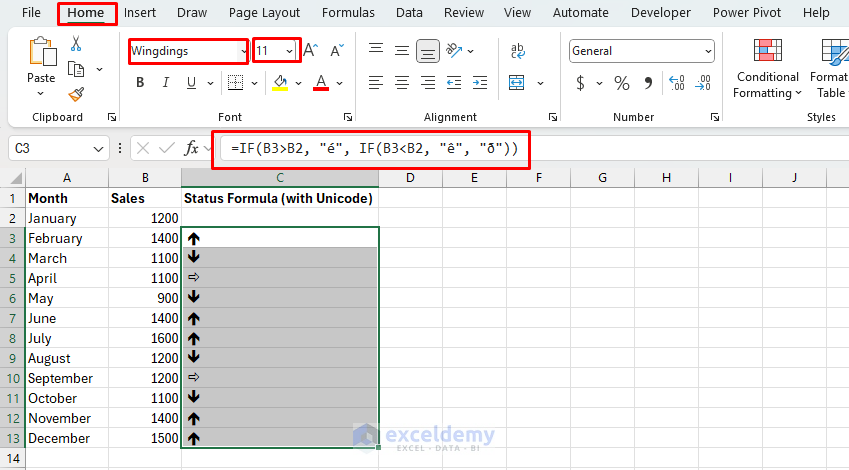
Rotate Arrow Symbol:
- Select the same cells
- Right-click >> select Format Cells << select the Alignment tab
- Set Orientation to 90° for Vertical Top
- Or −90° for Vertical Bottom
- Click OK

Note: The rotation applies to the entire cell. The symbol will always appear rotated if you set it this way.
Method 3: Rotating Text Using Conditional Formatting
You can use conditional formatting to highlight changes based on a formula.
- Select the Status column
- Go to the Home tab >> select Conditional Formatting >> select Icon Sets
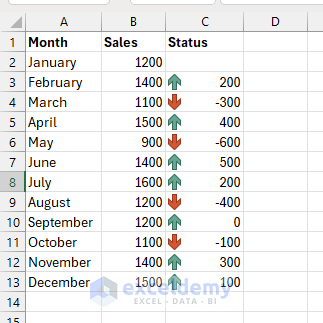
- Go to Conditional Formatting >> select Manage Rules
- Click Edit Rule
- Change Type to Number
- Click OK
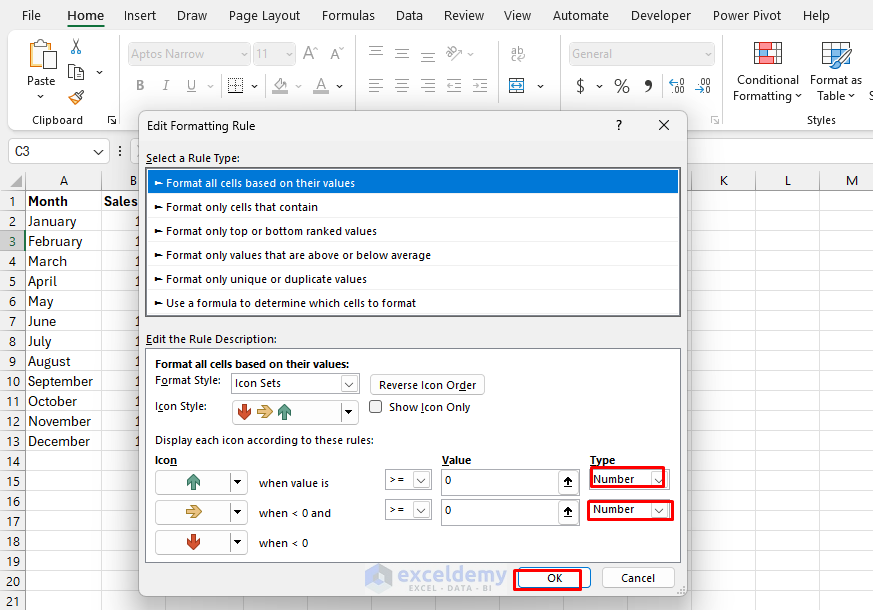
- Now, if sales drop, the icon changes direction and color accordingly
Limitations and Tips
- Rotation is not formula-based; it’s set via formatting or conditional formatting only
- You can use conditional formatting to trigger a rotated cell if a formula condition is met
- Unicode arrows are broadly compatible; Wingdings/Webdings work only if available on the system
- Custom symbols enhance dashboard visuals—just ensure compatibility across different machines
Conclusion
By combining formulas, special fonts or symbols, and cell orientation, you can visually rotate indicators in Excel. This can make dashboards, trackers, and reports more engaging and clearer. Although rotating a cell’s orientation based on a formula has limitations, you can approximate the effect by combining multiple steps. Experiment with various symbols and angles to match your design style.
Get FREE Advanced Excel Exercises with Solutions!

